Approve Transactions - Overview Page
Use the Approve Transactions - Overview page (EX_ALLTXN_APPR) to use summary approvals for all transactions.
View and approve multiple expense transactions in one approver action.
Navigation:
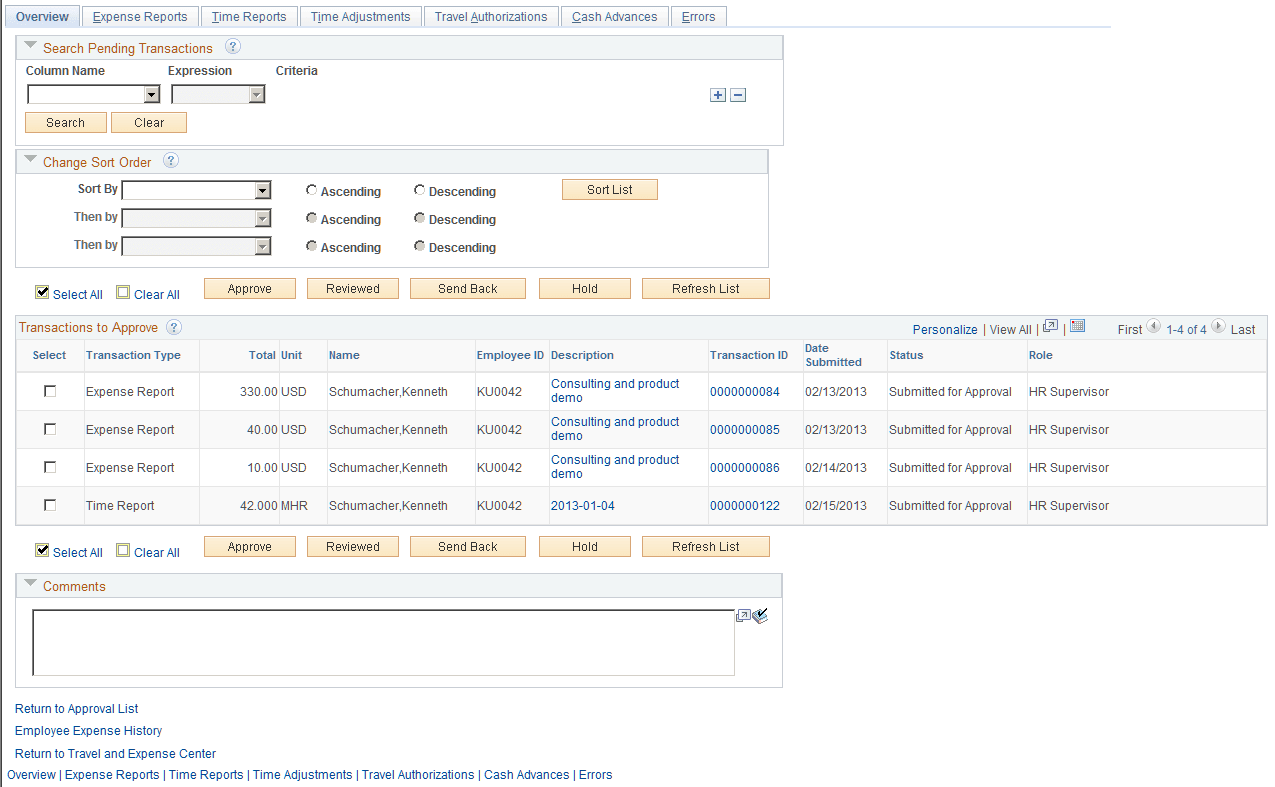
This example illustrates the fields and controls on the Approve Transactions - Overview page.
Search Pending Transactions
PeopleSoft Expenses provides a search utility for the summary approval pages that enables approvers to search for specific transactions in their queue that are pending approval. The search does not apply to transactions that the approver has already processed. This utility is intended for approvers who manage large numbers of transactions for review and approval. You can use this functionality to group transactions by some criteria to be approved with one action. For example, an approver can approve all expense and time reports for a special project before processing other transactions. The approver uses the search utility to select only those transactions.
The search utility enables approvers to add and delete rows; the conditional relationship between all rows is AND. If you select the Select All or Clear All check box after a search, the action applies only to those transactions returned in the search. If you click the Refresh List button, the system restores the approver's queue of pending transactions.
| Field or Control | Description |
|---|---|
|
Column Name |
PeopleSoft Expenses lists only columns that appear in the Transactions to Approve grid. If you select a column, then you must enter a criterion. Options are:
|
|
Expression |
Select an operand to build the select criteria. Operands that appear for selection change based on the field that you select. If you select the Between operand, the system displays a second criteria field to accept a value for the end of the range. The second criteria field must be a value that is not less than the value of the first criteria field. |
|
Criteria |
Enter the specific condition of the select statement. For example, if you enter "2005 Annual Conference" for the criteria in the Description column, PeopleSoft Expenses displays only those expense transactions that match that description. |
|
Search |
Click to search the pending transactions in an approver's queue using the selection criteria that you entered in the Search Pending Transactions grid. The system deselects any transactions in the Transactions to Approve grid that you previously selected. |
|
Clear |
Click to remove all search criteria lines. |
Change Sort Order
This section enables you to select up to three columns to reorder transactions in the Transactions Pending Approval grid. Select a sort key from the drop-down list box, select the sort key order (Ascending or Descending), and click Sort List.
Transactions to Approve
| Field or Control | Description |
|---|---|
|
Select |
Select transactions for an approval action. PeopleSoft Expenses does not display this column if you did not enable summary approvals for the page. PeopleSoft Expenses disables the Select check box if you disallowed summary approvals for transactions with exceptions on the Summary Approval Option page, which requires the approver to drill down to the transaction detail to perform the necessary approval action. |
|
Transaction Type |
Identifies the type of expense transaction, such as expense report or cash advance. PeopleSoft Expenses displays this column only on the Approve Transactions - Overview page. |
|
Total |
Displays the total amount for monetary transactions or total hours for time transactions. |
|
Unit |
Displays the unit of measure. The submitter's the base currency code of the submitter's general ledger business unit appears for monetary transactions. PeopleSoft Expenses displays MHR for time reports and time adjustments. |
|
Name |
Displays the name of the employee whom the transaction is for. |
|
Employee ID |
Displays the employee ID of the employee whom the transaction is for. |
|
Description |
Displays the transaction header description for expense reports, travel authorizations, and cash advances; displays the period end date for time reports and time adjustments. Click the link to access one of the following pages, depending on the transaction type:
See Approving Expense Reports, Approving Time Reports, Approving Time Adjustments, Approving Travel Authorizations, Approving Cash Advances. |
|
Transaction ID |
Displays the transaction ID that PeopleSoft Expenses assigned to the transaction. Click the link to access one of the following pages, depending on the transaction type:
See Approving Expense Reports, Approving Time Reports, Approving Time Adjustments, Approving Travel Authorizations, Approving Cash Advances. |
|
Date Submitted |
Displays the date on which the originator last submitted the expense transaction for approval. If an employee submits an expense transaction for approval on November 3, an approver returns the transaction to the employee on November 4, and the employee resubmits the transaction on November 5, PeopleSoft Expenses displays the date submitted as November 5. |
|
Status |
Displays the current header status of the expense transaction. |
|
Role |
Displays the type of role or approver type that the approver has for the transaction. Some employees in an organization can be both approvers and auditors. If an approver has only one role in the approval process, he or she can use the grid's Customization feature to hide this column. |
|
Select All and Clear All |
Use in conjunction with the Approve, Reviewed, Send Back, Hold, and Budget Check buttons. PeopleSoft Expenses does not display these buttons if you disabled summary approvals or the approval action on the Summary Approval Options page. |
|
Approve |
Click to approve an expense transaction. PeopleSoft Expenses does not display this button if you disabled summary approvals or the approval action on the Summary Approval Options page. |
|
Reviewed |
Click to indicate that you have reviewed an expense transaction. PeopleSoft Expenses does not display this button if you disabled summary approvals or the approval action on the Summary Approval Options page. |
|
Send Back |
Click to send an expense transaction back to the employee or the originator. PeopleSoft Expenses does not display this button if you disabled summary approvals or the approval action on the Summary Approval Options page. |
|
Hold |
Click to place the expense transaction on hold. Placing a transaction on hold reserves it for that approver until he or she takes a subsequent action. PeopleSoft Expenses does not display this button if you disabled summary approvals or the approval action on the Summary Approval Options page. |
|
Budget Check |
Click to budget check expense reports and travel authorizations. The system initially clears the transactions from the approval queue but re-displays them after the budget checking process finishes. PeopleSoft Expenses does not display this button if you disabled summary approvals or the budget check action button is disabled on the Summary Approval Options page. Note: If you make any changes to distributions or amounts, you must budget check the expense transaction again to reflect the changes in the commitment control ledgers. |
|
Refresh List |
Click to retrieve new transactions that may have been submitted to the approver's queue. |
|
Comments |
Enter a comment, which PeopleSoft Expenses displays on all summary pages. PeopleSoft Expenses displays the Comments section on the Approve Transaction pages if you selected the check box for Transaction Pages or Overview and Error Pages on the Summary Approval Options page. |
|
Employee Expense History |
Click to access the Transaction History grid to view one or many employee expense transactions, past and current transactions, and drill down to the transaction details. |