External System Setup Page
Use the External System Setup page (FAI_EXTSYS_SETUP) to define the external system entity for the PeopleSoft General Ledger external accounting integration.
Navigation:
This example illustrates the fields and controls on the External System Setup page. You can find definitions for the fields and controls later on this page.
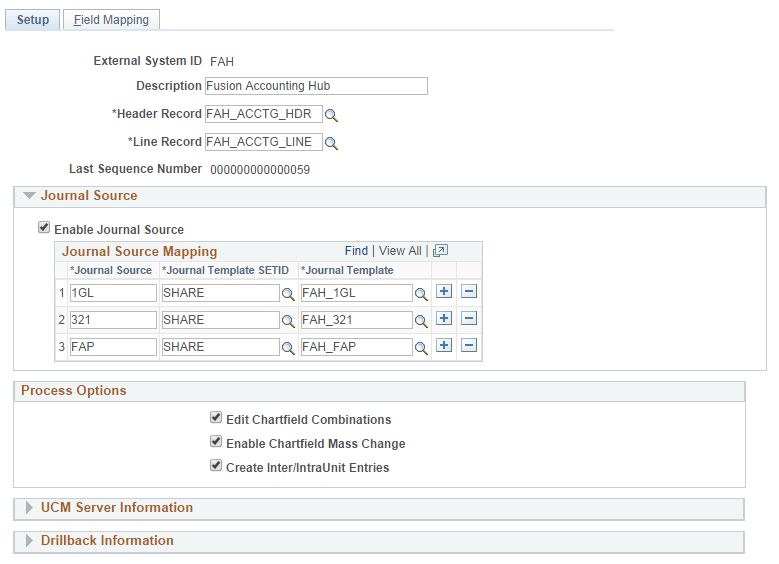
A customer can map the journal source of an external system to a journal template. The External System setup for Fusion Accounting Hub (FAH) is preconfigured and delivered; however, you must update the UCM Server Information according to the UCM environment for the ChartField Integration. For more information See Integrate PeopleSoft ChartField Values.
Review all other fields and update according to specific integration needs.
| Field | Value |
|---|---|
|
External System ID |
Add a unique identifier for the external system you are mapping to PeopleSoft General Ledger. This value is delivered and preconfigured for the Fusion Accounting Hub (FAH) integration. |
|
Description |
Supply an external system description. |
|
Header Record |
Select the External System Header Interface record. |
|
Line Record |
Select the External System Line Interface record. |
|
Last Sequence Number |
This automatic sequence number increases with each transaction that is processed in the integration. |
Journal Source
| Field | Value |
|---|---|
|
Journal Template |
Select the Journal Generator Template with the appropriate SetID. Note: PeopleSoft delivers the Journal Generator Template, FAH_PSFT, for the Fusion to PeopleSoft integration. If you are integrating with another third party, select the GENERIC template. |
|
Enable Journal Source |
Select to enable journal source mapping. This allows you to create map relationships between a journal source (from an external system) and the PeopleSoft journal template. Each journal source from the external system can be mapped to one combination of PeopleSoft journal template and SetID. De-select the check box, it indicate that you only want only one external journal source to be mapped to only one combination of PeopleSoft journal template and SetID. Note: The third-party edit process does not carry the journal source into PeopleSoft General Ledger. |
|
Journal Source |
Enter the source of the journal. |
|
Journal Template SetID |
Enter the SetID of the journal template. |
|
Journal Template |
Enter the template of the associated journal. |
Processing Options
Select the processes to run during Integration processing (3rd Party Accounting Edit and Post processes):
| Field | Value |
|---|---|
| Edit ChartField Combinations | Select to enable ChartField combination editing rules for validating the third party (Fusion Accounting Hub) entries. |
| Enable ChartField Mass Change | Select to modify ChartField values after third party (Fusion Accounting Hub) journals are transferred to PeopleSoft General Ledger. You can change the ChartField values based upon rules and criteria. |
|
Create Inter/IntraUnit Entries |
Select to enable PeopleSoft General Ledger to create the balancing Inter/IntraUnit entries for the Fusion Accounting Hub journals. |
UCM Server Information (Universal Content Management)
| Field | Value |
|---|---|
| UCM Server URL | Enter the Universal Content Management URL needed for the integration. |
| User ID | Enter the UCM Server User ID. |
|
Password |
Enter the UCM Server encrypted Password. Use the PasswordEncryption tool (Password Encryption group box) to encrypt the password. |
Note:
The UCM Server Information group box is the final setup required for the ChartField integration process. Make sure you have properly performed all Integration Broker setup as well. The Password must be encrypted. Supply the password, enter it again in the Confirm Password field, and click the Encrypt button. For more information, see PeopleTools 8.53: PeopleSoft Integration Broker Administration, Managing Integration Gateways, Encrypting Passwords.
Drillback Information
| Field | Value |
|---|---|
| URL Identifier | Select the Fusion Accounting Hub URL to be used for drillback. You can use the delivered FAH_DRILLBACK URL in this field. |
|
Drillback URL Parameters |
Fusion Accounting Hub expects a list of parameters in the URL for the drillback link in order to access the selected transaction in the Fusion Accounting Hub application. Use this section to enter the required parameters and the corresponding values from the available fields. SeeSpecifying the Drilldown URL. |