WorkCenter Budget Journal Exceptions Page
Use the WorkCenter Budget Journal Exceptions page (GL_WC_BJRN_EXCPT) to review and edit budget journals with exceptions that require action. This page displays control budget journals that have a process status of Error or Warning.
Navigation:
link.
This example illustrates the fields and controls on the WorkCenter Budget Journal Exceptions page. You can find definitions for the fields and controls later on this page.
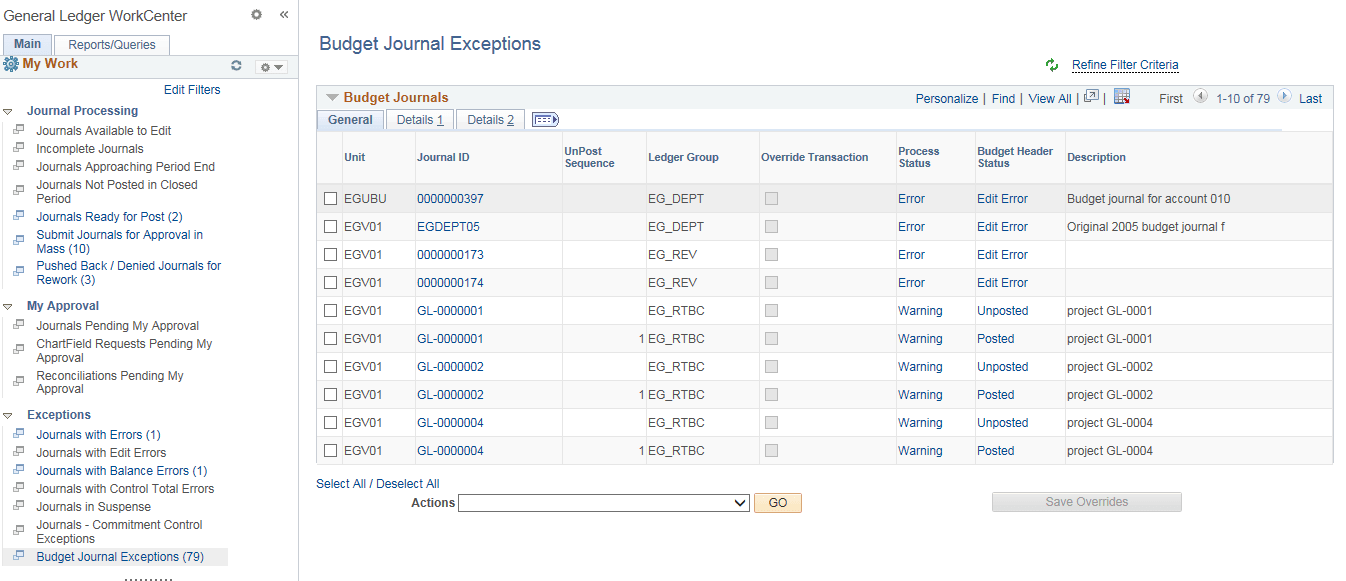
Example 3-16 Budget Journals (grid)
Like the Journals grid, the Budget Journals grid includes three tabs: General, Details 1, and Details 2, which display the budget header information. You can select the check box in the first column of any or all rows in the grid to perform required action for the budget journal or journals.
| Field or Control | Description |
|---|---|
|
Refine Filter Criteria link |
Click this link to edit the filter criteria that is used to retrieve the data that you want to see for Budget Journal Exceptions. This page uses the Budget Journal Exceptions filter (GLBJRNLXCP). Supply or change the filter values as needed and click OK. Required filter values are Business Unit, Ledger Group, Fiscal Year, as for all journals. See Maintaining and Personalizing the PeopleSoft Classic General Ledger WorkCenter. For more information, see Enterprise Components: Setting Up Filter Definitions as a System Administrator. Note: The administrator can change the filter definition to make the Business Unit field optional so that you can display journals from all business units. However, the administrator must make sure that at least two criteria fields are required and that there is an index on the journal header record to support the required fields. |
|
|
Click this icon to refresh the grid data to reflect any changes. |
|
Journal ID link |
Click the journal ID link to access the Control Budget Entry component in a modal window, where you can update and process the budget journal. See PeopleSoft Commitment Control: Entering Budget Journals and Budget Transfer Journals Once you have finished your work in the Control Budget Entry component, you can close the modal window, click the refresh button at the top of your exceptions page, and, if the exception is corrected, the budget journal should no longer appear in your exception list. |
|
Override Transaction |
Select the check box to mark the budget journal (or multiple budget journals) to override all affected budgets. This check box is only available if exception overrides are allowed based on Commitment Control security and other rules (all exceptions allow overrides). See PeopleSoft Commitment Control: Budget Journal Exceptions Page. Once you have selected budget journals for override, click the Save Overrides button to save the selected overrides for processing. You can deselect the check boxes to unmark previously marked overrides and click the Save Overrides button. |
|
Save Overrides button |
Click this button after selecting those budget journals that you would like to mark for overriding the budget constraints. This saves the budget overrides for processing. You can deselect the Override check boxes to unmark previously-marked overrides and click the Save Overrides button. |
|
Process Status link |
Click the link in the Process Status column to display the budget journal lines that have exceptions within the budget journal. The exception lines are displayed in the Budget Line Exceptions grid below the Action field. |
|
Budget Header Status link |
Click the link in the Budget Header Status column to access the Budget Journal Exception Component in a modal window. Make your changes, save and close the window. If you have corrected the exception, you can click the refresh button at the top of the exceptions page and your budget journal should no longer appear in the list. |
|
Select All/Deselect All |
Click this link to select all budget journals or deselect all budget journals in the grid for which to perform an action. |
|
Action |
Select the check box of the journal or journals for which you would like to perform an action, select the action from the list box, and click the GO button. Action values are:
|

Example 3-17 Budget Line Exceptions (grid)
When you click the Process Status link for a budget journal from the Budget Journals grid, the Budget Line Exceptions grid appears and displays only the budget journal lines that have line level exceptions (Error or Warning) from the budget journal. You can select to override the affected budgets at the line level as well. Select the Override check box for each line for which you want to avoid budget constraints, if available, and click the Save Overrides button.