WorkCenter Journal Entries Page
Use the WorkCenter Journal Entries page (GL_WC_JRNLS) to manage several journal-related tasks from within your WorkCenter transaction pane, depending on security setup. Click one of the following delivered My Work links to access the corresponding page that is based upon the WorkCenter Journal Entries page:
-
Journals Available to Edit
-
Incomplete Journals
-
Journals Approaching Period End
-
Journals Not Posted in Closed Period
-
Journals Ready for Post
-
Submit Journals for Approval in Mass
-
Pushed Back /Denied Journals for Rework
-
Mass Delete Journals
-
Amortization Schedules
-
Journals Not Yet Posted at Period End
-
Journals Pending My Approval
-
Reconciliations Pending My Approval
-
Journals with Errors
-
Journals with Edit Errors
-
Journals with Balance Errors
-
Journals with Control Total Errors
-
Journals in Suspense
-
Journals - Commitment Control Exceptions
-
Budget Journal Exceptions
This page is similar to the Journal Entry component, displaying journal Header and Line information. You can perform common actions on the selected journals as well as drill into the Journal Entry component to update an individual journal without leaving the WorkCenter. Following are examples of some of these links. The page definitions that are presented are common to all of the pagelet links that are listed in this section and based on the WorkCenter Journal Entries page (GL_WC_JRNLS).
For detailed field information for the Journal Entry component, see Creating Journal Entries
Journals Available to Edit
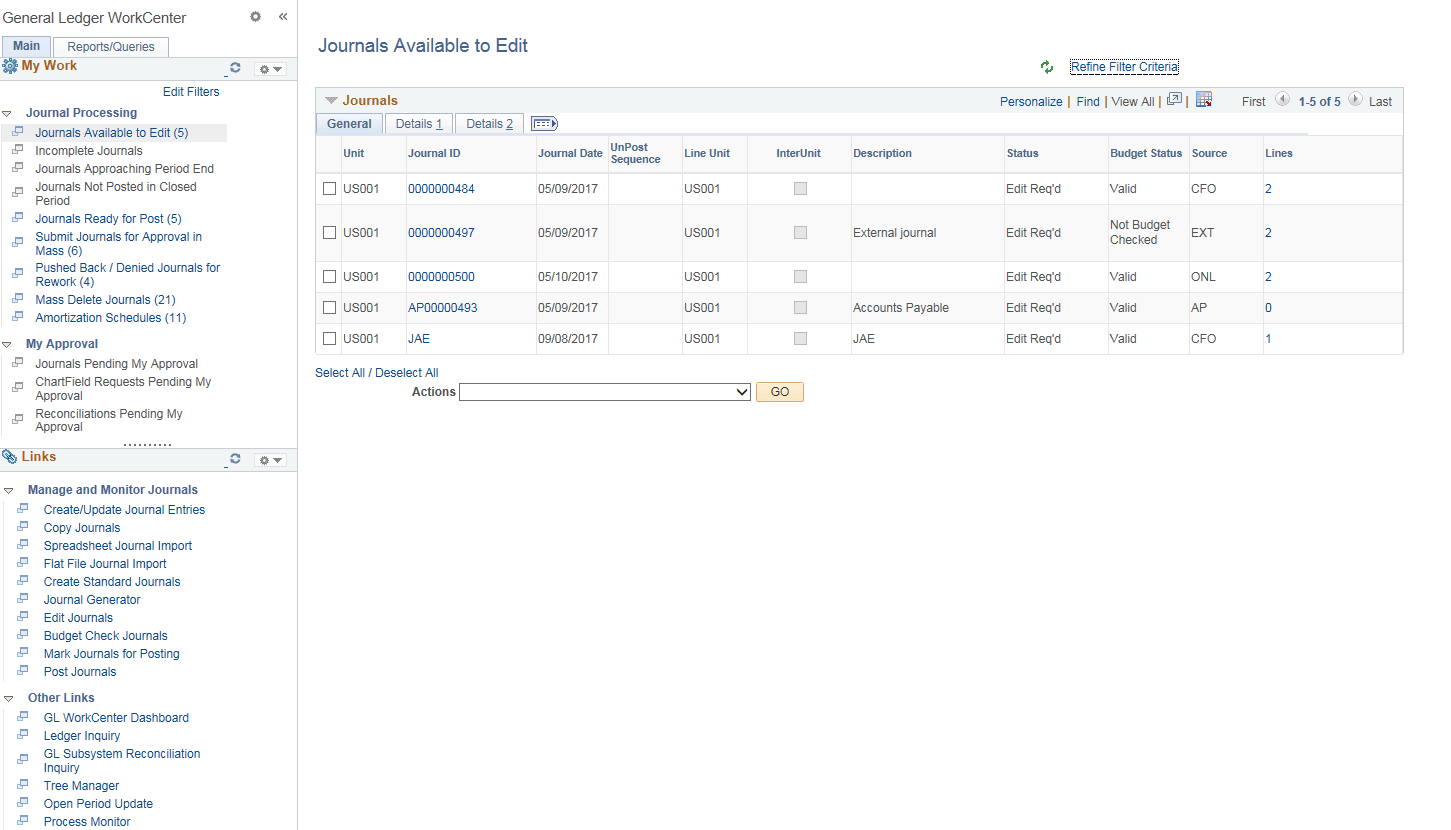
Use the Journals Available to Edit link to access the corresponding page within the WorkCenter transaction pane (WorkCenter Journal Entries page (GL_WC_JRNLS)) and manage journals that are available to edit and budget check.
Navigation:
link.
This example illustrates the fields and controls on the PeopleSoft Classic General Ledger WorkCenter - Journals Available to Edit pagelet. You can find definitions for the fields and controls later on this page.
Example 3-1 Journals
The Journals grid includes three tabs, General, Details 1 and Details 2, which display the journal header information. You can select the check box in the first column of any or all rows in the Journals grid to perform required action for the journal or journals.
| Field or Control | Description |
|---|---|
|
Refine Filter Criteria link |
Click this link to edit the filter criteria that is used to retrieve the data that you want to see for this page. The WorkCenter Journal Entries page uses the Generic Journal Filter (GLJRNL1), which is used for many of the journal-based links. Supply or change any of the following filter values as needed and click OK. The search criteria include: Business Unit, Ledger Group, Fiscal Year, Accounting Period, Description, Budget Checking Header Status, Suspense Reconciliation Status, Line Business Unit, Journal Creation Date, User ID, Currency Code, Journal Total Debits, Journal Date and Journal ID. See Maintaining and Personalizing the PeopleSoft Classic General Ledger WorkCenter. For journal filter criteria, you are required to select values for Business Unit, Ledger Group, and Fiscal Year. This requirement is delivered to prevent performance issues. You can hover over this link to see the current selected criteria without having to navigate to the Filter Values page. Note: The administrator can change the filter definition to make the Business Unit field optional so that you can display journals from all business units. However, the administrator must make sure that at least two criteria fields are required and that there is an index on the journal header record to support the required fields. For more information, see Enterprise Components: Setting Up Filter Definitions as a System Administrator. |
|
|
Click this icon to refresh the grid data to reflect any changes. |
|
Journal ID link |
Click the journal ID link to access the journal entry in a modal window. This launches the Journal Entry component where you can update and process the journal. Once you have finished your work in the Journal Entry component, you can close the modal window, click the refresh button at the top of your exceptions page, and the journal that you corrected should no longer appear. |
|
Status link |
Click the link in the Status column for the journal that you want to research. This displays the journal error information below the Action field in two grids: Header Errors and Line Errors. If there are no line errors, a message appears below the Header Errors to that effect. If there are line errors, only those lines in error appear in the Line Errors grid. |
|
Lines link |
Click the value in the Lines column (value represents the total lines in the journal) to display the journal lines in the Lines grid, which appears below the Action field when you click the link. Note: In certain cases, the total lines value may not reflect the actual number of lines in the grid. For example, the grid may display zero total lines for copied or imported journals that are not edited. |
|
Select All/Deselect All |
Click this link to select all journals or deselect all journals in the grid for which to perform an action. |
|
Action |
Select the check box of the journal or journals for which you would like to perform an action, select the action from the list box, and click the GO button. Action values are:
|

Example 3-2 Header Errors (grid)
The header errors grid displays the header level errors. This grid is displayed when you select the Errors status link from the Journals grid. The Header grid is hidden when there are no header errors. The Header Errors grid is displayed in the example pictured.
Example 3-3 Lines (grid)
When you click the Lines link value from the Journals grid, all of the journal lines for that journal are displayed in the Lines grid. The Lines grid also appears if you click the Errors status link from the Journals grid. In this case, the Lines grid displays only the journal lines that are in Error from the journal. If there are no line errors, there is a message that displays in place of the Lines grid beneath the Header Errors grid.
Incomplete Journals
Use the Incomplete Journals link to access the corresponding page within the WorkCenter transaction pane (WorkCenter Journal Entries page (GL_WC_JRNLS)) and manage journals that are saved with an Incomplete status.
Navigation:
link.
Example 3-4 Journals
The Journals grid includes three tabs, General, Details 1 and Details 2, which display the journal header information. You can select the check box in the first column of any or all rows in the Journals grid to perform required action for the journal or journals.
| Field or Control | Description |
|---|---|
|
Refine Filter Criteria link |
Click this link to edit the filter criteria that is used to retrieve the data that you want to see for this page. The WorkCenter Journal Entries page uses the Generic Journal Filter (GLJRNL2), which is used for many of the journal-based links. Supply or change any of the following filter values as needed and click OK. The search criteria include: Business Unit, Ledger Group, Fiscal Year, Accounting Period, Description, Budget Checking Header Status, Suspense Reconciliation Status, Line Business Unit, Journal Creation Date, User ID, Currency Code, Journal Total Debits, Journal Date and Journal ID. See Maintaining and Personalizing the PeopleSoft Classic General Ledger WorkCenter. For journal filter criteria, you are required to select values for Business Unit, Ledger Group, and Fiscal Year. This requirement is delivered to prevent performance issues. You can hover over this link to see the current selected criteria without having to navigate to the Filter Values page. Note: The administrator can change the filter definition to make the Business Unit field optional so that you can display journals from all business units. However, the administrator must make sure that at least two criteria fields are required and that there is an index on the journal header record to support the required fields. For more information, see Enterprise Components: Setting Up Filter Definitions as a System Administrator. |
|
|
Click this icon to refresh the grid data to reflect any changes. |
|
Journal ID link |
Click the journal ID link to access the journal entry in a modal window. This launches the Journal Entry component where you can update and process the journal. Once you have finished your work in the Journal Entry component, you can close the modal window, click the refresh button at the top of your exceptions page, and the journal that you corrected should no longer appear. |
|
Status link |
Click the link in the Status column for the journal that you want to research. This displays the journal error information below the Action field in two grids: Header Errors and Line Errors. If there are no line errors, a message appears below the Header Errors to that effect. If there are line errors, only those lines in error appear in the Line Errors grid. |
|
Lines link |
Click the value in the Lines column (value represents the total lines in the journal) to display the journal lines in the Lines grid, which appears below the Action field when you click the link. Note: In certain cases, the total lines value may not reflect the actual number of lines in the grid. For example, the grid may display zero total lines for copied or imported journals that are not edited. |
|
Select All/Deselect All |
Click this link to select all journals or deselect all journals in the grid for which to perform an action. |
|
Action |
Select the check box of the journal or journals for which you would like to perform an action, select the action from the list box, and click the GO button. Action values are:
|
Example 3-5 Header Errors (grid)
The header errors grid displays the header level errors. This grid is displayed when you select the Errors status link from the Journals grid. The Header grid is hidden when there are no header errors.
Example 3-6 Lines (grid)
When you click the Lines link value from the Journals grid, all of the journal lines for that journal are displayed in the Lines grid. The Lines grid also appears if you click the Errors status link from the Journals grid. In this case, the Lines grid displays only the journal lines that are in Error from the journal. If there are no line errors, there is a message that displays in place of the Lines grid beneath the Header Errors grid.
Journals Approaching Period End
Use the Journals Approaching Period End link to access the corresponding page within the WorkCenter transaction pane (WorkCenter Journal Entries page (GL_WC_JRNLS)) and manage journals that are not posted but are within a user-specified number of days from the current date to the period end date. The period end date is determined by the journal accounting period. You specify the number of days as the criteria. For example, if you want to view journals that are not posted and there are only 5 days to the period end date.
Navigation:
link.
Example 3-7 Journals
The Journals grid includes three tabs, General, Details 1 and Details 2, which display the journal header information. You can select the check box in the first column of any or all rows in the Journals grid to perform required action for the journal or journals.
| Field or Control | Description |
|---|---|
|
Refine Filter Criteria link |
Click this link to edit the filter criteria that is used to retrieve the data that you want to see for Journals Approaching Period End. This page uses the Journals Close to Period End filter (GLJRNLCPEND). Supply or change the filter values as needed and click OK. Required filter values are Business Unit, Ledger Group, Fiscal Year, and Days to Closed. See Maintaining and Personalizing the PeopleSoft Classic General Ledger WorkCenter. For more information, see Enterprise Components: Setting Up Filter Definitions as a System Administrator. Note: The administrator can change the filter definition to make the Business Unit field optional so that you can display journals from all business units. However, the administrator must make sure that at least two criteria fields are required and that there is an index on the journal header record to support the required fields. |
|
|
Click this icon to refresh the grid data to reflect any changes. |
|
Journal ID link |
Click the journal ID link to access the journal entry in a modal window. This launches the Journal Entry component where you can update and process the journal. Once you have finished your work in the Journal Entry component, you can close the modal window, click the refresh button at the top of your exceptions page, and the journal that you corrected should no longer appear. |
|
Status link |
Click the link in the Status column for the journal that you want to research. This displays the journal error information below the Action field in two grids: Header Errors and Line Errors. If there are no line errors, a message appears below the Header Errors to that effect. If there are line errors, only those lines in error appear in the Line Errors grid. |
|
Lines link |
Click the value in the Lines column (value represents the total lines in the journal) to display the journal lines in the Lines grid, which appears below the Action field when you click the link. Note: In certain cases, the total lines value may not reflect the actual number of lines in the grid. For example, the grid may display zero total lines for copied or imported journals that are not edited. |
|
Select All/Deselect All |
Click this link to select all journals or deselect all journals in the grid for which to perform an action. |
|
Action |
Select the check box of the journal or journals for which you would like to perform an action, select the action from the list box, and click the GO button. Action values are:
|
Example 3-8 Header Errors (grid)
The header errors grid displays the header level errors. This grid is displayed when you select the Errors status link from the Journals grid. The Header grid is hidden when there are no header errors.
Example 3-9 Lines (grid)
When you click the Lines link value from the Journals grid, all of the journal lines for that journal are displayed in the Lines grid. The Lines grid also appears if you click the Errors status link from the Journals grid. In this case, the Lines grid displays only the journal lines that are in Error from the journal. If there are no line errors, there is a message that displays in place of the Lines grid beneath the Header Errors grid.
Journals Not Posted in a Closed Period
Use the Journals Not Posted in Closed Period link to access the corresponding page within the WorkCenter transaction pane (WorkCenter Journal Entries page (GL_WC_JRNLS)). Manage journals that are not posted and are in a closed accounting period where the journal date is less than the calendar Open From date. The criteria for this page do not include future-dated journals.
Navigation:
link.
Example 3-10 Journals
The Journals grid includes three tabs, General, Details 1 and Details 2, which display the journal header information. You can select the check box in the first column of any or all rows in the Journals grid to perform required action for the journal or journals.
| Field or Control | Description |
|---|---|
|
Refine Filter Criteria link |
Click this link to edit the filter criteria that is used to retrieve the data that you want to see for Journals Not Posted in Closed Period. This page uses the Journals Not Posted filter (GLJRNLCP). Supply or change the filter values as needed and click OK. Required filter values are Business Unit, Ledger Group, Fiscal Year, as for all journals. See Maintaining and Personalizing the PeopleSoft Classic General Ledger WorkCenter. For more information, see Enterprise Components: Setting Up Filter Definitions as a System Administrator. Note: The administrator can change the filter definition to make the Business Unit field optional so that you can display journals from all business units. However, the administrator must make sure that at least two criteria fields are required and that there is an index on the journal header record to support the required fields. |
|
|
Click this icon to refresh the grid data to reflect any changes. |
|
Journal ID link |
Click the journal ID link to access the journal entry in a modal window. This launches the Journal Entry component where you can update and process the journal. Once you have finished your work in the Journal Entry component, you can close the modal window, click the refresh button at the top of your exceptions page, and the journal that you corrected should no longer appear. |
|
Status link |
Click the link in the Status column for the journal that you want to research. This displays the journal error information below the Action field in two grids: Header Errors and Line Errors. If there are no line errors, a message appears below the Header Errors to that effect. If there are line errors, only those lines in error appear in the Line Errors grid. |
|
Lines link |
Click the value in the Lines column (value represents the total lines in the journal) to display the journal lines in the Lines grid, which appears below the Action field when you click the link. Note: In certain cases, the total lines value may not reflect the actual number of lines in the grid. For example, the grid may display zero total lines for copied or imported journals that are not edited. |
|
Select All/Deselect All |
Click this link to select all journals or deselect all journals in the grid for which to perform an action. |
|
Action |
Select the check box of the journal or journals for which you would like to perform an action, select the action from the list box, and click the GO button. Action values are:
|
Example 3-11 Header Errors (grid)
The header errors grid displays the header level errors. This grid is displayed when you select the Errors status link from the Journals grid. The Header grid is hidden when there are no header errors.
Example 3-12 Lines (grid)
When you click the Lines link value from the Journals grid, all of the journal lines for that journal are displayed in the Lines grid. The Lines grid also appears if you click the Errors status link from the Journals grid. In this case, the Lines grid displays only the journal lines that are in Error from the journal. If there are no line errors, there is a message that displays in place of the Lines grid beneath the Header Errors grid.
Submit Journals for Approval in Mass Page
Use the Submit Journals for Approval in Mass link to access the corresponding page within the WorkCenter transaction pane (WorkCenter Journal Entries page (GL_WC_JRNLS)). Submit one or more journals for approval in mass.
Navigation:
link.
This example illustrates the fields and controls on the Submit Journals for Approval in Mass pagelet. You can find definitions for the fields and controls later on this page.
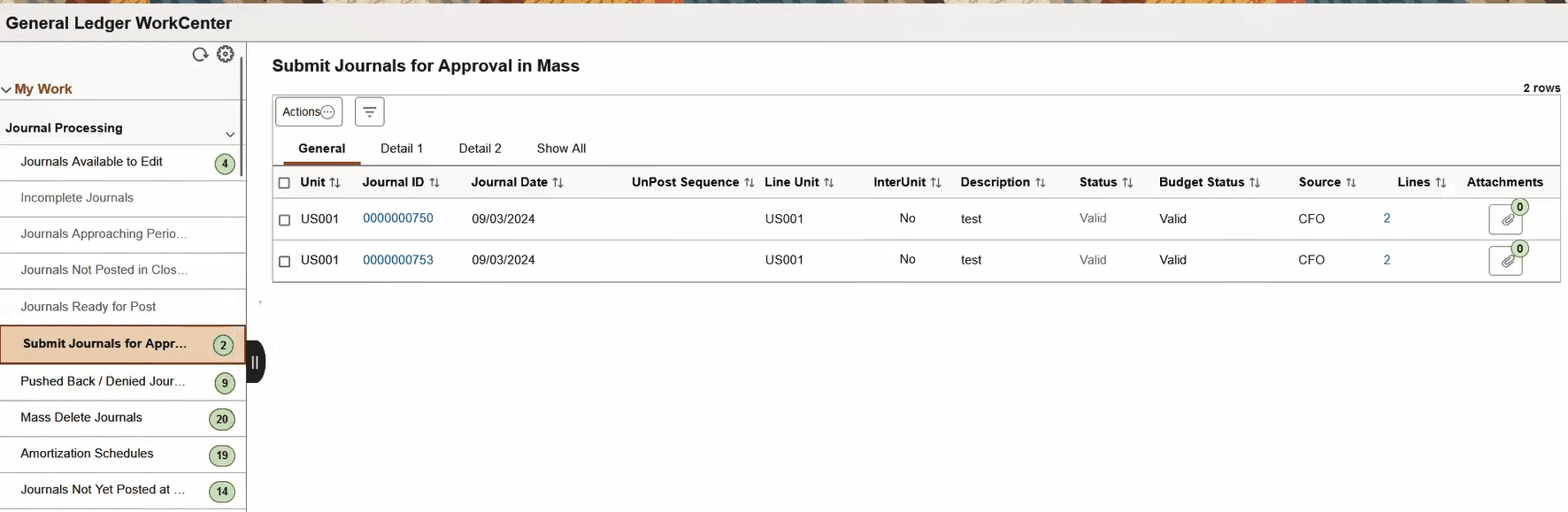
The Journals grid includes three tabs, General, Details 1 and Details 2, which display the journal header information. You can select the check box in the first column of any or all rows in the Journals grid to perform required action for the journal or journals.
| Field or Control | Description |
|---|---|
|
Refine Filter Criteria link |
Click this link to edit the filter criteria that is used to retrieve the data that you want to see for this page. The WorkCenter Journal Entries page uses the Generic Journal Filter (GLJRNL1), which is used for many of the journal-based links. Supply or change any of the following filter values as needed and click OK. The search criteria include: Business Unit, Ledger Group, Fiscal Year, Accounting Period, Description, Budget Checking Header Status, Suspense Reconciliation Status, Line Business Unit, Journal Creation Date, User ID, Currency Code, Journal Total Debits, Journal Date and Journal ID. See Maintaining and Personalizing the PeopleSoft Classic General Ledger WorkCenter. For journal filter criteria, you are required to select values for Business Unit, Ledger Group, and Fiscal Year. This requirement is delivered to prevent performance issues. You can hover over this link to see the current selected criteria without having to navigate to the Filter Values page. Note: The administrator can change the filter definition to make the Business Unit field optional so that you can display journals from all business units. However, the administrator must make sure that at least two criteria fields are required and that there is an index on the journal header record to support the required fields. For more information, see Enterprise Components: Setting Up Filter Definitions as a System Administrator. |
|
|
Click this icon to refresh the grid data to reflect any changes. |
|
Journal ID link |
Click the journal ID link to access the journal entry in a modal window. This launches the Journal Entry component where you can update and process the journal. Once you have finished your work in the Journal Entry component, you can close the modal window, click the refresh button at the top of your exceptions page, and the journal that you corrected should no longer appear. |
|
Status link |
Displays the journal status as valid always. |
|
Lines link |
Click the value in the Lines column (value represents the total lines in the journal) to display the journal lines in the Lines grid, which appears below the Action field when you click the link. Note: In certain cases, the total lines value may not reflect the actual number of lines in the grid. For example, the grid may display zero total lines for copied or imported journals that are not edited. |
|
Select All/Deselect All |
Click this link to select all journals or deselect all journals in the grid for which to perform an action. |
|
Actions |
Select the check box of the journal or journals for which you would like to perform an action. Then select one of these options from the list box:
|
Pushed Back /Denied Journals for Rework Page
Use the Pushed Back /Denied Journals for Rework link to access the corresponding page within the WorkCenter transaction pane (WorkCenter Journal Entries page (GL_WC_JRNLS)). Review and take action on journals pushed back or denied by approver.
Navigation:
link.
This example illustrates the fields and controls on the Pushed Back / Denied Journals for Rework pagelet.
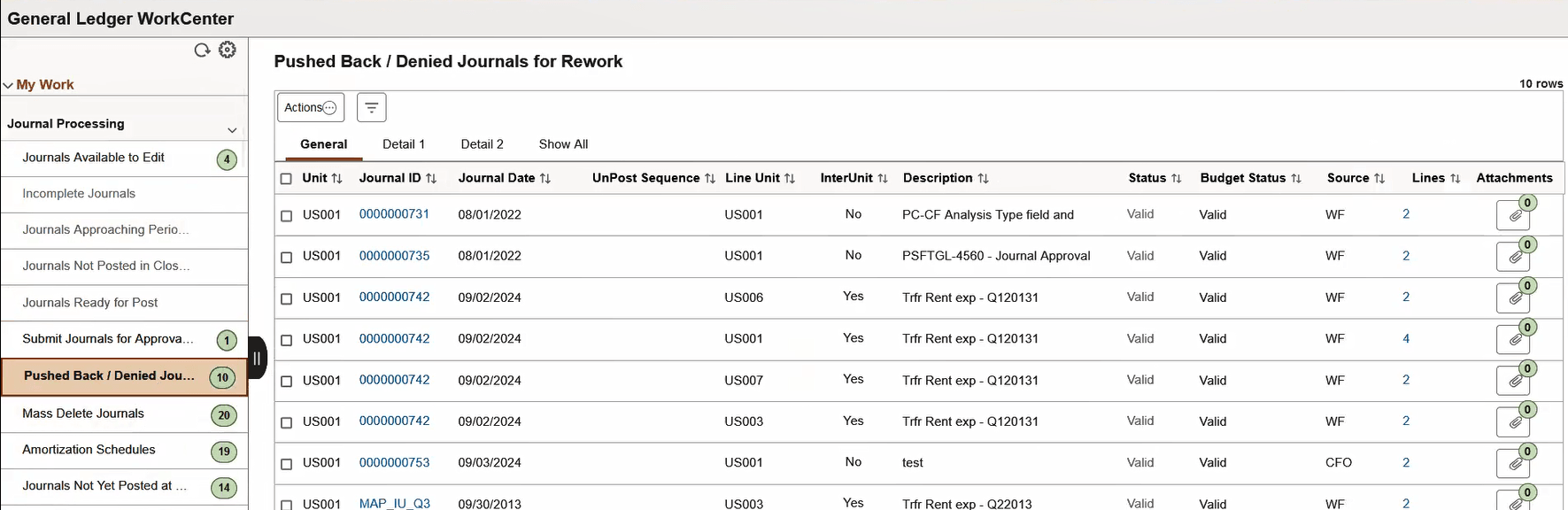
The Journals grid includes three tabs, General, Details 1 and Details 2, which display the journal header information. You can select the check box in the first column of any or all rows in the Journals grid to perform required action for the journal or journals.
| Field or Control | Description |
|---|---|
|
Refine Filter Criteria link |
Click this link to edit the filter criteria that is used to retrieve the data that you want to see for this page. The WorkCenter Journal Entries page uses the Generic Journal Filter (GLJRNL1), which is used for many of the journal-based links. Supply or change any of the following filter values as needed and click OK. The search criteria include: Business Unit, Ledger Group, Fiscal Year, Accounting Period, Description, Budget Checking Header Status, Suspense Reconciliation Status, Line Business Unit, Journal Creation Date, User ID, Currency Code, Journal Total Debits, Journal Date and Journal ID. See Maintaining and Personalizing the PeopleSoft Classic General Ledger WorkCenter. For journal filter criteria, you are required to select values for Business Unit, Ledger Group, and Fiscal Year. This requirement is delivered to prevent performance issues. You can hover over this link to see the current selected criteria without having to navigate to the Filter Values page. Note: The administrator can change the filter definition to make the Business Unit field optional so that you can display journals from all business units. However, the administrator must make sure that at least two criteria fields are required and that there is an index on the journal header record to support the required fields. For more information, see Enterprise Components: Setting Up Filter Definitions as a System Administrator. |
|
|
Click this icon to refresh the grid data to reflect any changes. |
|
Journal ID link |
Click the journal ID link to access the journal entry in a modal window. This launches the Journal Entry component where you can update and process the journal. Once you have finished your work in the Journal Entry component, you can close the modal window, click the refresh button at the top of your exceptions page, and the journal that you corrected should no longer appear. |
|
Status link |
Displays the journal status as valid always. |
|
Lines link |
Click the value in the Lines column (value represents the total lines in the journal) to display the journal lines in the Lines grid, which appears below the Action field when you click the link. Note: In certain cases, the total lines value may not reflect the actual number of lines in the grid. For example, the grid may display zero total lines for copied or imported journals that are not edited. |
|
Select All/Deselect All |
Click this link to select all journals or deselect all journals in the grid for which to perform an action. |
|
Actions |
Select the check box of the journal or journals for which you would like to perform an action. Then select one of these options from the list box:
|
Mass Delete Journals
Use the Mass Delete Journals page (Fluid) (GL_WC_JRNLD_FL) to delete anchor journals in mass using the Fluid GL WorkCenter.
Navigation:
This example illustrates the fields and controls on the General Ledger WorkCenter - Mass Delete Journals page (Classic).
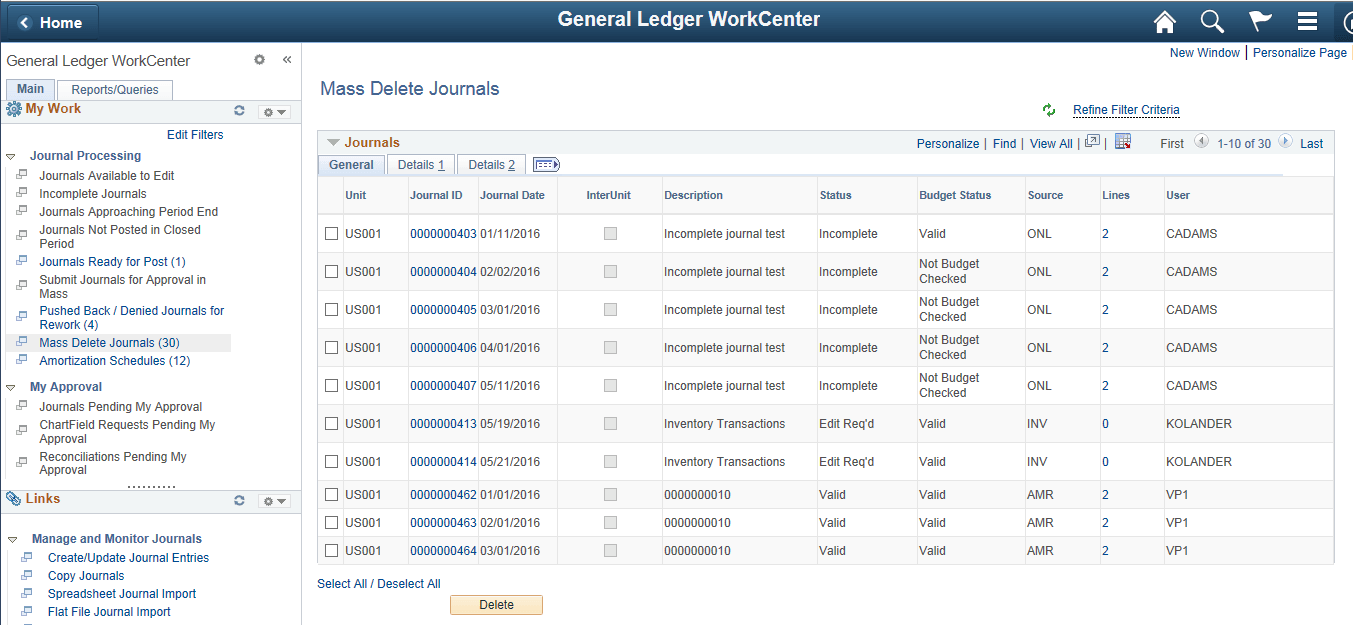
When an anchor journal is deleted, all journal lines are deleted.
See General Ledger WorkCenter - Mass Delete Journals page (Classic)
Amortization Schedules
Use the Amortization Schedule page (AMR_SCHED_ACT) to validate the values passed from the amortization voucher, create stage journals, review and approve the schedule.
Navigation:
This example illustrates the fields and controls on the Amortization Schedules 1 to 2. You can find definitions for the fields and controls later on this page.
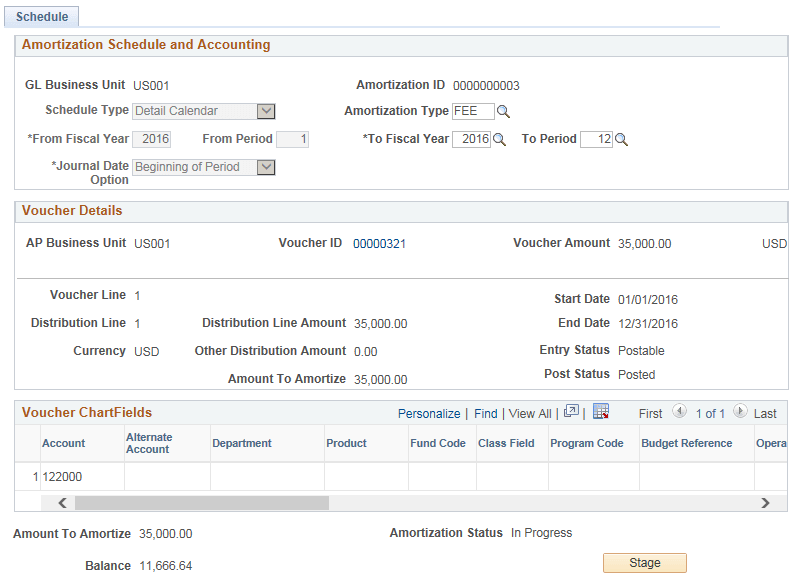
This example illustrates the fields and controls on the Amortization Schedules 1 to 2. You can find definitions for the fields and controls later on this page.
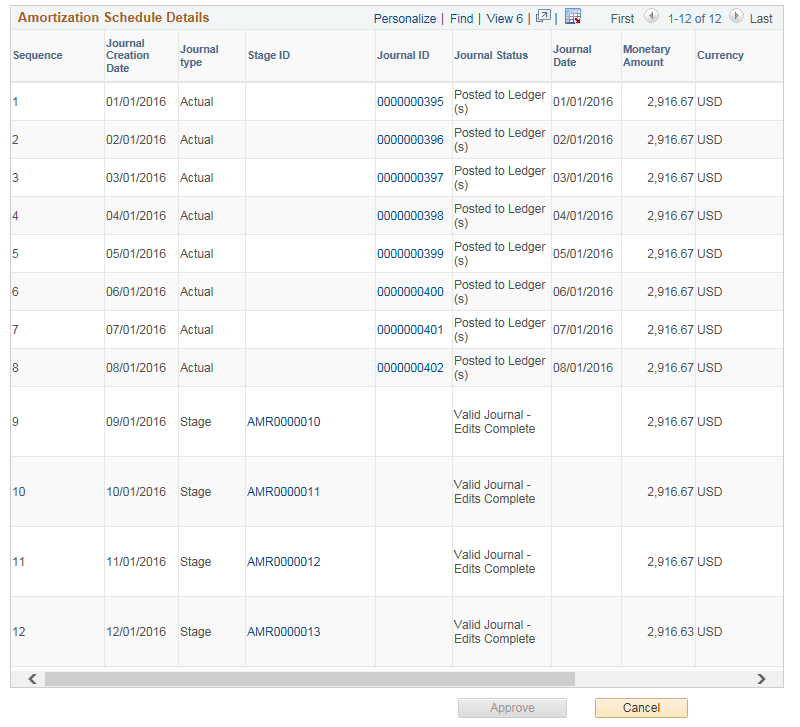
This page appears as read-only until the voucher is posted. Once the voucher is posted, you can update the following fields:
-
Schedule Type
-
Amortization Type
-
From Fiscal Year
-
From Period
-
To Fiscal Year
-
To Period
-
Journal Date Option
Details that are passed from the payables amortization voucher cannot be modified on this page (GL business unit, Amortization ID, Voucher details and Voucher ChartFields)
Journals with Errors
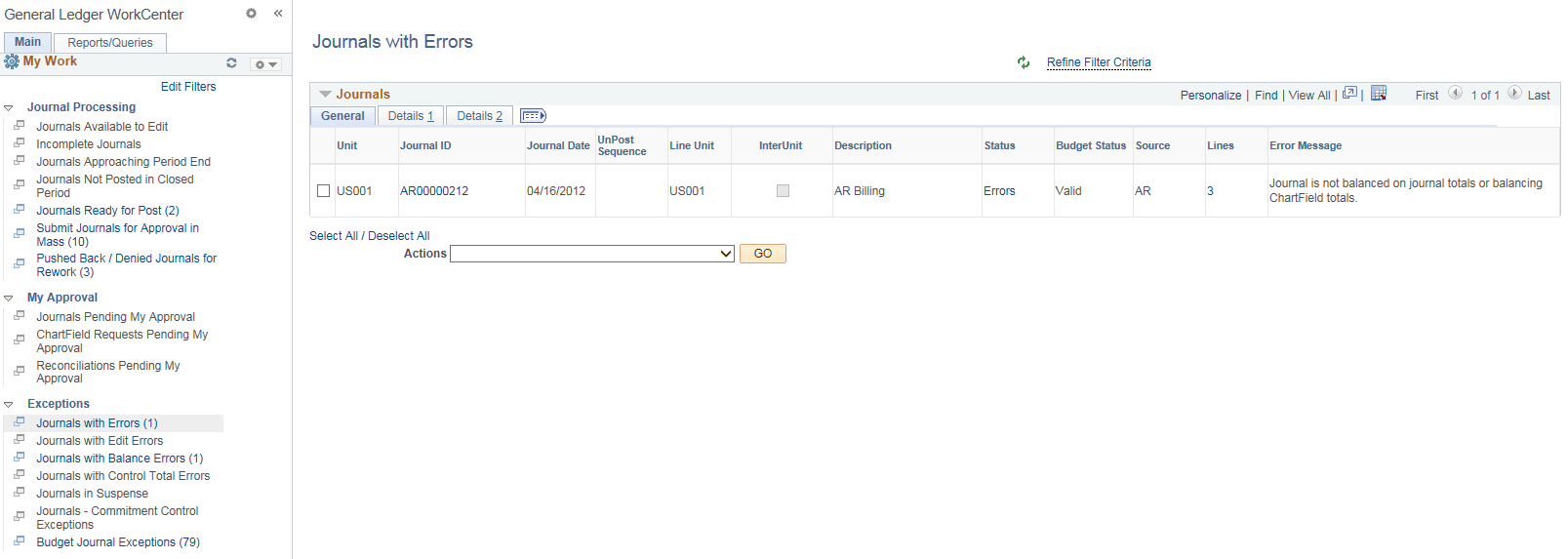
Use the Journals with Errors link to access the corresponding page within the WorkCenter transaction pane (WorkCenter Journal Entries page (GL_WC_JRNLS)). Review and correct journals with any type of error.
Navigation:
link.
This example illustrates the fields and controls on the Journals with Errors pagelet. You can find definitions for the fields and controls later on this page.
Example 3-13 Journals
The Journals with Errors page displays journals that have any type of error that requires action. For example, the journals pictured include a balancing error and an ADB date error.
The Journals grid includes three tabs, General, Details 1 and Details 2, which display the journal header information. You can select the check box in the first column of any or all rows in the Journals grid to perform required action for the journal or journals.
| Field or Control | Description |
|---|---|
|
Refine Filter Criteria link |
Click this link to edit the filter criteria that is used to retrieve the data that you want to see for the Journals with Errors exception. This exception uses the Journal Generic Filter (GLJRNL3). Supply or change any of the following filter values as needed and click OK: Business Unit, Ledger Group, Fiscal Year, Accounting Period, Description, Budget Checking Header Status, Suspense Reconciliation Status, Line Business Unit, Journal Creation Date, User ID, Currency Code, Journal Total Debits, Journal Date and Journal ID. For journal filter criteria, you are required to select values for Business Unit, Ledger Group, and Fiscal Year. This requirement is delivered to prevent performance issues. You can hover over this link to see the current selected criteria without having to navigate to the Filter Values page. See Maintaining and Personalizing the PeopleSoft Classic General Ledger WorkCenter. Note: The administrator can change the filter definition to make the Business Unit field optional so that you can display journals from all business units. However, the administrator must make sure that at least two criteria fields are required and that there is an index on the journal header record to support the required fields. For more information, see Enterprise Components: Setting Up Filter Definitions as a System Administrator. |
|
|
Click this icon to refresh the grid data to reflect any changes. |
|
Journal ID link |
Click the journal ID link to access the journal entry in a modal window. This launches the Journal Entry component where you can update and process the journal. Once you have finished your work in the Journal Entry component, you can close the modal window, click the refresh button at the top of your exceptions page, and the journal that you corrected should no longer appear. |
|
Status link |
Click the link in the Status column for the journal that you want to research. This displays the journal error information below the Action field in two grids: Header Errors and Line Errors. If there are no line errors, a message appears below the Header Errors to that effect. If there are line errors, only those lines in error appear in the Line Errors grid. |
|
Lines link |
Click the value in the Lines column (value represents the total lines in the journal) to display the journal lines in the Lines grid, which appears below the Action field when you click the link. Note: In certain cases, the total lines value may not reflect the actual number of lines in the grid. For example, the grid may display zero total lines for copied or imported journals that are not edited. |
|
Select All/Deselect All |
Click this link to select all journals or deselect all journals in the grid for which to perform an action. |
|
Action |
Select the check box of the journal or journals for which you would like to perform an action, select the action from the list box, and click the GO button. Action values are:
|
Example 3-14 Header Errors (grid)
The header errors grid displays the header level errors. This grid is displayed when you select the Errors status link from the Journals grid. The Header grid is hidden when there are no header errors.
Example 3-15 Lines (grid)
When you click the Lines link value from the Journals grid, all of the journal lines for that journal are displayed in the Lines grid. The Lines grid also appears if you click the Errors status link from the Journals grid. In this case, the Lines grid displays only the journal lines that are in Error from the journal. If there are no line errors, there is a message that displays in place of the Lines grid beneath the Header Errors grid.
Journals with Edit Errors
Use the Journals with Edit Errors link to access the corresponding page within the WorkCenter transaction pane (WorkCenter Journal Entries page (GL_WC_JRNLS)). Review and correct only the journals with edit errors.
Navigation:
link.
The fields within the Journals with Edit Errors link and the Journal with Edit Errors are the same. Refer to the previous section for detail field descriptions. The Journals with Edit Errors presentation is a specific subset of the Journals with Errors link.
Journals with Balance Errors
Use the Journals with Balance Errors link to access the corresponding page within the WorkCenter transaction pane (WorkCenter Journal Entries page (GL_WC_JRNLS)). Review and correct only the journals with balance errors.
Navigation:
link.
The fields within the Journals with Balance Errors link and the Journal with Errors are the same. Refer to the Journals with Errors section for detail field descriptions. The Journals with Balance Errors presentation is a specific subset of the Journals with Errors link.
Journals with Control Total Errors
Use the Journals with Control Total Errors link to access the corresponding page within the WorkCenter transaction pane (WorkCenter Journal Entries page (GL_WC_JRNLS)). Review and correct only the journals with control total errors.
Navigation:
link.
The fields within the Journals with Control Total Errors link and the Journal with Errors are the same. Refer to the Journals with Errors section for detail field descriptions. The Journals with Control Total Errors presentation is a specific subset of the Journals with Errors link.
Journals - Commitment Control Exceptions
Use the Journals – Commitment Control Exceptions link to access the corresponding page within the WorkCenter transaction pane (WorkCenter Journal Entries page (GL_WC_JRNLS)). Review and edit only the journals with budget check exceptions.
Navigation:
link.
The fields within the Journals - Commitment Control Exceptions link and the Journal with Errors are the same. Refer to the Journals with Errors section for detail field descriptions. The Journals - Commitment Control Exceptions presentation is a specific subset of the Journals with Errors link.