PeopleSoft Classic General Ledger WorkCenter - My Work Pagelet
Use the My Work pagelet within the PeopleSoft Classic General Ledger WorkCenter (GL_WORKCENTER) to view and edit your most commonly-used components and be alerted to those items that require your attention.
Navigation:
This example illustrates the fields and controls on the PeopleSoft Classic General Ledger WorkCenter - My Work Pagelet. You can find definitions for the fields and controls later on this page.
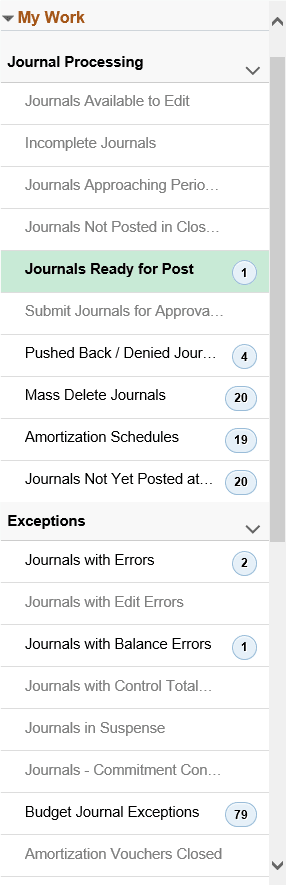
The My Work links are delivered in separate sections as an option of how you might organize the links by function (Journal Processing, My Approval and Exceptions, for example). However, your administrator can design the My Work pagelet (as well as the other pagelets) to meet your specific needs. For more information, see Application Fundamentals: Understanding How to Set Up PeopleSoft Classic and Fluid WorkCenters As a System Administrator
To view the My Work pagelet in its entirety, you can hover over the dotted line between the My Work pagelet and the Links pagelet until the cursor turns into a two-sided arrow, drag up or down, and left-click to anchor it in place; or, you can minimize the Links pagelet by clicking the Pagelet Settings arrow in the Links pagelet and select Minimize.
Click on the link in the left pane of the WorkCenter to display the corresponding page in the working zone (right pane of the WorkCenter). For example, for the journal-related links, the PeopleSoft Classic General Ledger WorkCenter uses the GL_WC_JRNLS page, which is designed with many of the same fields as the Journal Entry component. You can select certain common actions to perform on the listed journals from this page and you can also drill into the Journal Entry component and update an individual journal without leaving the WorkCenter. The same is true for the other links and their associated pages.
Each link (if enabled), displays a parenthetical numeric count of instances that require your attention based on the criteria for the link. The working zone functions as though you had navigated directly to the application pages, but without leaving the WorkCenter. Select the item(s) for processing, the action that you want to perform, and click the GO button.
The PeopleSoft Classic General Ledger WorkCenter - My Work pagelet includes the following delivered links to access the corresponding pages that are used within the WorkCenter:
| My Work Link / Page Name | Definition Name | Usage |
|---|---|---|
|
Journals Available to Edit |
GL_WC_JRNLS |
Manage journals that are available to edit and budget check. |
|
Incomplete Journals |
GL_WC_JRNLS |
Manage journals that are saved with an Incomplete status. |
|
Journals Approaching Period End |
GL_WC_JRNLS |
Manage journals that are not posted and are within a user-specified number of days from the current date to the period end date. The period end date is determined by the journal accounting period (filter definition GLJRNLPEND). |
|
Journals Not Posted in Closed Period |
GL_WC_JRNLS |
Manage journals that are not posted and are in a closed accounting period where the journal date is less than the calendar Open From date. |
|
Journals Ready for Post |
GL_WC_JRNLS |
Manage journals that ready to post. |
|
Submit Journals for Approval in Mass |
GL_WC_JRNLS |
Submit one or more journals for approval in mass. |
|
Pushed Back /Denied Journals for Rework |
GL_WC_JRNLS |
View and edit journals pushed back or denied by approvers and require action. |
|
Mass Delete Journals |
GL_WC_JRNLD |
Delete multiple journals at the same time. |
|
Amortization Schedules |
AMR_SCHED_ACT |
Validate the values passed from the amortization voucher, create stage journals, review and approve the schedule. |
|
Journals Not Yet Posted at Period End |
GL_WC_JRNLS_FL |
View journals that are not yet posted and whose Journal Date is after the current open period. |
|
Journals Pending My Approval |
GL_WC_JRNL_APPR_M |
Manage approvals for journals that are pending approval from the current user. |
|
ChartField Requests Pending My Approval |
GL_WC_FLD_REQ_APPR |
Manage approvals for ChartField requests that are pending approval from the current user. See Application Fundamentals: Understanding the Business Request and Approval Process. |
|
Reconciliations Pending My Approval |
GL_WC_GLRN_WB |
Manage approvals for account reconciliations that are pending approval from the current user. See Understanding Account Reconciliation |
|
Journals with Errors |
GL_WC_JRNLS |
View and edit journals with any type of error that require action. |
|
Journals with Edit Errors |
GL_WC_JRNLS |
View and edit journals specifically with edit errors that require action. |
|
Journals with Balance Errors |
GL_WC_JRNLS |
View and edit journals specifically with balance errors that require action. |
|
Journals with Control Total Errors |
GL_WC_JRNLS |
View and edit journals specifically with control total errors that require action. |
|
Journals in Suspense |
GL_WC_JRNLS |
Manage posted journals in suspense status where the suspense correction journal is not created. |
|
Journals - Commitment Control Exceptions |
GL_WC_JRNLS |
View and edit journals with budget check exceptions that require action. |
|
Budget Journal Exceptions |
GL_WC_BJRN_EXCPT |
View and edit control budget journals with exceptions that require action. |
Click the Edit Filters link from the My Work pagelet to add filter criteria that limit the data that you access from each of your My Work link pages. See Edit Filters page.
If you are already working within the transaction page of a specific My Work link, you can click the Refine Filter Criteria link to access the Configure Filters page for that particular My Work link.