Submitting Proposals
This topic discusses how to submit a proposal.
Pages Used to Submit Proposals
| Page Name | Definition Name | Usage |
|---|---|---|
|
GM_PROP_SUBMISN |
Set up the proper parameters for submitting a proposal. This is separate from the proposal pages to enable the institution to configure its security options for approving and submitting proposals. |
|
|
GM_PROP_SUBMIS_OFF |
Store information regarding officials for a proposal submission. This is separate from the proposal pages to enable different security to operate for institution officials. |
Proposal - Submission Page
Use the Proposal - Submission page (GM_PROP_SUBMISN) to set up the proper parameters for submitting a proposal.
This is separate from the proposal pages to enable the institution to configure its security options for approving and submitting proposals.
Navigation:
This example illustrates the fields and controls on the Proposal - Submission page. You can find definitions for the fields and controls later on this page.
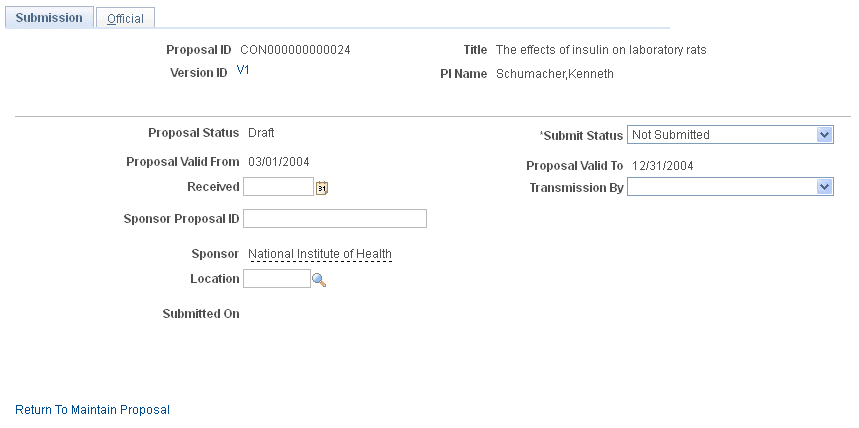
| Field or Control | Description |
|---|---|
|
Proposal Status |
Displays the proposal status. |
|
Submit Status |
If you submitted the proposal manually, you can select the proposal's status. Note: After you mark a proposal version as Submitted, you can no longer modify any of the proposal information for that version. To make any modifications to a proposal after it has been submitted, you must create a new version of the proposal. |
|
Proposal Valid From and Proposal Valid To |
Displays the dates for which a proposal version is valid. |
|
Transmission By |
Select how you will submit the proposal. Values are:
|
|
Submitted On |
Displays the current server date and time. |
Proposal - Official Page
Use the Proposal - Official page (GM_PROP_SUBMIS_OFF) to store information regarding officials for a proposal submission.
This is separate from the proposal pages to enable different security to operate for institution officials.
Navigation:
This example illustrates the fields and controls on the Proposal - Official page. You can find definitions for the fields and controls later on this page.
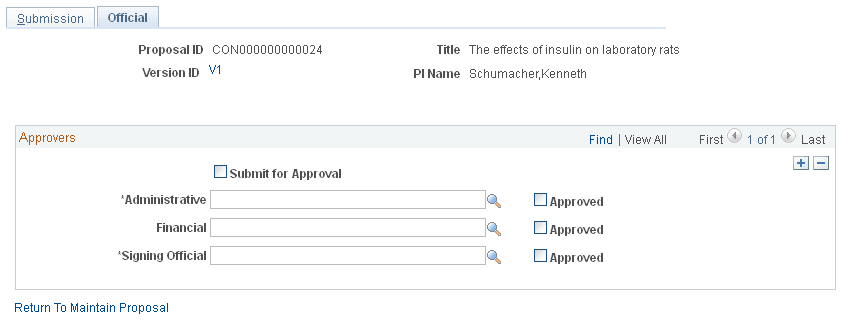
| Field or Control | Description |
|---|---|
|
Submit for Approval |
Select to indicate that you have submitted the proposal for external approval. Note: The system does not enforce this check. |
|
Administrative, Financial, and Signing Official |
Select the officials who should approve the submission of the proposal. Officials are mapped to the proposal forms based on their official type. These officials come from the Institution Contacts page. Authorized officials can approve and sign the proposal. Their IDs are prompted from a control table that contains authorized officials within your institution. The operator ID must match that of the signing official to activate the submission button. |
|
Approved |
Displays a check box for each official. For you to use this feature, the user IDs of the officials must be part of your PeopleSoft security system. |