Additional Options Page
Use the Additional Options page (IN_FUL_RLS_AO_SEC) to select additional options for sorting and printing the picking plan and the picking plan's location summary.
Select to print bar codes and bar code control flags.
Navigation:
Select the Additional Options link on the Order Release Request page.
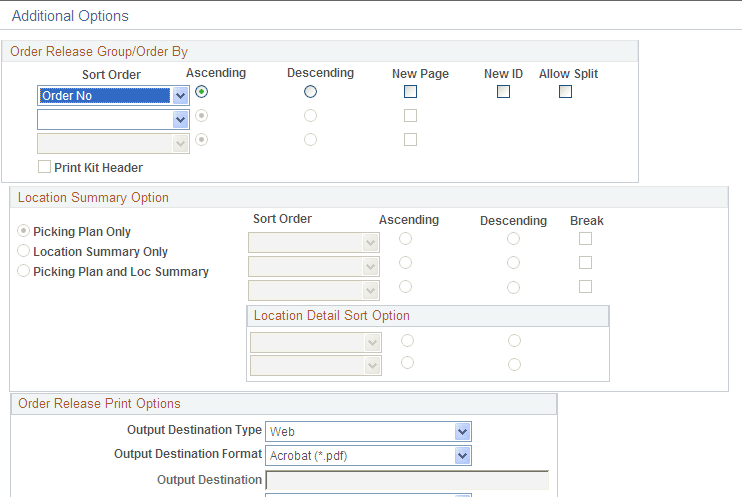
This example illustrates the fields and controls on the Additional Options page (1 of 2). You can find definitions for the fields and controls later on this page.
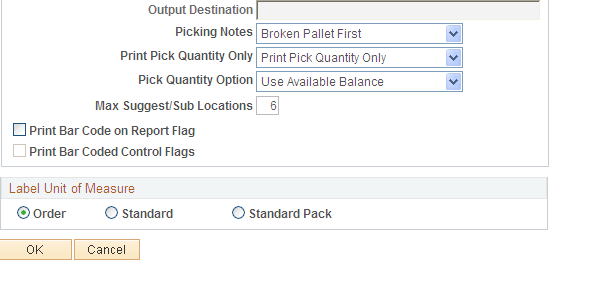
This example illustrates the fields and controls on the Additional Options page (2 of 2). You can find definitions for the fields and controls later on this page.
Order Release Group/Order By
Specify up to three sort levels for the order release and picking plan report. Within each level, you can sort by address sequence number, carrier, freight terms, item, load, load stop number, ship to location (for internal orders and interunit transfers), order number, order priority, parent product ID (product kit), route, route stop, ship to customer (for external, intercompany transfers, and sales orders), ship via, and TMS reference ID. For example, you might want to sort the picking plan first by carrier ID, then sort the orders assigned to each carrier by order number, and then sort the lines of each order by item ID.
For each level, indicate whether the results should appear in Ascending or Descending order.
| Field or Control | Description |
|---|---|
|
New Page |
Select this check box to insert a page break at this sort level. |
|
New ID |
Select this check box to create a new pick plan ID at the first sort level |
|
Allow Split |
If using the processing groups feature (defined on the Setup Fulfillment-Fulfillment Task Options page or the Fulfillment Engine Options page), this check box controls how the processing group is split.
|
Note:
When using the processing groups feature, it is important to remember that each processing group creates a separate processing run. When the processing group feature is used with the Order Release process, each separate process group creates a separate pick plan ID, separate picking extract file, separate Shipping Order Release transaction, and separate set of labels. For example, if the Order Release process picks up 1300 demand lines for processing and the processing count is 500 and the processing level is line, then three separate pick plan IDs are produced from the three separate process runs; two groups of 500 lines each and one group of 300 lines. Within each processing group, the demand lines are sorted according to the criteria in the Order Release Group/Order By group box.
See Understanding Fulfillment Engine Processing Groups and Commit Levels.
Note:
If the Use External Warehouse Control option is active for the business unit, these sort options do not affect the sort and breakout of the keys used to send records to the WMS application.
| Field or Control | Description |
|---|---|
|
Print Kit Header |
Select this check box to include a product kit subheading on the picking plan report. When your demand lines contain kit components, the pick plan report generates a subheading with the product kit ID, description, and any other information common to all the kit component demand lines. The kit component demand lines are grouped below the kit heading and include the item's quantity and UOM to be applied per kit assembled or order (quantity per information); for example, 1 EA per ASY. In addition, if you have selected the Print All Quantity Fields value in the Print Pick Quantity Only field on this page, then the Kit Quantity Requested is printed in the kit header. This value is the total number of product kits requested on the order line. If you do not select this check box then the product kit ID and description are printed within the item's pick line. This check box is only available if you have selected Parent Product ID (product kit ID) for any of the three Sort Order fields. |
Location Summary Option
If you are using a push picking plan (the Action of Create Allocations on the Order Release Request page), you can print a Location Summary report with or without a full Picking Plan report. The Location Summary report sorts the demand lines according to where the items are physically stocked within the warehouse (Inventory business unit). The layout of the printed report reflects the actual positions of stock to be picked, enabling your personnel to fulfill all orders on the picking plan without revisiting locations. The Location Summary report includes two different sorts:
-
Sort Order: This sort is based on the physical location table (PHYSICAL_INV) that contains the location, quantity, and other details about every item stocked within each inventory business unit. You can select up to three sorts related to the physical location table. For example, if you select Area, as the highest-level ascending sort order, the Location Summary report groups together all demand lines to be picked from storage area A, then groups all lines to be picked from storage area B, and so on. In addition to the layout of the business unit (for example, zones, storage areas, material storage locations), you can also select sort order values based on the stock stored within the business unit, including; item ID, lot ID, serial ID, staged date, and so on.
-
Location Detail Sort Option: This sort is based on the demand fulfillment tables (IN_DEMAND and its child records) that contain information on the order itself, such as, order number, customer, or carrier. This sort occurs within the higher-level Sort Order. For example, if you select Area, as the highest-level ascending sort order and Order No as the highest-level ascending location detail sort option, then the Location Summary report groups together all demand lines to be picked from storage area A and, within storage area A, sorts the demand lines by order number, and next groups all lines to be picked from storage area B, and within B sorts the demand lines by order number, and so on.
For each location to be picked, the report displays a row with the full information, including; zone, ASRS ID, material storage location, item, lot, serial, staged date, storage container, quantity to be picked, and the stocking unit of measure (using the sort order). Below this row, the order demand lines are displayed (using the location detail sort option). For example, if you are picking lot-controlled stock using sort orders of storage location and then lot with a location detail sort option of order no, then the Location Summary report might look like this:
Storage Area A, Aisle 42, Cabinet 12, Shelf 3 (the material storage location), Item ID LT5001, Lot ID 3000, 25 EA (the quantity to be picked and stocking UOM)
Order 1, Line 1
Order 1, Line 2
Storage Area A, Aisle 42, Cabinet 12, Shelf 3, Item ID LT5001, Lot ID 3001, 50 EA
Order 1, Line 1
Order 1, Line 2
Storage Area B, Aisle 18, Cabinet 55, Shelf 1, Item ID LT5001, Lot ID 7000, 100 EA
Order 2, Line 1
Note:
It is possible to complete all of the picking using only the Location Summary report; however, you can only view details such as picking errors or picking line and schedule orders and notes if you print out a full Picking Plan report.
| Field or Control | Description |
|---|---|
|
Picking Plan Only, Location Summary Only, and Picking Plan and Loc Summary (picking plan and location summary) |
Indicate which version of the picking plan you are printing. Location summary options are only available when you enter the following values on the Order Release Request page:
|
|
Sort Order |
Select up to three sorting levels to sort demand lines on the Picking Plan Location Summary report. These sort orders are based on the locations within the inventory business unit (physical location table). For each level, indicate whether the sort is in ascending or descending order and whether a page break should occur. Values for the highest-level Sort Order field are:
Once a value has been used at a higher-level sort order, the same value cannot be repeated in a lower-level sort. The values for the two lower-level Sort Order fields are:
|
|
Location Detail Sort Option |
Select up to two location detail sort options. The detail sort options are based on values located on the demand line, not the physical locations within the warehouse. For each level, indicate whether the sort is in ascending or descending order. Once a value has been used at the higher-level sort order, the same value cannot be repeated in the lower-level sort. Values for the location detail sort option fields are:
|
Order Release Print Options
| Field or Control | Description |
|---|---|
|
Output Destination Type |
Identify the type of output for your picking plan. Options are Email, File, Printer, Web, or Window. This option is used if you do not select the Order Release process from the PeopleSoft Process Scheduler page. |
|
Output Destination Format |
Identify the type of format for your picking plan. Options vary depending on the Output Destination Type chosen. This option is used if you do not select the Order Release process from the PeopleSoft Process Scheduler page. |
|
Output Destination |
Enter the directory into which you want to save the picking plan. This option is used if you do not select the Order Release process from the PeopleSoft Process Scheduler page. |
|
Picking Notes |
If you select the Picking Plan check box to generate the picking plan SQR report, then you can select a message to print at the top of each page of the Picking Plan report: Broken Pallet First: Instructs the picker to pick any broken pallets first. Largest Batch First: Instructs the picker to pick the largest batch first. None: No message prints. Smallest Batch First: Instructs the picker to pick the smallest batch first. |
|
Print Pick Quantity Only |
For each demand line, select to print all the quantity fields on the pick plan or just the pick quantity. |
|
Pick Quantity Option |
Select the pick quantity to be displayed on the pick plan. Options are:
|
|
Max Pull/Sub Locations |
Indicate the maximum number of storage locations to include on pull picking plans or the maximum number of substitute item storage locations to print on the picking plan. The default value is 6. |
|
Print Bar Code on Report Flag |
Select to print code 128-formatted bar codes on the Picking Plan report, so that they can be scanned during the picking process. A bar code containing the pick batch line number and the five optional bar code scanning control flags appears next to the pick batch ID (located in the report's header) and on each detail line. |
|
Print Bar Coded Control Flags |
Select to attach an item's control flags to the bar code printed on each line of the Picking Plan report. These control flags enable the electronic data collection system to prompt for the lot ID, serial ID, staged date, line number, or shipping serial ID immediately after the user scans the bar coded line number field. For cases that do not require control flags, such as when you are using a wedge to scan the pick batch ID or pick batch line number bar codes directly onto the Picking page, you may prefer not to activate this option. The format for the bar code printed for each detail line is LSDAH:99999. The format elements are the following:
Note: PeopleSoft Inventory delivers printer settings for all SQR output to a generic line printer. However, when printing bar coded information on reports on a PCL printer (HP Laser Jet), you must first define the printer type accordingly. You may do this by changing the printer type settings delivered in SETENV.SQC from LINEPRINTER to HPLASERJET. |
Label Unit of Measure
Select the order, standard, or standard pack UOM for the item. This is used to:
-
Define the number of pieces for EIP transactions.
-
Determine how many labels to print when generating carton labels.
The number of labels printed depends upon how you defined the units of measure when you set up the item.