Rule Overrides Page
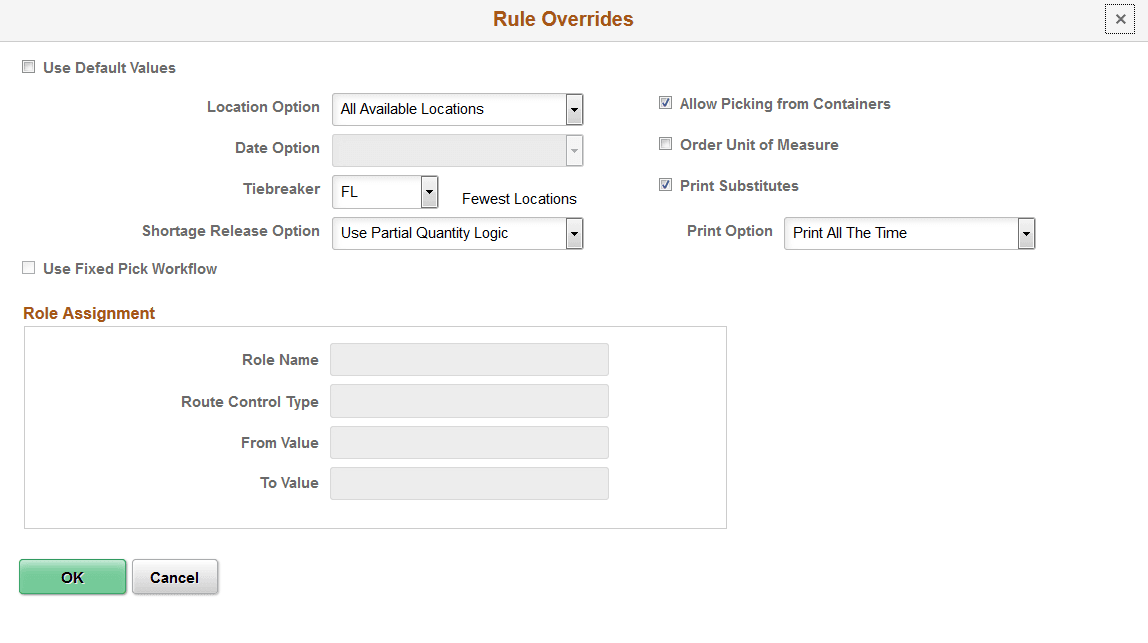
Use the Rule Overrides page (IN_FUL_RLS_RO_SEC) to review or change the default picking options from the Order Release Run Time Options group box on the Setup Fulfillment-Order Release page.
Navigation:
Select the Rule Overrides link on the Order Release Request page.
This example illustrates the fields and controls on the Rule Overrides page. You can find definitions for the fields and controls later on this page.
| Field or Control | Description |
|---|---|
|
Use Default Values |
Select to use the default picking options from the Order Release Run Time Options group box on the Setup Fulfillment-Order Release page. Clear this check box to change the picking options for this run control. |
|
Location Option |
Review or change the directed picking algorithm:
|
|
Date Option |
If you select Pick by Date in the Location Option field, select one of these options: Earliest Available Lot (FIFO): Pick from locations containing lots with the earliest creation dates. Earliest Expiration Date (FEFO): Pick from locations containing lots with the earliest expiration dates. Earliest Staged Date (FIFO): Pick from locations containing items with the earliest staged dates. Latest Staged Date (LIFO): Pick from locations containing items with the most recent staged dates. |
|
Tiebreaker |
If you select Container Option, Pick by Date, or All Available Locations in the Location Option field, specify a tiebreaker to be used when multiple storage locations qualify for picking: FL (fewest locations): Pick from the fewest locations possible, beginning with those containing the most available quantity. PC (pick to clear): Empty locations whenever possible, beginning with those containing the least available quantity. |
|
Shortage Release Option |
Select a shortage release option for situations where there is not enough available stock to fulfill the planned release quantity. Shortage release options are:
Note: If the demand line is released with an available quantity less the planned release quantity, then the label (shortage) is printed next to the planned release quantity on the picking plan. |
|
Print Substitutes |
Select to have the picking plan list alternate items that can be used to fulfill the order. For order lines that allow substitutions and have insufficient quantity available to fulfill the order, any substitute items that can fulfill the order line are listed on the picking plan under the requested item in order of priority. Selecting this option also includes substitute items on bar-coded picking plans and picking extract files. Print options include Print All the Time, Print At Partial, and Print At Zero. |
|
Use Fixed Pick Workflow |
Select if you are using the Fixed Pick Location algorithm and you want the picking plan to initiate the Fixed Pick workflow automatically whenever there is insufficient quantity in the fixed picking locations to fulfill an order. |
|
Role Name |
Indicate who should be notified when the Fixed Pick workflow is activated. The role that you assign refers to a type of position—a supervisor or manager, for example—rather than an individual person. |
|
Route Control Type |
Specify the level of your organizational structure to which the workflow should be directed. You could, for example, indicate that the workflow affects supervisors at the business unit level. |
|
From Value and To Value |
Use to narrow the route control selection. For example, you could specify that the workflow affects only supervisors in a particular business unit. |