Order Release Request Page
Use the Order Release Request page (RUN_IN_FULFILL_RLS) to enter search parameters and settings to release demand lines to the released state and generate picking plans, picking extract files, generate item usage and carton labels, and launch the Shipping Order Release EIP.
Navigation:
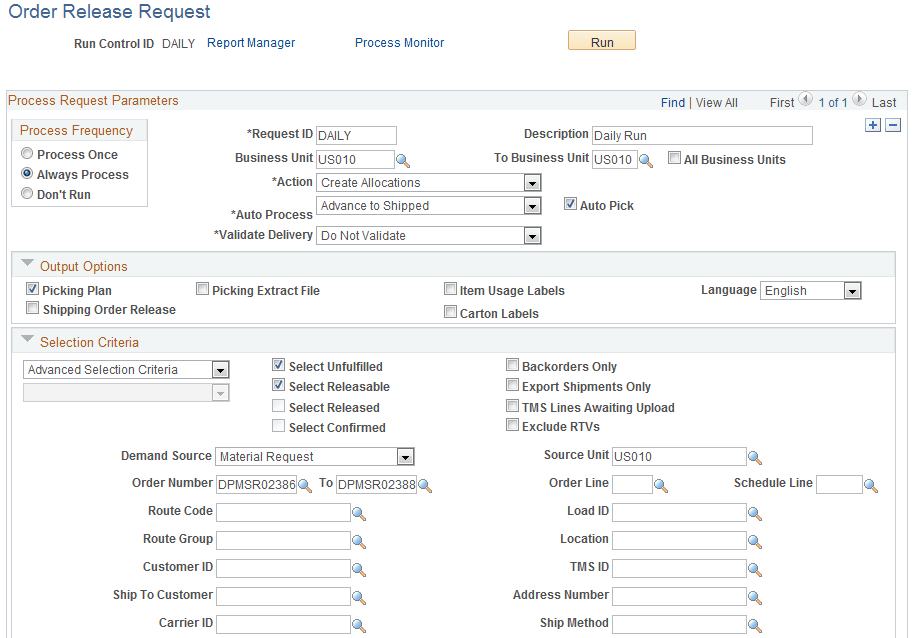
This example illustrates the fields and controls on the Order Release Request process page (1 of 2). You can find definitions for the fields and controls later on this page.
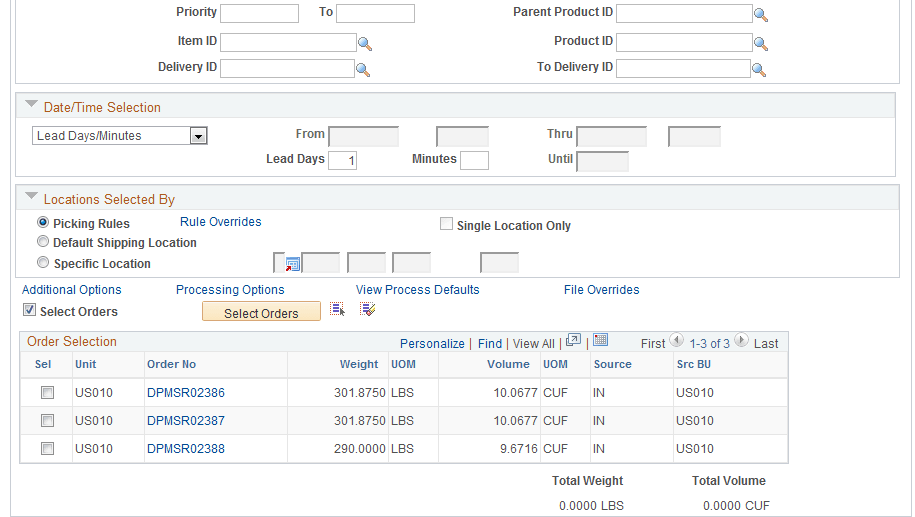
This example illustrates the fields and controls on the Order Release Request process page (2 of 2). You can find definitions for the fields and controls later on this page.
| Field or Control | Description |
|---|---|
|
Business Unit and To Business Unit |
If this run control should process one PeopleSoft Inventory business unit, enter the unit in the Business Unit field. If you want to process a range of business units, enter the starting unit in the Business Unit field and the ending business unit in the To Business Unit field. The system processes all Inventory business units, sorted alphanumerically, that fall between the starting and ending unit. |
|
All Business Units |
Select to process all PeopleSoft business units in this run control. |
|
Action |
Defines the action to be taken by the Order Release process. The options are:
|
|
Auto-Processing Option |
Select the auto processing option to move your orders downstream to the desired state. Options include:
|
|
Auto Pick |
Select this check box to use the pick action Create Allocations and to automatically set the Confirm Flag to yes. If the confirmed flag is set to yes, then the line can advance to a confirmed, shipped, or depleted state without going through picking feedback. |
|
Validate Delivery |
Select an option to validate the deliveries in this process run. The process confirms that the attributes of the delivery and the demand lines that are assigned to the delivery are still valid. The process looks for demand lines on the delivery that do not match the values in the delivery key fields defined on the Inventory Definition - Business Unit Options: Delivery Management page used to build a delivery. For example, if the carrier ID must be the same for all demand lines on the delivery but not all the demand lines have the same carrier ID, then the process produces an error. The process also recalculates the total weight and volume, total number of containers, and total number of packages. The options are:
|
|
Defer Depletions |
Select the value of Override to Yes or Override to No to change the value of the Defer Depletions field on each demand line selected by this page. When this field is left blank, the default value is derived from the Carrier page; if there is no default value on the Carrier page then the system uses the default value on the Setup Fulfillment-Shipping page. This field does not display if you have selected the value of Do not use this feature on the Setup Fulfillment-Shipping page. For more information in the Defer Depletions feature, go to the "Shipping Inventory" topic, "Delaying the Billing and Costing of Inventory Shipments" section. See Delaying the Billing and Costing of Inventory Shipments. |
Output Options
Select the reports and files to generate when the Order Release process is run.
| Field or Control | Description |
|---|---|
|
Picking Plan |
Select to generate the Picking Plan (SQR) report based on the settings under the Additional Options link of this process page. |
|
Picking Extract File |
Select to create an extract file containing information generated by the Order Release process. This is an optional file that is sorted according to the options specified on the Order Release Group/Order By group box under the Additional Options link of this process page. The file can be downloaded into an electronic data collection system that allows bar code-driven picking. Define file parameters under the File Overrides link of this process page or on the Setup Fulfillment-Electronic Fulfillment page. |
|
Item Usage Labels |
Select to create item usage labels automatically when you print the picking plan. These labels aid in the tracking of material usage. Define file parameters under the File Overrides link of this process page or on the Setup Fulfillment-Pick Plan Label page. |
|
Shipping Order Release |
Select to generate the Shipping Order Release EIP. The sort selections available under the Additional Options link of this process page or the Setup Fulfillment-Order Release page do not control the sequence of the orders in the shipping order release transaction. Order release data sent to the third-party system is separated into logical orders based on breaks in the following sort sequence: business unit, demand source, source business unit, order number, customer ID, ship to ID, address sequence code, carrier ID, and ship via. If the address information for an order is modified before order release, the address fields are added to the sort sequence. |
|
Carton Labels |
Select to create shipping carton labels automatically when running the Order Release process. These labels (which can be applied to each carton) enable you to provide shipping information for shipping personnel and carriers, build shipping containers, and provide customer-specific information identifying items within the cartons. File parameters for the shipping carton labels are defined under the File Overrides link of this process page or on the Setup Fulfillment-Pick Plan Label page. You can identify the label unit of measure using the Additional Options link of this process page. |
Note:
When using the processing groups feature, it is important to remember that each processing group creates a separate processing run. When the processing group feature is used with the Shipping Order Release service operation, each separate process group creates a separate pick plan ID, separate picking extract file, separate Shipping Order Release transaction, and separate set of labels. For example, if the Order Release process picks up 1300 demand lines for processing and the processing count is 500 and the processing level is line, then three separate pick plan IDs are produced from the three separate process runs; two groups of 500 lines each and one group of 300 lines. The processing groups feature is defined on the Setup Fulfillment-Fulfillment Task Options page or the Fulfillment Engine Options page.
See Understanding Fulfillment Engine Processing Groups and Commit Levels.
Selection Criteria
Define the search criteria to select demand lines for order release. You can select a wide variety of criteria by using the Specific field to include only those demand lines associated with a specific carrier, item, load, order or range of orders, route or route group, TMS ID, ship to customer or location, or ship via. You can also select Advanced Search Criteria to use a combination of numerous search fields.
Note:
Work order created in PeopleSoft Maintenance Management cannot be selected or processed by the Order Release Request process.
| Field or Control | Description |
|---|---|
|
Select Unfulfilled |
Select this check box to include demand lines in the unfulfilled state that meet the search criteria. |
|
Select Releasable |
Select this check box to include demand lines in the releasable state that meet the search criteria. Note: To retrieve any demand lines in your search criteria, you must select either the Select Releasable check box or the Select Unfulfilled check box. The default values for these check boxes are defined for the Order Release Request on the From States tab of the Setup Fulfillment-Fulfillment Task Options page (business unit level) or the Fulfillment Engine Options page (SetID level). |
|
Backorder Only |
Select this check box to include only demand lines that are currently backordered. |
|
Export Shipments Only |
Select this check box to include only demand lines that are export shipments. |
|
TMS Lines Awaiting Upload |
Select this check box to pick lines that have been downloaded to the TMS and are waiting to be uploaded to PeopleSoft. This check box overrides the check box on the Setup Fulfillment - Transportation Interface page. |
|
Exclude RTVs |
Select this check box to exclude return to vendor MSRs from the process run. To include just return to vendor MSRs, select Advanced Search Criteria in the Selection Criteria group box and then enter the value of Material Return in the Demand Source field. All return to vendor MSRs are processed as Release Only in the Action field, since a pre-allocation exists to the material storage location containing the returning stock. See Processing Return to Vendor Stock Requests in Demand Fulfillment. |
|
Keep Lot Allocations |
Select this check box to keep the lot allocations, if any, on the demand lines when using the Actions of Return to Releasable or Return to Unfulfilled. |
|
Keep Pre-Allocations |
Select this check box to keep any pre-allocations created when the demand line was in the Unfulfilled or Releasable fulfillment state. This check box is available when using you select the Actions of Return to Releasable or Return to Unfulfilled. |
|
Keep All Allocations |
Select this check box to keep any allocation (pre-allocation, lot-allocation, or standard allocation) currently assigned to the demand line. This check box is available when using you select the Actions of Return to Releasable or Return to Unfulfilled. |
|
Keep Reservations |
Select this check box to keep the reservation, if any, on the demand lines when using the Action of Return to Unfulfilled. |
|
Select Orders |
Select this check box to open the Order Release Selection group box where you can select to release a subset of the orders meeting the selection criteria. |
Date / Time Selection
To narrow the selection even further, you can release orders based on their scheduled shipping dates and times. For example, you might want to pick orders scheduled to ship next week or orders shipping today within the next two hours. These selections can default from the Order Release Date/Time Select group box of the Setup Fulfillment-Order Release page.
| Field or Control | Description |
|---|---|
|
Date/Time Range |
The order release process includes demand lines scheduled to ship within the specified From and Thru parameters. For example, you could release orders for picking that are scheduled to ship between 8 a.m. next Monday and 5 p.m. next Friday. |
|
Lead Days/Minutes |
The order release process includes demand lines scheduled to ship on or before today's date, plus the specified picking lead time entered in the Lead Days and Minutes fields. For example, you could release to picking orders scheduled to ship tomorrow at 3:00 p.m. by using the values 1 day, 180 minutes (if the current time is 12:00 p.m.). Note: If the business unit requires closure calendar validation for shipping activities as defined on the Closure Calendar page, and the calculated scheduled ship date falls on a defined closure date, the system adds one day for every closed day to the picking lead time to compare against the scheduled ship date. Times are not included in these calculations. |
|
Today/Until |
The order release process includes demand lines scheduled to ship today until the specified time. |
Locations Selected By
These options determine the manner in which the order release process suggests storage locations from which to pick stock.
| Field or Control | Description |
|---|---|
|
Picking Rules |
Select to use the picking rules defined by the picking algorithm entered in the Location Option field of the Setup Fulfillment-Order Release page or defined for the individual item on the Setup Item Fulfillment page. |
|
Rules Override |
Select this link to access the Rule Overrides page where you can review or change the default picking options from the Order Release Run Time Options group box on the Setup Fulfillment-Order Release page. |
|
Default Shipping Location |
Select to use the Default Ship Location defined on the Setup Fulfillment-Shipping page or defined for the individual item on the Setup Item Fulfillment-Shipping Options page. |
|
Specific Location |
Select to define the material storage location in the fields to the right. |
|
Single Location Only |
Select to have the picking plan suggest only one material storage location for picking each demand line. This check box is applied when you select either the Default Shipping Location option or the Specific Location option (above). |
Order Release Selection
This group box can limit picking to a subset of the orders meeting the selection criteria. Click the Select Orders button to retrieve all orders that match the search criteria entered above on this Order Release Process page, then you can select individual orders to be released. This option is particularly useful when time is short or when you want to reduce the picking workload to small batches that are easily handled by a single picker. Detailed information for each order that you select is available on the Order Release Detail page.
Note:
Although you select orders based on order numbers rather than on specific order schedule lines, only schedules meeting the selection criteria are actually released, and only these schedule lines appear on the Order Release Detail page. For example, suppose that you release orders using item A. Two of the schedule lines on the order contain item A and the third schedule line contains item B. According to this group box, the order can be released for picking, but only the two schedule lines containing item A are actually picked. Therefore, depending upon the selection criteria, a single order can be split among multiple picking plans.
When you save this Order Release Request process page after selecting individual orders in the Order Release Selection group box, PeopleSoft Inventory automatically assigns a unique pick release ID to the active run control and to each selected demand line. The Order Release Request run control will process only the demand lines associated with this pick release ID. If you do not select individual orders in the Order Release Selection group box, the run control processes all demand lines that meet the selection criteria.
The pick release ID gives you the flexibility to exit and reenter the Order Release Request process page without reselecting orders. When you click the Select Orders button, the system retrieves any previously selected orders in addition to those matching the current search criteria. The system assigns any new orders to the same pick release ID that you assigned to the original selections. After you run this Order Release Request run control the system resets the pick release ID to 0. The system also resets the ID for any demand lines that you cancel before running the process.
| Field or Control | Description |
|---|---|
|
Select Orders |
Click this button to search for orders that meet the selection criteria and place them in the Order Release Selection group box where you can select to release a subset. |
|
Sel |
Select the check box for each order that you want to release. |
|
Order Group |
This information appears if the installation includes PeopleSoft Order Management and the order source is OM. |
|
Total Weight and Total Volume |
These values appear (along with the number of pieces) if you selected the Show Total Pieces check box on the Setup Fulfillment-Order Release page and enter the weight and volume units of measure in the Setup Fulfillment page. If the options to show totals for weight, volume, and number of pieces are active for the business unit, the system adds these parameters for all selected orders and displays the grand totals at the bottom of the page. |