Configuring the Supply /Demand WorkCenter
This topic discusses how to configure the Supply /Demand WorkCenter for all users and also a particular User ID entered on the page.
Pages Used to Configure the Supply /Demand WorkCenter
| Page Name | Definition Name | Usage |
|---|---|---|
|
IN_SDWC_CONFIG |
Configure the Supply /Demand WorkCenter for all Users. |
|
|
IN_SDWC_OPR_CFG |
Configure the Supply Demand WorkCenter for a particular User ID entered on the page. |
Supply/Demand WorkCenter Configuration Page
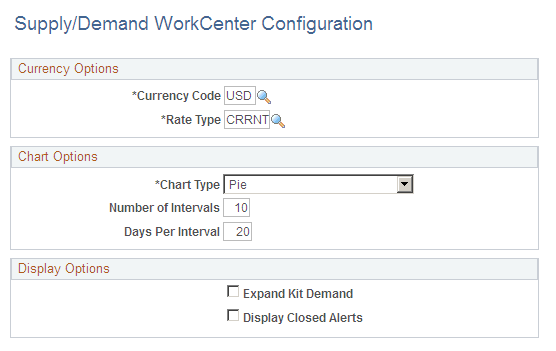
Use the Supply/Demand WorkCenter Configuration page (IN_SDWC_CONFIG) to configure the Supply /Demand WorkCenter. This is the default (installation-level) configuration.
Navigation:
This example illustrates the fields and controls on the Supply/Demand WorkCenter Configuration page. You can find definitions for the fields and controls later on this page below
| Field or Control | Description |
|---|---|
|
Currency Code |
Select the appropriate currency code used to display any monetary amount in alert data. |
|
Rate Type |
Select the default rate type used to perform necessary conversion of monetary amounts in alert data. |
|
Chart Type |
Select the appropriate chart type. The available options are :
|
|
Number of Intervals |
Enter the maximum number of intervals to be displayed on any chart for alert data |
|
Days Per Interval |
Enter the number of days to be included for each interval displayed on a chart for alert data. |
|
Expand Kit Demand |
Select this check box to view kit component demand lines in the alert results grid. If not chosen, you can only view kit demand lines alone. |
|
Display Closed Alerts |
Select this check box to view closed and hidden alerts on account of a mass change on a demand line. |
Supply/Demand WorkCenter User Configuration Page
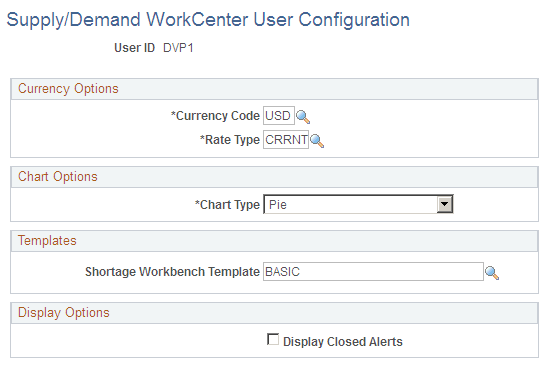
Use the Supply/Demand WorkCenter Configuration page (IN_SDWC_OPR_CFG) to configure the Supply /Demand WorkCenter for a particular User ID entered on the page.
Navigation:
This example illustrates the fields and controls on the Supply/Demand WorkCenter User Configuration page. You can find definitions for the fields and controls later on this page.
| Field or Control | Description |
|---|---|
|
Currency Code |
Select the appropriate currency code used to display any monetary amount in alert data. |
|
Rate Type |
Select the default rate type used to perform necessary conversion of monetary amounts in alert data. |
|
Chart Type |
Select the appropriate chart type. The available options are :
|
|
Shortage Workbench Template |
Select the shortage workbench template used to display the shortage workbench if you choose to access this component using an allowable action from the alert results grid. |
|
Display Closed Alerts |
Select the check box to view closed and hidden alerts on account of a mass change on a demand line. |