Counting Par Locations
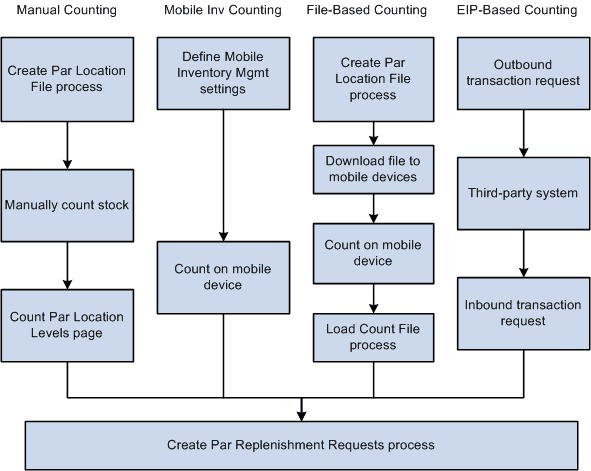
The following diagram illustrates the methods you can use to count the current stock levels within par locations. The stock levels at the par locations can be updated using a manual counting, PeopleSoft Mobile Inventory Management, file-based counting, or EIP-based counting. The Create Par Replenishment Requests process creates a material stock request for stock items, a purchase order for stockless items, and a requisition for nonstock items.
The following diagram illustrates the methods you can use to count the current stock levels within par locations.
Using the Manual Counting Method
Using only PeopleSoft Inventory components and pages, you can complete a manual count of stock with your par locations. Once you have defined your par locations using the Define Par Location component, the steps include:
-
Print count sheets using the Create Par Location File process (INS9053).
-
Perform the count manually using the printed count sheets.
-
Enter the results into the system using the Count Par Location Levels page.
-
Run the Create Par Replenishment Requests process to generate orders for items that fall below optimal quantity levels. Based on your par location setup, this process replenishes the par locations using material stock requests, requisitions, or purchase orders.
Using the Mobile Inventory Counting Method
Using PeopleSoft Mobile Inventory Management in combination with PeopleSoft Inventory, you can use mobile devices to conduct periodic inventory counts to determine replenishment needs for each par location. The Mobile Inventory Management application provides tools to integrate mobile devices to the PeopleSoft Supply Chain Management system. Once you have defined your par locations using the Define Par Location component, the steps include:
-
In PeopleSoft, set up the Installation Options - Mobile Inventory page (Set Up Financials/Supply Chain, Install, Installation Options, Mobile Inventory) and the User Preferences - Mobile Inventory page (Set Up Financials/Supply Chain, Common Definitions, User Preferences, Define User Preferences, Mobile Inventory) to define your settings for par location counting in PeopleSoft Mobile Inventory Management.
-
Use your mobile devices to count the par locations. PeopleSoft Mobile Inventory Management provides two separate task flows to enter count quantities for par locations; Par Count or Par Count Ad Hoc.
-
In PeopleSoft Inventory, run the Create Par Replenishment Requests process to generate orders for items that fall below optimal quantity levels. Based on your par location setup, this process replenishes the par locations using material stock requests, requisitions, or purchase orders.
See .PeopleSoft Mobile Inventory Management: Understanding Mobile Par Location Counts
Using the File-Based Counting Method
Using PeopleSoft Inventory, you can create a file to download to mobile devices and then upload an updated file into PeopleSoft Inventory. Once you have defined your par locations using the Define Par Location component and have installed programs on the mobile devices to accept the file, the steps include:
-
In PeopleSoft Inventory, create a file of items to be counted using the Create Par Location File process (IN_CART_DNL).
-
Download the file to a mobile device.
-
Perform the count on the mobile devices.
-
In PeopleSoft Inventory, upload the count results into PeopleSoft using the Load Count File process (IN_CART_UPL).
-
In PeopleSoft Inventory, run the Create Par Replenishment Requests process to generate orders for items that fall below optimal quantity levels. Based on your par location setup, this process replenishes the par locations using material stock requests, requisitions, or purchase orders.
In this method, programs must be written on the mobile device to accept the downloaded file, operate the count procedure, and then to upload the file to a location where it is available to be processed by the Load Count File process. These programs can be developed in-house or purchased from a third-party.
Using the EIP-Based Counting Method
Using PeopleSoft Inventory and PeopleSoft Integration Broker, you can send and receive par location data with a third-party system using EIPs (Enterprise Integration Points). For example, a third-party systems can be a POU (point-of-use) supplier system. Once you have defined your par locations using the Define Par Location component and have set up the Integration Broker components, the steps include:
-
Use the PAR_LOCATION_SYNC service operation or the PAR_LOCATION_FULLSYNC service operation to send an outbound transaction request containing PeopleSoft Inventory's par location information. You can use the Full Data Publish process (Enterprise Components, Integration Definitions, Initiate Processes, Full Data Publish) to send the outbound transaction request.
-
The third-party system maintains information for each of its par location items set up in the PeopleSoft Inventory Par Location Definition component.
-
The third-party system uses the PAR_LOCATION_COUNT service operation to publish an inbound transaction request to PeopleSoft Inventory. This transaction request provides the PeopleSoft system with count quantities for each item in the par locations. To receive count results from your third-party system, load the PAR_LOCATION_COUNT transaction request into the PeopleSoft Integration Broker data tables and then run the Par Location Count process (RUN_INV_PAR_COUNT) within the Integration Broker (SCM Integrations, Process Transactions, Inventory, Par Location Count). Once the data is received, the PeopleSoft system updates the par location count tables.
-
In PeopleSoft Inventory, run the Create Par Replenishment Requests process to generate orders for items that fall below optimal quantity levels. Based on your par location setup, this process replenishes the par locations using material stock requests, requisitions, or purchase orders.