Pre-Migration Configuration
This section includes tasks to implement Asset Management's shared product functionality with the Lease Administration product. Certain tasks also apply to LA customers who have AM leases. These organizations will review and potentially adjust existing LA configuration to accept AM leases during migration.
Create Amendment Types
Use this page to create amendment types in LA. Lease Administration uses amendment processing to track changes to a lease after lease activation. This impacts AM customers configuring shared product functionality with LA for the first time. See Working with Amendments.
Create Payment Schedules
Use this page to create payment schedules in LA. New payment schedule configuration in LA will replace existing AM payment schedule configuration. This impacts AM customers configuring shared product functionality with LA for the first time.
Asset Management customers should configure the lease payment schedules that will be required after data migration.
Create Routing Codes
Use this page to create transaction routing codes. This impacts AM customers configuring shared product functionality with LA for the first time. See Defining Transaction Routing Codes.
Create LA Business Units
Use this page to create your LA business units. AM business units are mapped to LA business units. This page can also be used by LA customers to review configuration for their existing LA BUs. This task impacts both AM and LA customers. See Creating Lease Administration Business Units.
Create Role Types
Use this page to create role types in LA. This impacts AM customers configuring shared product functionality with LA for the first time. Role types are identified to role categories. You should create at least one role type for each Internal role category. See Defining Lease Administration Roles.
Assign Lease Administration Roles
Use this page to assign roles to users. This impacts AM customers configuring shared product functionality with LA for the first time. End users working in LA should be assigned roles. These roles identify whether the user can:
-
Approve (and adjust) lease payment transactions for payables processing.
-
Create manual fee transactions.
-
Create lease amendments.
Complete Processing for AM Leased Assets that are in Process
Use this page to review assets in the interface table. Links in the AM WorkCenter can be used to complete processing for AM leased assets that are in process. The AM WorkCenter can be used to review pending transactions and exceptions under My Work.
Assign LA Business Units to Your AM Leases
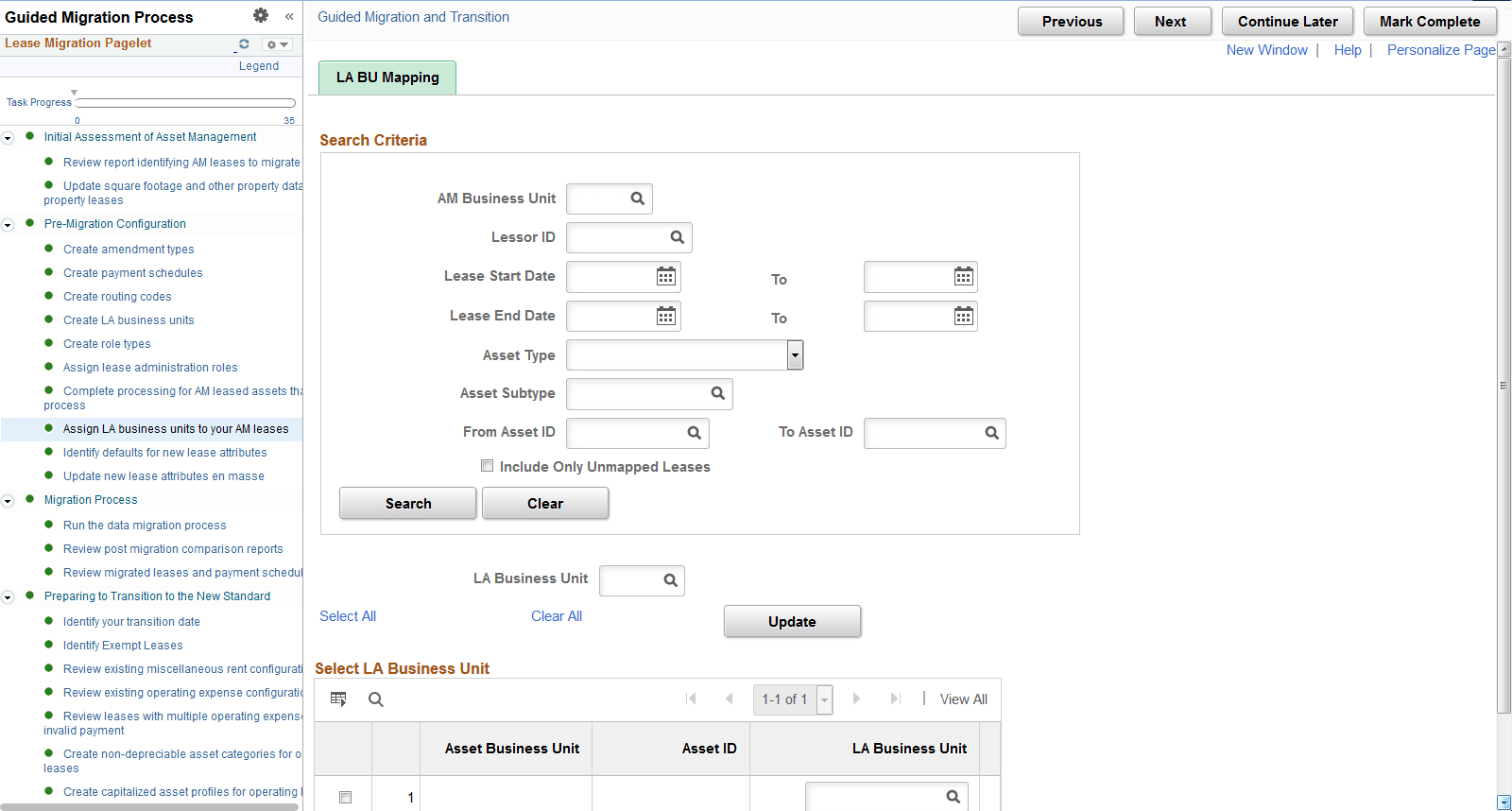
Use this page to review (and adjust if necessary) the LA Business Unit (LA BU) being assigned to your AM leases during migration. This task is important for a successful data migration.
The page shows a listing of your AM leases including the LA BU to which the lease will be mapped. More specifically, when you create an LA BU, you identify its related AM BU. This relationship determines the LA BU used for migration. In this task of the activity guide, the LA BU is populated and display only if the AM BU is mapped to only one LA BU. If the AM BU is mapped to multiple LA BU's, you must select a LA BU for the lease. In this scenario, the migration process does not know which LA BU the asset belongs in until you identify it on the page.
This example illustrates the fields and controls on the Assign LA Business Units to Your AM Leases page.
Identify Defaults for New Lease Attributes
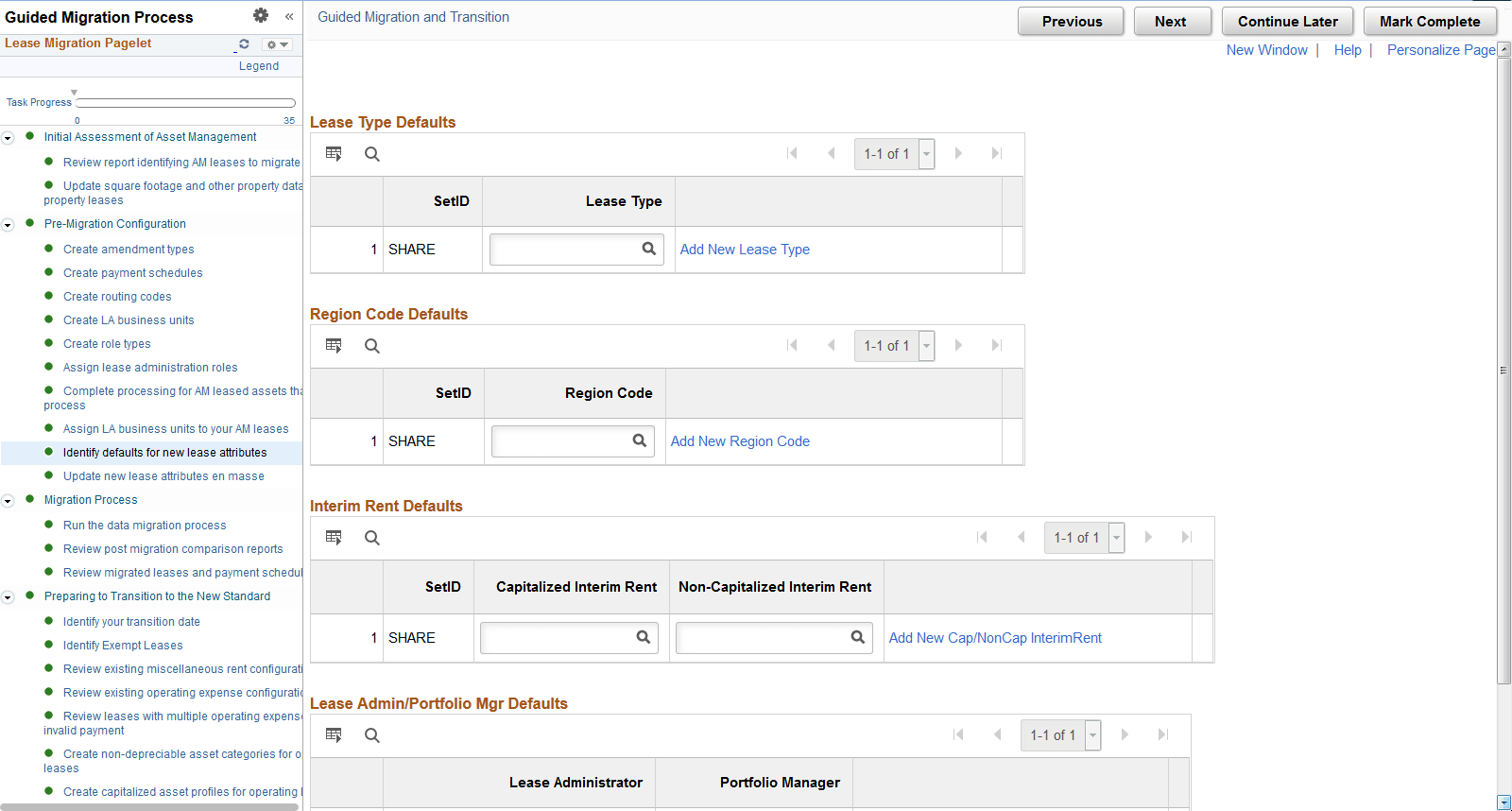
Use this page to identify the default values for required fields on the lease. This impacts AM leases.
Asset Management is not tracking certain fields that are required once leases are migrated. This includes Lease Type, Region Code, Lease Administrator and Portfolio Manager. You should use this task to create your organization-specific values for these attributes and to assign a default value for each of the attributes. You must enter a default value for all the attributes on this page, else your AM leases cannot be migrated.
This example illustrates the fields and controls on the Identify Defaults for New Lease Attributes page.
Update New Lease Attributes en masse
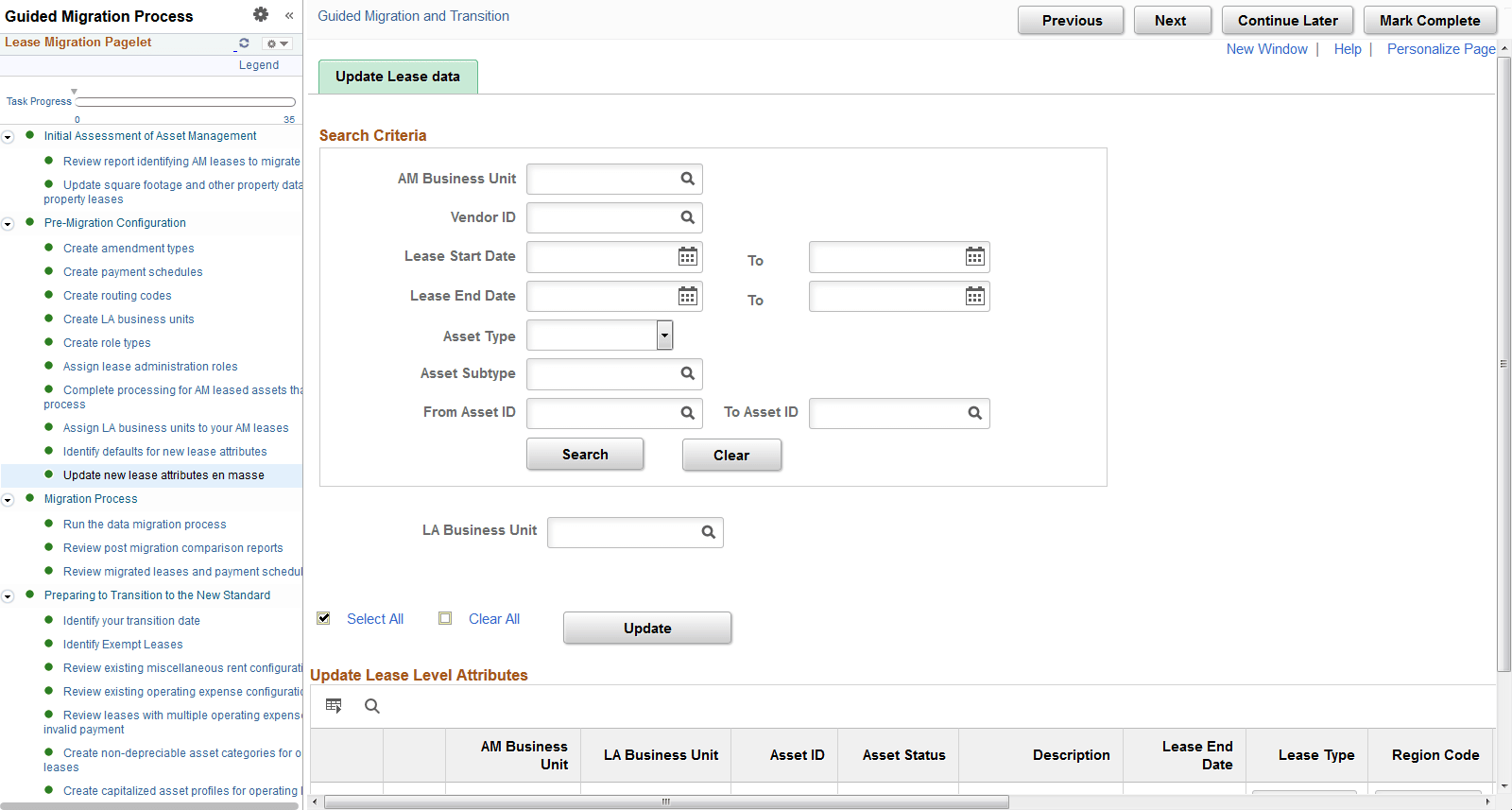
Use this page to update new lease level identifiers en masse or individually. This impacts AM leases.
You can use this page to provide a more specific value for Lease Type, Region Code, Lease Administrator and Portfolio Manager for each of your leases. This is optional. If a lease is not updated here, on this task, then the defaults from the previous task will be used during data migration. Also, you must ensure that each lease has a lessor ID populated, else the lease cannot be migrated to LA. If you process lease payments through accounts payable, the supplier ID on the lease in AM will become the lessor on the lease in LA and this column is display only. You must identify a lessor before the lease can be migrated. To update information en masse, first select a LA Business Unit just below the search criteria. Next, select values for the fields being updated and select Update. Once complete, save the changes.
This example illustrates the fields and controls on the Update New Lease Attributes en masse page.