Assignments Tab — Labor Assignment Workbench Page
Navigation:
This example illustrates the fields and controls on the Labor Assignment Workbench page: Assignments tab. You can find definitions for the fields and controls later on this page.
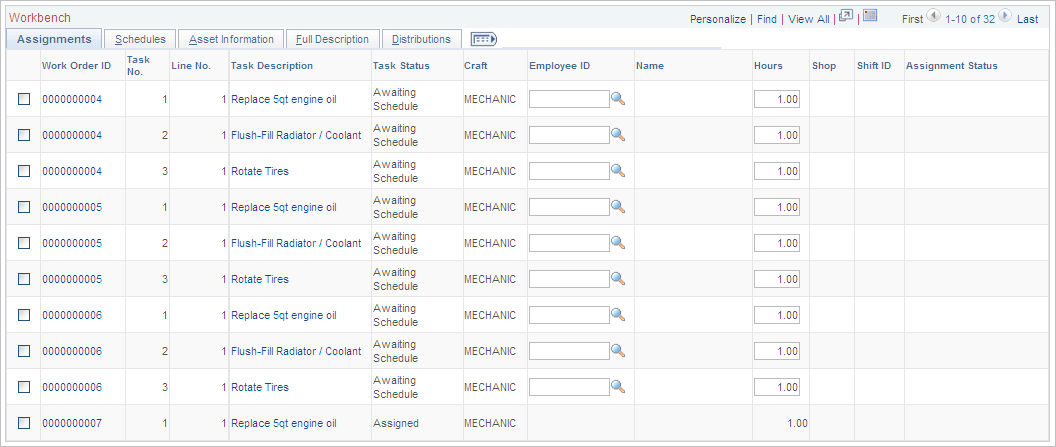
| Field or Control | Description |
|---|---|
|
Task No. (task number) |
Identifies the task number associated with the work order ID to which an employee is assigned. |
|
Line No. (line number) |
Identifies the line (row) number of the labor schedule in the work order to which an employee is assigned. |
|
Task Status |
Displays the current work order task status. This field is updated if you select the Change Status action for one or more selected rows. |
|
Craft |
Displays the craft associated with the labor schedules for this task line in the work order. |
|
Employee ID |
Select the employee (resource) that you want to assign to this row. Alternatively, select one or more rows and then select the Assign Resource action and an employee ID to update the selected rows. Note: The employee must be set up as a resource in a shop. |
|
Hours |
Change the hours that the selected employee will work on this task from the default hours, which are derived from the labor requirements and labor schedules in the work order. |
|
Shop |
Displays the shop associated with the employee when you select an employee ID. |
|
Shift |
Displays the shift associated with the employee in the shop when you select an employee ID. |
|
Overbook |
Select this check box to enable manual overbooking of the labor schedule row. This field is controlled by the Overbooking Resources group box on the Shop Definition page. If the Require Manual Override field in the shop is not selected, then this field is not available for selection in this Workbench - Assignment grid and overbooking is always allowed. If the Require Manual Override field is selected, then this check box becomes available for selection in this Workbench - Assignment grid and the user controls overbooking. |
Important:
If you see an informational, warning, or error message icon on one or more of the selected rows, select the Message tab that appears and read the message associated with the icon. This Message tab works the same way that it does in the Crew Scheduling Workbench.