Schedules Tab — Labor Assignment Workbench Page
Navigation:
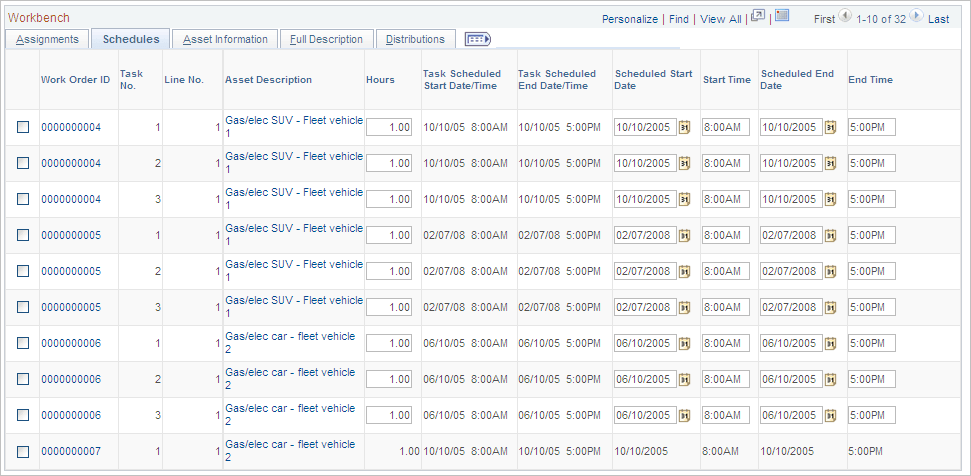
This example illustrates the fields and controls on the Labor Assignment Workbench page: Schedules tab. You can find definitions for the fields and controls later on this page.
| Field or Control | Description |
|---|---|
|
Asset Description |
Click this link to access the Asset Information page, which describes the characteristics (type, subtype, manufacturer ID, model) of the asset selected for the work order task. Other information includes the AM business unit, asset ID, serial number, tag number, asset criticality, and if the asset is a component of another asset. |
|
Task Scheduled Start Date/Time |
Displays the date and time the task on the work order was scheduled to start. |
|
Task Scheduled End Date/Time |
Displays the date and time the task on the work order was scheduled to end. |
|
Scheduled Start |
Select a new start date for a row. You can also select one or more rows and select the Change Scheduled Start Dt/Tm action to update this field and the Start Time field. |
|
Start Time |
Enter a new start time for a row. Selecting the Change Scheduled Start Dt/Tm action also updates one or more selected rows. |
|
Scheduled End |
Select a new end date for a row. You can also select one or more rows and select the Change Scheduled End Dt/Tm action to update this field and the End Time field. |
|
End Time |
Enter a new end time for a row. Selecting the Change Scheduled End Dt/Tm action also updates one or more selected rows. |
Note:
If the labor schedules are associated with a crew, the default values that appear in these fields are derived from the crew scheduled start and end dates and times. If the labor schedules are associated with a non-crew scheduled work order, the default values are derived from the task scheduled start and end dates and times in the work order.