Labor Assignment Workbench Page
Use the Availability grid on the Labor Assignment Workbench page. to view labor availability as per weeks.
Navigation:
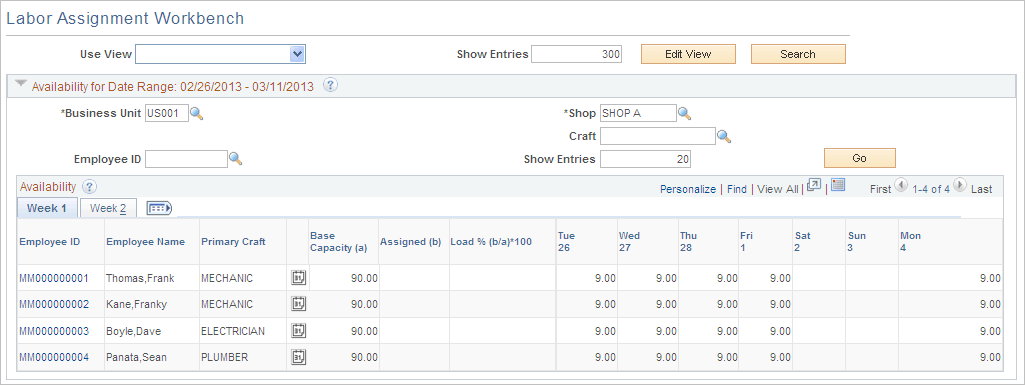
This example illustrates the fields and controls on the Labor Assignment Workbench page: Availability grid. You can find definitions for the fields and controls later on this page.
| Field or Control | Description |
|---|---|
|
Business Unit |
Select a business unit to override the default business unit. The default business unit is derived from the Labor Assignment Workbench Search criteria. |
|
Shop |
Select a shop to override, if necessary, the default shop. The default shop is derived from the Crew Scheduled Labor Assignment Workbench Search criteria if the Crew Scheduled View Mode is selected. Alternatively, the default shop is derived from the Non-Crew Scheduled Labor Assignment Workbench Search criteria if the Non-Crew Scheduled View Mode is selected. |
|
Crew |
Select a crew to override, if necessary, the default crew value, which is derived from the Crew Scheduled Labor Assignment Workbench search criteria. Initially, only the crew resources appear on this page. However, you can clear the crew ID in this field and click the Go button to list all shop resources. Note: If the search criteria is Non-Crew Scheduled, then this field does not appear. |
|
Craft |
Enter a craft or select a craft to override, if necessary, the default craft value, which is derived from either the Crew Scheduled or Non-Crew Scheduled Labor Assignment Workbench Search criteria. When you click the Go button, the system displays only the employees assigned to the selected shop for that craft. This field is optional. |
|
Employee ID |
Select a specific employee to check the availability of only that person. You can select any employee, as long as the employee is assigned to a shop. |
|
Go |
Click this button to refresh the Availability grid with any changes to the search fields listed previously. Only the Business Unit and Shop fields are required search fields. This button allows you to change the resource search criteria to either refine the list of resources within the shop and crew selected for scheduling or to view resource availability in other shops and crews. |
Availability Grid
The number of tabs depends on the number of days in the period, and periods are divided into weeks. You can see from one to five weekly tabs, depending on the scheduling period. The metrics in this grid show the availability and load of each crew member for each day of the schedule period. Assigning employees to selected rows in the workbench or changing the schedule dates or hours in those rows automatically refreshes the Availability grid.
| Field or Control | Description |
|---|---|
|
|
Click the Calendar icon to access the monthly schedule for the employee. Click a date to access the Task Details page, where you can add a new assignment, such as a meeting. You can access the daily schedule from the Task Details page. |
|
Base Capacity (a) |
Displays the total available hours for the schedule period before assignments are made. Base capacity is equal to the standard working hours minus appointments, such as vacations, holidays, and meetings. |
|
Assigned (b) |
Displays the total hours that this resource is assigned for this schedule period. Data is retrieved from the resource's calendar table. |
|
Load % (b/a) * 100 |
Displays the percentage value equal to the assigned hours divided by the base capacity hours. |
|
Mon (date), Tue (date), Wed (date), Thu (date), Fri (date), Sat (date), and Sun (date) |
Displays the number of remaining hours in which the employee is available each day. Remaining hours are equal to the available hours for the day minus the hours assigned for that day. If the day is overbooked, the hours will appear as negative values in red. Days when the employee doesn't work (for example, weekends and holidays) will be blank. A zero will appear for days that are fully booked but not overbooked. |
