Labor Assignment Workbench Search Page
Use the Labor Assignment Workbench Search page (WM_LABOR_SRCH_SEC) to search for crew and non-crew schedules in which to assign labor.
Navigation:
This example illustrates the fields and controls on the Labor Assignment Workbench Search page. You can find definitions for the fields and controls later on this page.
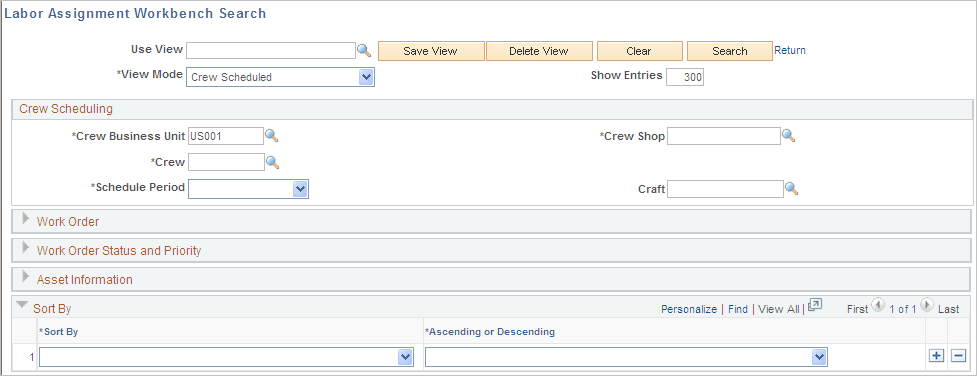
The Labor Assignment Workbench Search page is similar to the Crew Scheduling Workbench Search page.
| Field or Control | Description |
|---|---|
|
Use View |
Select an existing saved view as your search criteria. |
|
Save View |
Click this button if you change the criteria in a view or create a view of new search criteria. If you modified an existing view, the system asks if you want to override the view. If this is a new view, the system saves the view with the name you enter in the Use View field. |
|
Delete View |
Click this button to delete the current view. The system asks if you are sure that you want to delete the view. |
|
Clear |
Click this button to clear all the field values in a view. |
|
Search |
Click this button after entering any required or additional search criteria. The system searches for and displays the availability for the selected crew and period, and it displays work orders in the workbench grids that are either assigned or can be assigned based on the criteria. |
|
Return |
Click this link to return to the workbench. |
|
View Mode |
Select a value.
When you click the Search button after defining your non-crew scheduled search criteria, all of the resources assigned to the shop and work order labor schedule lines that fall within the selected search criteria appear in the Availability grid. |
|
Sort By |
Select a field name and select whether you want to sort the field values in either Ascending or Descending order. Values are:
|