Understanding How to Receive Stock in PeopleSoft Inventory Using Mobile Receiving
The Mobile Receiving task flow integrates with the PeopleSoft Purchasing system to receive and put away received goods. Receiving rules are defined in the PeopleSoft system business processes leading up to the actual receipt. These processes include setting up items and creating requisitions and purchase orders. Mobile Receiving leverages this base information, and makes the process of receiving goods more efficient and accurate and moves data into the PeopleSoft system in real time.
Note:
To make changes to a receipt after an item has been received, you need to use the PeopleSoft system online Receiving pages.
When stock arrives at the receiving location, you receive it using a mobile device with the Mobile Receiving task flow. You can receive inventory or non-inventory items, with or without associated purchase orders. Receipts with a purchase order can be for items that will be stocked in inventory, for items that will go directly to par locations, or for items that will go directly to various departments. A receipt without a purchase order (ad hoc receipt) can be interfaced to the same products as a purchase order receipt. Only non-inventory items can be received without a purchase order.
If the source of a receipt is not a current supplier the PeopleSoft system, then you can enter it during Mobile Inventory Receiving.
If the attention to or location information for delivery is not in the PeopleSoft system, then you can enter it during Mobile Inventory Delivery.
This diagram illustrates the flow of information through the Mobile Receiving process beginning with when the shipment arrives at the ship to location:
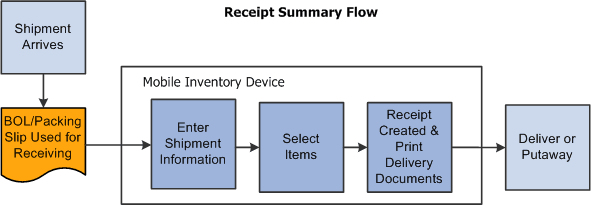
When a shipment arrives at the receiving location, it typically arrives with a bill of lading or packing slip. These documents can be used to gather information needed to record the receipt. Using a mobile device at the receiving location, you can enter shipment information. You select items to be received and determine if there are additional items in the shipment that need to be received. After determining all of the items that have been received, you can create and print a receipt. The information is relayed back to the PeopleSoft system where you can perform the downstream receipt processes.
Note:
Entering shipment information is optional.
You can also select to print delivery documents. Delivery information becomes available only after the item has been received. When you select to print delivery documents, the system uses the receipt information and initiates the RECV_DEL multi-process job. The job gathers receiving data for the Receipt Delivery Detail report.
See Understanding How to Record Deliveries in PeopleSoft Purchasing Using Mobile Inventory Management.
Simple and Advanced Selection of Items for Receipt
The difference between a simple and an advanced search for receipt items is the number of input fields that you can use. After you enter information in the selection fields, the rest of the search is the same. The search produces a list of purchase order lines and you select the lines to include in the receipt.
You use a simple search when the shipment is for one purchase order ID. You enter the purchase order ID and the mobile device displays a list of items for that purchase order that match the default ship to location and the due dates that are in the date range selection. You select the purchase order lines and schedules that are in the shipment and enter or adjust the quantity received.
An advanced search is used if you need to refine the selection criteria beyond just the purchase order and default ship to. Some examples include receiving a past due purchase order in which the due date is prior to the Days +/- field value.
Another example might be when a shipment includes items from multiple purchase orders. In this case you have several options. First, you can create one receipt for each purchase order using a simple search. Second, you can use the advanced selection to create a list of purchase order lines that you can receive in one shipment. To do this, you enter selection criteria to find matches in the shipment's purchase order lines.
A final example might be when a packing slip does not include the purchase order ID. In this case you can search for the purchase order by entering a supplier, manufacturing item ID and so on.