Purchase Order Receipts
To take advantage of the purchasing authorizations established during the requisition and purchasing process, goods and services that you receive need to be referenced against a purchase order. With Mobile Receiving, the purchase order must exist; however, lines and schedules might not be known by the person recording the receipt.
The system provides default receiving and purchase order business units, derived from User Preferences, but you can override the values. The Mobile Receiving application automatically assigns a number to the receipt, but you can override the number. A component interface built on top of the Add/Update Receiving page processes the transaction from Mobile Receiving. Component interfaces for Mobile Receiving include MIN_PO_RECV_CI and PO_RECEIPT_CI.
See Understanding Mobile Inventory Management Setup in PeopleSoft.
This diagram illustrates the flow for how a purchase order shipment is received and a receipt is created for the transaction. It also highlights the Mobile Receiving part of the flow:
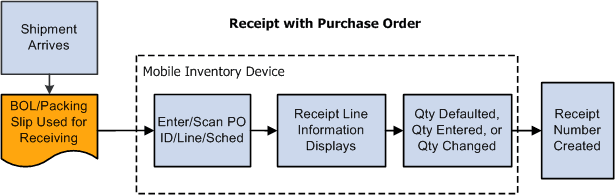
When a purchase order is defined and the shipment arrives at the receiving location, you use a mobile device to enter or scan the purchase order ID, if the purchase order ID is bar coded on the packing slip. Upon reading the purchase order, the mobile device displays the purchase order receipt line information including the supplier item description ID and default quantity, if it exists.
A setup option is available to control which item ID displays on the mobile page. You can select to display the item by:
-
Purchase order line item.
-
Supplier item.
-
Manufacturing item.
If your user preferences are set to provide a default purchase order quantity or quantity remaining for receiving, the mobile device displays the quantity for you. However, if your user preferences are set for blind receiving or not to provide default quantities, then the system does not provide a quantity.
These user preferences are defined on the Receiver Setup page. To access the page, select: Select the Blind Receiving Only check box to not display a quantity. Or, select the No Order Qty button to not display the purchase order quantity.
You can view additional details about individual items by clicking the Show link. Select the lines included in this receipt, enter or change the receipt quantity and save. When saving the receipt, you can trigger the RECV_DEL multi-process job to create the Receipt Delivery Detail report. Repeat the receiving process to receive more purchase order lines. After receiving the items, you can then use the mobile device with Mobile Delivery to complete the delivery verification of the items. When you save the receipt, the system provides the option to close short purchase order lines that are being received.
Other processes that the system can trigger are based on user preferences. For example: interface receipts and streamline subcontract. However, the ability to change these triggers are not always provided but receive default values from user preferences.
Note:
You can add receipts for lot-controlled and serial-controlled items, device tracked items, and asset items. You cannot enter values for the receipt until you access the PeopleSoft system's Receiving page to enter the values after you save the mobile receipt.