Entering OpenItem Transactions on Vouchers
This section describes both how to enter an advance against an OpenItem account and how to enter an expense against that advance.
Creating the Advance Voucher
Use the Invoice Information page to enter a voucher for the advance (Accounts Payable, Vouchers, Add/Update, Regular Entry, Invoice Information).
This example illustrates the fields and controls on the Invoice Lines scroll area on the Invoice Information page, with an invoice line charged to an OpenItem account.
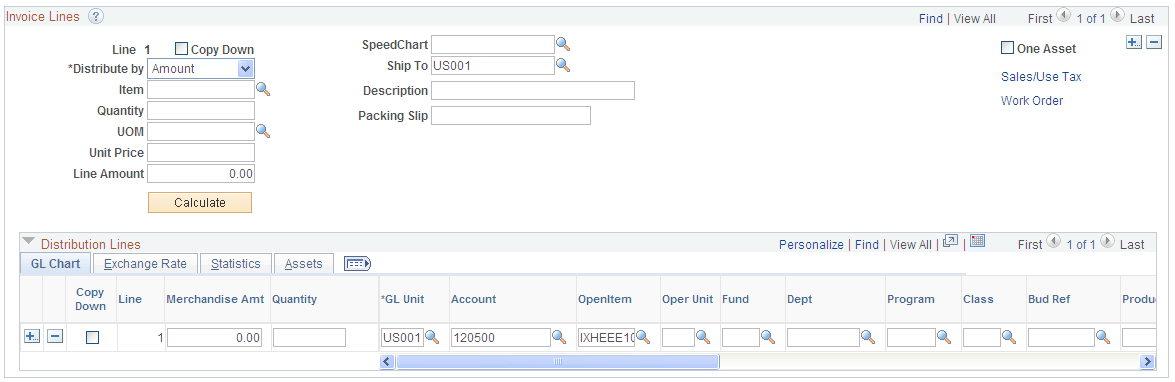
Enter an OpenItem account in the Account field on the distribution line (in our example, 120500), and select an OpenItem key reference (in this example, employee ID IXHEE10) in the OpenItem field.
Creating an Expense Report Voucher
Use the Invoice Information page to create an expense report voucher (Accounts Payable, Vouchers, Add/Update, Regular Entry, Invoice Information).
This example illustrates the fields and controls on the Invoice Lines scroll area on the Invoice Information page, with distribution lines for an expense charged against an OpenItem employee advance account.
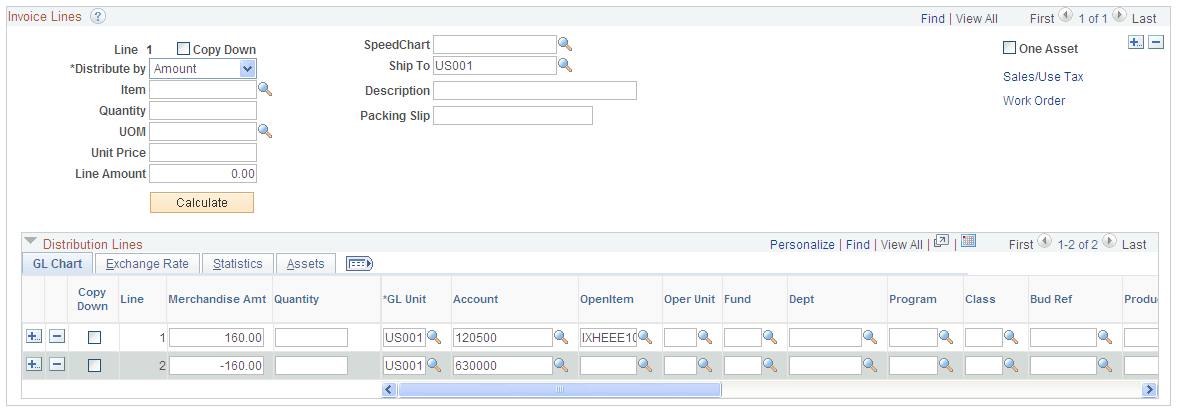
When you enter a voucher for an expense charged against the advance, the voucher should have at least two distribution lines: one with a negative merchandise amount and one with a positive merchandise amount. Charge the negative merchandise amount to the OpenItem account (in this case, the employee advance OpenItem account, 120500) and the positive merchandise amount to an expense account. Specify the OpenItem key reference on the negative distribution line for the OpenItem account.
Related Topics