Prepopulating Forecasts in Batch
To prepopulate forecasts in batch, use these components:
-
Run Prepopulate Forecast Time component (RUN_FC_TIME).
-
Load Third Party Time component (RUN_PC_PC_TO_FC).
Note:
This topic is optional. If you are not prepopulating forecasts, you do not need to complete the tasks that are discussed in this topic.
Pages Used to Prepopulate Forecasts in Batch
| Page Name | Definition Name | Usage |
|---|---|---|
|
RUN_CNTL_FC |
Prepopulate forecasts by GL business unit from the prior forecast horizon and from PeopleSoft Resource Management. |
|
|
RUN_CNTL_FC |
Load forecast time from a third-party project management tool that is already loaded into the forecast staging table. |
Populate Time Page
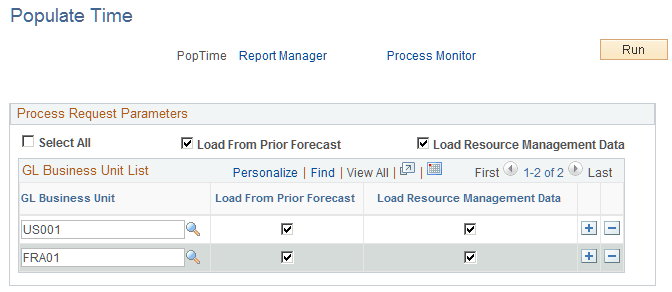
Use the Populate Time page (RUN_CNTL_FC) to prepopulate forecasts by GL business unit from the prior forecast horizon and from PeopleSoft Resource Management.
Navigation:
This example illustrates the fields and controls on the Populate Time page. You can find definitions for the fields and controls later on this page.
| Field or Control | Description |
|---|---|
|
Select All |
Select this option to prepopulate forecast hours for all GL business units. |
|
Load From Prior Forecast and Load Resource Management Data |
The options are:
Select both options to take full advantage of the system's ability to prepopulate forecasts using prior forecasts and schedule data from PeopleSoft Resource Management. |
|
GL Business Unit (general ledger business unit) |
Specify one or more business units for which you want to prepopulate forecast hours. This field is available if you did not enable the Select All option. |
|
Run |
Click Run for the Populate Time Application Engine process to populate the Forecast Time - Summary page, by resource, for the forecast horizon and rules that are defined on the Forecast Configuration and Program Management Options pages. |
Important:
Run the Populate Time process only after completion of the Establish Control and Administer Cache processes. Schedule all three processes in a single run control in this order: 1. Establish Control, 2. Administer Cache, and 3. Populate Time.
Load Third Party Time Page
Use the Load Third Party Time page (RUN_CNTL_FC) to load forecast time from a third-party project management tool that is already loaded into the forecast staging table.
Navigation:
Click Run for the Load Third-Party Data Application Engine process (PC_PC_TO_FC) to load data from a third-party project management tool after that data is loaded into the forecast staging table.