Project Data Compression
This group contains the following exception:
Projects Ready for Compression
Use the Projects Ready for Compression pagelet (PC_PRJ_COMPRSS_PNL) to select projects for compression.
This example illustrates the fields and controls on the PC Compress Projects page. You can find definitions for the fields and controls later on this page.
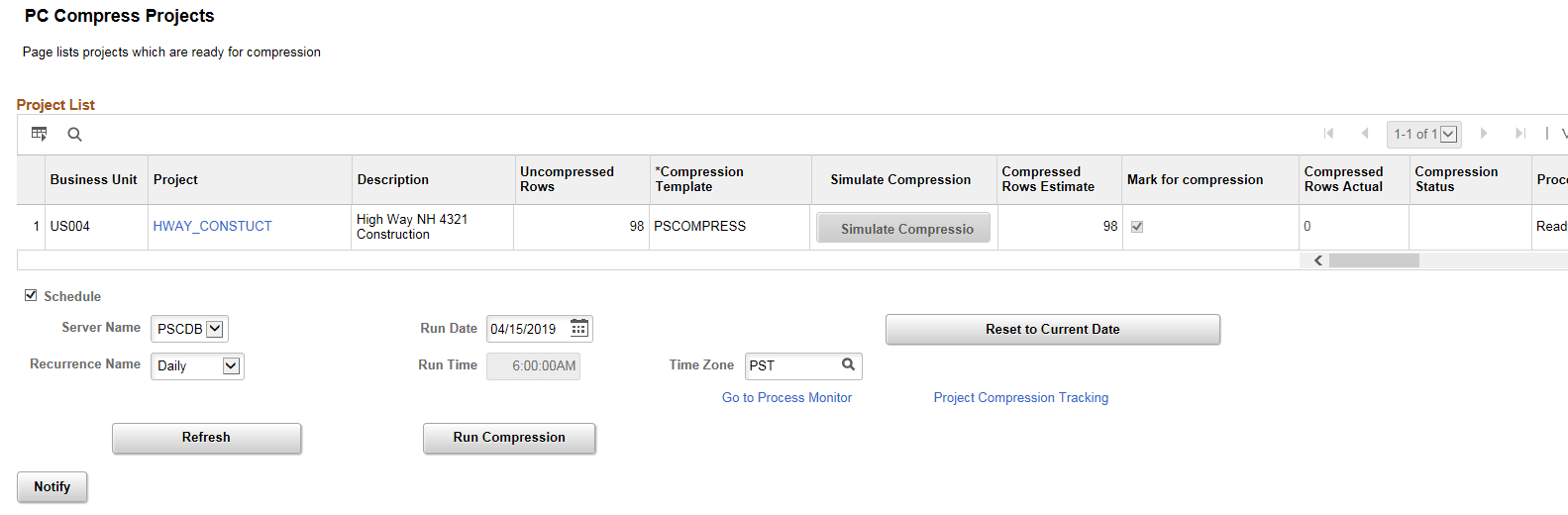
| Field or Control | Description |
|---|---|
|
Project |
Click Project link to open the Project Status page. Projects listed for compression will be based on those that the user has access to. However, administrator has access to all projects and hence can view all projects that are marked for compression. |
|
Uncompressed Rows |
Displays the total number of project transaction rows that have not been compressed. |
|
Compression Template |
Displays the compression template, which will be used to compress the transaction rows. The default template provided can be overridden. |
|
Simulate Compression |
Click to simulate the results of the compression process before running the actual compression process. The estimated reduction in transactional data is based on the selected compression template. The simulation output is not saved. The simulation does not consider date fields. Organizations should see a larger reduction in transactional data when the actual compression process is run and date fields are summarized based on the template selected. |
|
Compressed Rows Estimate |
Displays the estimated number of rows after compression. |
|
Mark for Compression |
Select the checkbox to include the project in the compression process. |
|
Compressed Rows Actual |
Displays the number of rows after compression. |
|
Compression Status |
Displays the compression status. Values include:
|
|
Processing Status |
Displays status of the compression process. Values include:
|
|
Schedule |
Select check box to schedule the compression process. Scheduling can be done only by the administrator. Hence this field is not activated for other users. During the scheduled compression, PC_SCH_CMPRS process is triggered. This process in turn triggers the PC_COMPRESS process for each project. If the compression process is not scheduled then the PC_COMPRESS process is directly triggered and is executed in a sequence for each project. Note: The scheduled compression process will include all projects approved for compression when the process scheduler reaches the designated start time. If you wish to compress subset of projects at different scheduled times, you must allow the first scheduled process to complete and then schedule compression of the next set of projects. |
|
Server Name |
Select the server to schedule the compression process. |
|
Run Date |
Specify the date to execute the compression process. |
|
Recurrence Name |
Select the recurrence period for the compression process. |
|
Run Time |
Based on the recurrence selected, run time for the compression process will be displayed. |
|
Time Zone |
Select time zone for the scheduled compression run. |
|
Reset to Current Date |
Click to reset the schedule of the first compression run to the current date. |
|
Refresh |
Click to view the latest compression status, processing status, and actual compressed row count once the compression process is triggered. |
|
Run Compression |
Click to start the compression process. |
|
Project Compression Tracking |
Click to open the Project Compression Tracking page and view the compression log details. |