Setup and Maintenance Exceptions
This group contains these exceptions:
Missing Project Managers
Use the Missing Project Managers pagelet (PC_WC_TEAM_GRID) to view all active projects that do not have an active project manager as of the current date. A link is provided in the Resource Name column that enables the user to access the Resource Detail page or the Project Team page if Program Management is installed.
This example illustrates the fields and controls on the Missing Project Managers.

Blank Project Type
Use the Blank Project Type pagelet (PC_WC_TEAM_GRID) to view active projects for which the project type is not assigned a value. The user can select a value from the Project Type drop down box. If a user selects a valid project type and clicks the Save button, then the exception is cleared from the gird.
This example illustrates the fields and controls on the Blank Project Type page.

Inactive Project Employees
Use the Inactive Project Employees pagelet to view active projects that have inactive employees as of the current date. The user can perform the necessary action. A link is provided in the Resource Name column that enables the user to access the Resource Detail page (if Program Management is installed) or the Project Team page (if Program Management is not installed). If the resource is a manager for the current date, then a manager icon is visible on the grid.
This example illustrates the fields and controls on the Inactive Project Employees pagelet.

Activities Not Linked to Contract Lines
Use the Activities Not Linked to Contract Lines pagelet (PC_WC_TEAM_GRID) to view active projects and activities that have not been assigned to a rate based contract line.
This example illustrates the fields and controls on the Activities Not Linked to Contract Lines page.
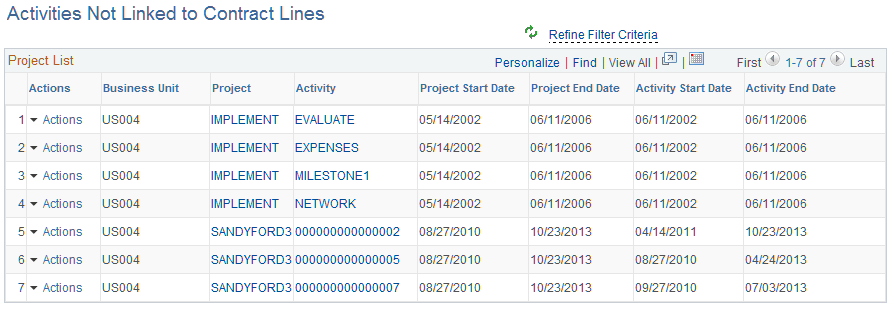
A user can review this list to determine if a project, activity, or both should be assigned to a rate based contract line for billing and revenue purposes. The grid displays the start and end dates of the project and activity. The project ID field serves as a link to the Project Definitions, General Information component. The activity ID field serves as a link to the Activity Definitions, General Information component.
Update Project Template Status
Use Update Project Template Status pagelet (PC_PROJ_TMPL_STS ) to update the project template status for the listed project templates. Only those project templates that the user has access to are available for updating.
This example illustrates the fields and controls on the Update Project Template Status page. You can find definitions for the fields and controls later on this page.
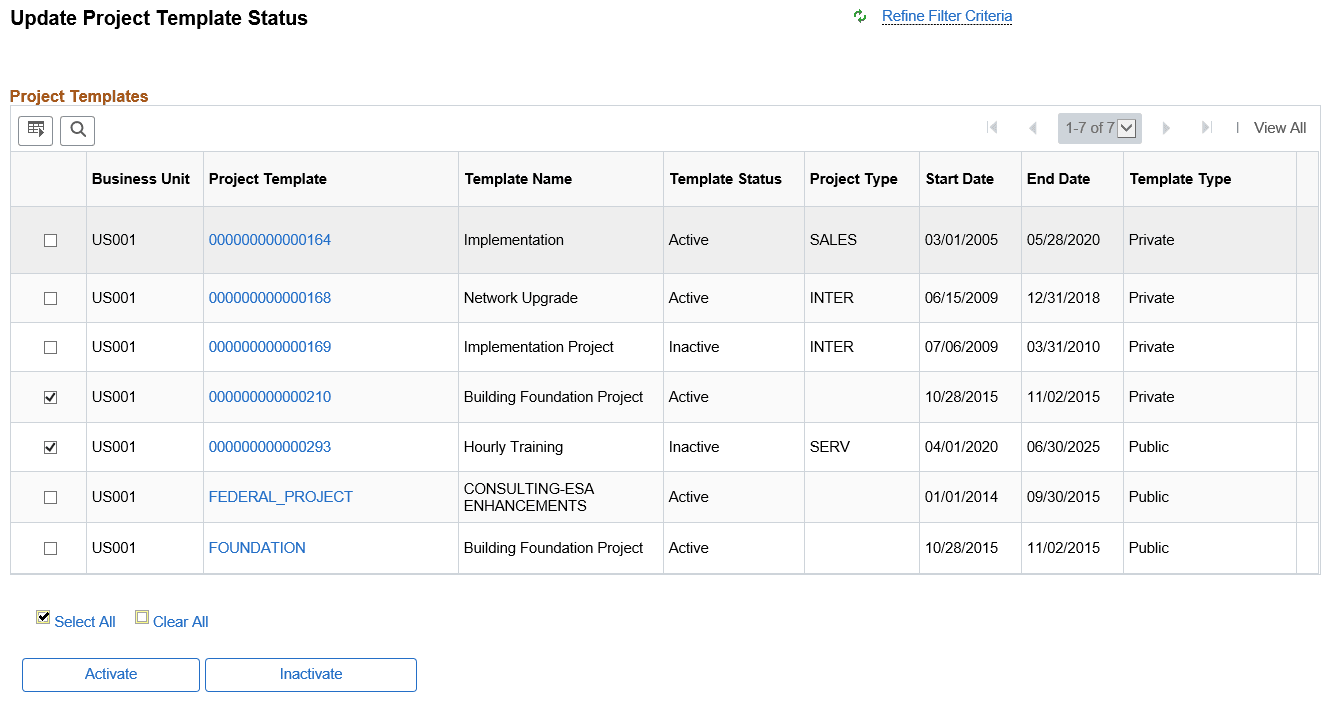
| Field or Control | Description |
|---|---|
|
Refine Filter Criteria |
Click to filter project templates based on the given filter criteria. |
|
Select Check Box |
Select to Activate or Inactivate required project templates. |
|
Project Template |
Click project template link to view project general information in a modal window. |
|
Template Status |
Displays the project template status, Active or Inactive. |
|
Template Type |
Display if template is Public or Private. |
|
Select All |
Click to select all displayed project templates for updating template status. |
|
Clear All |
Click to deselect all selected project templates. |
|
Activate |
Click to activate selected project templates. Activated templates can be again inactivated. |
|
Inactivate |
Click to inactivate selected project templates. Inactivated templates can be again activated. |