Procurement WorkCenter - My Work
The My Work section of the main tab includes links to pages that you may want to access frequently. The My Work section is where you need to take some type of action; it includes exceptions and and pending activities.
Navigation:
Select the Procurement WorkCenter tile from a Fluid homepage. Expand My Work.
This example illustrates the fields and controls on the Procurement WorkCenter - My Work pagelet.
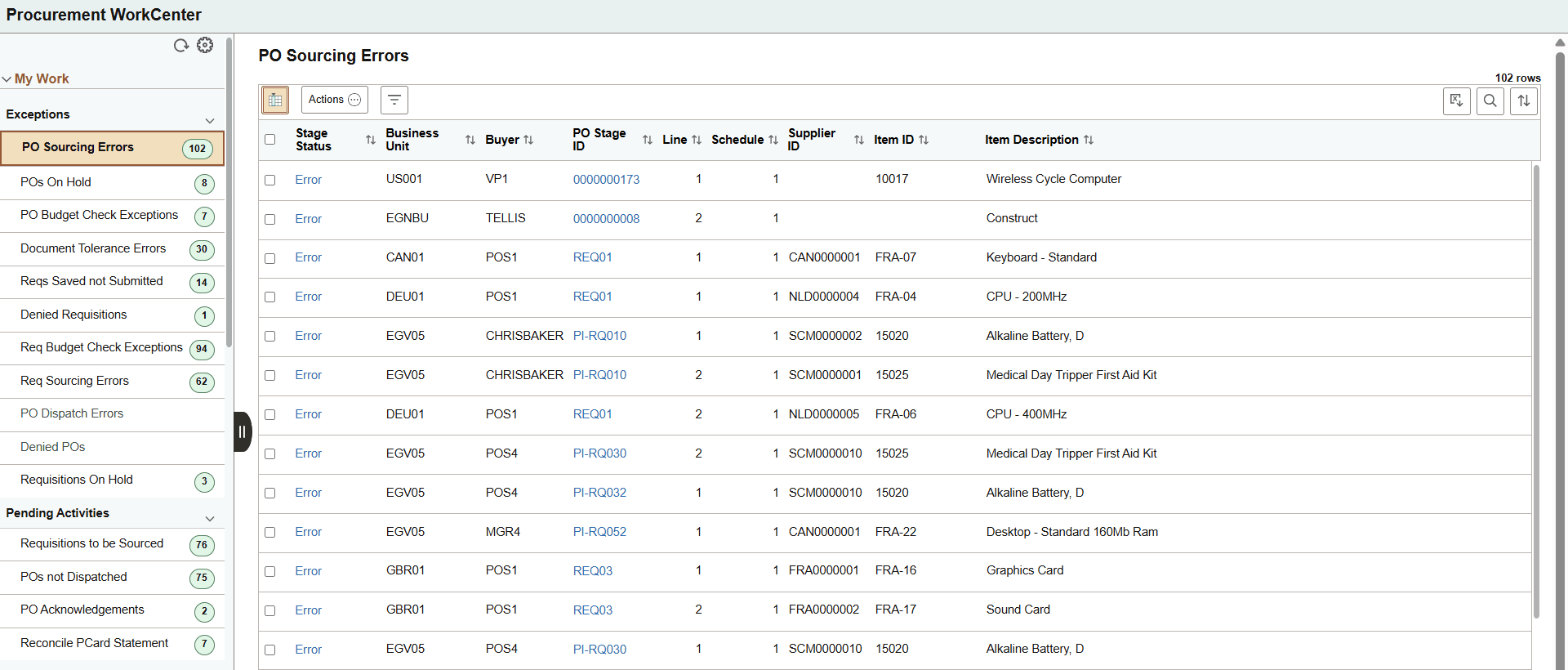
The My Work pagelet is pre-defined and includes links to pages that you need to access most often. It can also include items that require your attention and potentially some type of action. Some links that are set up for the My Work pagelet can be subject to filter criteria that limit the amount of data that is available to a user. If enabled by the system administrator, you can personalize your My Work section by clicking the Personalize icon.
Delivered links are grouped into these sections. However, your system administrator can customize this per your needs:
-
Exceptions
-
Pending Activities
Click the Related Actions button to perform the actions for the transactions or select multiple rows in the application grid and click the Actions button to perform the actions in bulk.
Purchase Order and Requisition Authorizations for My Work
Depending on the authority settings and user authorizations on the Purchase Order User Authorizations and Requisition Authorizations Pages, both Purchase Orders and Requisitions lists appear in the Procurement WorkCenter under Exceptions and Pending Activities.
For more details about PO authorizations for PO Sourcing Errors, POs On Hold, PO Budget Check, Document Tolerance Errors Exceptions, and POs Not Dispatched Pending Activity, see Authorizations for Purchase Orders in Fluid Procurement WorkCenter section on the Application Fundamentals: User Preferences – Purchase Order User Authorizations Page.
For more details about Requisition authorizations for Requisitions on Hold Exception, and Requisitions to be Sourced Pending Activity, see Authorizations for Requisitions in Fluid Procurement WorkCenter section on the Application Fundamentals: User Preferences – Requisition Authorizations Page.
Exceptions
| Link/Option and Description | Actions |
|---|---|
|
PO Sourcing Errors |
Actions:
Stage Status: Click the Error link on the Stage Status column to view the Error Message Details. PO Stage ID: Click the link to view the Requisition Inquiry details. On the REQ Inquiry page, click Requisition ID link to view the full Requisition Details. |
|
POs On Hold |
Actions:
|
|
Budget Check Exceptions |
Actions:
Click the More button corresponding to the PO row to navigate to the Maintain Purchase Order page to further modify the PO. For more details about Maintain Purchase Order page, see Maintain Purchase Order - Purchase Order Page. |
|
Document Tolerance Errors |
Actions:
Click the More button corresponding to the PO row to navigate to the Maintain Purchase Order page to further modify the PO. For more details about Maintain Purchase Order page, see Maintain Purchase Order - Purchase Order Page. |
|
Reqs Saved not Submitted |
Notify Requester Action: Send an email notification to the requester. The notification informs the requester that their requisition requires action. The requester receives an email with a link to the requisition, allowing them to review and complete the submission. Click the Details button to view more information about the requisition. This option opens the requisition in the Edit Requisition component, where you can review the requisition details, make edits, add items, or submit the requisition. Use this feature to access and manage individual requisitions directly from the WorkCenter. For more details, see PeopleSoft eProcurement: My Requisition - Edit Requisition Page. Note: Reqs Saved not Submitted, Denied Requisitions, Req Budget Check Exceptions, and Requisition Sourcing Errors Exceptions appear only for users who have the EPPVWC100 permission list assigned. These exceptions display only those requisitions for which you have authorized access. If you have full authorization, you can view all requisitions in the exceptions. If you have limited authorization, you will see only the requisitions you are allowed to access. This includes requisitions where you are the requester, as well as those belonging to other requesters if you have the appropriate requisition authorization. |
|
Denied Requisitions |
Actions:
Click Details to open the denied requisition in the Edit Requisition component. This allows you to review the requisition details, make necessary edits, and take further actions as needed. For more details, see PeopleSoft eProcurement: My Requisition - Edit Requisition Page. |
|
Req Budget Check Exceptions |
Actions:
|
|
Requisition Sourcing Errors |
Notify Buyer Actions: Send an email notification to the buyer assigned to a requisition with a sourcing error. This notification informs the buyer about the sourcing issue and provides a link to review and resolve the error. Click the Error link to view detailed information about the sourcing error for a requisition. This link opens Error Message Detail page, where you can see the specific reason for the sourcing error and any related messages. PO Stage ID: Click the link to view the Requisition Inquiry details. On the REQ Inquiry page, click Requisition ID link to view the full Requisition Details. |
|
PO Dispatch Errors |
Actions:
The error details is available in the error column for corresponding PO row. Review the error details and click More button corresponding to the PO row to navigate to the Maintain Purchase Order page to further modify the PO and resubmit for the dispatch process. For more details about Maintain Purchase Order page, see Maintain Purchase Order - Purchase Order Page. |
|
Denied POs |
Notify Buyer Action: Send an email notification to the buyer of a denied purchase order. The notification informs the buyer about the denial and provides a link to review the purchase order and denial details. Click the More button corresponding to the PO row to navigate to the Maintain Purchase Order page to further modify the PO. For more details about Maintain Purchase Order page, see Maintain Purchase Order - Purchase Order Page. |
|
Requisitions On Hold |
Actions:
|
Pending Activities
| Link/Option and Description | Actions |
|---|---|
|
Requisitions to be Sourced |
Notify Requester: Send the email notification to the requester that the requisition is to be sourced. Click the More button corresponding to a row to navigate to the Requisition Selection - Sourcing page. For more details, see Requisition Selection - Sourcing Page. |
|
POs not Dispatched |
Actions:
|
|
PO Acknowledgements |
Actions:
Click the More button corresponding to the PO row to review a supplier’s response to the selected purchase order and proceed with appropriate actions on the Purchase Order Acknowledgements – Details Page. |
|
Reconcile PCard Statement |
Notify Employee: Send the email notification to the employee that the Procurement Card Transactions is pending for review. Click the More button corresponding to a row to reconcile the procurement card transactions on the Reconcile Statement - Procurement Card Transactions Page. |