Conversations to Review Page
Use the Conversations to Review page (AR_WC_ALERTS_SEL) to review conversations assigned to you and to access the Conversations page.
Navigation:
Click the Alerts: Conversations to Review link.
Or
Click the Add Conversation link on the Conversations tab or in the header region of the Collections Workbench.
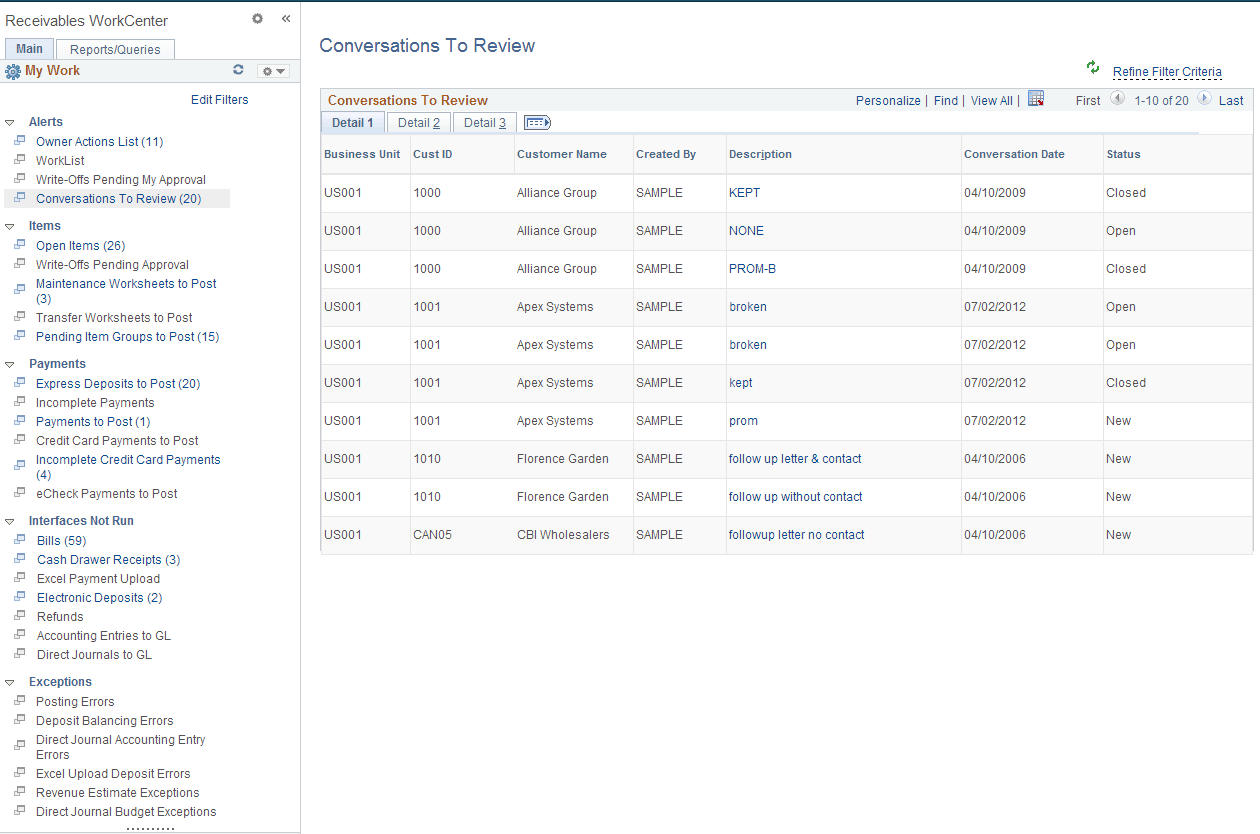
This example illustrates the fields and controls on the Conversations to Review Page - Detail 1 Tab.
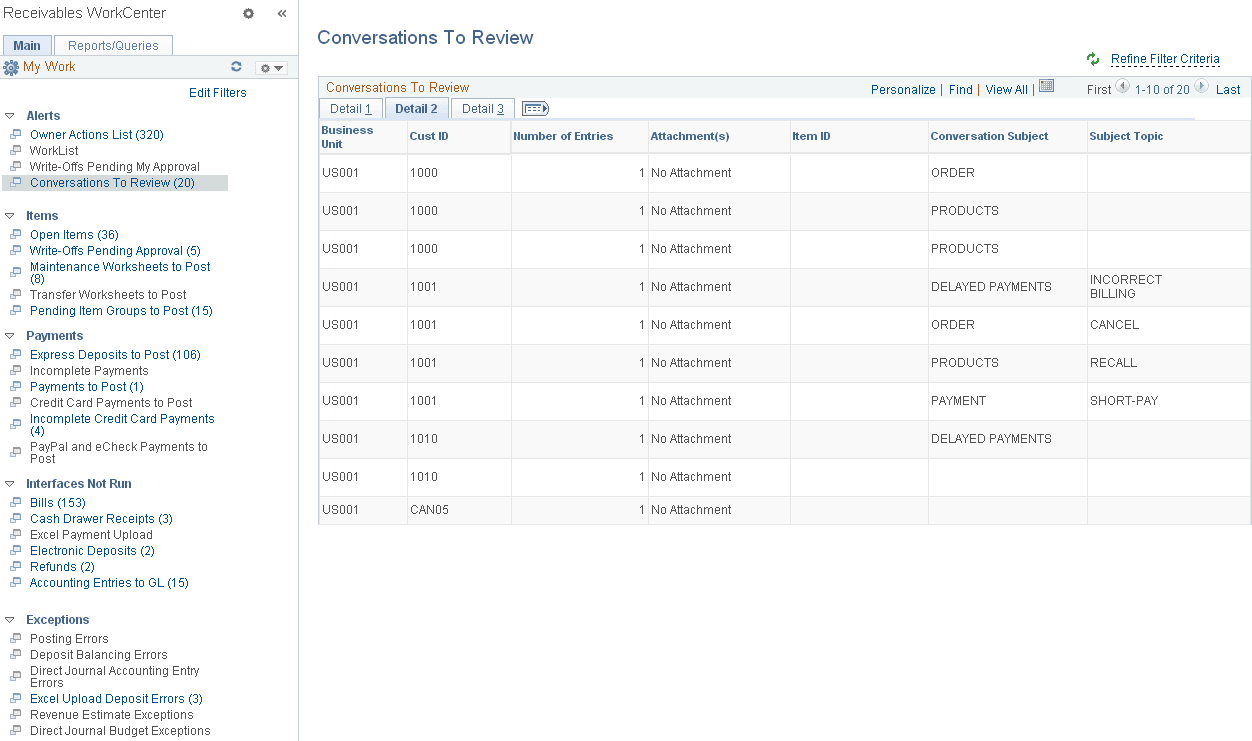
This example illustrates the fields and controls on the Conversations to Review Page - Detail 2 Tab.
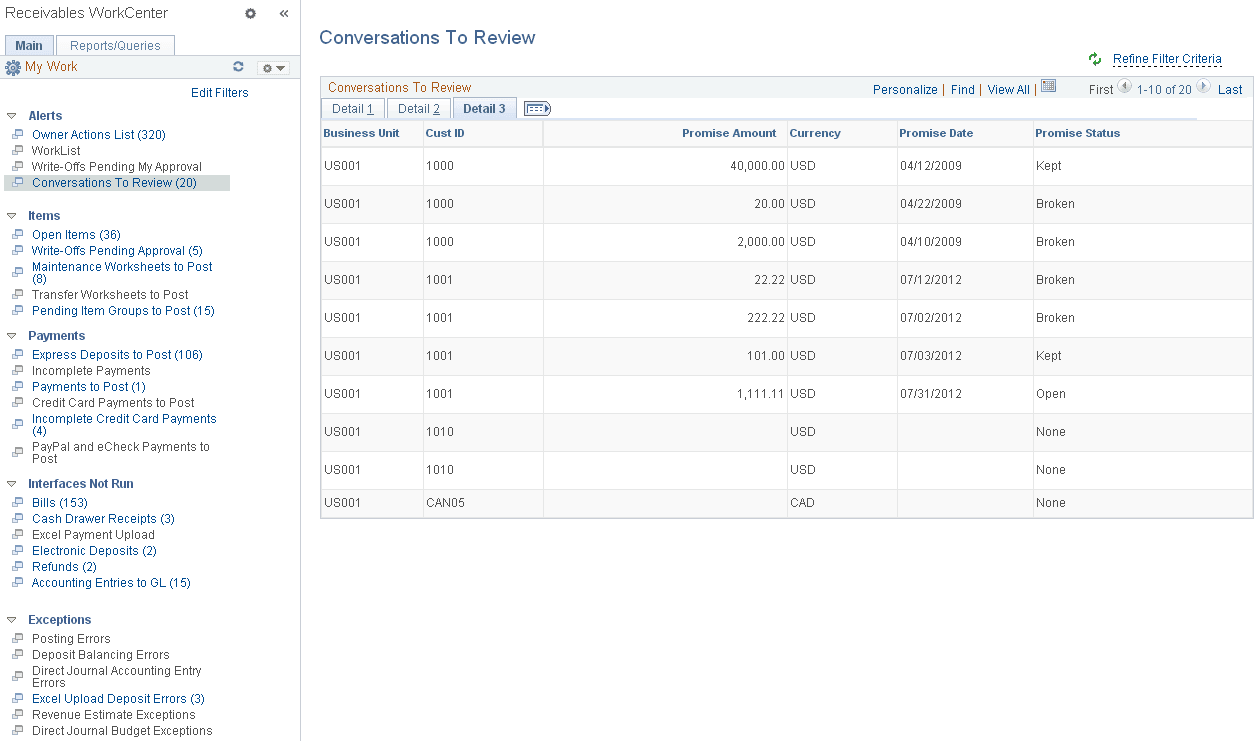
This example illustrates the fields and controls on the Conversations to Review Page - Detail 3 Tab.
The Conversations to Review grid shows items for active customers with any of these statuses:
-
Review Required
-
Follow-Up Required
-
Supervisor Review Required
-
Promise Date Review
-
Broken Promise Review
The grid also shows existing conversations for inactive customers; in this case, the conversation details are read-only.
| Field or Control | Description |
|---|---|
|
Description |
Click the link associated with a conversation description to access the Conversations page. You can also access the Conversations page through the Receivables Customer Interactions menu (Accounts Receivable, Customer Interactions, Conversations, View/Update Conversations, Conversations), the Collections Workbench (click the Add Conversation link on the Conversations tab or in the header region of the Collections Workbench), or the Customers component (Customers, Conversations, Update Conversations, Conversations). See Reviewing Conversations and Promises. See also PeopleSoft Order to Cash Common Information: Entering and Reviewing Conversations |
|
Attachments (n) |
Indicates whether attachments exist, and if so, a link appears that accesses the attachments. The number of attachments appears in parenthesis (n). Displays No Attachment in the column if none exists. |