Working with Pivot Grids in The Fluid Comprehensive Customer View
Some customer analysis pagelets in the Fluid Comprehensive Customer View use pivot grids, which enable you to display data in different views by performing operations such as pivoting and filtering. This enables you to interpret data in a variety of ways. Pivots grids are based on PS Queries and can display results in a grid format, a chart format, or both.
Pivot grids in the Fluid Comprehensive Customer View
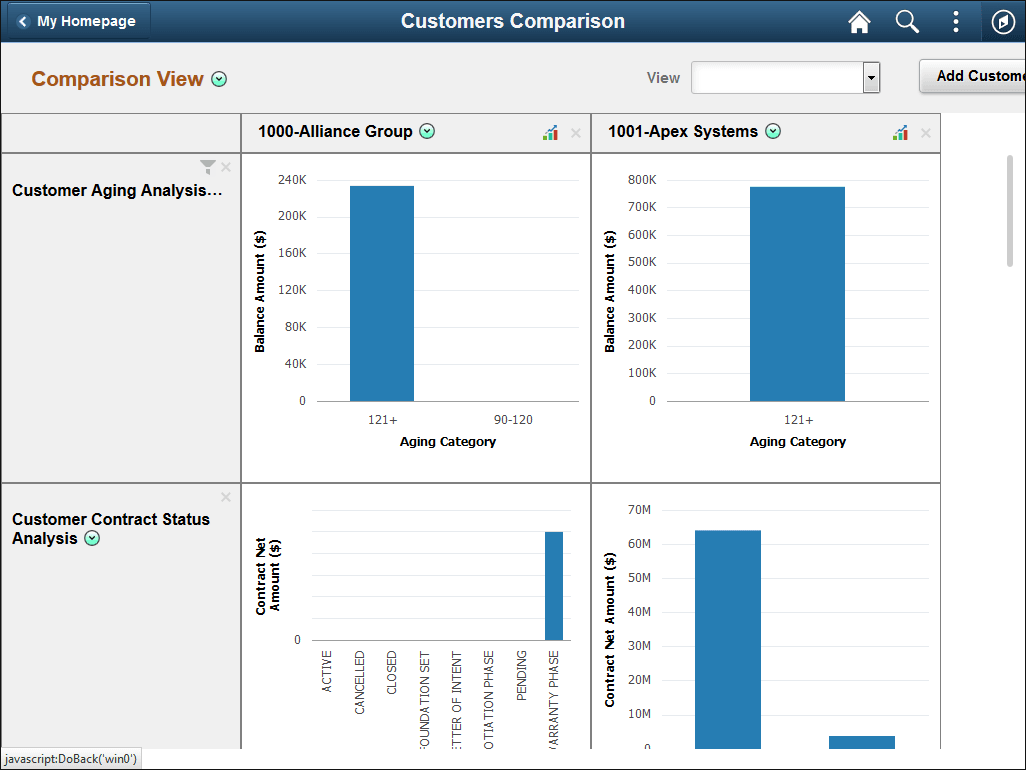
You can click anywhere on the pivot grid to access the Pivot Grid Detail page and select different dimensions, graph and filtering options, and so forth.
Pivot Grid Detail page
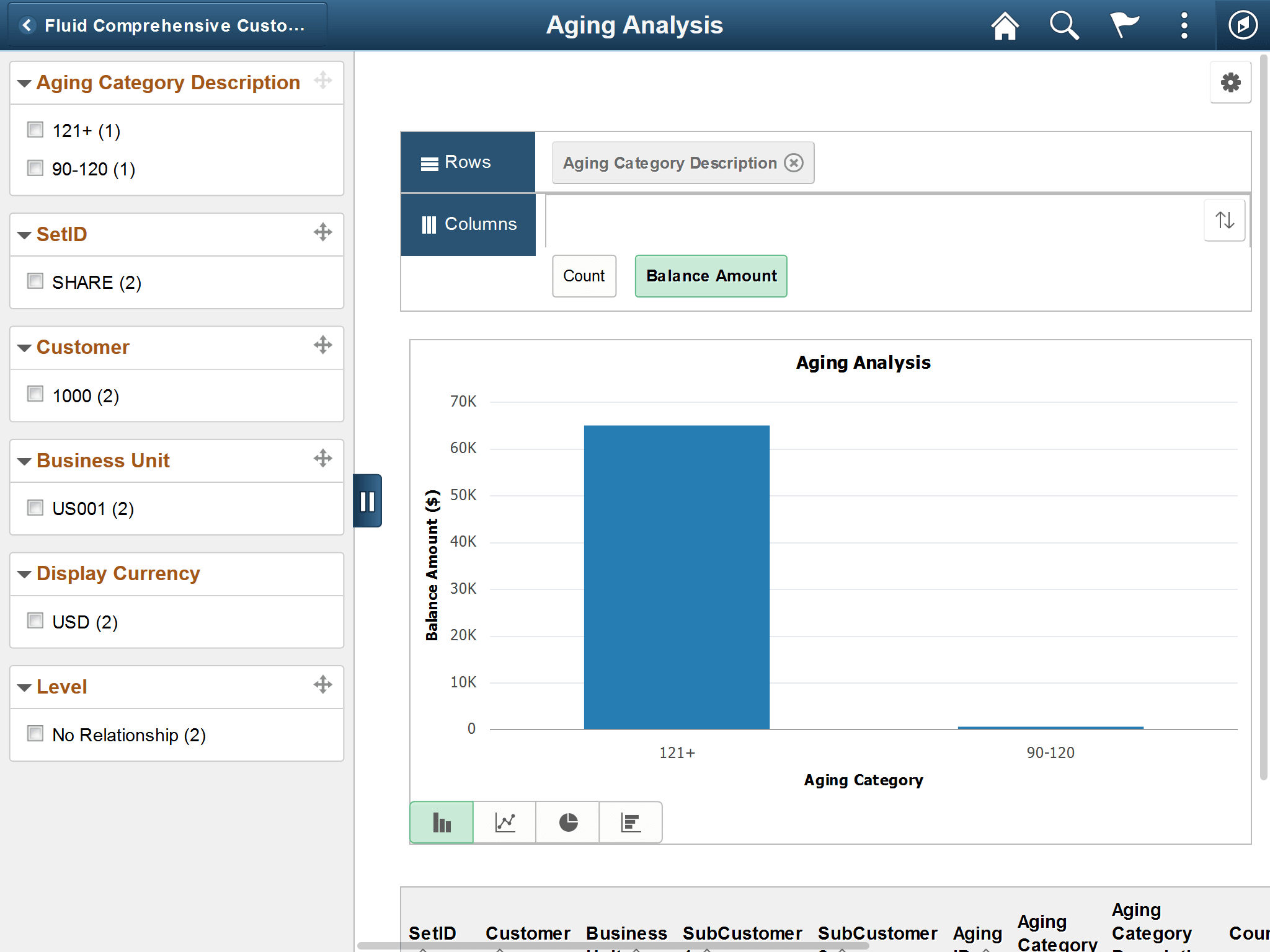
The left panel of the editing page enables you to modify the prompts and filters. Users can select from a range of data using field prompts, filter data by selecting specific facets values, and analyze pivot data by dragging and dropping facets into the Pivot Grid Columns and Rows.
Each pivot grid has its own set of prompts—such as SetID, Business Unit, and so forth—that you can modify to display data in the graph.
You can also choose the type of graph—including bar, line, and pie charts—to display your data.
Click the bars in a graph, pie slices, or the display amount value links in the pivot grid or table to view details or drill down by various dimensions.
The Options Menu (cog icon) provides these pivot grid controls:
-
View Grid
-
Update Filters
-
Chart Options
-
Export Data
-
Threshold Options
-
Save
-
Save As
-
Sort Option
-
Add to Homepage
Note:
When you return to the Comprehensive Customer View, filters you applied during editing will not be reflected on the page.
For more information about fields and controls in pivot grids, see the product documentation for PeopleTools: Pivot Grid.