Agreements page
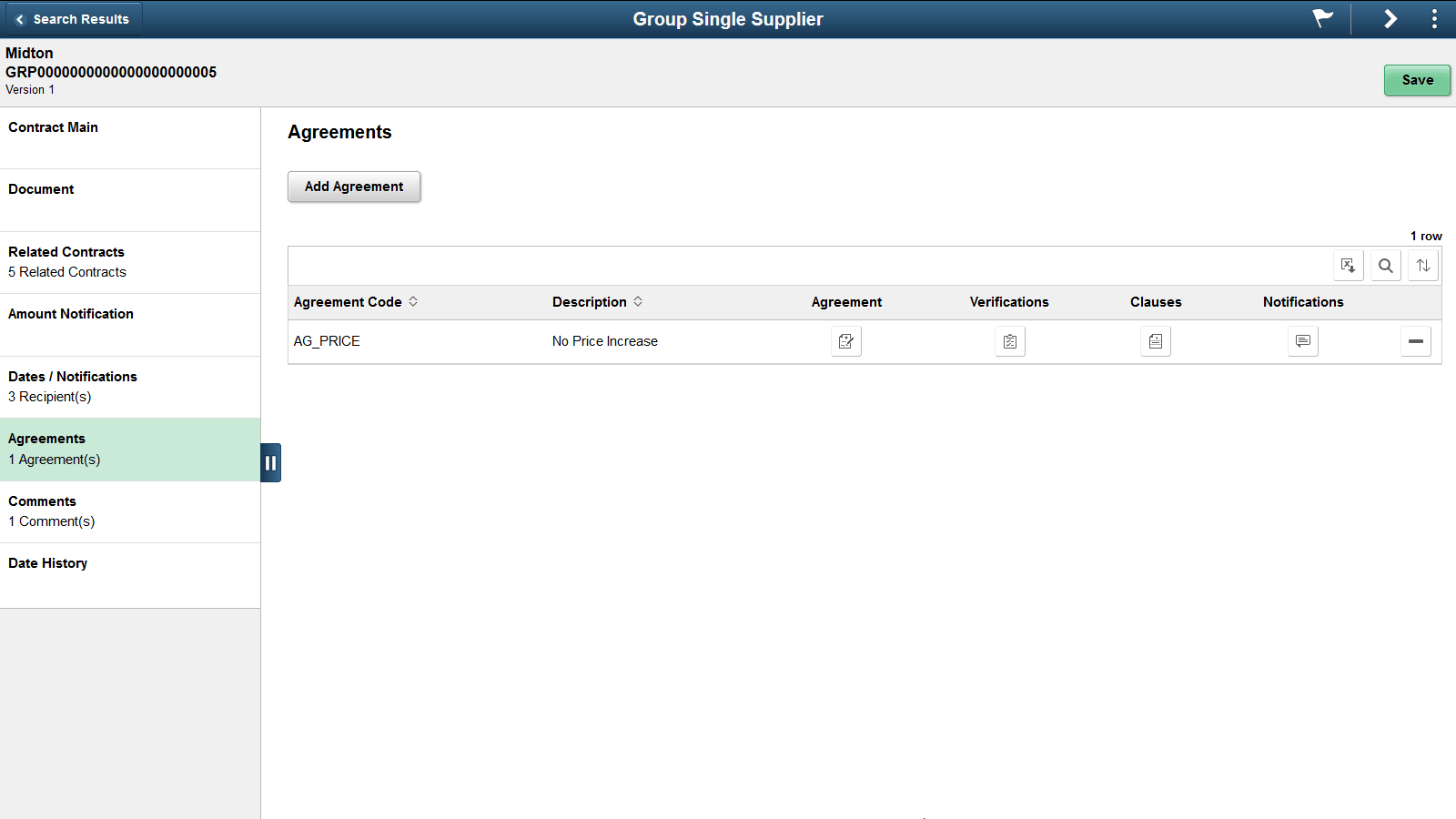
Use the Agreements tab to add agreements to a contract. This page is the same for Group contracts and Special Purpose contracts and is visible only if Supplier Contracts is installed on your system.
Click on the Add Agreement button to add a new agreement to the contract.
This example illustrates the fields and controls on the Agreements page.
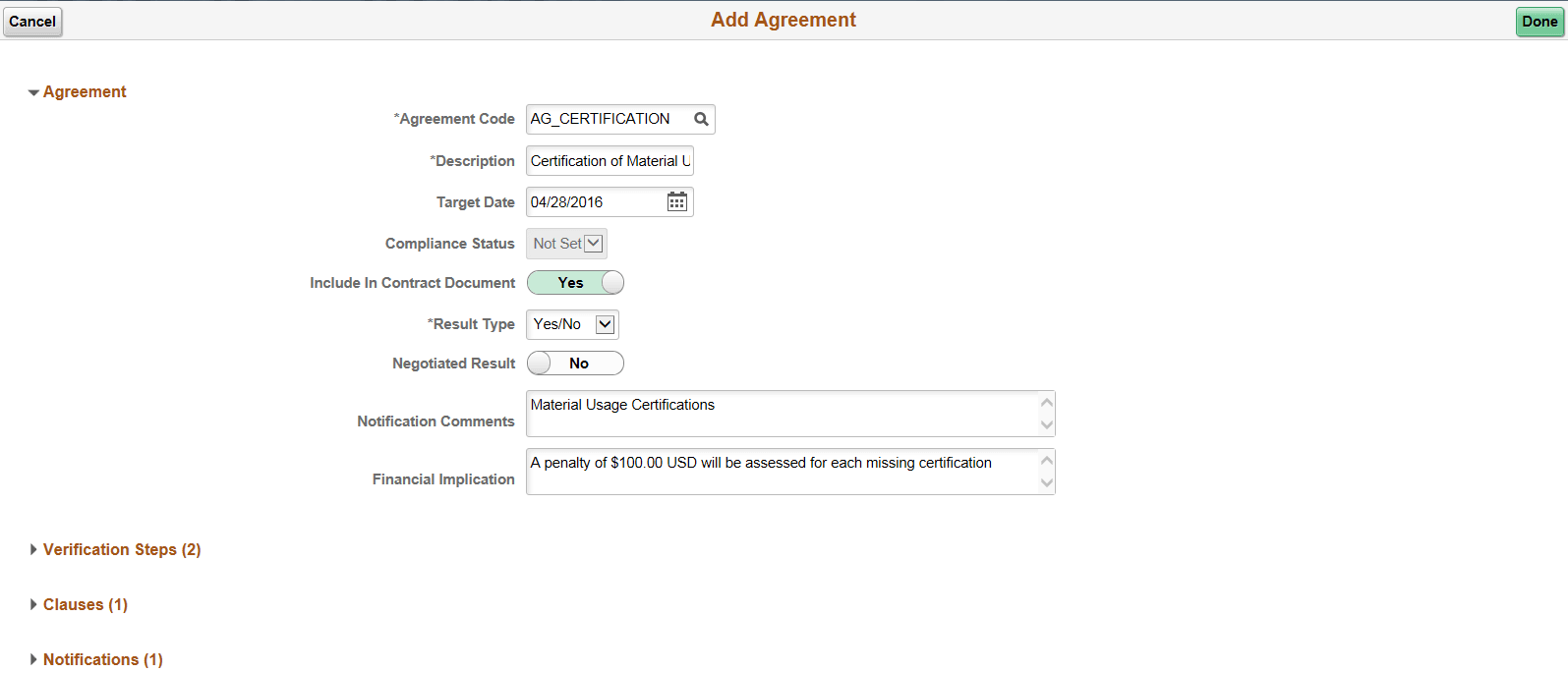
Clicking the Add Agreement button opens the Add Agreement page, where you can identify the agreement you want to add by selecting an agreement code. Once selected, agreement information will default from the agreement setup onto the page. You can choose to expand the sections to view or modify the details.
Note:
Metric type agreements are not available to Group Contracts and Special Purpose Contracts Purpose contract types.
This example illustrates the fields and controls on the Add Agreement (1 of 2) page. You can find definitions for the fields and controls later on this page.
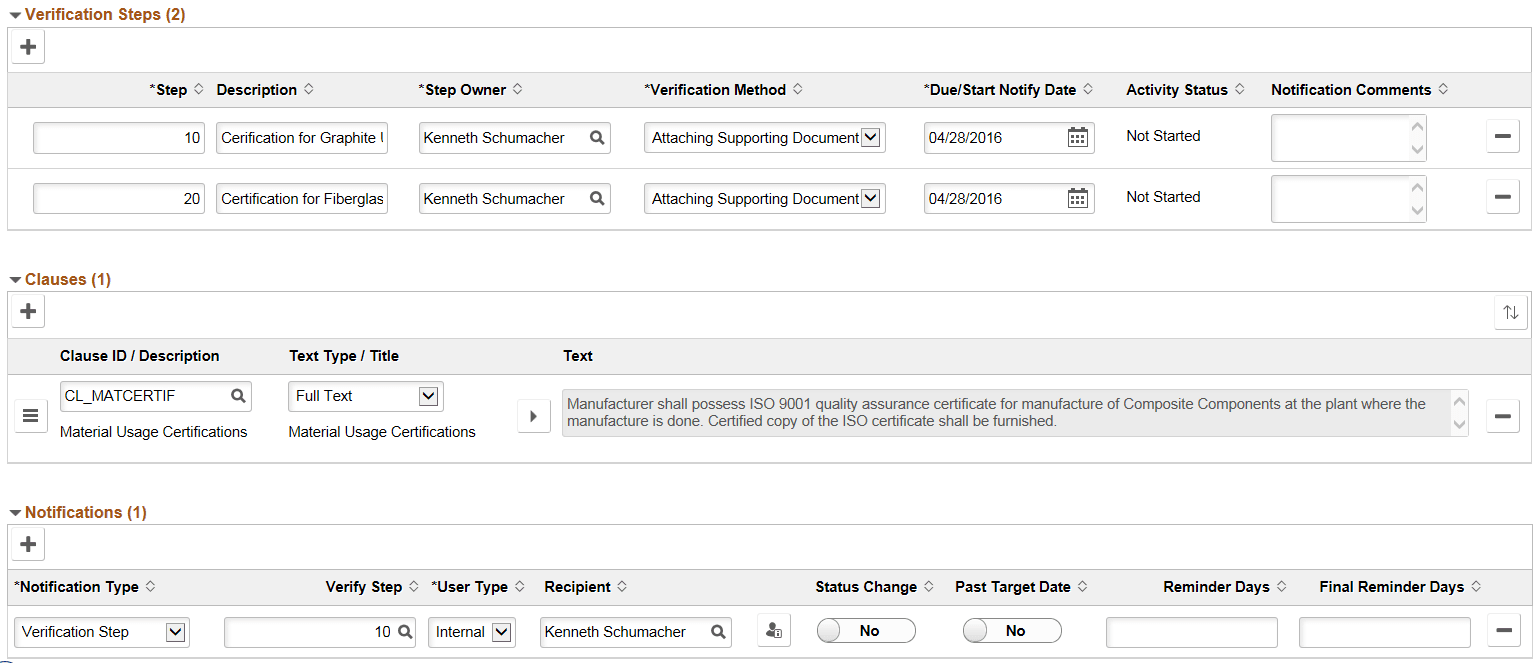
This example illustrates the fields and controls on the Add Agreement (2 of 2) page. You can find definitions for the fields and controls later on this page.
| Field or Control | Description |
|---|---|
|
Verification Steps |
Displays the verification steps for the agreement. |
|
Clauses |
Displays detail on the clauses. The text type determines whether a reference text or a full text is to be displayed. Clicking the expand/collapse button helps to expand or collapse the text area for better reading. You can choose to drag and drop in the Clauses section to reorder the clauses. |
|
Notifications |
The Notifications section specifies the users you wish to notify. Click on the Recipient detail icon to display a secondary page, where you can maintain recipient specific information. |
After entering the agreement information, click Done to return to the Agreement page. The Agreement page displays the agreement information on the grid. The left panel is updated with the number of agreements that exist on the contract.
This example illustrates the fields and controls on the Agreements Information page.
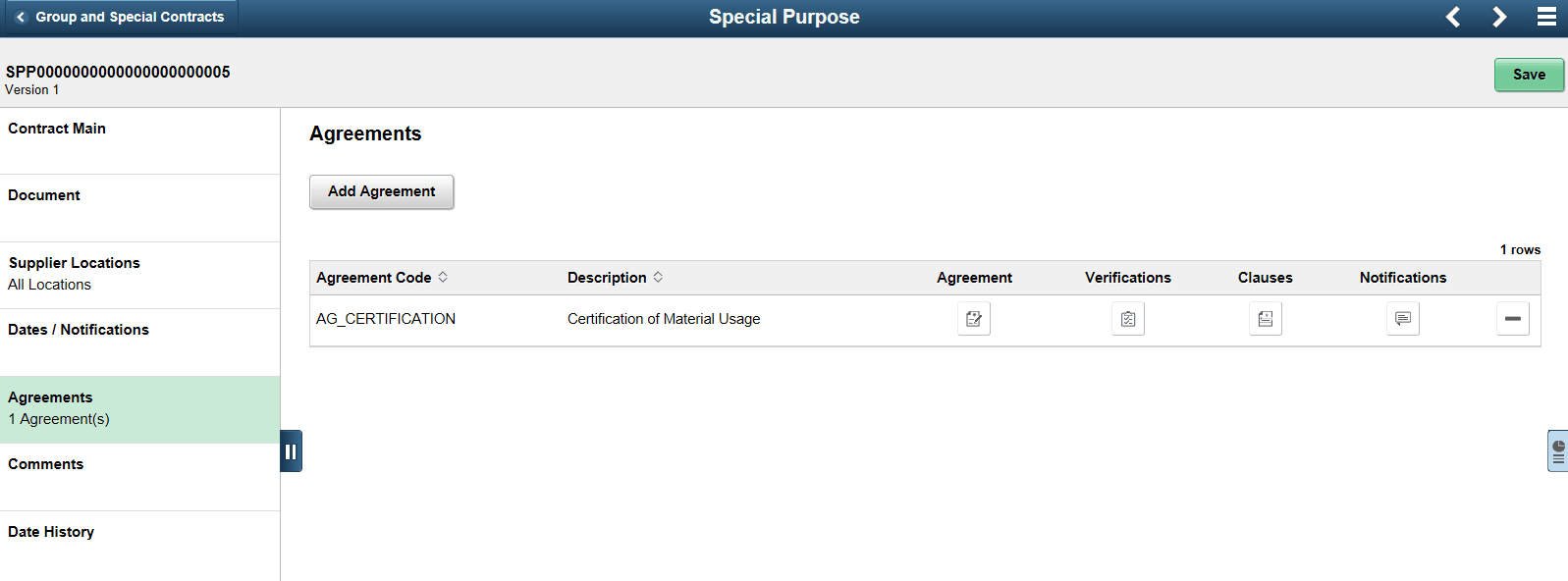
Clicking the section buttons displays the respective section in an expanded form on a secondary page.