Dates/ Notifications page
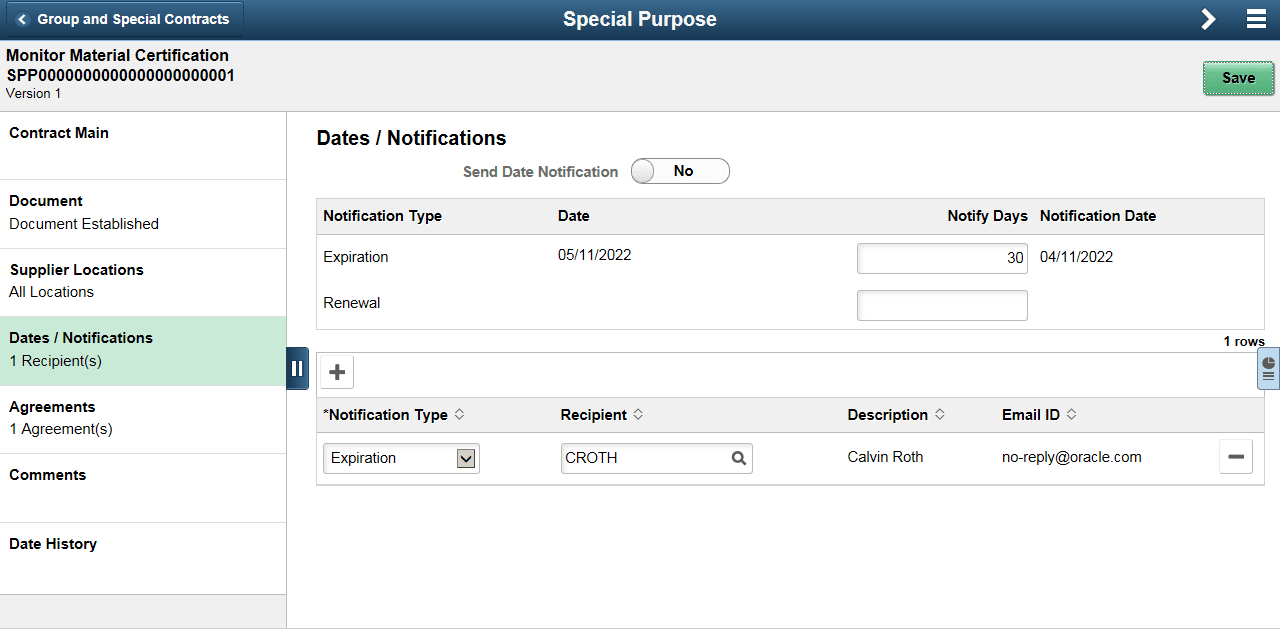
Use the Dates/ Notifications page to enable workflow notifications when the specified date is reached. The Dates/ Notifications page is the same for Group contracts and Special Purpose contracts. Users can set the expiration date, renewal date, and Draft approval date on this page as well as when the notification should be sent prior to those dates. After you save the entries, the system calculates the actual expiry, renewal, and approval dates. You can enter the recipients to be notified for each date notification.
After the recipients are added, the left panel will indicate the total number of recipients to be notified for the selected date types.
This example illustrates the fields and controls on the Dates/ Notifications page. You can find definitions for the fields and controls later on this page.
| Field or Control | Description |
|---|---|
|
Send Date Notification |
Select Yes to enable date notifications. |
|
Notification Type |
Select the notification type for which you want to notify a user.
|
|
Notify Days |
Enter the number of days before the corresponding date is reached, that you want the system to notify users. |
|
Notification Date |
Based on the date and notify days values that you define, the system determines and displays the notification date. When this date is reached, the system notifies the listed recipients through workflow or email. |
|
Recipient |
Select the recipient to whom you want to send notifications. The system also populates the description and email fields for the recipient. |
For more information on fields and descriptions See Contract Entry - Contract Page.