Group Contracts and Special Purpose Contracts page
| Page Name | Definition |
|---|---|
|
Contract Agreement Page |
CNT_AGREE_FL |
|
Contract Agreement Secondary Page |
CNT_AGREE_SCF |
|
Contract Agreement Clause Text Secondary Page |
CNT_AG_TXT_SCF |
|
Contract Agreement Notification Recipient Secondary Page |
CNT_AG_WFRCP_SCF |
|
Contract Amount Notification Page |
CNT_AMTNOTIFY_FL |
|
Related Contracts Search Secondary Page |
CNT_CHD_ADD_SCF |
|
Change Tracking Reason Secondary page |
CNT_CHG_REASON_SCF |
|
Related Contracts Page |
CNT_CHILD_FL |
|
Contract Comments Page |
CNT_COMMENT_FL |
|
Contract Date Notification |
CNT_DATENOTIFY_FL |
|
Contract Date History Page |
CNT_DAT_HIS_FL |
|
Contract Document Maintenance Page |
CNT_DOCMAINT_FL |
|
Contract Main Page |
CNT_GRPCNT0_FL |
|
Contract Supplier Location Page |
CNT_SUPLOC_FL |
|
Fluid Contract Left Panel Side Page |
CNT_TAB_SIDE1_SFL |
|
Related Contract Detail View Secondary Page |
CNT_VIEW_DET_SCF |
Click the Group Contracts tile to use the Group and Special Purpose contracts search page.
The Group and Special Purpose contracts search page lists existing contracts, with the most recently worked contracts at the top of the list. You can further use the search criteria or the facets to filter the search results. You can also choose to add a new contract by using the Add button on the top of the list.
This example illustrates the fields and controls on the Group and Special Purpose Contracts page.
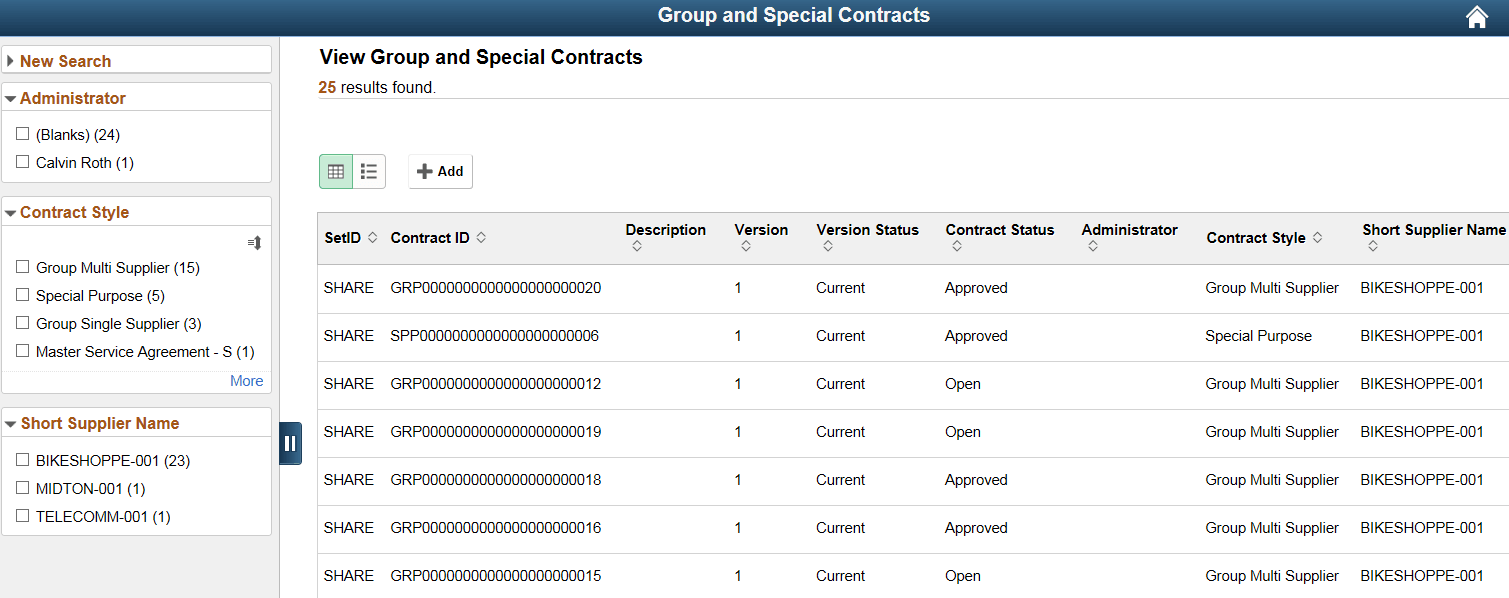
On clicking the New Search link in the left panel, the search fields are displayed.
You can enter any of the search fields such as SetID, Contract ID, Supplier or Contract style to filter the search results.
This example illustrates the fields and controls on the New Search page. You can find definitions for the fields and controls later on this page.
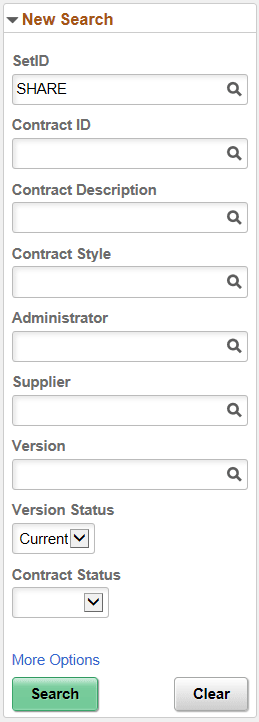
Click the More Options link to use the Show Operators field, where you will be able to enter criteria related to the Last Date Worked.
Click the Search button after entering your search criteria. The system will refresh the display result in the right panel showing only those contracts that meet the specified search criteria. Alternatively, use the Clear button to erase all entered search criteria and you can begin your search again.
Note:
The Pre Approved status in the Contract Style is only available on a draft version of the contract. Based on the settings for the user on the User Preferences - Contracts page.
For more details See Contract Entry - Contract Page fields and definition.