Supplier Locations page
Use the Supplier Locations page to select Supplier Locations. This page only appears for Special Purpose contracts.
Click the Supplier Locations tab (left panel) to access the Supplier Locations page.
This example illustrates the fields and controls on the Supplier Locations page.
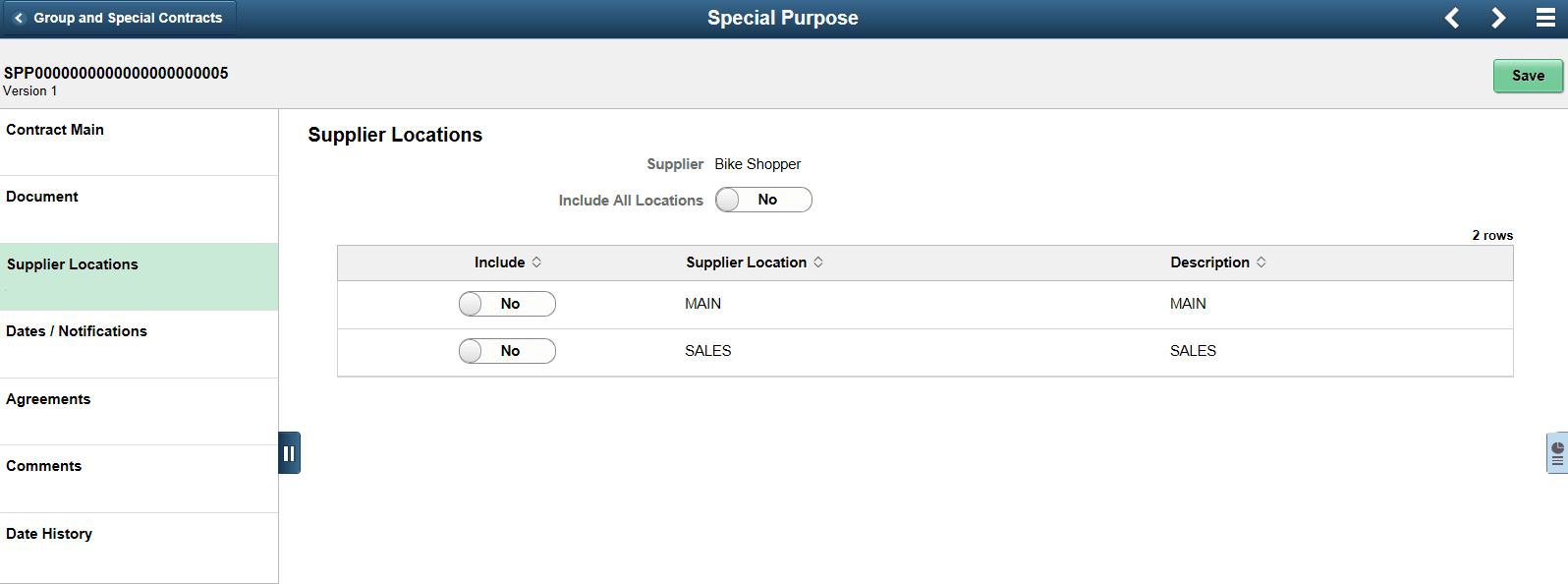
Select Yes for the Include All Locations option if you want this Special Purpose contract to apply to all supplier locations for this supplier. This will also apply to supplier locations that may be added at a future date. Select No if you wish to select the applicable supplier locations.
When you select the No option, the Supplier Locations grid appears showing all supplier locations for the supplier. The Include button can be used to specify which locations apply to this contract. At least one location must be selected when Include All Locations option is No.
Note:
If you select No, and a location is added later to the supplier, and you want that new location to be used with this contract, then you will need to return to the Supplier Location page to include it.