Signing Documents Using the Adobe and Word Signature Methods
This topic describes the process for using digital signatures with Adobe. The processes for Adobe PDF signatures and Microsoft Word 2007, or later version, are similar. However, the features within each process regarding signing a document may be different as specified by the software suppliers. When using Adobe PDF, most users should require only the Adobe PDF Reader and a digital certificate to sign a document after an administrator has enabled the signature rights using Acrobat Professional. Likewise, using a Microsoft Word docx format for signatures means each signer must be using Microsoft Word 2007, or later version, to add a signature. When using Microsoft Word 2007, or later version, the .docx format is used only for the purpose of a signature file. The Microsoft Word XML Document is always the file format used for editing.
After setting up and preparing to use digital signatures, you prepare and route documents using these steps:
-
Create a document with internal or external signing requirements.
-
Obtain any required approvals before sending the document for internal signatures.
This depends on whether the document type requires approvals before signatures.
-
Click the Prepare Document for Signature button on the Document Management page.
This also enables you to validate the internal and external lists of signers and to indicate if a signer is a visible signer. Click the OK button to convert the document into the signature format. The system creates the document, checks it out, launches the file and displays a message indicating what you should do to the file depending on whether it's a .docx or PDF. In the case of an Adobe PDF, you enable the usage rights for users with Adobe Reader so that they can sign documents. In the case of Word 2007 .docx file, you should certify the document and make the first signature to prevent editing of the document. In both cases the document is locked until the specialist checks in a certified document.
Note:
If you are creating an Adobe PDF, the system displays a message that the document is pending certification that you need to enable Adobe usage rights. To ensure that the system opens the document in an Adobe PDF format, launch Adobe Acrobat Professional from the Start menu. After accessing the application, select and deselect the Display PDF in Browser check box. The setting applies to both Adobe Acrobat Professional and Standard and Adobe Reader to prevent the system from opening the PDF in a browser format.
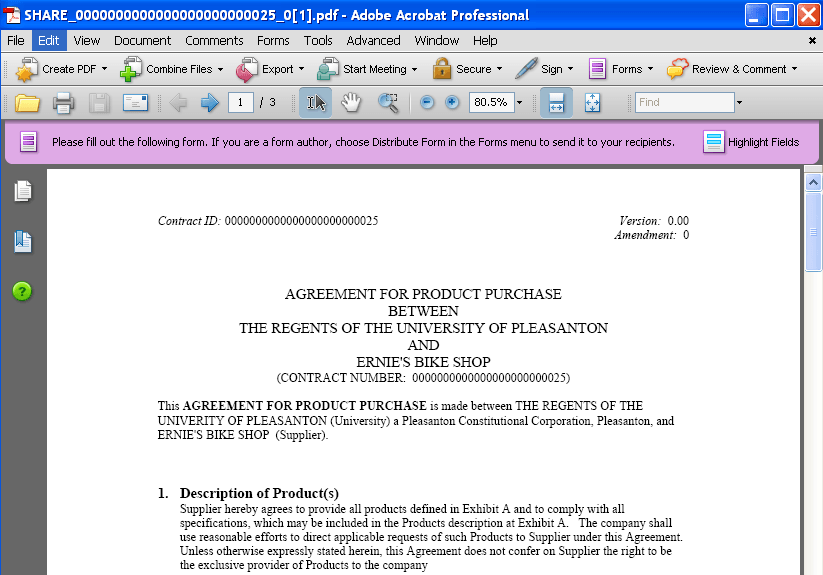
This screen shot illustrates how a converted PDF file appears with its signature blocks:
This is the second half of the example.
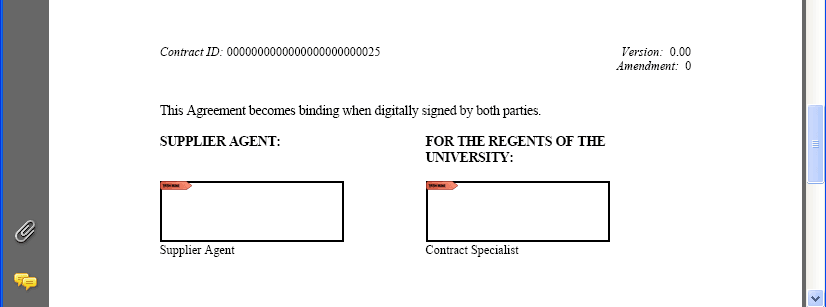
The digital signature blocks appear at the bottom of the page or wherever you add your signature fields. The system applies the visible digital signature to these blocks when the appropriate users sign the document.
-
Save the file.
-
Click the Upload Prepared Document button on the Document Management page.
You can also view the document or cancel the signature process after preparing the document and before uploading it. After the document is uploaded, the system updates the document status to Prepared/Awaiting Signatures and provides the signing details for the document along with the options that appear next:
This example illustrates the fields and controls on the Document Management page with signing details.
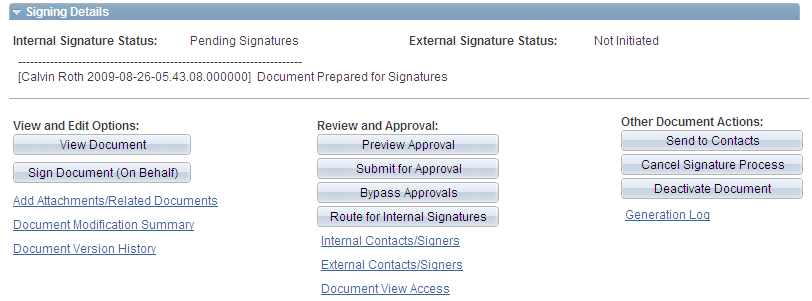
Contract administrators can use the Sign Document (On Behalf) button to access the document and sign it on behalf of another internal user. Click the Route for Internal Signatures button to send the document to internal users who are listed as signers for the document.
-
Click the Route for Internal Signatures button.
-
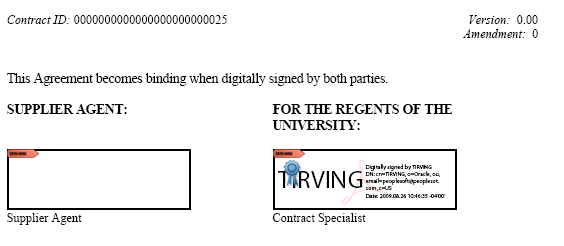
The internal signer accesses the document and applies the digital ID.
This example illustrates the fields and controls on the Adobe PDF signature. You can find definitions for the fields and controls later on this page.
-
When the last internal signer signs the document, the system updates the internal signature status to Signed as shown in this example:
This example illustrates the fields and controls on the Document Management page with internal signature completed. You can find definitions for the fields and controls later on this page.
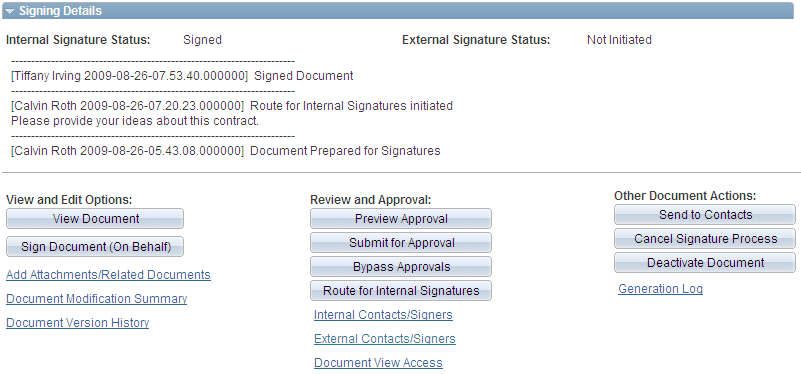
Depending on the signature flow, the contact administrator can, for example, send the document for internal approvals or send it for internals signatures before sending it to external users.
-
The contract administrator routes the document to external signers by clicking the Send to Contacts or Dispatchbutton, depending on where in the life cycle they wish to gather external signatures. .
-
Select Email and Online Signatures in the Delivery Method field.
This option is intended for use with the supplier portal. The system automatically inserts a URL in the Description field. You use this method to send the document to an external user to sign online. You can also lock the document and route it offline using email and upload it after receiving the signed document.
This example illustrates the fields and controls on the Send to Contacts page with URL for external users. You can find definitions for the fields and controls later on this page.
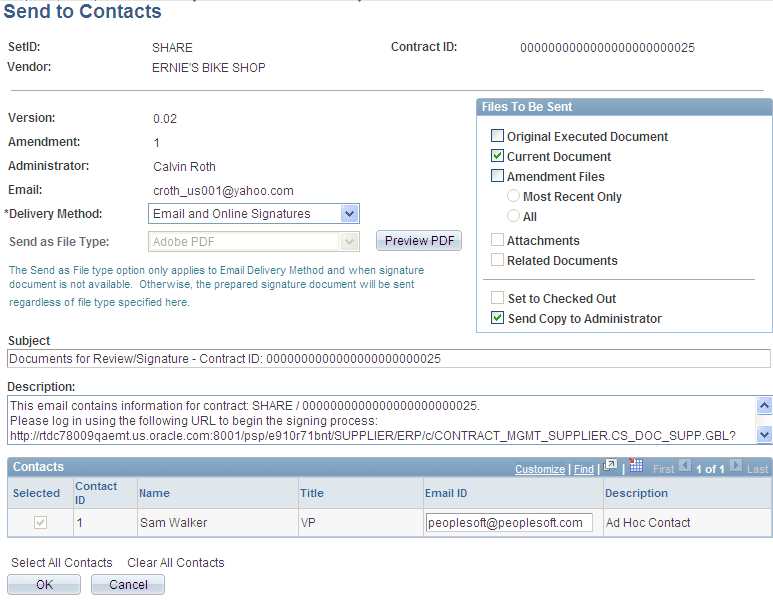
When suppliers receive the email, they can link back to the supplier portal and sign the document.
-
Click OK.
The system updates the Document Management page with the new signature process update as appears in this example:
This example illustrates the fields and controls on the Document Management page with signing updates. You can find definitions for the fields and controls later on this page.
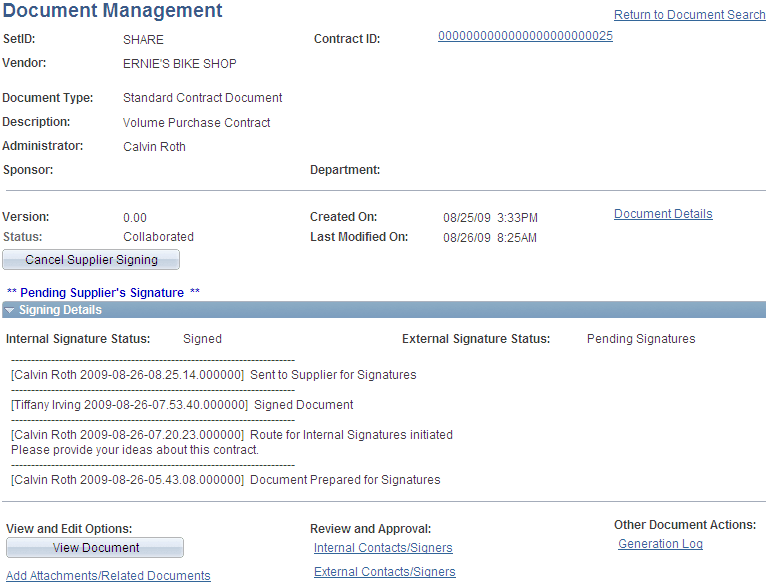
The updated information indicates that the document has been sent to an external user and is pending his signature. To stop the signing process for the supplier, click the Cancel Supplier Signing button.
You can define the level of external user access to executed documents. You use installation options to indicate if the user can view the document online, view only executed versions or all collaborated and executed documents.
-
After the external user signs and uploads the document, the system updates the document status.
The next example shows that the internal and external signature statues are Signed:
This example illustrates the fields and controls on the Document Management page with signing details. You can find definitions for the fields and controls later on this page.
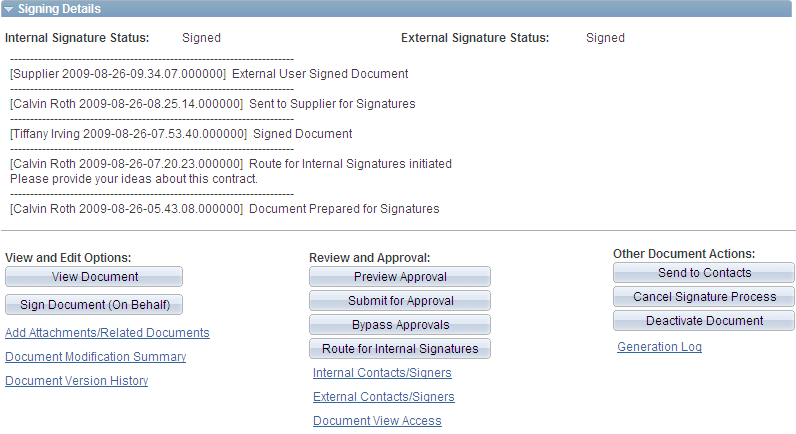
After a contract document is signed by external and internal user, you can continue with any other required actions to complete the document, or if needed, send it to the supplier user again.
Signing Internal Documents Using Digital Signatures from the Document Management Page
Use the Document Management page (CS_DOC_MAINT) to sign internal documents using digital signatures.
Navigation:
Click Worklist on the Home page, select the Sign Review value in the Work List Filters field, and click the document link.
This example illustrates the fields and controls on the Document Management page for internal signers. You can find definitions for the fields and controls later on this page.
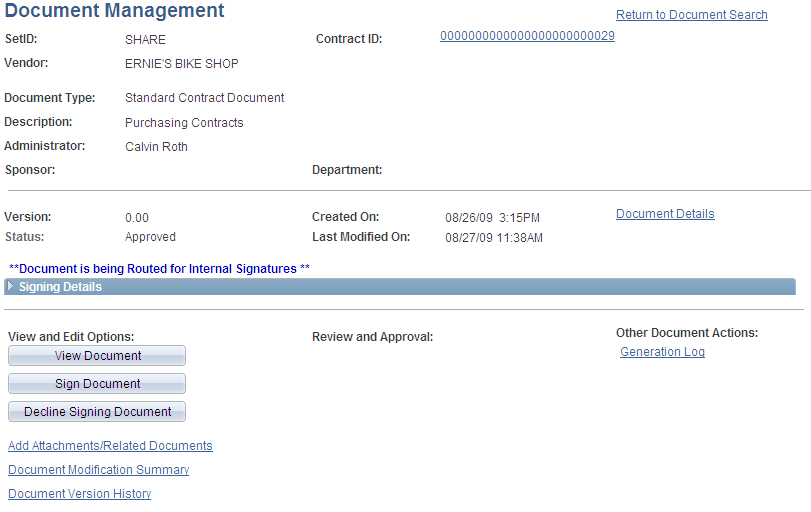
The system displays the Document Management page with the document's status and provides a message that indicates the document is being routed for internal signatures. You must have a digital ID established to sign the document. You can establish the ID online using Adobe pages.
See Understanding Digital Signatures.
Use the Signing Details section to view the internal and external signature statuses, view any comments, and view the routing history of the document.
| Term | Definition |
|---|---|
|
Sign Document |
Click to launch the Microsoft Word .docx or Adobe PDF file and lock the file from any further actions. When the file opens, the system replaces this button with the Upload Signed Document button. |
|
Decline Signing Document |
Click to decline signing the document. The system displays the launch the Decline Signing Document page where you can enter comments about the action. |
To sign a document:
-
Click the Sign Document button.
The system opens the digital signature file.
-
Apply the signature using either the Adobe or Microsoft Word format and save the document.
-
Click the Upload Signed Document button.
The system checks the document similar to how it runs the check-in process. It updates the document status and provides a date and time stamp for the signer's row in the internal list of signers page. Signers can still view the document and perform tasks that are available on the page.
To cancel all signatures, click the Cancel Signature Process button on the Document Management page. Confirm that you want to cancel the signature process and to enter comments about the cancellation.
To cancel supplier signatures, click the Cancel Supplier Signing button on the Document Management page. This cancels the external signature process.
To cancel internal signatures, click the Stop Internal Signatures button on the Document Management page. This cancels the internal signature process.
To decline to sign a contract document, click the Decline Signing Document button on the Document Management page. You can enter a reason in the comments section.