Approvals History Page
Use the Approvals History page to view approvals you have worked on in the past.
Navigation:
Tap the Approvals tile on the Manager Self Service home page, then select the Approvals History item from the Action Menu drop-down list (located in the banner) from the Pending Approvals page.
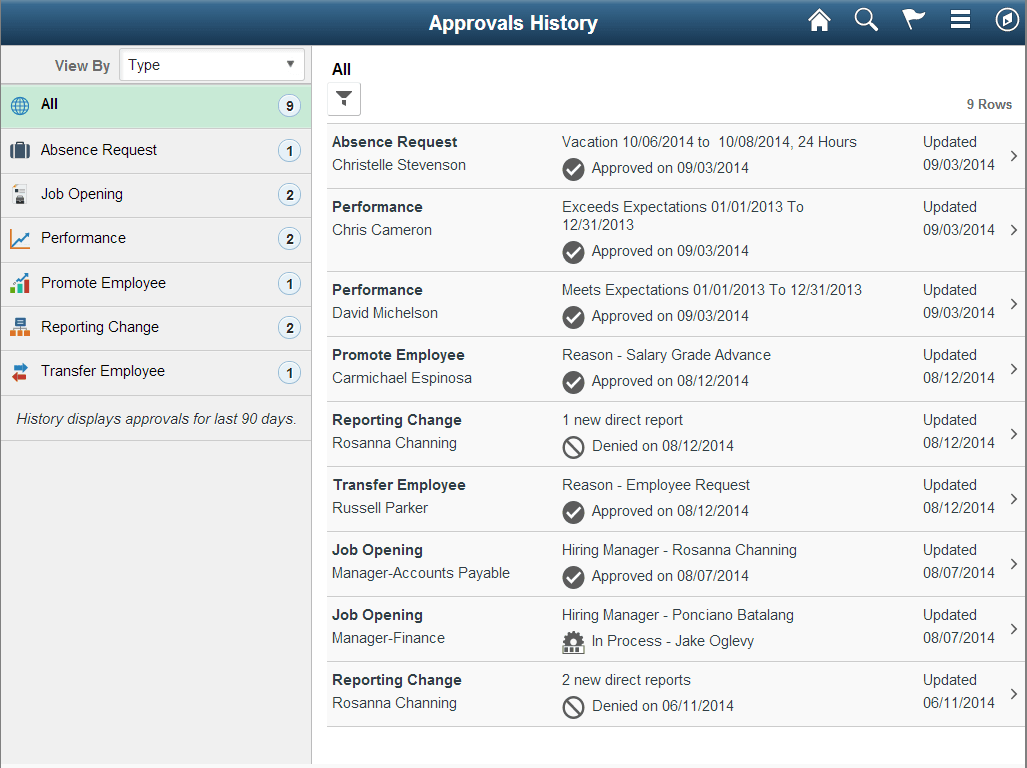
This example illustrates the fields and controls on the Approvals History page for the tablet.
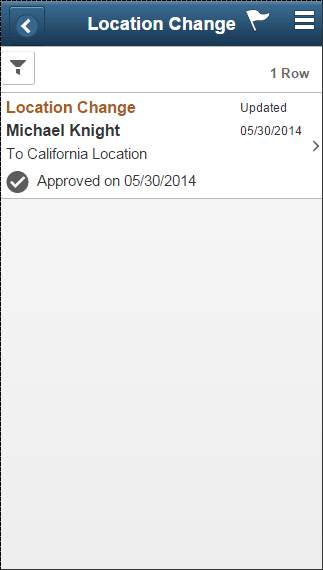
This example illustrates the relevant approval requests that appear after a view-by category is selected on the Approvals History page for the smartphone.
The Approvals History page shows approval transactions you have addressed in the past. How far back you can view historical approval transactions is defined by the administrator on the Enterprise Components: Fluid Approval Setup - General Settings Page. This page then displays a message below the category tabs indicating the time period for which history is displayed.
This page displays vertical tabs that group approval transactions into categories defined by the View By type you select. The All category will appear at the top of the list for all view types when there are historical approval transactions. Categories within a View By type will display a badge identifying the number of historical approvals for that category. If you do not have any historical approvals for a category within the designated time period, the tab will not appear in the list.
Note:
If you are using the approvals pages in portrait mode on your mobile device, the page will display an arrow on the left side of the page. Tap this arrow to reveal or hide the category tabs.
Tap a category tab to display the historical approvals that apply to that category. When you tap a category, the page will display historical approvals sorted by the date on which that last person updated or took action on the request, with the most recently updated approvals displaying first.
| Field or Control | Description |
|---|---|
|
View By |
Select how you want the page to display historical approval requests. You can group historical approvals by these view options:
|
|
|
Tap this icon to access the Filter Page and select from one or more criteria to narrow the historical approval list. The Filter icon appears green when filters have been applied to your search. |


The transaction list displays the:
-
Transaction name and the person or job posting with which it is associated.
-
A short description about the approval request and its status.
-
The date upon which the request was updated.
Tap a specific transaction to access the history transaction details page.