Pending Approvals - <Transaction Details> Page
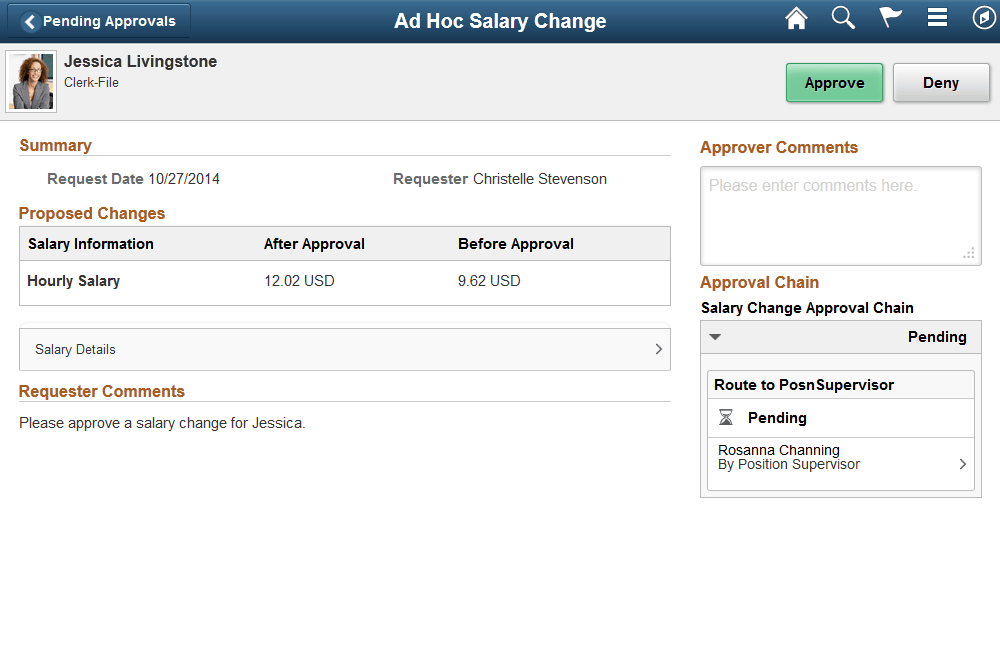
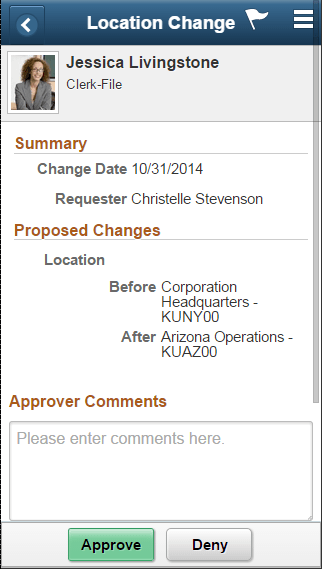
Use the Pending Approval - <Transaction Details> page to review the approval request details, make a comment, and approve, deny, or push back the request.
Navigation:
Tap an individual approval request transaction from the Pending Approvals page.
This example illustrates the fields and controls on the Pending Approvals - <Transaction Details> page for the tablet.
This example illustrates the fields and controls on the Pending Approvals - <Transaction Details> page for the smartphone.
Note:
The title in the banner of this page changes based on the approval request you selected. Fields and elements on this page also vary depending on the type of approval transaction you are reviewing.
Tap the arrows on the page to expand a section and view additional details about the person, request, or approval chain. If more than one person is in the approval chain, the page will list all approvers, with the first approver on the top.
When a transaction contains an attachment, tap to open the attachment in a modal window.
The buttons that are available on the page are determined by the Enterprise Components: Fluid Approval Setup - Transactions Page. Buttons may include:
-
Approve
-
Deny
-
Pushback
-
Hold
-
Request Information
-
More (the page displays this button when the other buttons do not all fit on the page)
When you approve, deny, or push back a transaction, the system will present you with a summary page, asking for a confirmation on the action you want to take. You can then submit or cancel your transaction request. If you submit the request, the transaction will be removed from you Pending Approvals queue and moved to your Approvals History Page.