Pending Approvals Page
Use the Pending Approvals page to review and act on pending approval requests requiring the attention of the logged-in manager.
Navigation:
Tap the Approvals tile on the Manager Self Service home page.
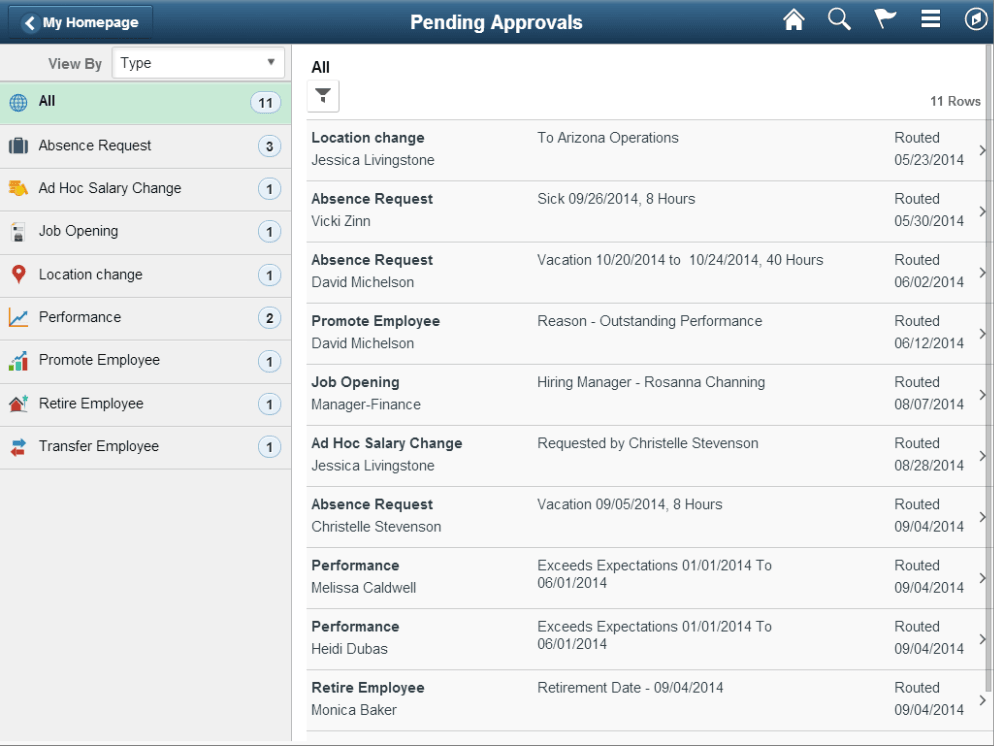
This example illustrates the fields and controls on the Pending Approvals page for the tablet.
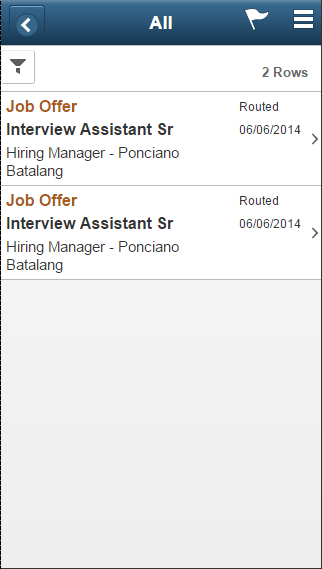
This example illustrates the relevant approval requests that appear after a view-by category is selected on the Pending Approvals page for the smartphone.
The approvals pages display vertical tabs that group approval transaction types into categories that are defined by the View By type value you select. The All category type appears at the top of the list for all view types when there are pending transactions. Transaction categories within a View By type display a badge identifying the number of pending approvals for that transaction category. If you do not have any pending approvals for a transaction category the tab will not appear in the list.
Note:
If you are using the approvals pages in portrait mode on your mobile device, the page will display an arrow on the left side of the page. Tap this arrow to reveal or hide the transaction category tabs.
Tap a transaction category tab to display the pending approvals that apply to that category. When you tap a transaction category, the page will display pending approvals sorted by the date on which the approval request was received, with the oldest pending approval displaying first.
| Field or Control | Description |
|---|---|
|
View By |
Select how you want the page to display approval requests. You can group pending approvals by these view options:
|
|
|
Tap this icon to access the Filter Page and select from one or more criteria to narrow the pending approval list. The Filter icon appears green when filters have been applied to your search. |


The transaction list displays the:
-
Transaction name and the person or job posting with which it is associated.
-
A short description about the approval request.
-
The date upon which the request was routed to you.
Transaction Icons
These icons may be associated with a transaction:
| Field or Control | Description |
|---|---|
|
|
Displays if you have approved a request and the person next in the approval chain pushes back the approval. The name of the person who pushed back the request appears after this icon. Note: Requests that have been pushed back are not forwarded to the next person in the approval chain. Rather, the request is sent back to the previous person in the approval chain, or to the requestor if the push back occurred with the first approver, and will be pending that person’s action. |
|
|
Displays if you have been delegated to work on approval requests on behalf of another person. The name of the person who delegated the request appears after this icon. |


Selecting a Transaction Type Category that Permits Mass Approvals
When you tap a transaction type category, the application will display the pending approval items associated with that category. The page will appear differently when a transaction type has been set up to allow mass approvals. When the transaction type category is not set up to allow mass approvals, the page lists the approval request transactions and no action can be take from the page. For these types of transactions, you must tap the desired approval request row to access the Pending Approvals - <Transaction Details> Page, where you can review and complete the approval request.
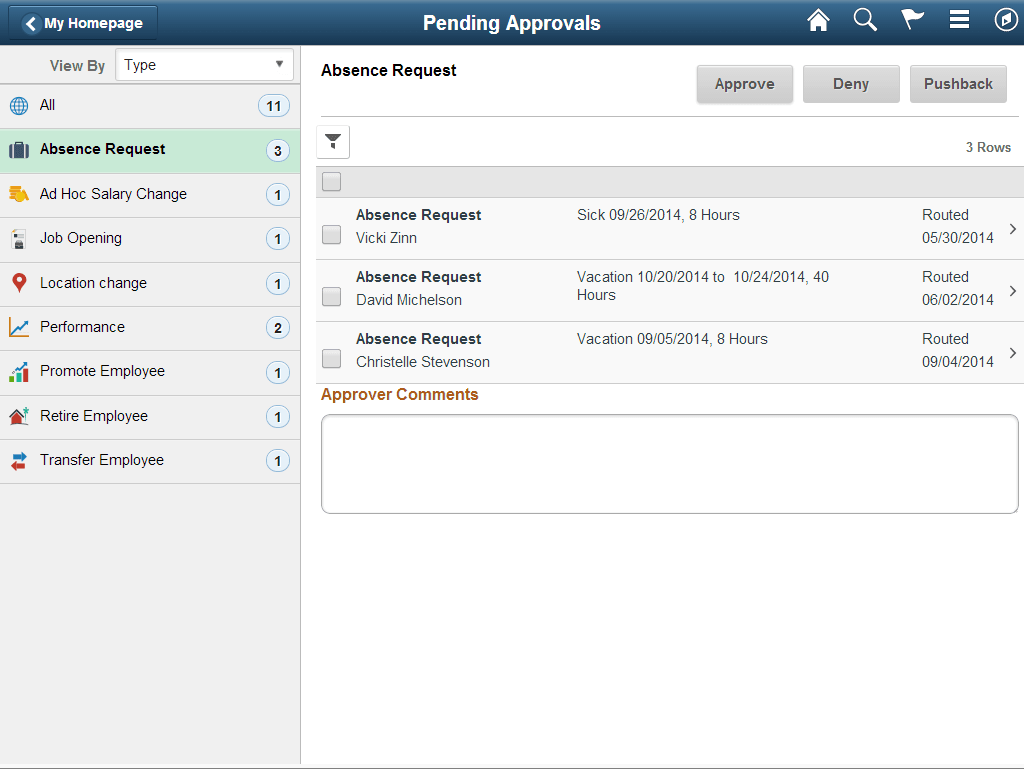
This example illustrates the Pending Approvals page (for the tablet) when a transaction category has been set up to have mass approvals enable on the Enterprise Components: Fluid Approval Setup - Transactions Page.
This example illustrates mass approvals for the selected transaction on the Pending Approvals page for the smartphone.
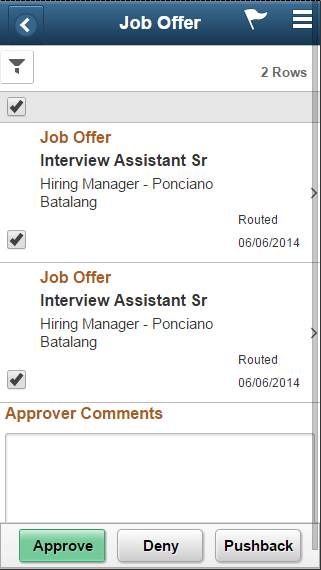
When the administrator has configured the transaction to allow mass approvals, you can take action (e.g.-approve, deny, or push back) on several approval requests within the same category at the same time. Perform mass approvals by selecting the check box before each item then tapping the appropriate action button on the page. Select or deselect all check boxes at once by tapping the top check box in the gray header.
If you do not wish to apply the same response to all transaction requests, or want to view individual details for each request, tap a row to access the Pending Approvals - <Transaction Details> Page.