Working with Digital Badges
Digital badges are used within the organization to recognize achievements, milestones, and exemplary behaviors.
-
Administrators can:
-
View all awarded badges on the View and Award Badges Page.
-
Award badges manually to individuals across the organization using the Give a Badge Page.
- Award badges automatically using the Run Digital Badge Assignment Page.
Note:
The system provides an application engine (AE) program to issue badges through a batch process, which automates the awarding of badges for recurring events within the organization, such as service anniversaries, course completions, or volunteering activities.
-
-
Managers can:
-
View the badges awarded to their team members in Directory, Team Talent Profile, and Team Snapshot. See:
PeopleSoft Human Resources Administer Workforce: Profile - Digital Badges Page
-
Award badges when creating recognitions for team member achievements on the New Recognition Page.
If a recognition includes a badge, it is indicated in the footer of the recognition. See Recognition - <Everyone or My Peers> Page.
-
- Employees can view their awarded badges and track accomplishments on the View Digital Badges Page and in Career Snapshot. See:
PeopleSoft eProfile: Career Snapshot - Recognition and Digital Badges Dashboard
Pages Used to Work with Digital Badges
| Page Name | Definition Name | Usage |
|---|---|---|
|
HC_BDG_ADM_VWLST_FL_GBL |
Access the View and Award Badges page. |
|
|
BDG_ADM_VWLST_FL |
View all awarded badges and grant new badges. |
|
|
BDG_RECIPIENTS_SCF |
View the list of individuals who have been awarded the badge. |
|
|
BDG_ADM_GIVE_FL |
Select and award badges to individuals manually. |
|
|
BDG_SS_VIEW_LST_FL |
View the badges individuals have received. |
|
|
BDG_SS_VIEW_ONE_FL |
Review detailed information about the selected badge. |
|
|
BDG_SS_HIST_SCF |
View additional information about the awarded badge. |
View and Award Badges Tile
(Administrator) Use the View and Award Badges tile (HC_BDG_ADM_VWLST_FL_GBL) to access the View and Award Badges page.
Navigation:
The View and Award Badges tile is located on the Recognition and Digital Badges dashboard.
This example illustrates the View and Award Badges tile.

Select this tile to access the View and Award Badges Page.
View and Award Badges Page
(Administrator) Use the View and Award Badges page (BDG_ADM_VWLST_FL) to view all awarded badges and grant new badges.
Navigation:
Select the View and Award Badges tile.
This example illustrates the View and Award Badges page.
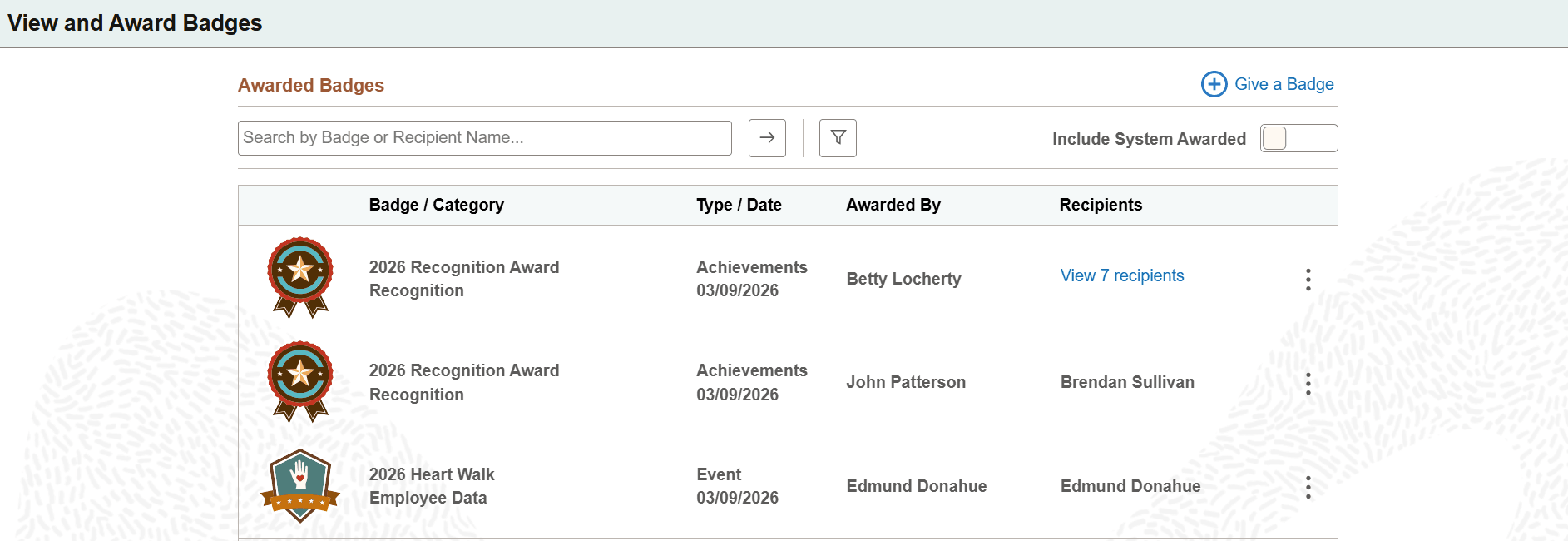
| Field or Control | Description |
|---|---|
|
Give a Badge |
Select to award badges to employees on the Give a Badge Page. |
|
<search field> |
Enter a partial or full badge or recipient name to search for specific badges. |
|
|
Select to perform the search. |
|
|
Select to specify filter values on the Filters modal page to further refine the search results for badges. Values are: Custom: When selected, specify the from and to dates of the custom period. Last 14 Days Last 30 Days The Filter button is displayed in a highlighted color if a filter is applied. |
|
Include System Awarded |
Select to include badges automatically awarded via event processing or the AE process (run from the Run Digital Badge Assignment page) in the search results. This option is deselected by default. |
|
Recipients |
Displays the name of the badge recipient. If the badge has multiple recipients, the View <total recipient count> Recipients link appears instead. |
|
View <total recipient count> Recipients |
Select this link to see everyone who received the badge on the View Recipients Page. This link appears if the badge was given to more than one individual. |
|
|
Select an action to perform on the corresponding badge. Valid actions include: View Badge Details: Select to view more badge information on the Badge Details Page. Delete Badge: Select to remove the badge from its recipient (or recipients, if it is a group badge). Users with the Digital Badges Administrator role can delete any badge. |


View Recipients Page
Use the View Recipients page (BDG_RECIPIENTS_SCF) to view the list of individuals who have been awarded the badge.
Navigation:
Select the View <total recipient count> Recipients link on the View and Award Badges page.
This example illustrates the View Recipients page.
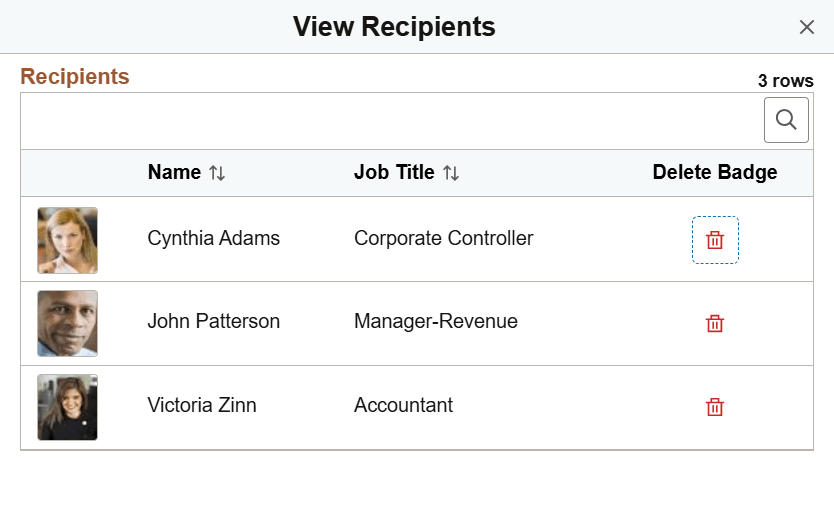
| Field or Control | Description |
|---|---|
|
Delete Badge |
Select to remove the group badge from individual recipients. Note: This option is not available if the group badge is awarded through a recognition. In that case, you can delete the recognition badge for the entire group using the Delete Badge action. Recognition group badges cannot be deleted individually. |
Give a Badge Page
(Administrator) Use the Give a Badge page (BDG_ADM_GIVE_FL) to select and award badges to individuals manually.
Navigation:
Select the Give a Badge link on the View and Award Badges page.
This example illustrates the Give a Badge page.
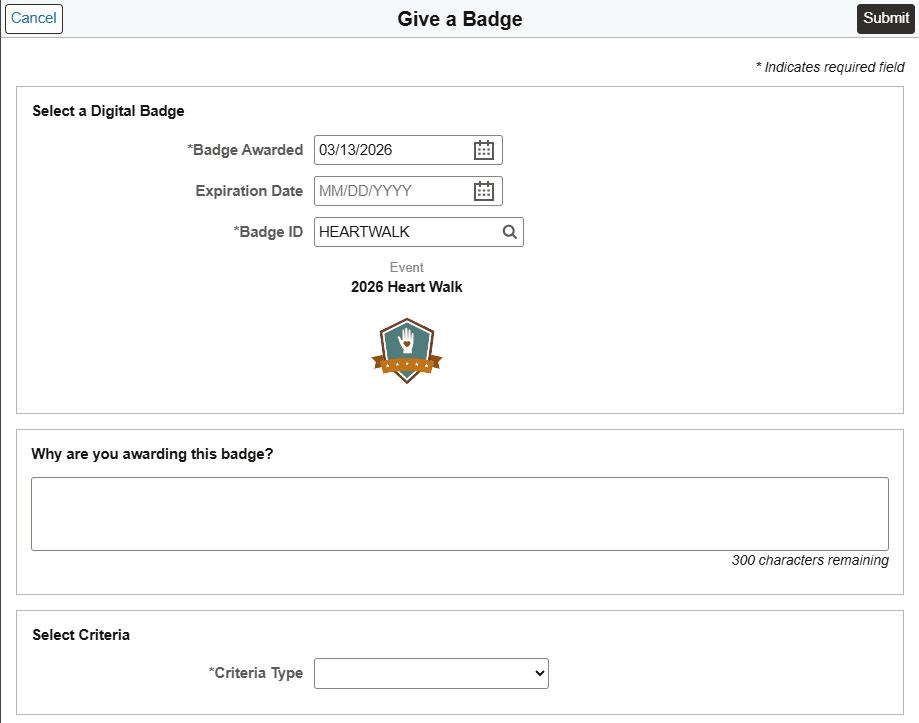
Select a Digital Badge
| Field or Control | Description |
|---|---|
|
Submit |
Select this button to submit your badge awarding request. When selected, the system displays a message showing the number of employee entries to be processed based on your input. This number represents how many potential recipients are detected, and may differ from the number of badges actually awarded if the entries include duplicate employee IDs. Select the Submit button again to confirm the request. Select the Cancel button to return to the Give a Badge page and make changes, if needed. |
|
Badge Awarded |
Enter the date to grant the badge to recipients. The awarded badge becomes visible on this date. |
|
Expiration Date |
Enter the expiration date for the badge, if needed. After this date, the badge will not be visible on pages where badges are displayed. |
|
Badge ID |
Select a badge to grant to the recipients. Active badges are available for selection. If a badge definition has multiple rows, the most current effective-dated active row is used. When selected, the type, name and image of the badge will be displayed. |
Why are you awarding this badge?
State a reason for awarding the selected badge. This information will appear in the badge details. Do not include any sensitive or private information.
Select Criteria
| Field or Control | Description |
|---|---|
|
Criteria Type |
Specify the method for identifying badge recipients. Values include: Application Class: Specify an application class that returns the list of recipients using the fields displayed. This option is available if one or more application classes are set up for the selected badge. Group ID: Specify a group ID that returns the list of recipients in the Group ID field. PS Query: Specify a query that returns the list of recipients. This option is available if one or more queries are set up for the selected badge. Select Recipients: Use the Find Person link that appears to select badge recipients manually. Upload Employee File: Attach a .csv file that lists the employee IDs of badge recipients in one column. Do not include a column header row in the file. See Also Create Digital Badges - Assignment Page. |
Note:
Customers who wish to exclude contingent workers from badge awards are responsible for creating groups, queries, application classes, or flat files that filter them out.
The person selector used in the Select Recipients criteria type can be set up to include or exclude contingent workers on the Configure Simple Person Search page.
Similarly, the direct report setup on the Direct Reports Transaction Configuration page can determine whether contingent workers are included as team members when managers create recognitions with badges.
View Digital Badges Page
Use the View Digital Badges page (BDG_SS_VIEW_LST_FL) to view the badges individuals have received.
Navigation:
- In Directory, select the Digital Badges tab in the left panel of the Profile page.
-
(Administrator) In View Snapshot with an employee selected, select the Digital Badges tile on the Summary dashboard.
Alternatively, select the View More link on the Digital Badges tile on the Recognition and Digital Badges dashboard.
-
(Manager)
-
In My Team, select View Digital Badges from the Related Actions icon of an employee row.
-
In Team Snapshot with an employee selected, select the Digital Badges tile on the Summary dashboard.
Alternatively, select the View More link on the Digital Badges tile on the Recognition and Digital Badges dashboard.
-
-
(Employee) In Career Snapshot, select the Digital Badges tile on the Summary dashboard.
Alternatively, select the View More link on the Digital Badges tile on the Recognition and Digital Badges dashboard.
This example illustrates the View Digital Badges page.
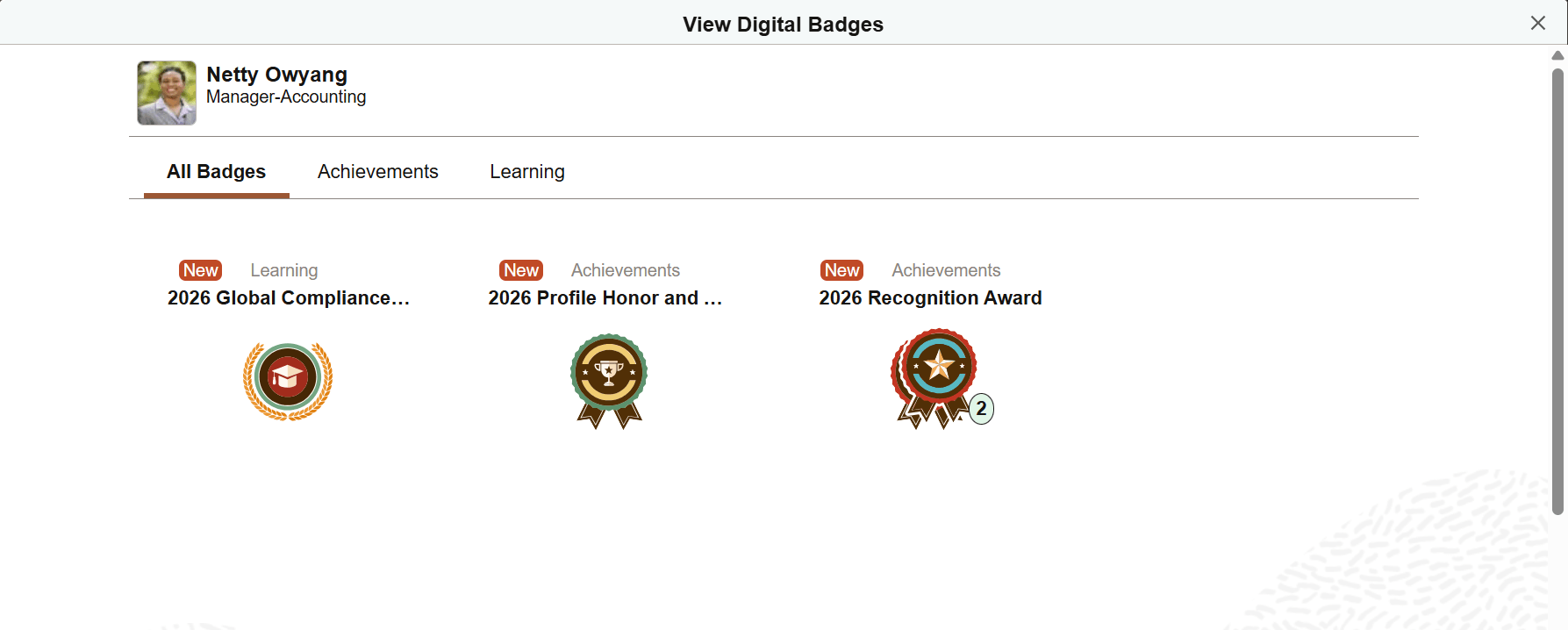
The View Digital Badges page is called the Digital Badges page when accessed from Directory.
Badges can be viewed together on the All Badges tab or sorted by badge type in separate tabs. Select a badge to view more information on the Badge Details Page.
The New tag appears for badges that their recipients have not yet selected to view details and is visible only to them.
If an employee receives the same badge more than once, the badge appears stacked with the total count.
Badge Details Page
Use the Badge Details page (BDG_SS_VIEW_ONE_FL) to review detailed information about the selected badge.
Navigation:
-
Select a badge on the View Digital Badges page (or Digital Badges page in Directory).
-
(Administrator) Select View Badge Details from the More Actions menu of a badge on the View and Award Badges page.
-
(Manager)
-
In Team Recognition, select the badge link from a recognition.
-
In Team Talent Profile with an employee selected, select a badge received for a profile item.
-
-
(Employee)
-
In Recognition, select the badge link from a recognition.
-
In Talent Profile, select a badge received for a profile item.
-
This example illustrates the Badge Details page.
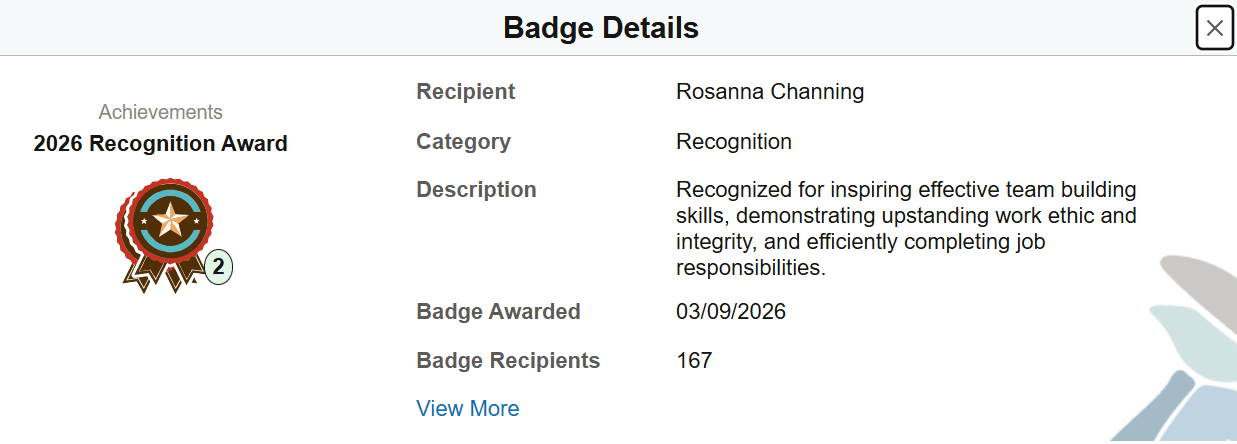
| Field or Control | Description |
|---|---|
|
Badge |
Displays basic information and image of the awarded badge. (When accessed from Directory, My Team, or Snapshot pages) If a person receives the same badge multiple times, the badge image appears stacked with the total count. |
|
Recipient |
Displays the badge recipient name. This field does not appear if you are the badge recipient, or the badge has multiple recipients. |
|
Badge Awarded |
Displays the date the badge was awarded. For stacked badges, this date is the most recent badge award date. To view the badge award date for each award instance, select the View More link. |
|
Badge Recipients |
Displays the number of people who have received the badge to date. |
|
View More |
Select this link to access the Badge History Page for additional information about the awarded badge. This link appears if a reason for badging is available or if the badge has been awarded to the recipient multiple times. |
Badge History Page
Use the Badge History page (BDG_SS_HIST_SCF) to view additional information about the awarded badge.
Navigation:
Select the View More link on the Badge Details page.
This example illustrates the Badge History page.
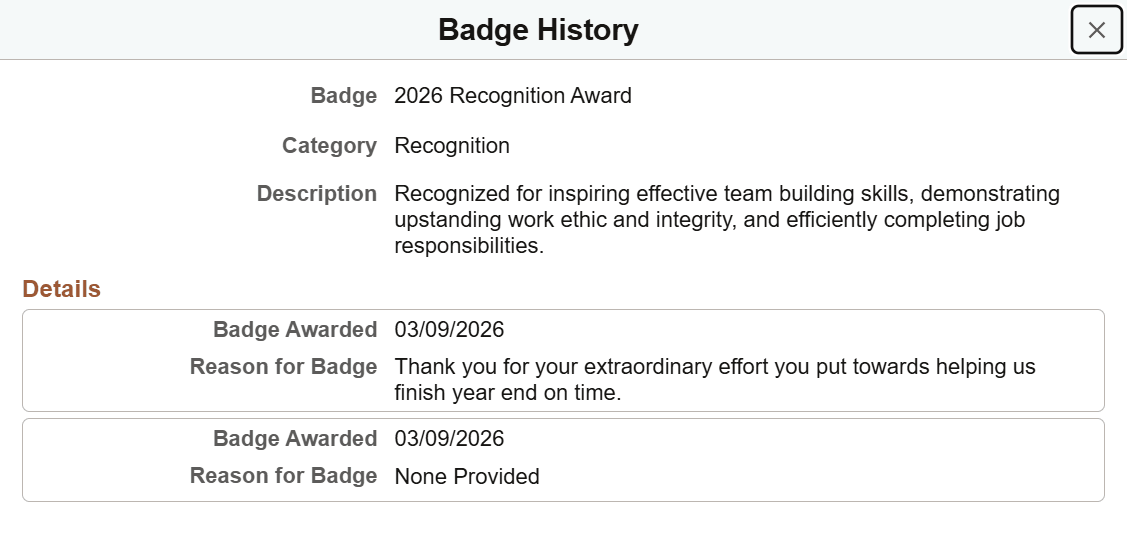
The Badge History page displays the reason for the badge if available (either provided by the administrator on the Give a Badge page or copied from the associated recognition). If the recipient has earned the same badge multiple times, each instance is shown in a list.