Setting Up Digital Badges
This topic provides the Digital Badges setup overview, lists delivered user roles, and discusses how to set up the Digital Badges feature.
Pages Used to Set Up Digital Badges
| Page Name | Definition Name | Usage |
|---|---|---|
|
HC_HRRC_ADMIN_FL_GBL_LINK (this is the cref for the tile) |
Access the Recognition and Digital Badges dashboard. |
|
|
HC_HRRC_ADMIN_FL_GBL |
Access tiles to set up and manage recognitions and digital badges as an administrator. |
|
|
HC_BDG_IMAGE_TBL_GBL_LINK (this is the cref for the tile) |
Access the Digital Badge Images page. |
|
|
BDG_IMAGE_TBL |
Upload images for digital badges. |
|
|
HC_BDG_FN_AREA_TBL_GBL_LINK (this is the cref for the tile) |
Access the Digital Badge Categories page. |
|
|
BDG_CATEGORY_TBL |
Review or manage badge categories. Define source record setup for badge assignment, if needed. |
|
|
HC_BDG_CAT_TYP_TBL_GBL_LINK (this is the cref for the tile) |
Access the Digital Badge Types page. |
|
|
BDG_TYPE_TBL |
Review or define types that organize digital badges. |
|
|
HC_BDG_DEFN_TBL_GBL_LINK (this is the cref for the tile) |
Access the Create Digital Badges pages. |
|
|
BDG_DEFN_TBL |
Create digital badges. |
|
|
BDG_DEFN_ASGN_TBL |
Define assignment methods for badges. |
|
|
HC_BDG_RUN_ASSIGN_GBL_LINK (this is the cref for the tile) |
Access the Run Digital Badge Assignment page. |
|
|
BDG_RUN_ASSIGN |
Award badges to recipients automatically. |
Setting Up Digital Badges
These are the high-level steps to set up the Digital Badges feature:
-
Ensure that the Enable Digital Badges check box is selected on the HCM Options Page of the Installation Table.
-
Use the Digital Badge Images Page to add images to be used for badges.
-
Use the Digital Badge Categories Page to review functional areas enabled for badge awards and confirm their categories are active.
System-delivered categories are available. The system provides source record setup for the Person Profile category for event-based badge awards.
-
Use the Digital Badge Types Page to configure tab labels and associate images with badge types.
System-delivered types are available.
-
Use the Create Digital Badges - Details Page and Create Digital Badges - Assignment Page to define badges and assignment details.
-
(To enable awarding badges using event processing for the Person Profile category) Use the Events and Notifications Framework: Define Events Page in Enterprise Components to set the following events to Active:
-
JPMProfileAdded
-
JPMProfileUpdated
Additionally, make sure that the handlers for these events are also set to Active on the Events and Notifications Framework: Registered Handlers Page.
-
Roles and Permission Lists
The following table lists the system-delivered role for managing and accessing digital badges.
| Role | Description |
|---|---|
|
Digital Badges Administrator |
This role provides administrator access to set up digital badges, award badges manually, run the application engine process to assign badges automatically, and delete badges. |
The following table lists the system-delivered permission lists for managing and accessing digital badges.
| Permission List | Description |
|---|---|
|
HCLPBDGMNG (Digital Badges Administrator) |
This permission list provides access to the Give a Badge page and the View and Award Badges page. It is assigned to the Digital Badges Administrator role by default. |
|
HCLPBDGSET (Digital Badges Setup) |
This permission list provides access to all setup pages for the Digital Badges feature, including pages for types, categories, and individual badges, the Fluid Popup Menu Setup page, and the application engine page for automatic badge assignment. It is assigned to the Digital Badges Administrator role by default. |
|
HCLPSSBDG (Digital Badges Self Service) |
This permission list provides access to the View Digital Badges pages. It is assigned to the Self Service role by default. |
|
HCLPTSSBDG (Team Digital Badges) |
This permission list provides access to the View Digital Badges pages and enables users to award badges when creating new recognitions from Team Recognition. It is assigned to the Team Self Service role by default. |
Recognition and Digital Badges Tile
Use the Recognition and Digital Badges tile (HC_HRRC_ADMIN_FL_GBL_LINK) to access the Recognition and Digital Badges dashboard for a consolidated view of tasks for setting up and managing recognitions and digital badges as an administrator.
Navigation:
The Recognition and Digital Badges tile can be found:
-
In the Org Planning and Development section of the Manage People and Jobs Dashboard of the PeopleSoft landing page.
- On the Talent Administrator Homepage.
This example illustrates the Recognition and Digital Badges tile.

Recognition and Digital Badges Dashboard
Use the Recognition and Digital Badges dashboard (HC_HRRC_ADMIN_FL_GBL) to access tiles to set up and managing recognitions and digital badges as an administrator.
Navigation:
This example illustrates the Recognition and Digital Badges dashboard.
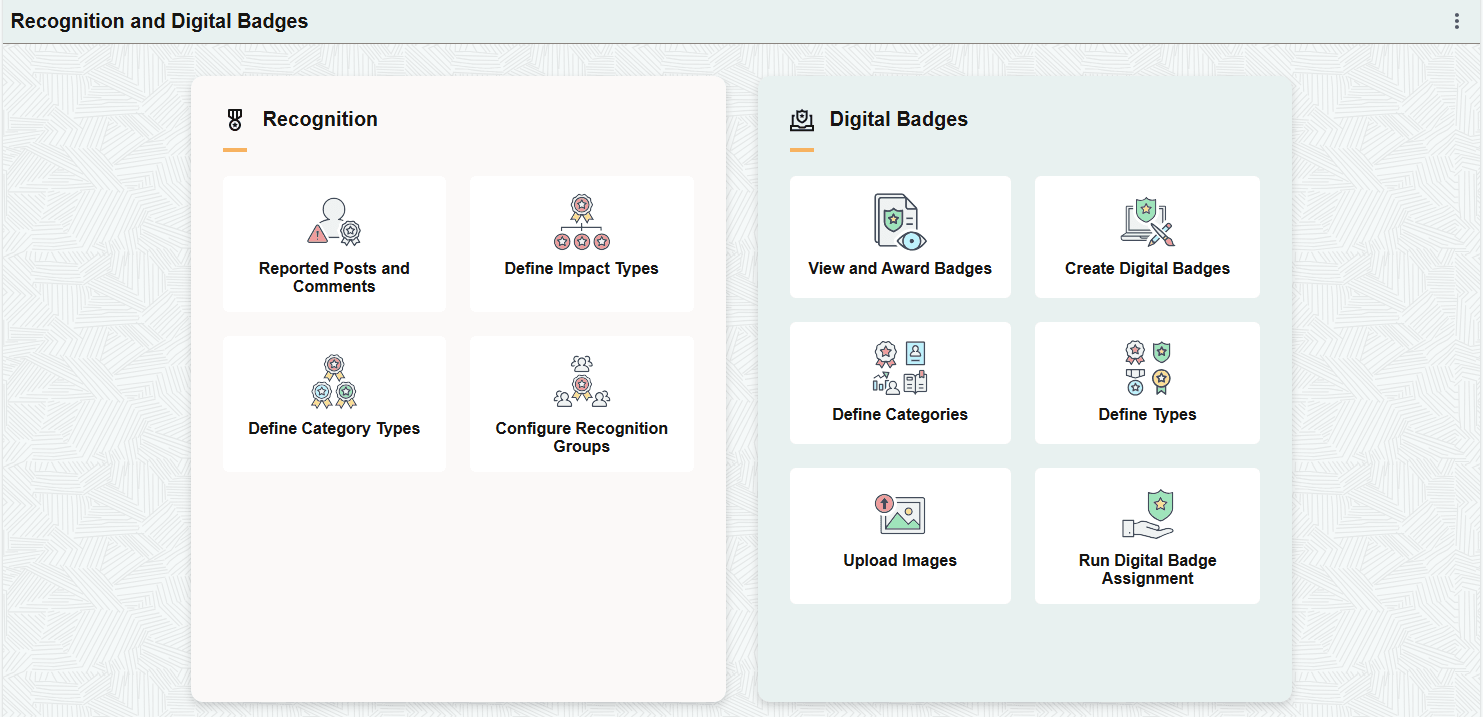
The Recognition and Digital Badges dashboard includes the following sections and tiles.
-
Recognition section
This section appears when the Recognition feature is enabled.
- Reported Posts and Comments Tile (see Reported Posts and Comments Page)
- Define Impact Types Tile (see Recognition Impact Type Page)
- Define Category Types Tile (see Recognition Category Type Page)
- Configure Recognition Groups Tile (see Configure Recognition Groups Page)
- Digital Badges section
This section appears when the Digital Badges feature is enabled.
Upload Images Tile
(Administrator) Use the Upload Images tile (HC_BDG_IMAGE_TBL_GBL_LINK) to access the Digital Badge Images page.
Navigation:
The Upload Images tile is located on the Recognition and Digital Badges dashboard.
This example illustrates the Upload Images tile.

Select this tile to access the Digital Badge Images Page.
Digital Badge Images Page
Use the Digital Badge Images page (BDG_IMAGE_TBL) to upload images for digital badges.
Navigation:
Select the Upload Images tile on the Recognition and Digital Badges dashboard.
This example illustrates the Digital Badge Images page.
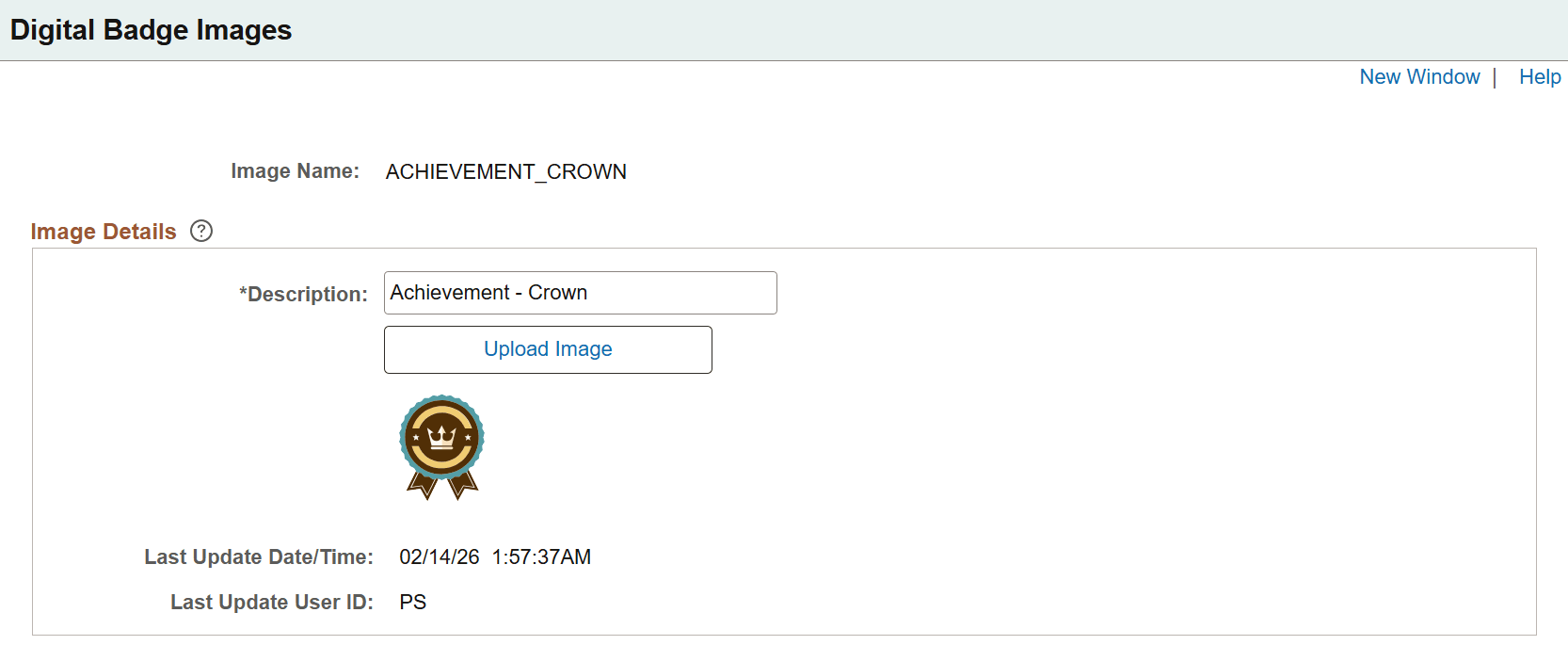
The system provides default images for badges as demo data, and customers can upload their own if needed. Only SVG file format is supported. For best results, use images no larger than 80x80 pixels.
Define Categories Tile
(Administrator) Use the Define Categories tile (HC_BDG_FN_AREA_TBL_GBL_LINK) to access the Digital Badge Categories page.
Navigation:
The Define Categories tile is located on the Recognition and Digital Badges dashboard.
This example illustrates the Define Categories tile.

Select this tile to access the Digital Badge Categories Page.
Digital Badge Categories Page
Use the Digital Badge Categories page (BDG_CATEGORY_TBL) to review or manage badge categories. Define source record setup for badge assignment, if needed.
Navigation:
Select the Define Categories tile on the Recognition and Digital Badges dashboard.
This example illustrates the Digital Badge Categories page.
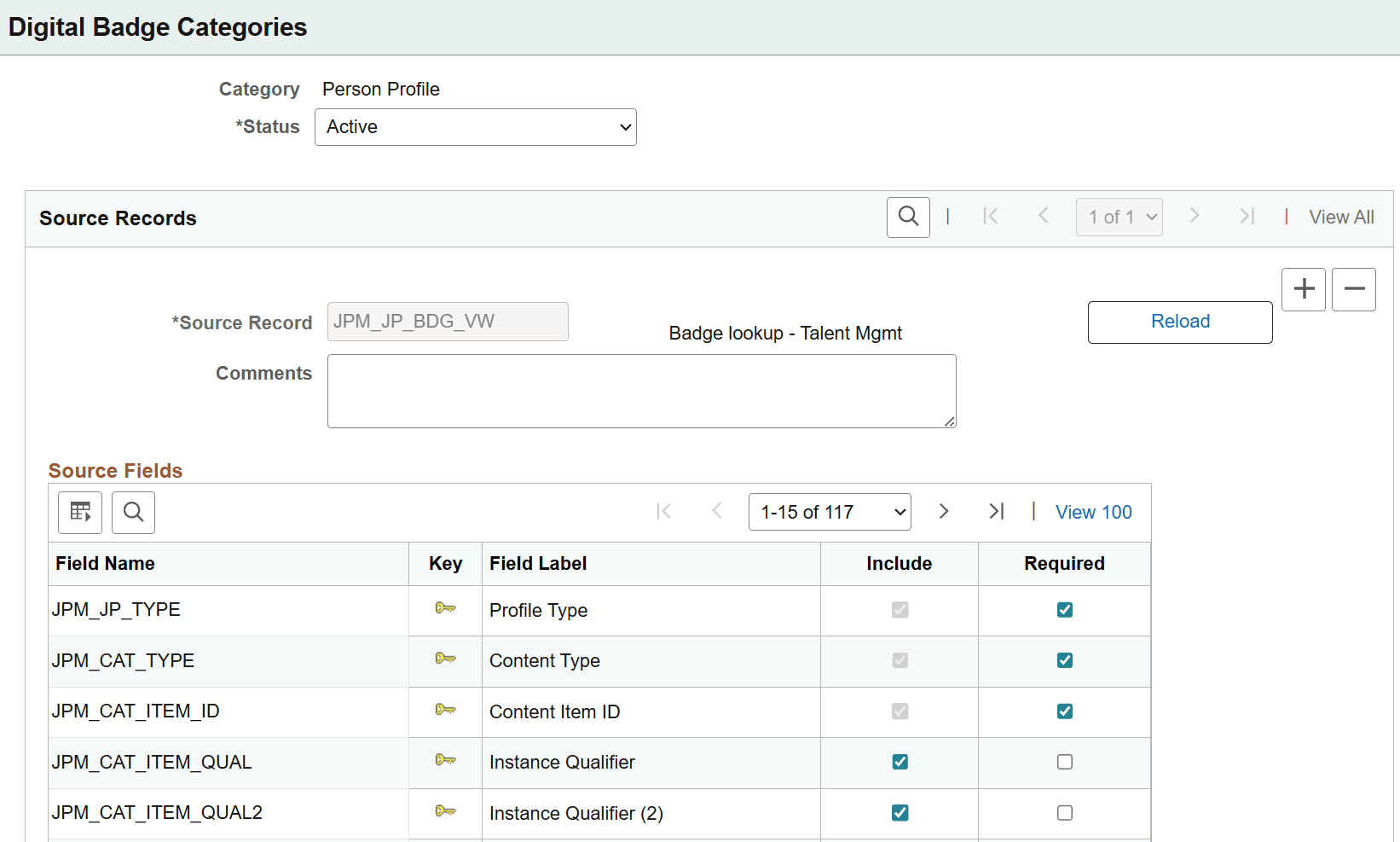
Digital badge categories are used during badge setup to associate badges with a functional area (for example, Person Profile or Recognition).
A category can optionally include source record setup to support badge assignment, primarily for automatic badge assignment using event processing. When defined, this source record information becomes available during badge definition when the category is selected.
The system provides the following badge categories as system data:
-
Employee Data
-
Learner History
-
Performance Document
-
Person Profile
-
Recognition
WARNING:
Avoid inactivating a digital badge category after it has been used to create badges, as this may cause previously awarded badges to display incorrectly or inconsistently.| Field or Control | Description |
|---|---|
|
Category |
Displays the badge category name. |
|
Status |
Select Active to make the badge category eligible for awarding badges and badge creation. |
Source Records
Note:
Source record and field setup is not required at the category level; however, when defined, it can be used to configure badge assignment in badge definitions. For more information, see the Create Digital Badges - Assignment Page topic.
The system delivers source record setup (JPM_JP_BDG_VW) as demo data for the Person Profile category to support event-based badge assignment. It is used when configuring badges that are automatically awarded based on updates to a person’s profile.
| Field or Control | Description |
|---|---|
|
Source Record |
Specify the record(s) to use for badge assignment setup in the corresponding category. The system provides the JPM_JP_BDG_VW source record for the Person Profile category. |
|
Reload |
Select this option to refresh the source record data on the page, such as after making updates in App Designer. If changes are detected, you will be prompted and can choose to reload the updated data. |
Source Fields
| Field or Control | Description |
|---|---|
|
Field Name |
Displays the name of a field from the specified source record. |
|
Key |
Indicates that this field serves as a key field. |
|
Include |
Select to make this field available for assignment setup when the corresponding category is selected during badge creation. |
|
Required |
Select to make this field value required (if included) in assignment setup when the corresponding category is selected during badge creation. |
Define Types Tile
(Administrator) Use the Define Types tile (HC_BDG_CAT_TYP_TBL_GBL_LINK) to access the Digital Badge Types page.
Navigation:
The Define Types tile is located on the Recognition and Digital Badges dashboard.
This example illustrates the Define Types tile.

Select this tile to access the Digital Badge Types Page.
Digital Badge Types Page
Use the Digital Badge Types page (BDG_TYPE_TBL) to review or define types that organize digital badges.
Navigation:
Select the Define Types tile on the Recognition and Digital Badges dashboard.
This example illustrates the Digital Badge Types page.
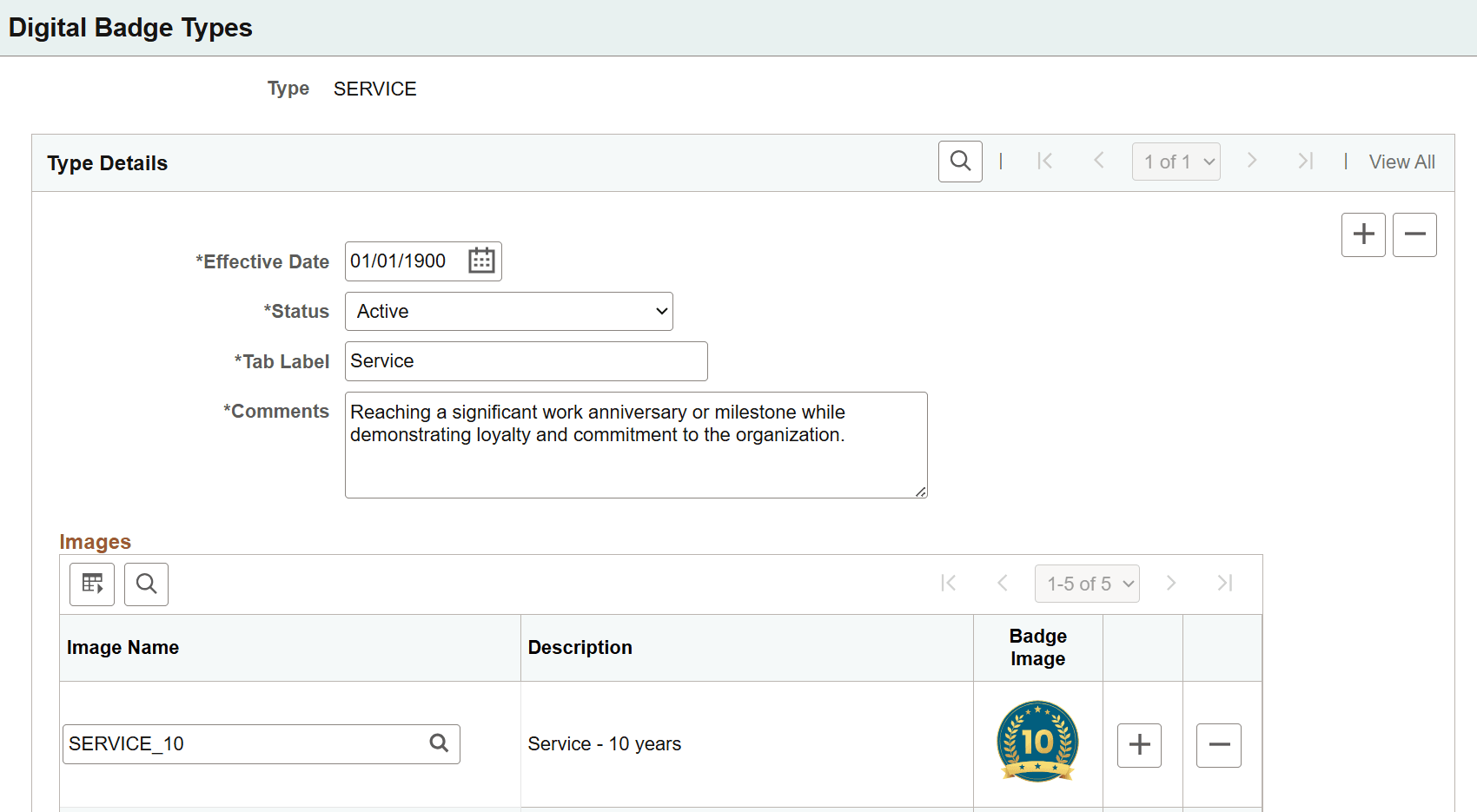
Digital badge types are used during badge setup to determine which badge images are available for selection. They also group badges under tabs (for example, Achievements, Learning, or Service) on the View Digital Badges page at runtime.
The system provides the following badge types as demo data:
-
ACHIEVEMENT (Achievements)
-
EVENT (Event)
-
LEARNING (Learning)
-
SERVICE (Service)
WARNING:
Avoid inactivating a digital badge type after it has been used to create badges, as this may cause previously awarded badges to display incorrectly or inconsistently (for example, type-based tab labels may no longer appear as expected when viewing digital badges).| Field or Control | Description |
|---|---|
|
Type |
Displays the badge type name. |
|
Status |
Select Active to make the badge type eligible for awarding badges and badge creation. |
|
Tab Label |
Enter a label for this type. It will be used as the tab label when viewing individuals' badges by type on the View Digital Badges Page. |
Use the Images section to insert badge images that can be used for the corresponding badge type during badge creation. Badge images are uploaded to the system using the Digital Badge Images Page.
Create Digital Badges Tile
(Administrator) Use the Create Digital Badges tile (HC_BDG_DEFN_TBL_GBL_LINK) to access the Create Digital Badges pages.
Navigation:
The Create Digital Badges tile is located on the Recognition and Digital Badges dashboard.
This example illustrates the Create Digital Badges tile.

Select this tile to access the Create Digital Badges - Details Page.
Create Digital Badges - Details Page
Use the Create Digital Badges - Details page (BDG_DEFN_TBL) to create digital badges.
Navigation:
Select the Create Digital Badges tile on the Recognition and Digital Badges dashboard.
This example illustrates the Create Digital Badges - Details page.
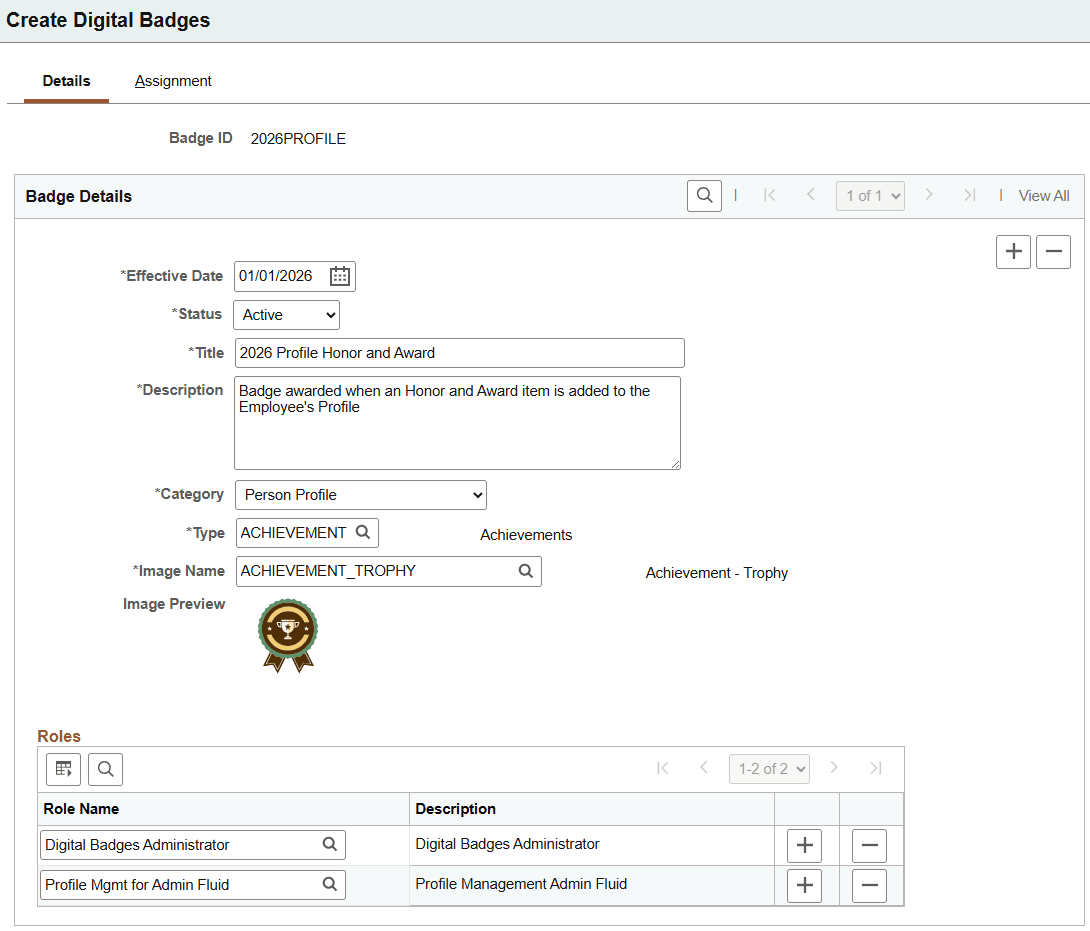
The system provides several digital badge examples as demo data.
| Field or Control | Description |
|---|---|
|
Effective Date |
Specify the date on which the badge becomes effective. If a badge has multiple effective-dated rows, the current active effective-dated row is used when selecting the badge to be awarded. |
|
Status |
Select: Active to make the badge eligible for awarding. Inactive to make the badge unavailable for awarding. |
|
Title and Description |
Enter a title and detailed description for the badge. The title will appear above the badge image, and the description will be shown in the badge details. |
|
Category |
Select the functional area in which the badge can be awarded. Categories are defined on the Digital Badge Categories Page. Only active categories are available for selection. |
|
Recognition Details link |
Select to specify the recognition category, impact, or both associated with the badge, if applicable. This link is available when the selected category is Recognition. A badge is available for selection during recognition creation, if the badge category and impact match exactly those specified in the recognition. See Also New Recognition Page. |
|
Type |
Select a type for the badge. Types are defined on the Digital Badge Types Page. Only active types are available for selection. |
|
Image Name |
Select an image for the badge. Images belonging to the selected type are available for selection. The selected image appears in the Image Preview field. |
Roles
Use this section to specify which user roles are permitted to award the badge. This security setup is enforced when:
- Managers assign badges during recognition creation. Managers can select only badges that are associated with roles they have.
-
Badges are awarded through event processing. When an event triggers a badge award (for example, a license or certification is added or updated in Talent Profile), the system verifies that the user who performed the action has the required role before awarding the badge.
Note:
If you do not specify any roles, the badge is available to all users who can award badges.
This role restriction does not apply to administrators awarding badges on the Give a Badge Page. By default, users with the Digital Badges Administrator role can award any badge.
Create Digital Badges - Assignment Page
Use the Digital Badges - Assignment page (BDG_DEFN_ASGN_TBL) to define assignment methods for badges.
Navigation:
Select the Create Digital Badges tile on the Recognition and Digital Badges dashboard. Select the Assignment tab.
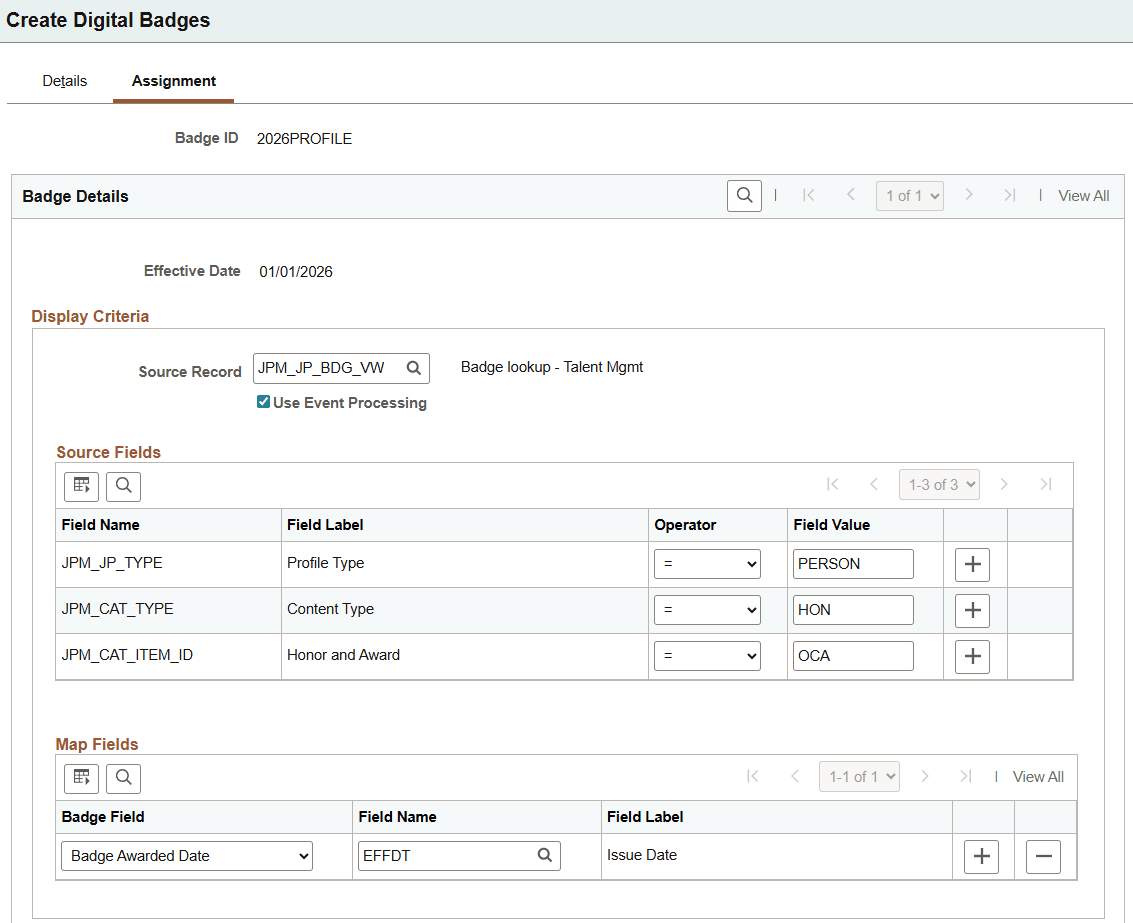
This screenshot illustrates the Create Digital Badges - Assignment page. It displays the Display Criteria section for an example digital badge of the Person Profile category that uses event processing.
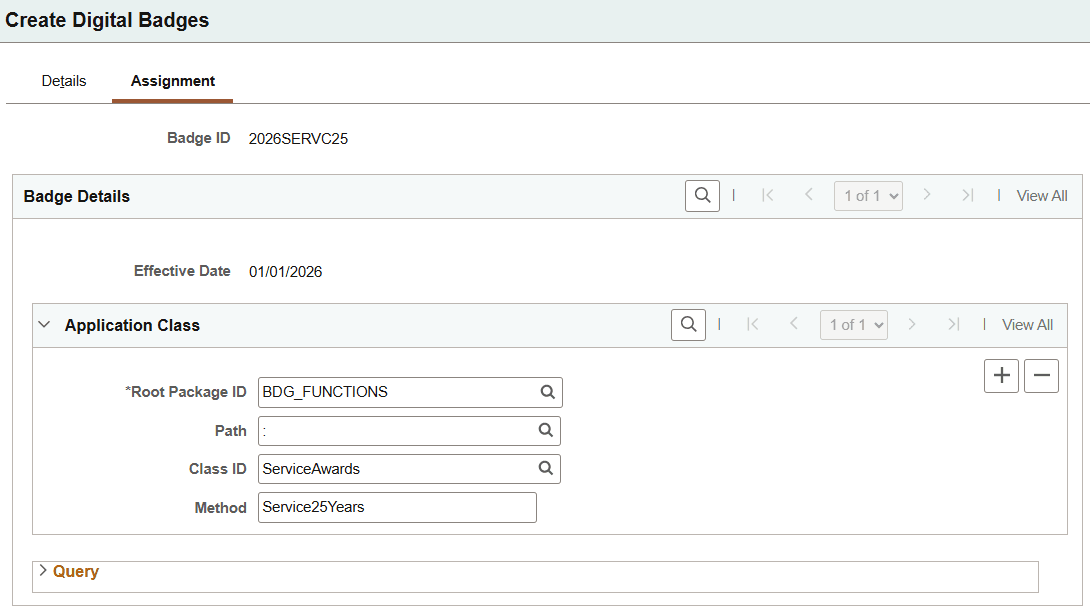
This screenshot illustrates the Create Digital Badges - Assignment page with the Application Class section displayed.
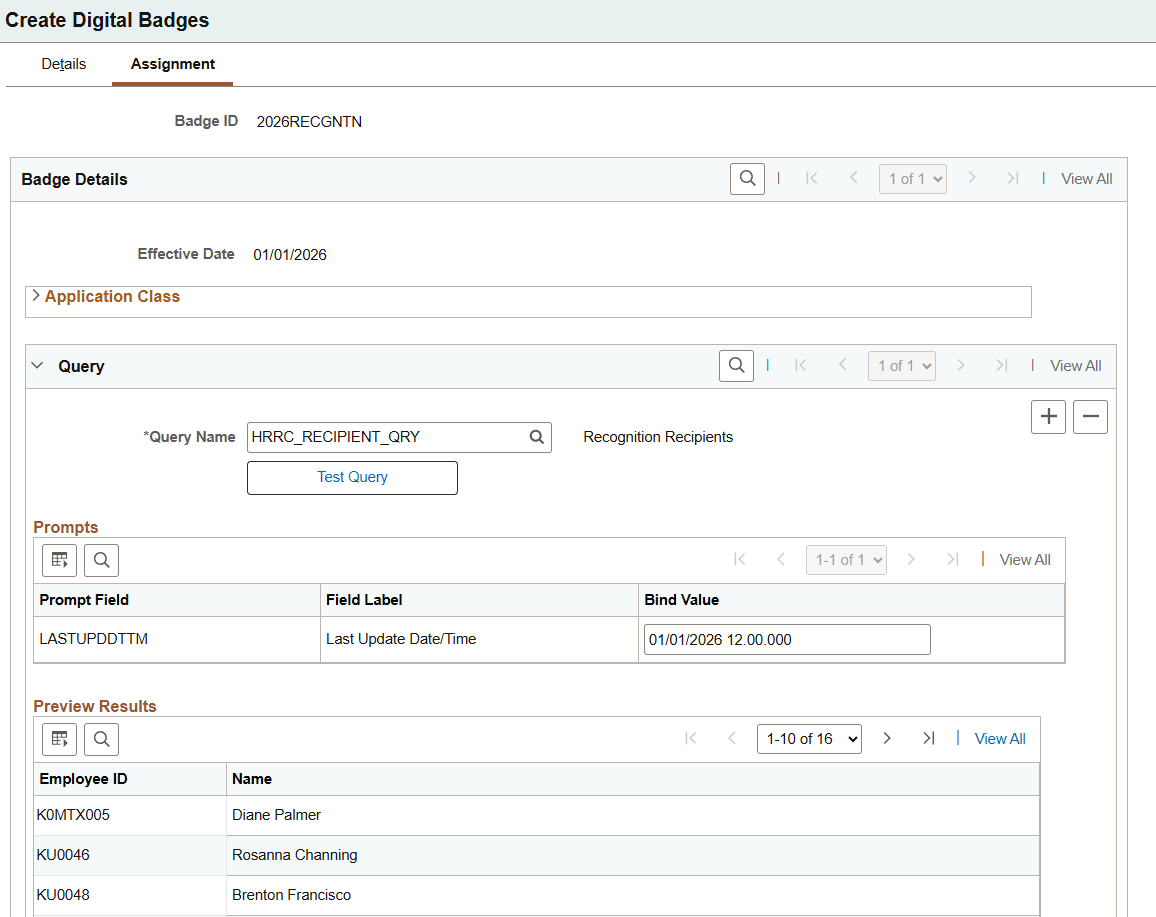
This screenshot illustrates the Create Digital Badges - Assignment page with the Query section displayed.
Setup on this page is required for badges that:
-
Determine recipients using a PeopleSoft query or an application class, or
-
Are awarded through event processing (demo data provided for the Person Profile category).
A badge can have more than one assignment method setup (for example, query and application class) if needed. When only one assignment method is defined, the system automatically populates the related fields on the Run Digital Badge Assignment page or the Give a Badge page after you select the badge and the matching assignment method (criteria type).
Display Criteria
Note:
This section appears when the selected category is Person Profile.
Person Profile badges can be set up to use event processing or other methods (application class or query) to assign badges to fit your business needs.
| Field or Control | Description |
|---|---|
|
Source Record |
Select the source record that the system uses to evaluate display/award criteria for this badge. This record drives which fields are available in the Source Fields and Map Fields sections. Available source records are set up on the Digital Badge Categories Page. Currently, the system provides the JPM_JP_BDG_VW source record as demo data for the Person Profile category. |
|
Use Event Processing |
Select to enable event-based badge awards. When a configured event occurs, the system checks the conditions in the Source Fields section and awards the badge if the criteria match. This field appears if a source record is selected. To award Person Profile badges using event processing, you must activate the JPMProfileAdded and JPMProfileUpdated events, along with their associated event handlers, in the Event Framework. Note: Person Profile badges can also be configured to use other assignment methods besides event processing. If the Use Event Processing field is not selected, awarded badges can still be displayed in Talent Profile or Team Talent Profile based on the setup in the Source Fields section. See Also Event Processing. |
Source Fields
Use the Source Fields section to define the source record field criteria that controls when the system awards the badge.
This section appears if a source record is selected.
Note:
(For Person Profile badges) The Source Fields section is required for event processing as well as other assignment method setup (application class and query). This setup also determines whether the badge appears for the related content item in Talent Profile and Team Talent Profile.
| Field or Control | Description |
|---|---|
|
Field Name, Operator, and Field Value |
Use source fields to define the criteria (identify the profile item) for the badge to be awarded. Note: For the JPM_JP_BDG_VW source record, these fields are required and must be populated with valid values for dependent prompts in the Map Fields section to work: JPM_JP_TYPE (Profile Type) JPM_CAT_TYPE (Content Type) JPM_CAT_ITEM _ID You can add additional source fields. If an added field is optional and you leave its value blank, the condition evaluates as a blank value. Also, when adding a new source field, available values in the prompt are determined by the JPM_JP_TYPE and JPM_CAT_TYPE entries, which must have valid values. Refer to the Event Processing topic for an example of digital badge configuration using event processing. This topic includes the required setup and describes the expected behavior when the event is triggered. |
Map Fields
Use the Map Fields section to specify which source record fields populate the badge fields (for example, the Badge Awarded field in badge details and badge history).
This section appears if the Use Event Processing option is selected.
| Field or Control | Description |
|---|---|
|
Badge Field |
Select a transaction field of the badge you want the system to populate from the source data. For the JPM_JP_BDG_VW source record, these badge fields are available for selection: Badge Awarded Date Badge Award Reason Badge Expiration Date |
|
Field Name and Field Label |
Specify the source record field that supplies the value for the corresponding badge field. The list of available values from the prompt is based on the setup in the Source Fields section. The label of the selected field is then displayed. For example, if the badge field is Badge Awarded Date and the source field name is EFFDT (Issue Date), the system populates the badge awarded date with the issue date of the associated profile item. |
Application Class
Use the Application Class section to specify the application class and method that the system uses to derive the badge recipient list.
The system provides the BDG_FUNCTIONS root package, ServiceAwards class, and Service5Years, Service10Years, Service20Years, and Service25Years methods for work anniversary badges. This application class is delivered as demo data, and customers who wish to use it must update the logic to meet their specific service award requirements.
Note:
When you use an application class to determine badge recipients, follow these recommendations:
- Define recipient-selection logic at the badge level. For example, for milestone-based programs (such as service anniversary badges), use a separate badge ID and a dedicated Application Class method per milestone (for example, 5-year, 10-year, 15-year). This keeps each method narrowly scoped and easier to test, maintain, and troubleshoot.
- Design the application class to return a clean, eligible population by filtering out employees who should not be awarded badges (for example, ineligible workers such as terminated workers or other excluded populations based on your business rules). If a badge is intended to be awarded only once, include logic to prevent the badge from being re-awarded on subsequent runs.
Query
| Field or Control | Description |
|---|---|
|
Query Name |
Specify the PeopleSoft Query that returns the recipients (a list of employee IDs) for this badge assignment method. |
|
Test Query |
Run the selected query using the specified prompt field bind values in the Prompts grid and display the output in Preview Results grid. Use the results to validate that the query returns the expected recipient population before using it for awarding badges. |
|
Prompts grid |
Displays the prompts defined on the query and enables you to enter values for each prompt. |
|
Prompt Field |
Displays the query prompt field name (record field) that requires a value (for example, LASTUPDDTTM). |
|
Field Label |
Displays the label for the prompt field (for example, Last Update Date/Time). |
|
Bind Value |
Enter the value that the system passes into the query prompt at runtime (for example, an "as of" date/time). |
|
Preview Results grid |
Displays example output columns showing who would be selected by the query using the specified prompt field bind values. Use the preview to spot unexpected or unwanted results (for example, duplicates, ineligible employees) and refine the query accordingly. Note: For large query result sets, the preview displays only the first 500 rows. To review the complete results, run the query directly. |
Run Digital Badge Assignment Tile
(Administrator) Use the Run Digital Badge Assignment tile (HC_BDG_RUN_ASSIGN_GBL_LINK) to access the Run Digital Badge Assignment page.
Navigation:
The Run Digital Badge Assignment tile is located on the Recognition and Digital Badges dashboard.
This example illustrates the Run Digital Badge Assignment tile.

Select this tile to access the Run Digital Badge Assignment Page.
Run Digital Badge Assignment Page
Use the Run Digital Badge Assignment page (BDG_RUN_ASSIGN) to award badges to recipients automatically.
Navigation:
Select the Run Digital Badge Assignment tile on the Recognition and Digital Badges dashboard.
The system provides an Application Engine (AE) process that issues badges to recipients automatically. This process is especially beneficial for recurring activities such as service milestones or class completions. Administrators can initiate the process on demand, or schedule it to run automatically using Process Scheduler.
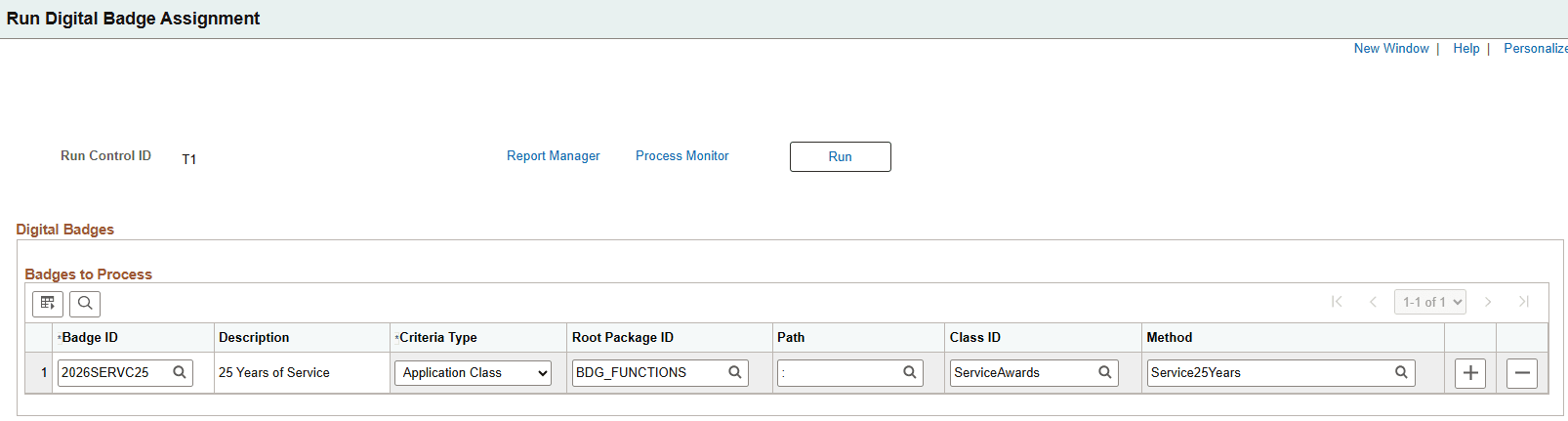
This example illustrates the Run Digital Badge Assignment page.
| Field or Control | Description |
|---|---|
|
Run |
Select to run the Assign Digital Badges AE process (BDG_ASSIGN) to issue badges selected in the Digital Badges section. |
Digital Badges
| Field or Control | Description |
|---|---|
|
Badge ID |
Select a badge to be awarded automatically. The system prepopulates the remaining parameters, if possible. Only badges with application class or query setup are available for selection. You may select multiple badges (for example, 10-year service award, 15-year service award, and so on) to be processed in the same run control ID and schedule the AE process to run regularly. |
|
Criteria Type |
Specify the method for identifying badge recipients. Values include: Application Class: Specify an application class that returns the list of recipients. This option is available if one or more application classes are set up for the selected badge. PS Query: Specify a query that returns the list of recipients. This option is available if one or more queries are set up for the selected badge. See Also Create Digital Badges - Assignment Page. |
|
Query Name |
Select the query used to identify badge recipients. This field become editable if the selected criteria type is PS Query. |
|
Root Package ID, Path, Class ID, and Method |
Use these fields to specify the application class used to identify badge recipients. These fields become editable if the selected criteria type is Application Class. |