Cancel Absence Page
Use the Cancel Absence page (GP_ABS_SS_REQUEST) to cancel an employee absence request.
Navigation:
Click the Cancel button for an absence on the Absence Request History page.
This example illustrates the fields and controls on the Cancel Absence page.
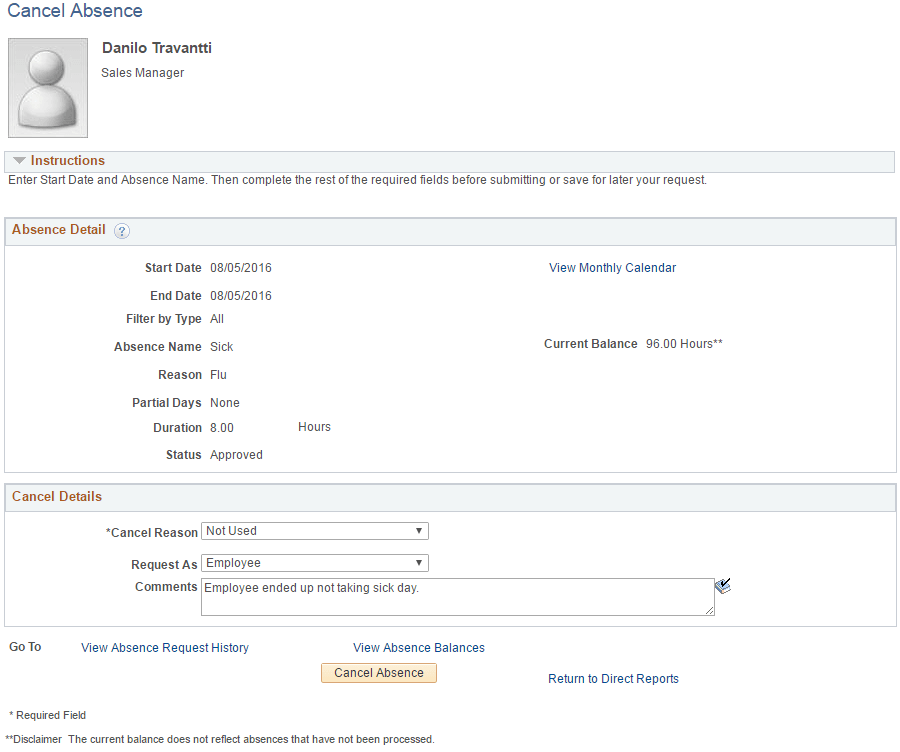
| Field or Control | Description |
|---|---|
|
Cancel Reason |
Select a reason for canceling the absence request. |
|
Request As |
Determines whether the absence cancelation is entered as an Employee or as a Manager. If you select Employee, the system approves the absence request. If you select Manager, the system routes the request to next available manager. |
|
Comments |
Enter any additional comments regarding the absence cancellation. |
|
Cancel Absence |
Click this button to cancel the absence. You will receive a message confirming that you want to cancel the absence. Click Yes to confirm the cancellation. The system changes the status of the absence request to Cancelled. |