Bank Accounts Page
Use the Banking page (GPSC_BANK_ACC_FL) to edit or add a bank account.
Navigation:
-
Click a bank account on the Banking page.
-
Click the Add button on the Banking page to add a new bank account.
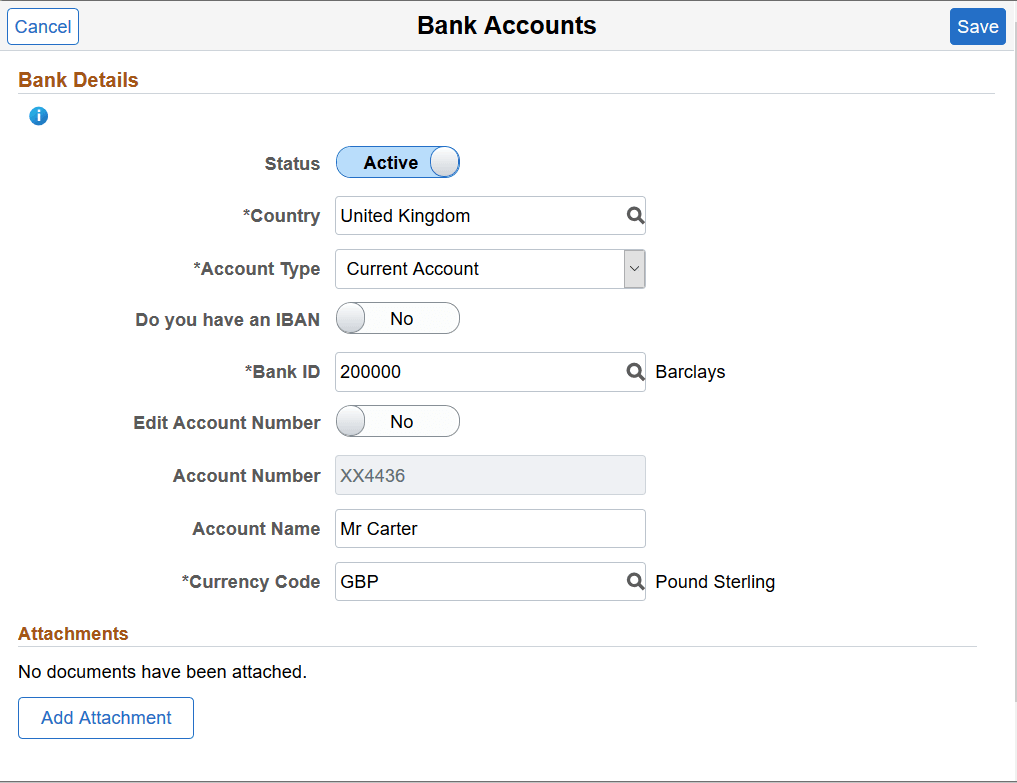
This example illustrates the fields and controls on the Bank Accounts page.
Note:
The fields that appear on this page vary according to your banking setup and the country you select for the account.
Bank Details
| Field or Control | Description |
|---|---|
|
Status |
Select whether the bank account is Active or Inactive. |
|
Country |
Select the country for the payee's bank account. The countries available for you to select are defined on the Self Service Banking Options Page. |
|
Account Type |
Select the bank account type for the payee. The types available for you to select are defined on the Self Service Banking Options Page. |
|
Do you have an IBAN |
Switch to Yes to indicate that the payee has an (International Bank Account Number) IBAN. When you select Yes, the IBAN field and Validate button become available, whereas the Bank ID, Account Number, and Check Digit fields become display-only. When you enter the IBAN number and click the Validate button, the system populates the display-only fields after the validation is completed successfully. An IBAN is an account number that uniquely identifies a bank account and is assigned according to ISO standards so that it can be used across national borders. It is typically used for employees who reside in countries that are part of the European Union. |
|
Bank ID |
Enter the ID of the bank associated with the account. |
|
Edit Account Number |
Select Yes if you want to update the account number. This field appears when you view an existing bank account. The system clears the existing account number for you to enter a new number. |
|
Account Number and Retype Account Number |
Enter the account number. Depending on the security setup on the Self Service Banking Options Page, you may need to retype the account number in the Retype Account Number field to confirm that you’ve entered it consistently and correctly. Note: If masking is enabled for the country, saved account numbers appear in this field with most of the digits replaced by the letter X. |
|
CLABE |
(MEX) Enter the Clave Bancaria Estandarizada (CLABE) number. This field is available only if you select Mexico in the Country field. |
|
CBU |
(ARG) Enter the La Clave Bancaria Uniforme (CBU) number. This field is available only if you select Argentina in the Country field. |
|
Description 1 and Description 2 |
(NLD) Enter any additional payment information to include in your payment file. For example, if you use this bank account for mortgage payments, you could use these fields to enter a mortgage reference number. |
|
Building Society ID, Roll Name, and Roll Number |
(GBR) Enter the ID, name, and number associated with the employee’s building society account. These fields are available only if you select United Kingdom in the Country field, and Building Society Roll Number in the Account Type field. |
|
Account Name |
Enter the account name for the person. |
|
AC Account Name (alternate character account name) |
Enter an account name using alternate characters. |
|
Currency Code |
Select the code of the currency in which the account is maintained. |
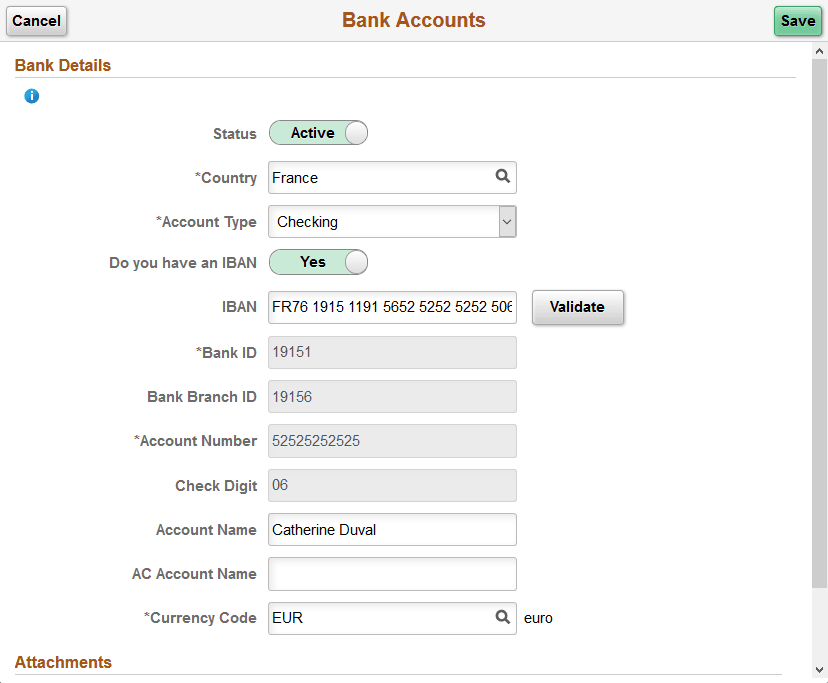
This is an example of the Bank Accounts page for an employee with an IBAN.
| Field or Control | Description |
|---|---|
|
IBAN (International Bank Account Number) |
Enter the IBAN for the payee. |
|
Validate |
Click to validate the number entered in the IBAN field. The validation process alerts you if there is an error in the entered IBAN. In addition, the validation process populates the Bank ID, Bank Branch ID, Account Number, and Check Digit fields based on the entered IBAN. |
Attachments
| Field or Control | Description |
|---|---|
|
Add Attachment |
Click to add an attachment to your bank account. You can upload files of any supported file extension for bank account attachments. Note: Administrators can update the file extension list if necessary. To do so, navigate to . Modify the GP_EPAY_BANK_FILE_EXTN_LST list, which is used for bank account attachments. For more information about the File Extension List page, refer to the Using Administration Utilities topic in PeopleTools: System and Server Administration, “Using PeopleTools Utilities”. |