View Compensation History - Employee Selection Criteria Page
Use the View Compensation History - Employee Selection Criteria page (HR_DR_DIRECTREPORT) to select a direct or indirect report to view the employee’s compensation history.
Navigation:
This example illustrates the fields and controls on the View Compensation History - Employee Selection Criteria page.

The View Compensation History - Employee Selection Criteria page displays all direct reports of the logged-in manager based on that manager’s job. If the manager has multiple jobs, he or she has the option to select the job to be used for the task and refresh the list of employees accordingly. The system uses the direct report configuration that is set up for the View Compensation History transaction (component name: HR_ECOM_MG_HIST) to populate the manager’s employee list on this page.
To view the compensation history of an employee, click the Select button on his or her row. You can also drill down to an employee’s direct reports by clicking the icon next to the employee’s name to expand the list.
To search for a specific direct or indirect report, click the Find Employee link, enter search criteria and click Search.
Pages Used to View Payslips Using the PeopleSoft Fluid User Interface
| Page/Tile Name | Definition Name | Usage |
|---|---|---|
|
HC_GP_SS_EE_PSLP_FLU (cref for the tile) GPEE_PSLIPTILE_FLU (page for dynamic data) |
Access employee self-service payslip information. |
|
|
GP_SS_EE_PSLP_FLU |
View summary information about recent payslips. |
|
|
Filter Page |
PY_ESS_FLTRDAT_SCF |
After clicking the Filter icon on the Payslips page, enter new from and to dates to change the date range of payslips to display. |
|
GP_MPSLP_PMT_SUMM |
View a summary of information for a payslip. |
|
|
GP_MPSLP_ERNG |
View the earnings for a payslip. |
|
|
GP_MPSLP_DEDN |
View the deductions for a payslip. |
|
|
GP_MPSLP_PMT_DST |
View the net pay distribution for a payslip. |
|
|
GP_MPSLP_PAYBAL |
View year-to-date payroll balances for a payslip. |
|
|
HGA_SS_BAL_FLU |
View absence balances for a payslip. |
|
|
GP_MPSLP_MSG_FL |
View the messages associated with a payslip. |
|
|
GP_MPSLP_CHRT |
View how the ratios of the earnings and deductions associated with a payslip. |
Payslips Tile
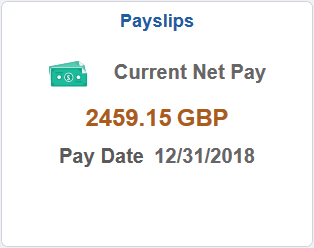
Employees use the Payslips tile to access their payslip information.
Navigation:
-
The Payslips tile is delivered as part of the Application Fundamentals: Employee Self Service Homepage, but the location can change if you change the delivered homepages or if employees personalize their homepages.
This example illustrates the Payslips tile for the tablet.
This example illustrates the Payslips tile for the smartphone.
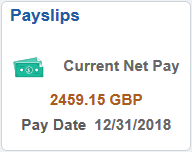
Click anywhere on this tile to access the Payslips page, which displays summary information about the employee’s most recent payslips.
| Field or Control | Description |
|---|---|
|
Pay Date |
Displays the payment date of the employee’s most recent payslip in the user’s preferred date format. |
Payslips Page
Use the Payslips page (GP_SS_EE_PSLP_FLU) to view summary information about recent payslips.
Navigation:
-
Click the Payslips tile that is available on a fluid home page.
-
Click the Payslips tile from the PeopleSoft Global Payroll: Global Payroll Dashboard.
-
Click Payslips from the PeopleSoft Global Payroll: Fluid Navigation Collection for Global Payroll.
-
(Navigator)
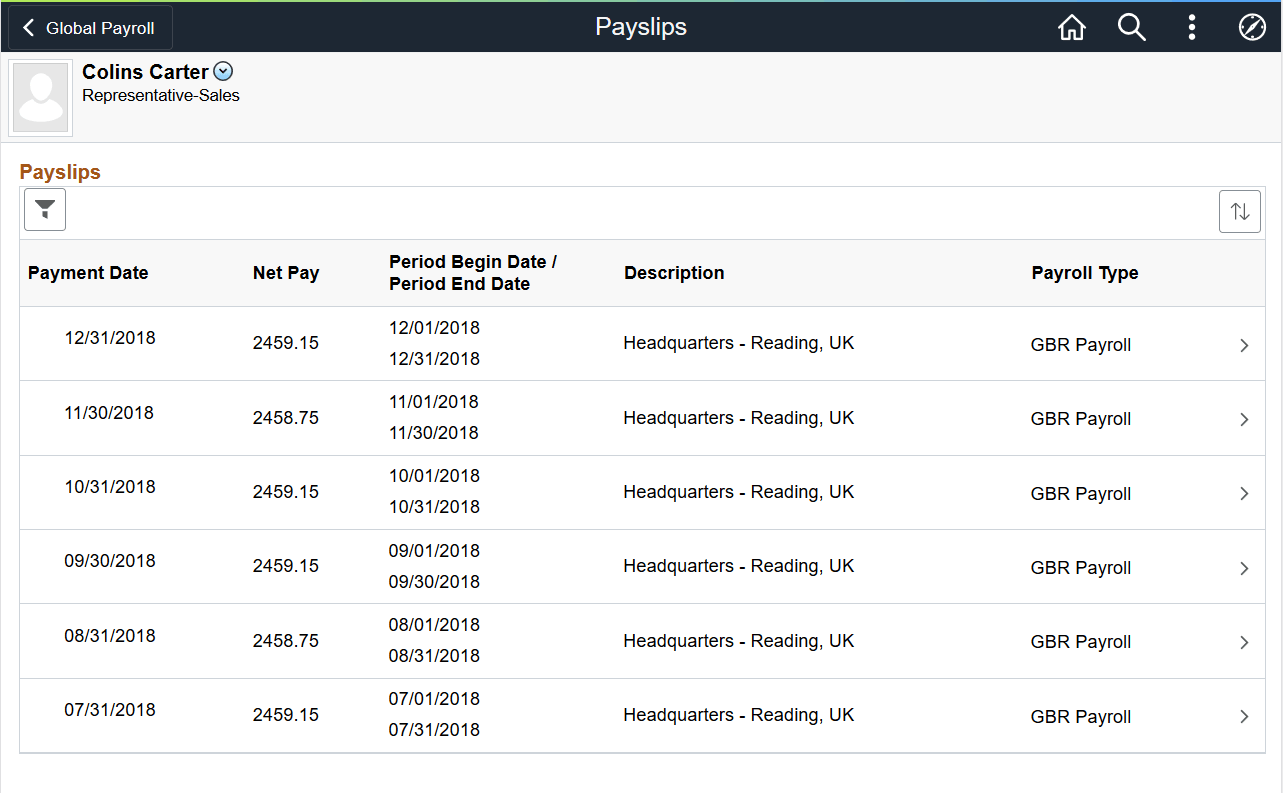
This example illustrates the Payslips page for the tablet.
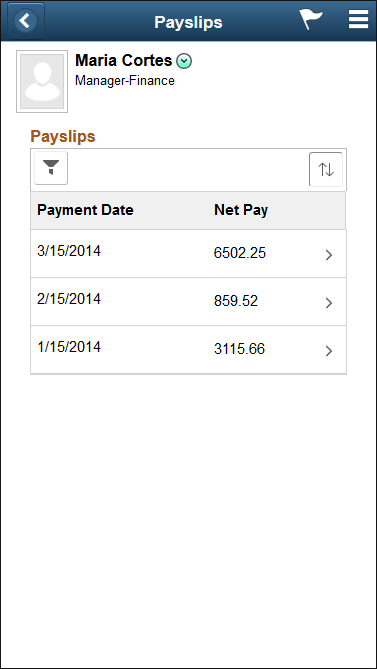
This example illustrates the Payslips page for the smartphone.
Header Information
The page header includes the employee’s name, job title, and photo (if available). Employees can click the related actions drop-down icon next to their name to access additional self-service transactions.
See Application Fundamentals: Common Header for Employee Self-Service Pages
Date Range for Payslips
Initially, the Payslips page displays the most recent payslip and the previous six months of payslips. To display payslips from a different date range, employees can click the filter icon and enter new dates in the From and To fields, and then click the Refresh button.
Dates appear in the user’s preferred format.
Grid Columns and Sorting
The grid on this page displays the following information about each payslip:
-
Payment Date
-
Net Pay
-
Period Begin Date
-
Period End Date
-
Description
The description varies by country. For example, it might describe the department, pay entity, calendar run, or job title.
-
Payroll Type
| Field or Control | Description |
|---|---|
|
|
To change the date range of payslips to display, click the filter icon and enter new from and to dates. |
|
|
Initially, payslips are sorted chronologically, with the most recent payslip first. To change the sort order, click the grid sort icon and choose a new sort option. You can sort by any field that is shown in the grid. |


Accessing Payslip Details
If mobile payslips are enabled on the Self Service Payslip Options Page and you are using a small form factor device such as a smartphone, you can click a payslip to access the Payment Summary Page where you can view a summary of information for the payslip and access more detailed information.
If mobile payslips are not enabled, or you are not using a small form factor device, clicking a payslip opens the payslip in PDF format.
Payment Summary Page
Use the Payment Summary page (GP_MPSLP_PMT_SUMM) to view a summary of information for a payslip.
Navigation:
Click a payslip on the Payslips page using a small form factor device.
This example illustrates the Payment Summary page for the smartphone.
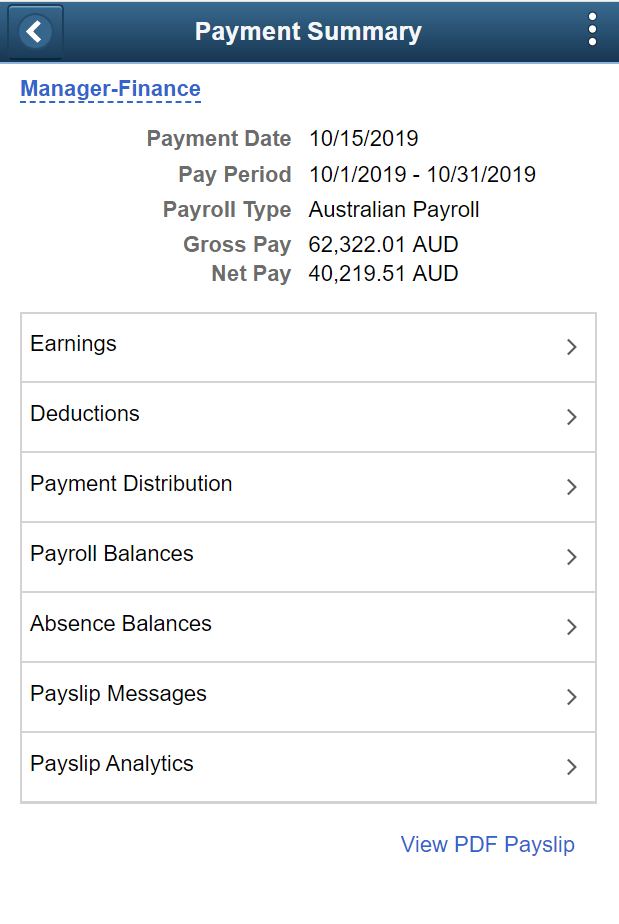
This page displays the following information for the payslip:
-
Payment Date
-
Pay Period
-
Payroll Type
-
Gross Pay
-
Net Pay
| Field or Control | Description |
|---|---|
|
Earnings |
Click to access the Earnings Page. |
|
Deductions |
Click to access the Deductions Page. |
|
Payment Distribution |
Click to access the Payment Distribution Page. |
|
Payroll Balances |
Click to access the Payroll Balances Page. |
|
Absence Balances |
Click to access the Balances Page. |
|
Payslip Analytics |
Click to access the Payslip Analytics Page. |
|
Payslip Messages |
Click to access the Payslip Messages page. |
|
View PDF Payslip |
Click to view the payslip in PDF format. Refer to the topic Setting Up View Payslip for additional information about generating the PDF payslips for employees. |
Earnings Page
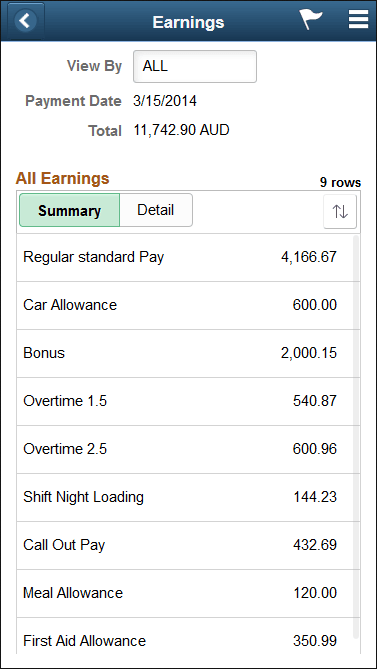
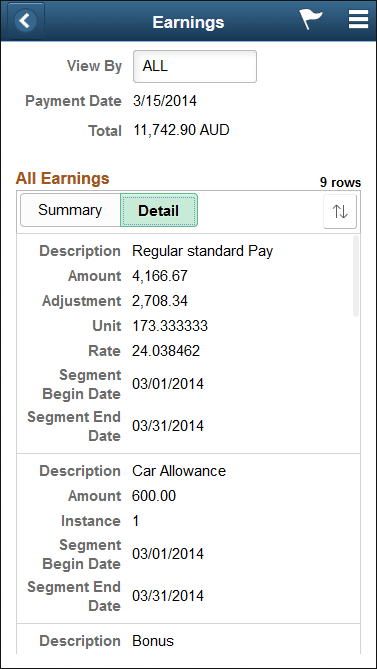
Use the Earnings page (GP_MPSLP_ERNG) to view the earnings for a payslip.
Navigation:
Click the Earnings item on the Payment Summary page.
This example illustrates the Earnings page: Summary tab for the smartphone.
This example illustrates the Earnings page: Detail tab for the smartphone.
Summary
This tab displays a brief summary of each earning associated with the payslip including:
-
Description
-
Amount
Detail
This tab displays the detailed information for each earning including:
-
Description
-
Amount
-
Instance
-
Segment Begin Date
-
Segment End Date
Deductions Page
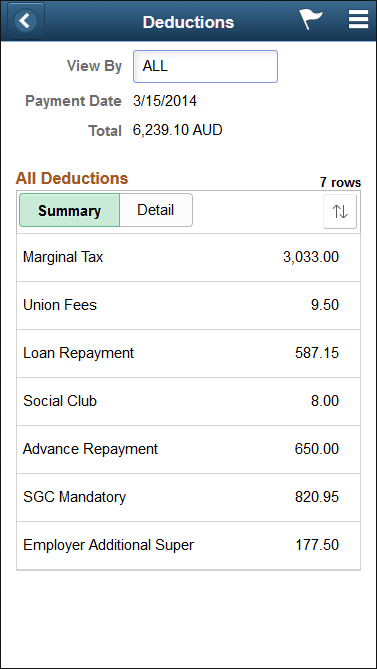
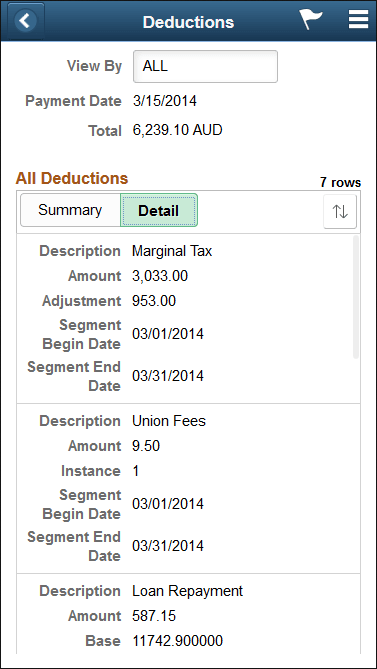
Use the Deductions page (GP_MPSLP_DEDN) to view the deductions for a payslip.
Navigation:
Click the Deductions item on the Payment Summary page.
This example illustrates the Deductions page: Summary tab for the smartphone.
This example illustrates the Deductions page: Detail tab for the smartphone.
Summary
This tab displays a brief summary of each deduction associated with the payslip including:
-
Description
-
Amount
Detail
This tab displays the detailed information for each earning including:
-
Description
-
Amount
-
Instance
-
Segment Begin Date
-
Segment End Date
Payment Distribution Page
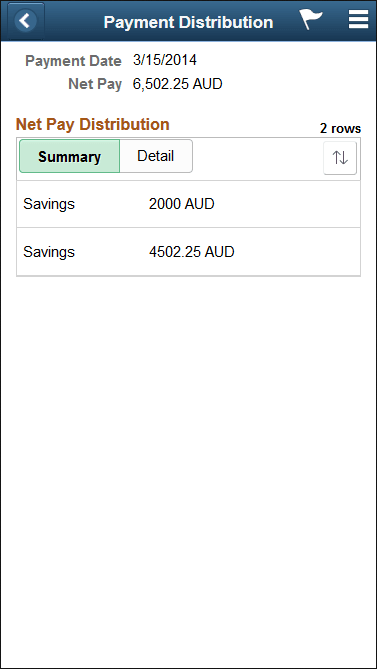
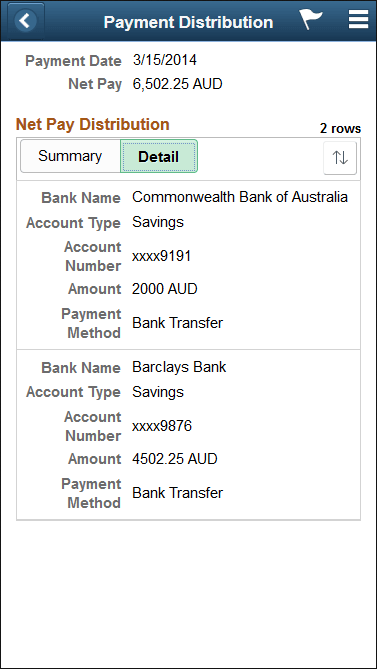
Use the Payment Distribution page (GP_MPSLP_PMT_DST) to view the net pay distribution for a payslip.
Navigation:
Click the Payment Distribution item on the Payment Summary page.
This example illustrates the Payment Distribution page: Summary tab for the smartphone.
This example illustrates the Payment Distribution page: Detail tab for the smartphone.
Summary
This tab displays a summary of each bank account to which net pay was distributed. The summary includes:
-
Account Type
-
Amount
Detail
This tab displays detailed information for each bank account to which net pay was distributed. The detailed information includes:
-
Bank Account Name
-
Account Type
-
Account Number
-
Amount
-
Payment Method
Payroll Balances Page
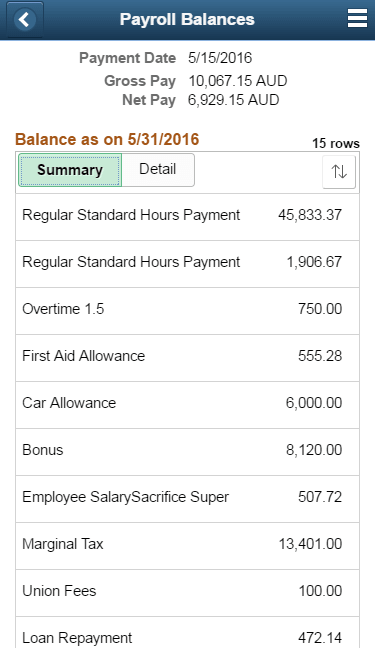
Use the Payroll Balances page (GP_MPSLP_PAYBAL) to view payroll balances for a payslip.
Navigation:
Click the Payroll Balances item on the Payment Summary page.
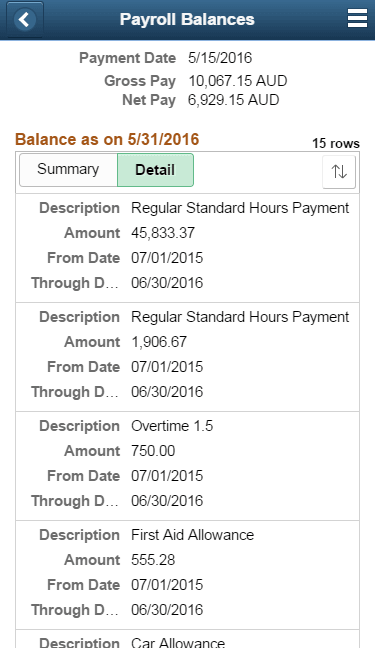
This example illustrates the Payroll Balances page: Summary tab for the smartphone.
This example illustrates the Payroll Balances page: Detail tab for the smartphone.
Summary
This tab displays a summary of payroll balances as of the end date of the payslip period. The summary includes:
-
Description
-
Amount
Detail
This tab displays detailed information for payroll balances as of the end date of the payslip period. The detailed information includes:
-
Description
-
Amount
-
From Date
-
To Date
Balances Page
Use the Balances page (HGA_SS_BAL_FLU) to view absence balances for a payslip.
Navigation:
Click the Absence Balances item on the Payment Summary page.
This example illustrates the Balances page for the smartphone.
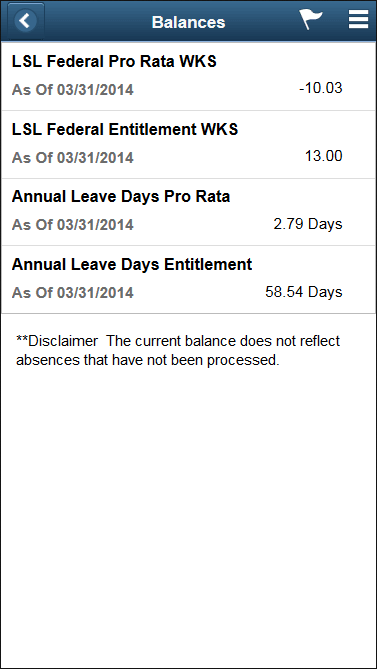
This page displays the absence balances for a payee as of the end date of the payslip period. The balances reflect the most current absence that has been processed and finalized.
Payslip Messages Page
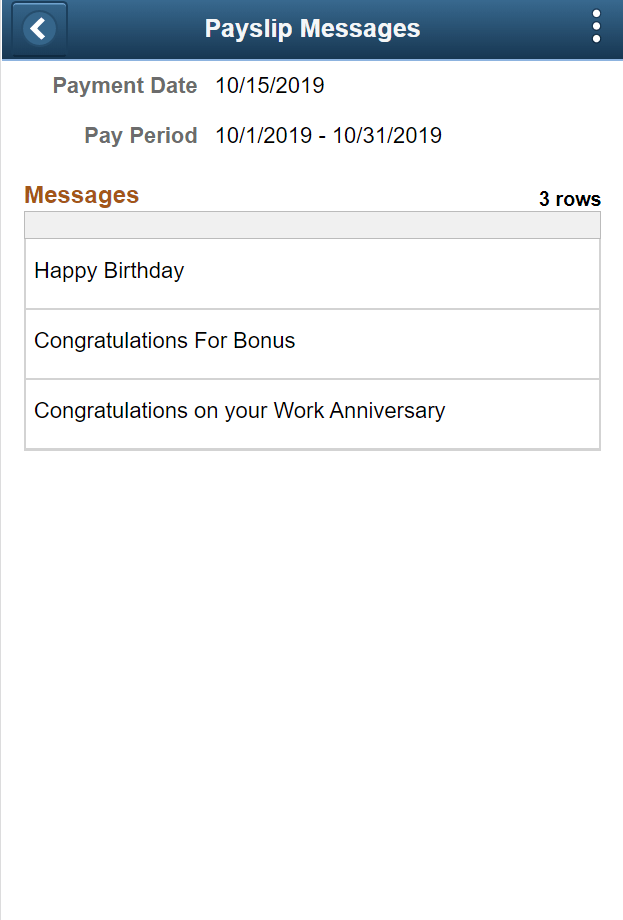
Use the Payslip Messages page (GP_MPSLP_MSG_FL) to view any messages associated with the payslip. Messages can be a combination of Country Extension or Customer messages and Core messages.
Navigation:
Click the Payslip Messages item on the Payment Summary page.
This example illustrates the Payslip Messages page for the smartphone.
Payslip Analytics Page
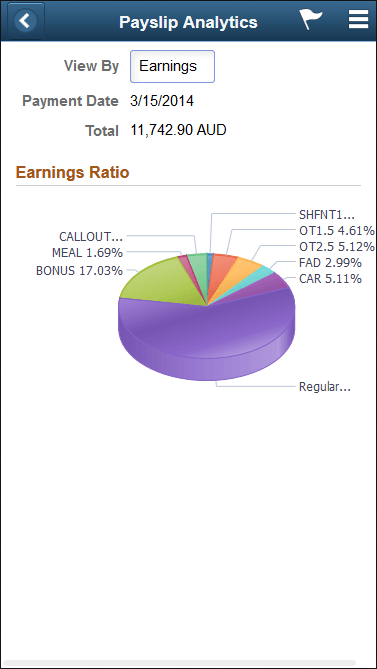
Use the Payslip Analytics page (GP_MPSLP_CHRT) to view how the ratios of the earnings and deductions associated with a payslip.
Navigation:
Click the Payslip Analytics item on the Payment Summary page.
This example illustrates the Payslip Analytics page for the smartphone.
| Field or Control | Description |
|---|---|
|
View By |
Select whether you want to see the ratios for earnings or deductions:
|
|
Payment Date |
Displays the payment date for the payslip. |
|
Total |
Displays the total amount of earnings or deductions depending on the value you select in the View By field. |