(Classic) Generating Documents as Managers
This topic provides an overview of the document generation process for direct reports and discusses how to generate documents as managers in Classic Plus mode.
Note:
A fluid version of ePerformance is now available to support employee performance reviews. For more information, see Understanding Fluid ePerformance.
Pages Used to Generate Documents as Managers
| Page Name | Definition Name | Usage |
|---|---|---|
|
Create <Performance or Development> Documents - Select Group Page |
HR_DR_DIRECTREPORT |
Select a group of employees for whom you want to create documents. |
|
Create <Performance or Development> Documents - Employee Selection Criteria Page |
HR_DR_DIRECTREPORT |
Select individual employees for whom documents are created. |
|
Create <Performance or Development> Documents - Document Creation Details Page |
EP_CREATEAPPR_MGR |
Select the document template and dates that you want to use to create documents. |
|
Create <Performance or Development> Documents - Results Page |
EP_CREATE_RESULTS |
View the document creation results for the employees or group that you selected. |
Understanding Document Generation
In the manager role, you can generate documents for direct reports by selecting a group, employees within groups, or individual employees.
Regardless of which option you choose, you first need to select the As of date for determining which employees report to you. You then select the employees for whom you want to generate documents. Finally, you select the document template from which to generate the individual documents and enter the dates of the evaluation period that is covered.
Note:
You can generate either performance or development documents. The process is identical, except for the page names and the navigation path by which you access the document generation pages.
Note:
(Fluid navigation collection) Refer to the Create Documents Page (Team Performance) topic to create new documents as managers using the navigation collection from the fluid Team Performance tile.
Create <Performance or Development> Documents - Select Group Page
Use the Create <Performance or Development> Documents - Select Group page (HR_DR_DIRECTREPORT) to select a group of employees for whom you want to create documents.
Navigation:
This example illustrates the fields and controls on the Create <Performance or Development> Documents - Select Group page.
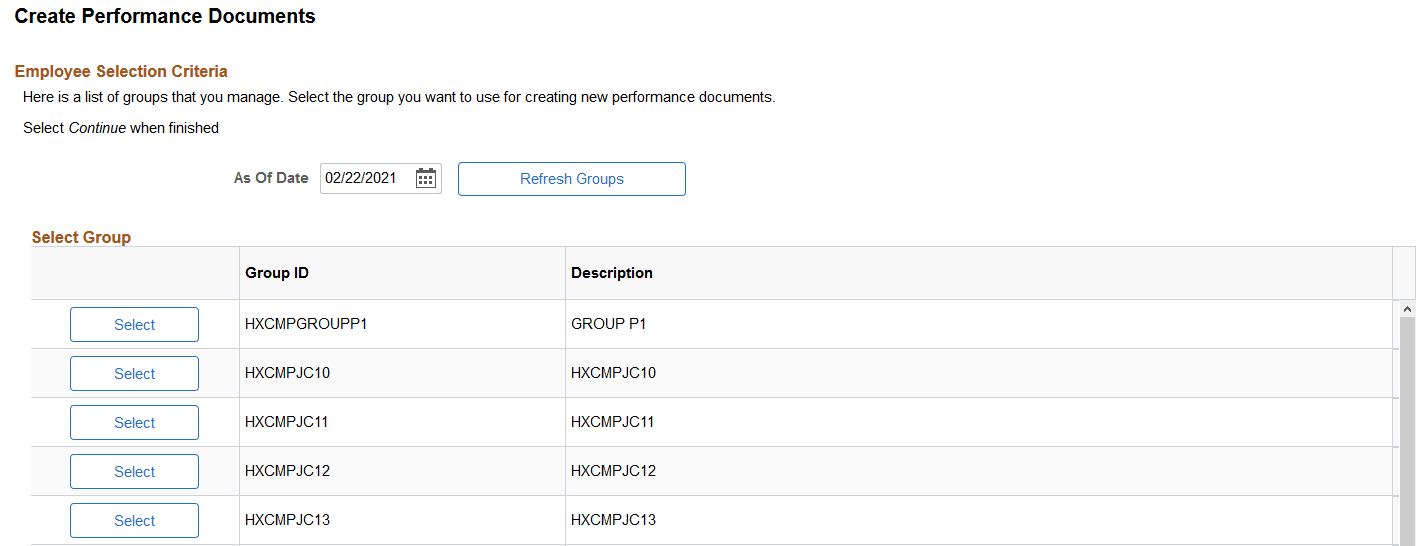
Select a group of employees on this page. Click the Continue button at the bottom of the page to move to the next step where you further select one or more employees within that group for which documents are to be created.
Create <Performance or Development> Documents - Employee Selection Criteria Page
Use the Create <Performance or Development> Documents - Employee Selection Criteria page (HR_DR_DIRECTREPORT) to select individual employees for whom documents are created.
Navigation:
-
Select a group on the Create <Performance or Development> Documents - Select Group page.
-
-
This example illustrates the fields and controls on the Create <Performance or Development> Documents - Employee Selection Criteria page.
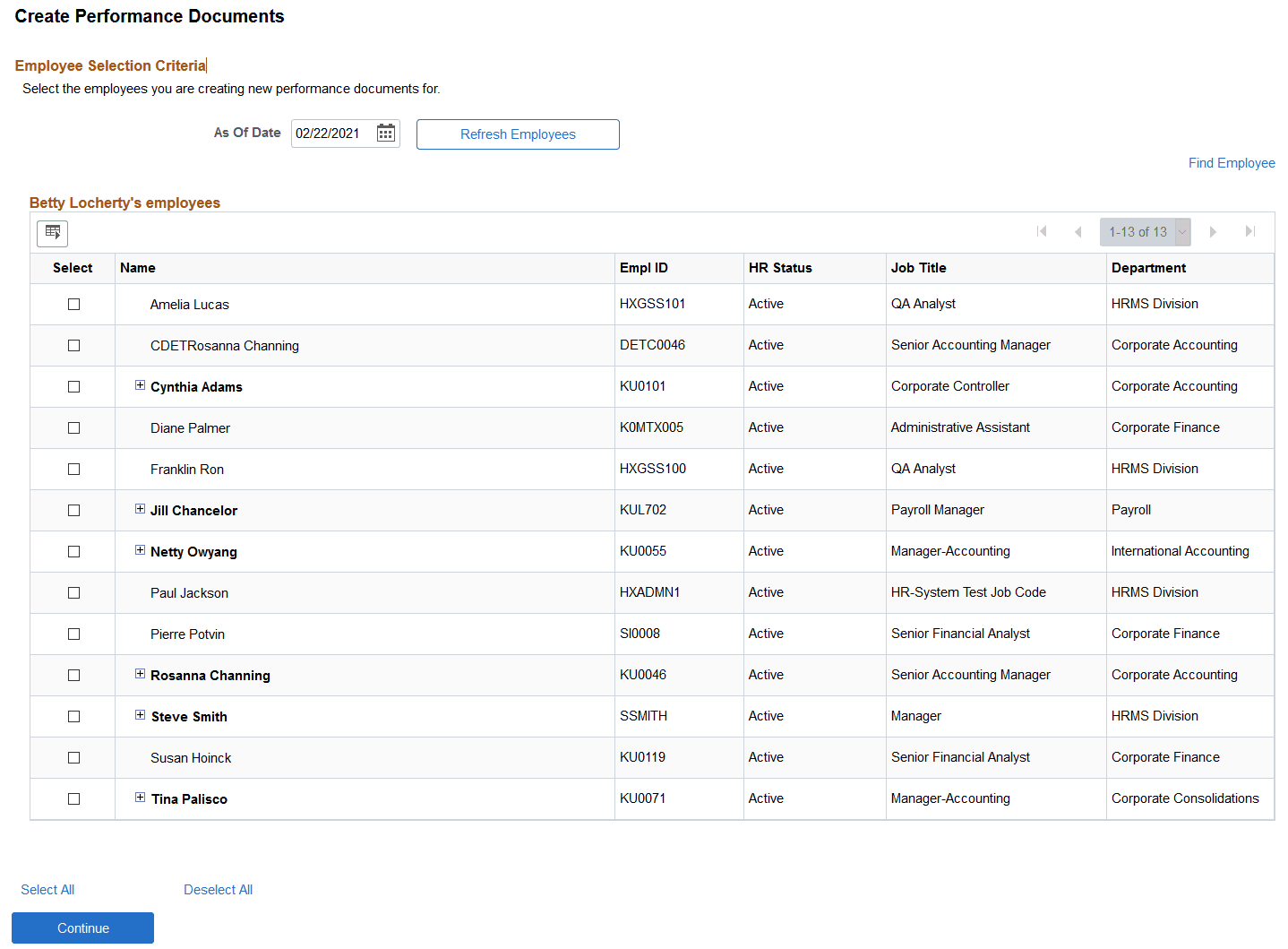
If you select to create documents for individual employees, this is the first page in a series of pages that guide you through the document generation process. If you select to create documents by group, this page appears after a group is selected, listing the employees belonging to that group.
The system populates the list of employees for whom you can create documents based on the effective date entered on this page. Select one or more employees and then click the Continue button at the bottom or top of the page. If you have selected a group prior to accessing this page, the as of date is unavailable for entry.
| Field or Control | Description |
|---|---|
|
Find Employee |
The Find Employee link above the header grid enables you to select from the same list of direct and indirect reports as if you expanded all nodes. To search within your direct reports organization, click the Find Employee link. Enter criteria on the Find Employee page (HRDR_SRCH_EMPS_SEC), and then click Search. Select an employee to open in the transaction. The Find Employee link appears only when the transaction applies to individuals. It does not appear for transactions where you select groups of individuals until you get to the point where you select individuals in that group. Note: The Direct Reports UI setup determines which employees are available for selection and which fields appear on the <Application Context> - Employee Selection Criteria page. See Application Fundamentals: Configuring Direct Reports Functionality. |
|
|
Click the Expand icon to view a list of employees that report to the manager whose name appears on the left side of the list. |
|
HR Status |
The HR Status field appears on the Employee Selection Criteria page only if the Allow Indirect Reports check box is selected on the Direct Report Transaction Configuration page. Inactive employees can have active employees reporting to them directly or indirectly. |

Create <Performance or Development> Documents - Document Creation Details Page
Use the Create <Performance or Development> Documents - Document Creation Details page (EP_CREATEAPPR_MGR) to select the document template and dates that you want to use to create documents.
Navigation:
Select one or more employees or a group of employees and click the Continue button on the Create <Performance or Development> Documents - Employee Selection Criteria page.
This example illustrates the fields and controls on the Create <Performance or Development> Documents - Document Creation Details page.
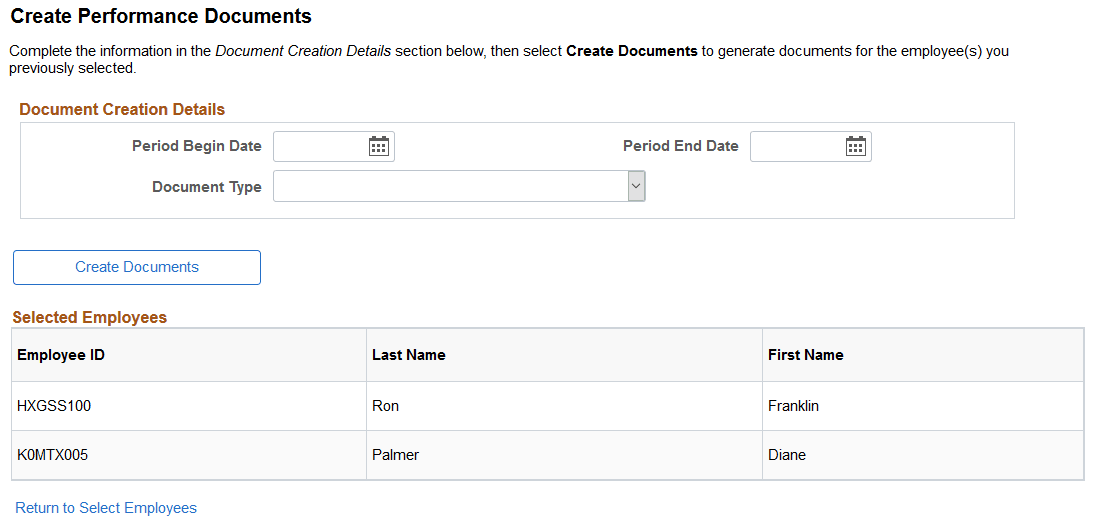
To enter the parameters:
-
Enter the time period for the document.
-
Enter the document type.
The system populates the period and document type if default values are defined on the Assign Document Defaults page.
-
If Clone Existing Document is selected on the Document Types page, select whether the document is to be created for an existing document. If you select Yes, select the document to clone.
-
If Clone Existing Document is not selected on the Document Types page or No is selected in the Create from Prior Document, select the template from which the documents will be created.
-
Click the Create Documents button.
The system displays the Create <document type> Documents - Results page.
Refer to the Create Documents Page (Team Performance) topic to create new documents as managers from the fluid Manager Self Service home page.
Create <Performance or Development> Documents - Results Page
Use the Create <Performance or Development> Documents - Results page (EP_CREATE_RESULTS) to view the document creation results for the employees or group that you selected.
Navigation:
Click the Create Documents button on the Create <Performance or Development> Documents - Document Creation Details page.
This example illustrates the fields and controls on the Create <Performance or Development> Documents - Results page.
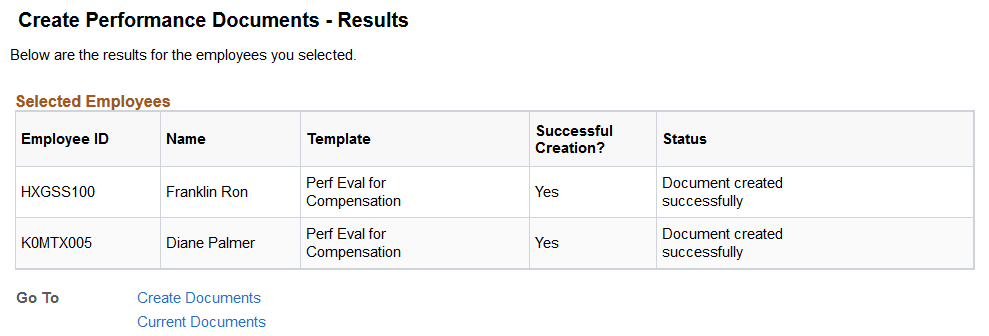
The Selected Employees group box displays the results of the document creation process.
| Field or Control | Description |
|---|---|
|
Create Documents |
Click the Create Documents link to go back to the first Current Performance Documents or Current Development Documents page. |
|
Current Documents |
Click this link to go to the Current Performance Documents or Current Development Documents page. The system lists the current documents for which you are the manager. |