(Classic) Managing Evaluation Requests
This topic discusses how to manage evaluation requests in Classic Plus mode.
Note:
A fluid version of ePerformance is now available to support employee performance reviews. For more information, see Understanding Fluid ePerformance.
Pages Used to Manage Evaluation Requests
| Page Name | Definition Name | Usage |
|---|---|---|
|
EP_NOM_PENDING_OTH |
Respond to requests to provide performance or developmental evaluations for others. |
|
|
Decline Evaluation Request Nomination Page |
EP_DECLINE_CONFIRM |
Enter reasons for declining a nomination. |
|
EP_APPR_OTH_SELECT |
View a list of the evaluations that you are performing for employees who are not in a reporting relationship to you. |
Pending Evaluation Requests Page
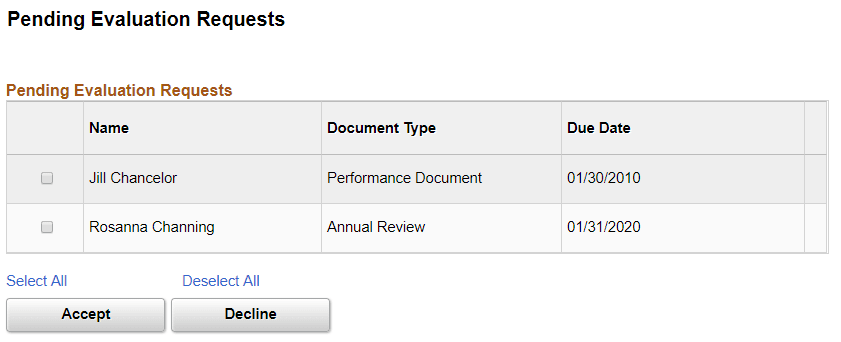
Use the Pending Evaluation Requests page (EP_NOM_PENDING_OTH) to respond to requests to provide performance or developmental evaluations for others.
Navigation:
This example illustrates the fields and controls on the Pending Evaluation Requests page.
| Field or Control | Description |
|---|---|
|
Accept |
Click this button to accept the evaluation requests that you select. This action changes the nomination status to Accepted, creates the evaluation document, adds it to the Other's Performance Documents - Current Documents list, and transfers the user to this navigation. A notification is also sent to the nominator. |
|
Decline |
Click this button to decline the evaluation requests that you select. This action displays the Decline Evaluation Request Confirmation page. Use this page to enter a reason for declining the nomination. The system changes the nomination status to Declined and sends a notification to the nominator. |
My Current Evaluations for Others Page
Use the My Current Evaluations for Others page (EP_APPR_OTH_SELECT) to view a list of the evaluations that you are performing for employees who are not in a reporting relationship to you.
Navigation:
Select one or more evaluations and click the Accept button on the Pending Evaluation Requests page.
This example illustrates the fields and controls on the My Current Evaluations for Others page.

If you access this page after accepting one or more evaluations, the message that appears below the page title is You have successfully accepted the selected evaluations.
Click an Employee link to access the evaluation for that employee.