(Classic) Viewing Approval Status
This topic discusses how to view approval status in Classic Plus mode.
Note:
A fluid version of ePerformance is now available to support employee performance reviews. For more information, see Understanding Fluid ePerformance.
Pages Used to View Approval Status
| Page Name | Definition Name | Usage |
|---|---|---|
|
EP_APPRAISL_APPR_L |
View a list of documents for which you are a participant in the approval process. |
|
|
EP_APPRAISAL_EE |
View approval status of a single document. |
Related Topics
View Approval Status Summary Page
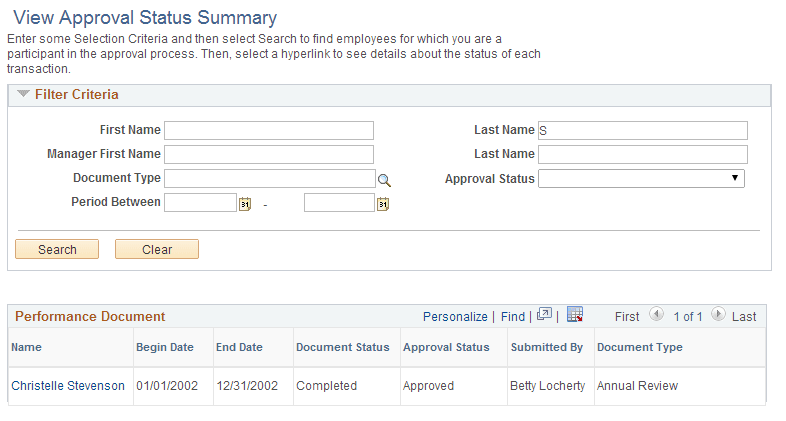
Use the View Approval Status Summary page (EP_APPRAISL_APPR_L) to view a list of documents for which you are a participant in the approval process.
Navigation:
This example illustrates the fields and controls on the View Approval Status Summary page.
| Field or Control | Description |
|---|---|
|
Name |
Click the link of the employee name to view the detail of the corresponding transaction request. |
View Approval Status Detail Page
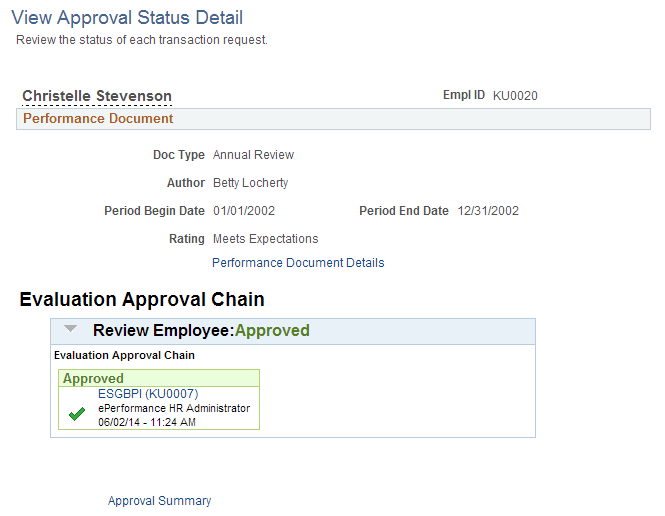
Use the View Approval Status Detail page (EP_APPRAISAL_EE) to view approval status of a single document.
Navigation:
-
Select a name link on the View Approval Status Summary page.
-
Select the Notifications button from the page banner. From the Notifications panel - Alerts section, select a performance request entry that is pending approval.
This example illustrates the fields and controls on the View Approval Status Detail page.
| Field or Control | Description |
|---|---|
|
Performance Document Details |
Click to view the corresponding performance document content in a modal window. |
|
Evaluation Approval Chain |
Displays the approval chain for the document. This control appears if the document has been approved. |
|
Approval Summary |
Click to return to the View Approval Status Summary page. |