Viewing the Snapshot - Recognition and Digital Badges Tiles and Pages
Managers and administrators use the Team Snapshot – Recognition and Digital Badges dashboard and employees use the Career Snapshot – Recognition and Digital Badges dashboard to view the recognitions and badges an employee has received for their achievements.
This topic discusses the (Manager and Administrator) Team Snapshot - Recognition and Digital Badges and (Employee) Career Snapshot - Recognition and Digital Badges tiles and pages.
Pages Used to View the Snapshot - Recognition and Digital Badges Tiles and Pages
Note:
This topic discusses in detail many of the tile and pages common to the (Manager and Administrator) Team Snapshot feature and the (Employee) Career Snapshot feature. If the tiles or page is specific to a user, it is identified next to the page name in this table.
For a list of tiles and pages specific to the employee, see PeopleSoft eProfile: Viewing the Career Snapshot - Recognition and Digital Badge Tiles and Pages.
| Page Name | Definition Name | Usage |
|---|---|---|
|
(Manager and Administrator) Snapshot - Recognition and Digital Badges Dashboard |
HC_SNAP_RECOG_BADGE_FL |
Access tiles related to an employee's recognitions and digital badges. |
|
HCTS_RECOG_GRID_FL (this is the cref for the tile) |
View the number of recognitions the employee has received over the last 12 months. |
|
|
HRRC_VIEW_RECOG_FL |
View a list of recognitions and their details that the employee has received over time. |
|
|
HC_HCTS_BDG_GRID_FL_GBL (this is the cref for the tile) |
View a list of badges awarded to the employee. |
|
|
BDG_SS_VIEW_ONE_FL |
View detailed information of a badge. |
(Manager and Administrator) Snapshot - Recognition and Digital Badges Dashboard
Use the Snapshot - Recognition and Digital Badges dashboard (HC_SNAP_RECOG_BADGE_FL) to view tiles related to an employee’s recognitions and badges.
Navigation:
-
(Manager) Select the Team Snapshot tile on the Team Dashboard of the PeopleSoft landing page, or on the Manager Self Service homepage, or on any fluid homepage where the tile is available. Select an employee from the search page, and then select Recognition and Digital Badges from the left panel.
-
(Manager) Select the Related Actions icon next to a person's name in fluid, select View in Team Snapshot, then select the Recognition and Digital Badges dashboard category from the left panel.
-
(Manager) From the Team Snapshot pages, select the Recognition and Digital Badges dashboard category from the left panel.
-
(Administrator) Select the View Snapshot tile on the Manage People and Jobs Dashboard of the PeopleSoft landing page, on the Talent Administrator homepage, or on any fluid homepage where the tile is available. Select an employee from the search page. Then, select Recognition and Digital Badges from the left panel.
This example illustrates the fields and controls on the Team Snapshot - Recognition and Digital Badges Dashboard page.
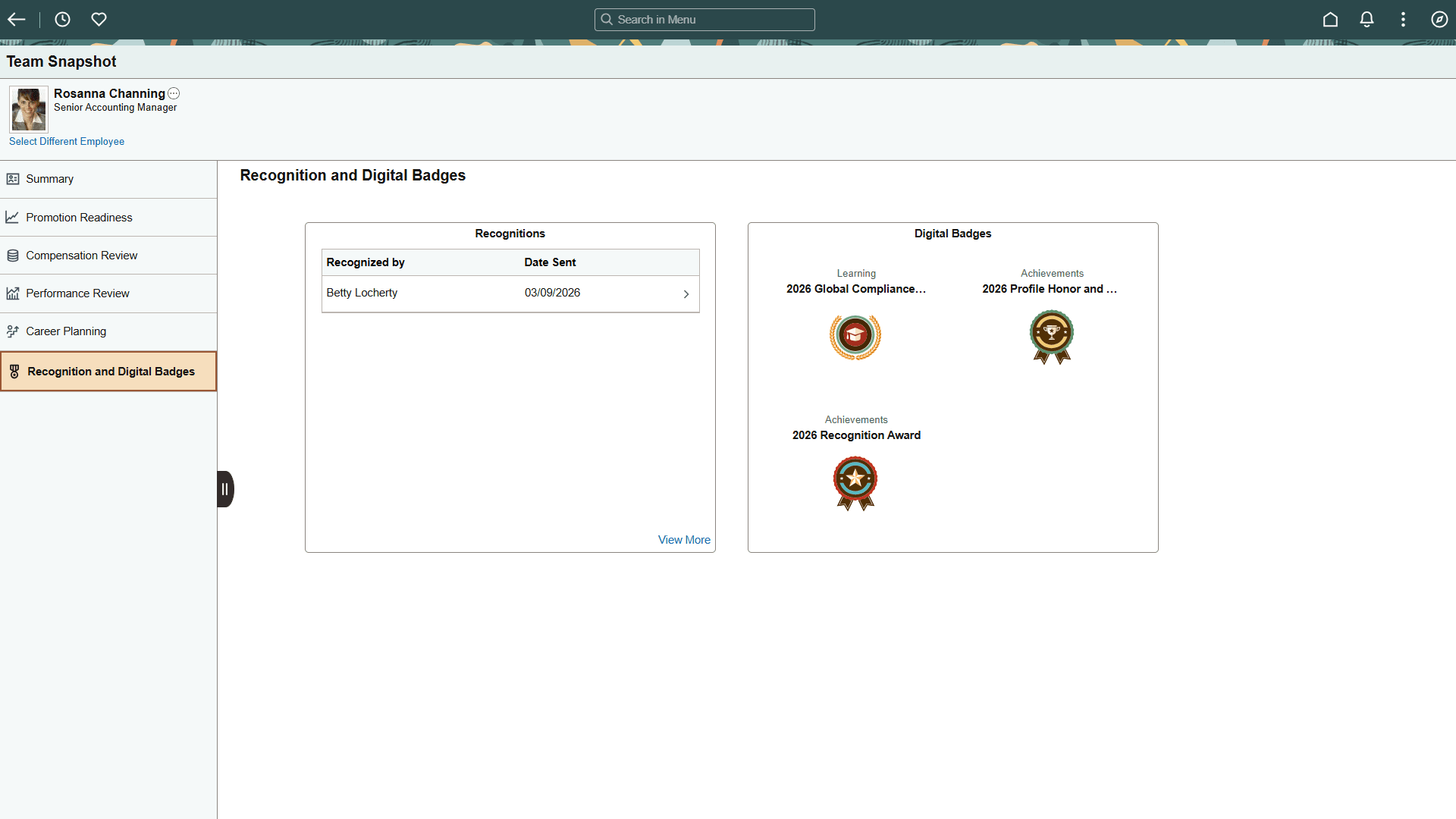
Use the Recognition and Digital Badges dashboard to access tiles related to employee's recognition and badge activities. These tiles show more details than those which appear on the Summary dashboard.
These tiles are delivered by default:
Note:
These tiles are delivered by default to appear on the Recognition and Digital Badges Snapshot dashboard; however, the administrator can move the tiles to appear on other Snapshot dashboard folders. The navigation in these topics references the delivered navigation.| Field or Control | Description |
|---|---|
|
Select Different Employee |
(Manager view only) Select this link to access the (Manager) Team Snapshot - Find Team Member Page and change the view to another employee. |
 |
Select this tab to hide or show the left panel containing the list of available dashboards. |
Snapshot - Recognitions Tile
Use the Recognitions tile (HCTS_RECOG_GRID_FL) to view the number of recognitions your employees have received over the last 12 months.
Navigation:
Select the (Manager and Administrator) Snapshot - Recognition and Digital Badges Dashboard or PeopleSoft eProfile: Career Snapshot - Recognition and Digital Badges Dashboard action item from the left panel to view this tile.
This example illustrates the Recognition tile.
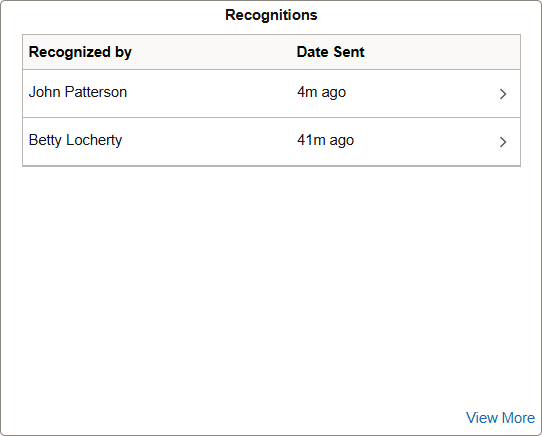
Select a row to access the Snapshot - View Recognitions Page to view details about the specific recognition.
If there are no recognitions for the employee, the tile will display a message to that effect.
| Field or Control | Description |
|---|---|
|
View More link |
Select this link to access the View Recognitions Page to view a list and additional details of recognitions this employee has received over time. |
Related Topics
Snapshot - View Recognitions Page
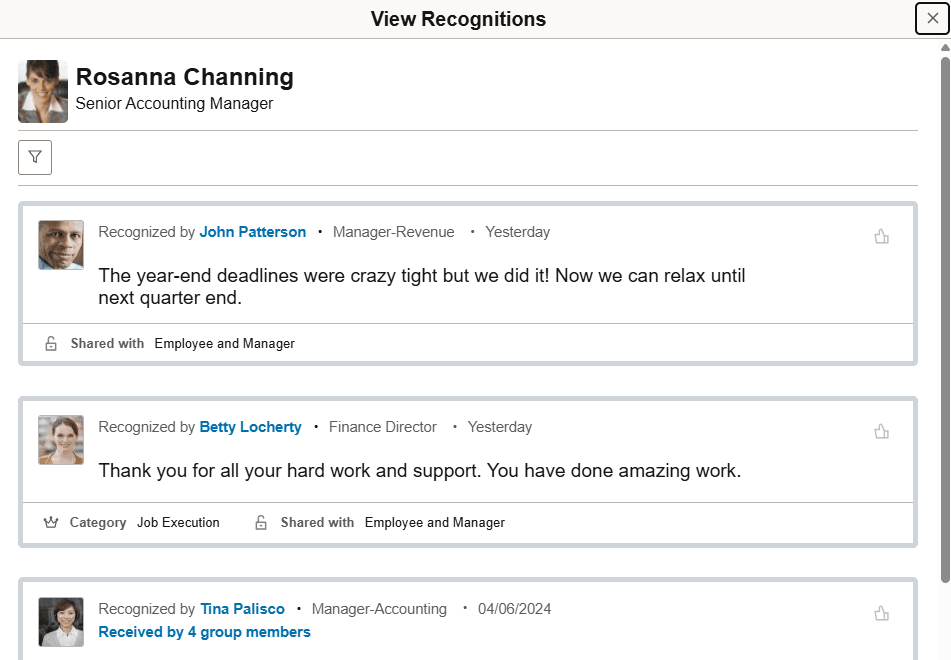
Use the View Recognitions page (HRRC_VIEW_RECOG_FL) to view a list of recognitions and their details that the employee has received over time.
Navigation:
Select a row or the View More link from the Snapshot - Recognitions Tile.
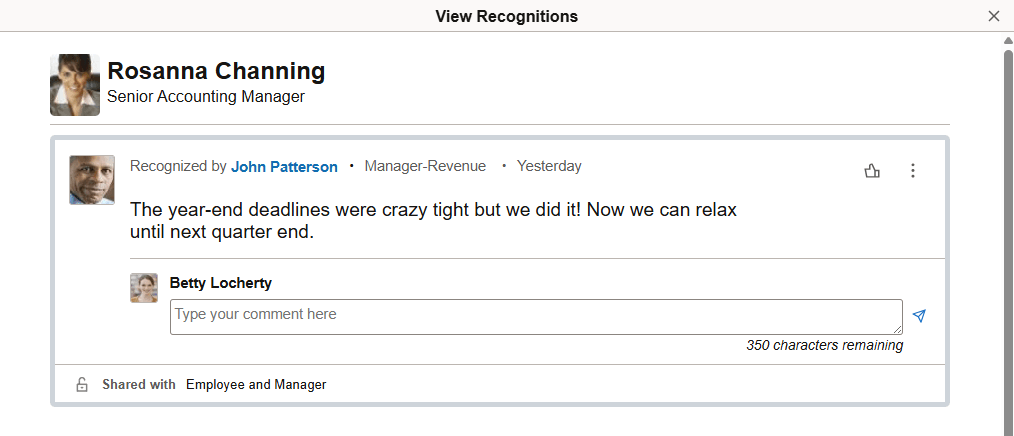
This example illustrates the View Recognitions page when viewing a specific recognition row.
This example illustrates the View Recognitions page when accessing it from the View More link.
When accessing this page to view one recognition, the page enables you to view contact information for the person who sent the recognition by selecting their name, you can like the post, report the post, and view others details. You can also enter comments in response to the recognition.
When accessing this page from the View More link, you can do the same actions as you would for an individual recognition as well as use filters to identify a date range.
| Field or Control | Description |
|---|---|
|
|
Select to access the Filters page and enter a date range to view recognitions. |
 (filter) icon button
Related Topics
Snapshot - Digital Badges Tile
Use the Digital Badges tile (HC_HCTS_BDG_GRID_FL_GBL) to view a list of badges that an employee has earned.
Navigation:
Select the action item from the left panel of the Snapshot pages.
-
(Manager and Administrator) Select the (Manager and Administrator) Snapshot - Recognition and Digital Badges Dashboard category item.
-
(Employee) Select the PeopleSoft eProfile: Career Snapshot - Recognition and Digital Badges Dashboard category item.
This example illustrates the Digital Badges tile.
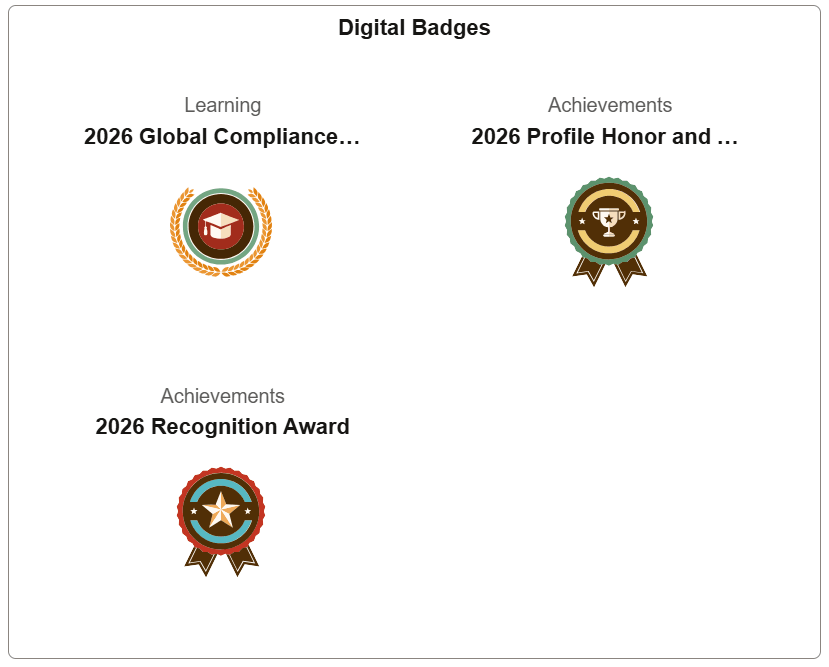
Select a badge to view its details on the PeopleSoft Application Fundamentals: Badge Details Page.