Understanding and Accessing the Snapshot Pages and Tiles
The Snapshot feature provides managers and administrators a comprehensive view of talent data related to an individual employee through the use of dashboards and tiles within the PeopleSoft Fluid User Interface pages. With Team Snapshot for managers and View Snapshot for administrators, they have access to an employee’s talent data from one location instead of accessing several components separately.
These videos demonstrate Fluid Snapshot features:
Video: PeopleSoft Employee Snapshot
Video: Image Highlights, PeopleSoft HCM Update Image 19: Employee Snapshot
Video: Image Highlights, PeopleSoft HCM Update Image 23: Employee Snapshot for HR
Video: Image Highlights, PeopleSoft HCM Update Image 24: Enhancements to Employee Snapshot Dashboards
Video: Image Highlights, PeopleSoft HCM Update Image 26: Employee Snapshot for Administrators
Video: Image Highlights, PeopleSoft HCM Update Image 28: Employee Snapshot Learning Integration and Tile
Video: Image Highlights, PeopleSoft HCM Update Image 31: Development Documents for Employee Snapshot
This topic give an overview of security access to Snapshot tile and page content and discusses accessing Snapshot.
Pages Used to Access Team Snapshot and View Snapshot Pages and Tiles
| Page Name | Definition Name | Usage |
|---|---|---|
|
HC_HCTS_START_PAGE_FL_GBL (this is the cref for the tile) |
(Managers) Access a group of tiles and dashboards to see a comprehensive view of talent data related to one of the employees under your management. |
|
|
HC_HCTS_CO_DIRECT_FL_GBL (this is the cref for the tile) |
(Administrators) Access a group of tiles and dashboards to see a comprehensive view of talent data related to an employee within the organization. |
|
|
HR_PSEL_FLU |
Select a direct or indirect report to view the employee’s snapshot data. |
|
|
HCTS_CO_DIRECT_FL |
Search for individuals within your organization for whom you wish to view Snapshot data. |
|
|
HCTS_SEARCH_FL |
View a list of employees that meet your search criteria. |
Security Access to Tile and Page Content: Direct Reports and Profile Management
The Snapshot tiles and pages use direct report and profile management role security to enable or restrict managers or administrators in viewing potentially confidential data.
Direct Report Access
The system checks direct report access for the Snapshot pages as a whole as well as for access to the contents of each tile. If a user (manager or administrator) does not have security access to a component or tile, then the related tile will display a message saying that he or she does not have access to the tile. If a user has access to that component and tile but not to the employee’s data, then the related tile will display a message that he or she does not have access to this information for the employee.
Profile Management Role Security
When data is associated with a person’s profile, the viewable content for the user may also be restricted by profile role security. A person’s profile data is made up of content items—skills and abilities associated with content types such as competencies, languages, responsibilities, and so forth. For a list of dashboard tiles that contain profile data, see the previous section and those items marked with an asterisks (*).
Profile Management enables you to use PeopleTools security roles to further define your Profile Management security. When PeopleTools roles are associated with a profile role, the system looks to the user profile to see who has access to a content section for this profile type. Those users that have the direct report access and the role associated with the profile role will have access to the content according to the parameters set up for the profile type.
This video demonstrates the enhanced security for Profile Management:
Video: Image Highlights, PeopleSoft HCM Update Image 31: Enhanced Security for Profile Management
For more information on defining role security for a profile content type (or tile), see the PeopleSoft Human Resources Manage Profiles: Content Section Page, Role Security section.
(Manager) Team Snapshot Tile
Managers use the Team Snapshot tile to access a group of tiles and dashboards to see a comprehensive view of talent data related to one of the employees under your management.
Navigation:
As delivered, managers can access Employee dashboards and pages by selecting the following:
-
(Manager) Team Snapshot Tile from the Manager Self Service fluid home page.
-
Related Actions menu icon next to an employee’s name in fluid and select the View in Team Snapshot menu item. See the Application Fundamentals: Related Actions for Manager Self Service Pages topic for a list of related actions.
You can add the tile, through personalization, to a system-delivered homepage or a home page that you create.
This example illustrates the Team Snapshot tile.
When you have selected the Team Snapshot tile, managers are prompted to select an employee from the (Manager) Team Snapshot - Find Team Member Page, which displays a list of all their direct reports.
(Administrator) View Snapshot Tile
Administrators use the View Snapshot tile to access a group of tiles and dashboards to see a comprehensive view of talent data related to an employee within the organization.
Navigation:
As delivered, administrator can access Employee dashboards and pages by selecting the (Manager) Team Snapshot Tile from the Talent Administrator fluid homepage.
You can add the tile, through personalization, to a system-delivered homepage or a home page that you create.
This example illustrates the View Snapshot tile.
When you have selected the Team Snapshot tile, administrators will be prompted to select an employee on the (Administrator) View Snapshot - Search Page, which displays the Search field and a list of up to 20 of the most recently viewed employees.
This video provides an overview of Snapshot for administrators:
Video: Image Highlights, PeopleSoft HCM Update Image 26: Employee Snapshot for Administrators
(Manager) Team Snapshot - Find Team Member Page
Managers use the Team Snapshot - Find Team Member page (HR_PSEL_FLU) to select a direct or indirect report to view the employee’s snapshot data.
Navigation:
-
Select the Team Snapshot tile on the Manager Self Service homepage.
-
Select the Select Different Employee link in the sub-banner of the Team Snapshot pages.
This example illustrates the Team Snapshot - Find Team Member page when a manager accesses the page.
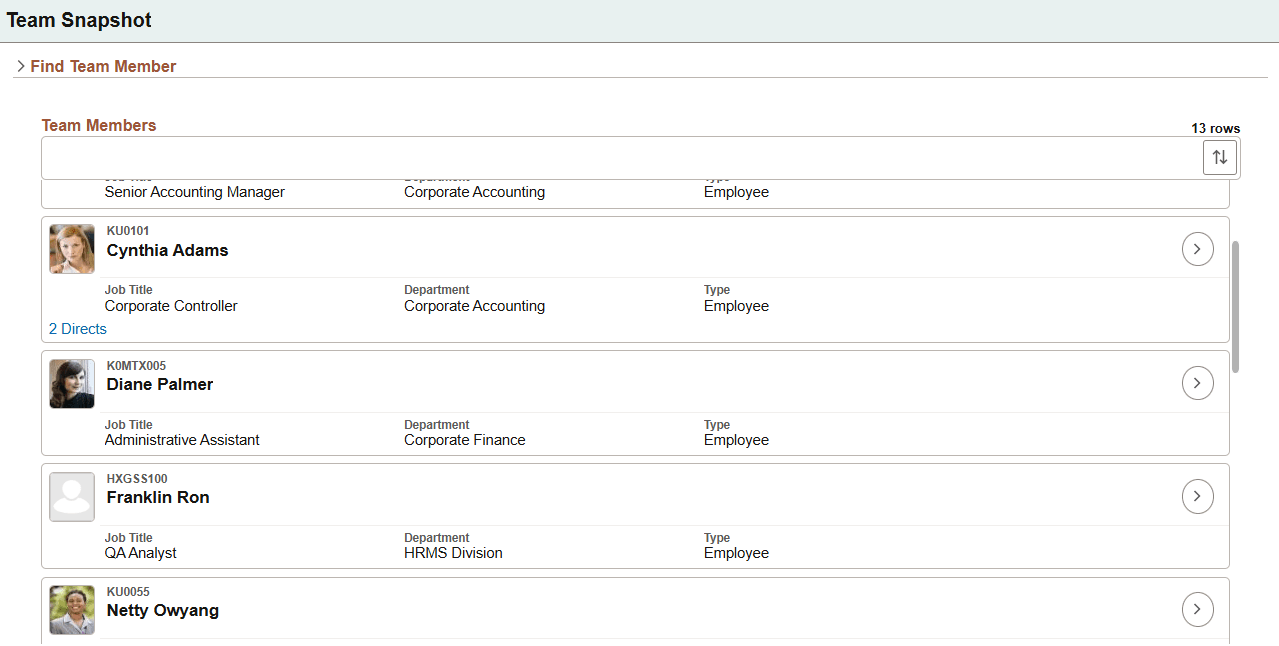
The Team Snapshot - Find Team Member page displays all direct reports of the logged-in manager based on that manager’s job.
For descriptions of fields and controls on this page, see Application Fundamentals: (Fluid) <Transaction Name> - Find Team Member Page.
(Administrator) View Snapshot - Search Page
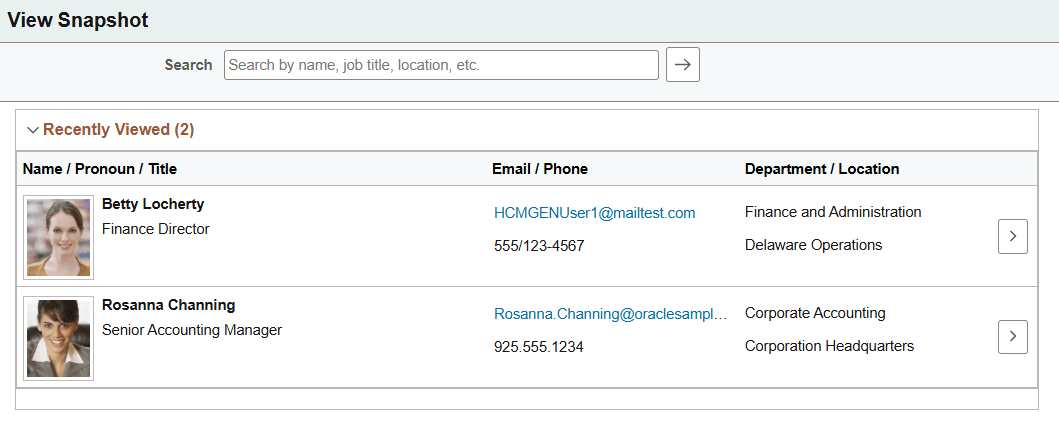
Administrators use the View Snapshot - Search page (HCTS_CO_DIRECT_FL) to search for individuals within the organization for whom they wish to view snapshot data.
The landing page also displays one collapsible section that lists employees whose snapshot data recently viewed.
Navigation:
Select the View Snapshot tile on the Talent Administrator homepage (or any other homepage with the tile when you have administrator access).
This example illustrates the View Snapshot - Search page for the tablet when an administrator accesses the page.
A standard banner appears at the top of every fluid page. For more information see Application Fundamentals: Common Elements Used with PeopleSoft Fluid User Interface.
| Field or Control | Description |
|---|---|
|
Search |
Enter basic search criteria in this field, such as name, department, location, or so forth and select the Run Search button to locate specific individuals. For partial searches, PeopleSoft Search Framework supports the use of search wildcards to specify the type of search to be performed. The administrator Search field uses the PeopleTools Search Framework, based on the Company Directory tree. A person must be present in the tree to appear in the directory. For information on the process to building your company trees, see PeopleSoft Human Resources Administer Workforce: Understanding the Org Chart Viewer and Company Directory Setup Steps. For more information on searching, see PeopleTools Search Technology, “Working with PeopleSoft Search,” Working with Search Operators in PeopleSoft Search. |
|
Recently Viewed |
Use this section to view and access recently viewed snapshot data for a person, if any. A person appears in this list when you have viewed their snapshot data in the past. The list displays employees in descending order of date of access. The page displays a maximum of 20 people. |
|
|
Select the arrow button at the end of the employee row to access the snapshot dashboards for that person. |
 Select this Person arrow button
(Administrator) View Snapshot - Search Results Page
Use the View Snapshot - Search Results page (HCTS_SEARCH_FL) to view a list of employees that meet your search criteria.
Navigation:
Enter search criteria in the Search field and select the Run Search (>) button.
This example illustrates the View Snapshot - Search Results page.
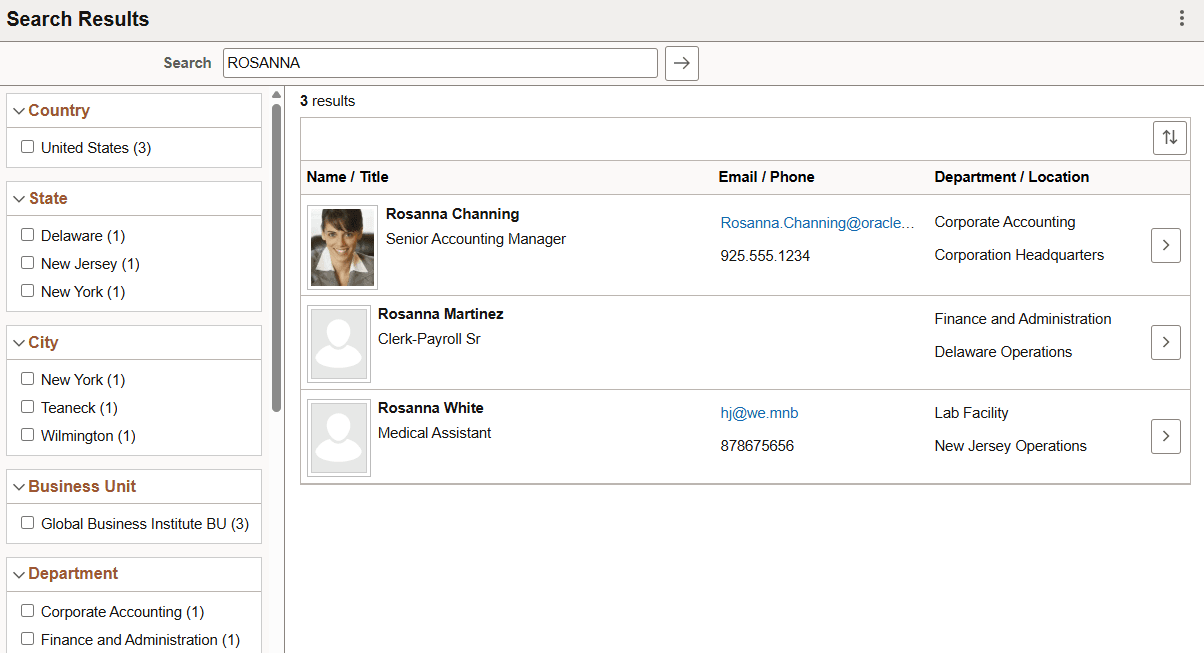
After running a search using Keyword Search, the system presents the search results in an intuitive display, enabling interactive filtering and further navigation.
(Large form factor) When using a large form factor, like a tablet or workstation, a filter panel appears on the left side of the page, which shows facets with counts of those that match that search criteria. Select the facet links to filter results further, seeing which employee meet the additional criteria. For large form factor devices, the page will reset to show only those that meet the additional criteria. The page also displays the criteria you have selected in boxes at the top of the page. Select the cancel icon (X) for a filter item, or select the Clear All link to remove all filters.
(Smartphone) When using a small form factor, like a smartphone, the page displays a Search Filter button. Select the button to access a separate Filters page and select your facets. When you have identified all your criteria, select Done to return to the Search Results page. When filters are in place, the Filter button will be green, and a Select Filters button now appears on the page. Select this button to view the filters that are in place or to remove filters.
| Field or Control | Description |
|---|---|
|
|
Select the arrow button at the end of the employee row to access the View Snapshot dashboards for that person. |
Snapshot Layout
Managers and administrators use Team Snapshot or View Snapshot to view dashboards that display employee and talent data.
This example illustrates the Team Snapshot layout and content for the manager, but the View Snapshot layout is the same for the administrator.
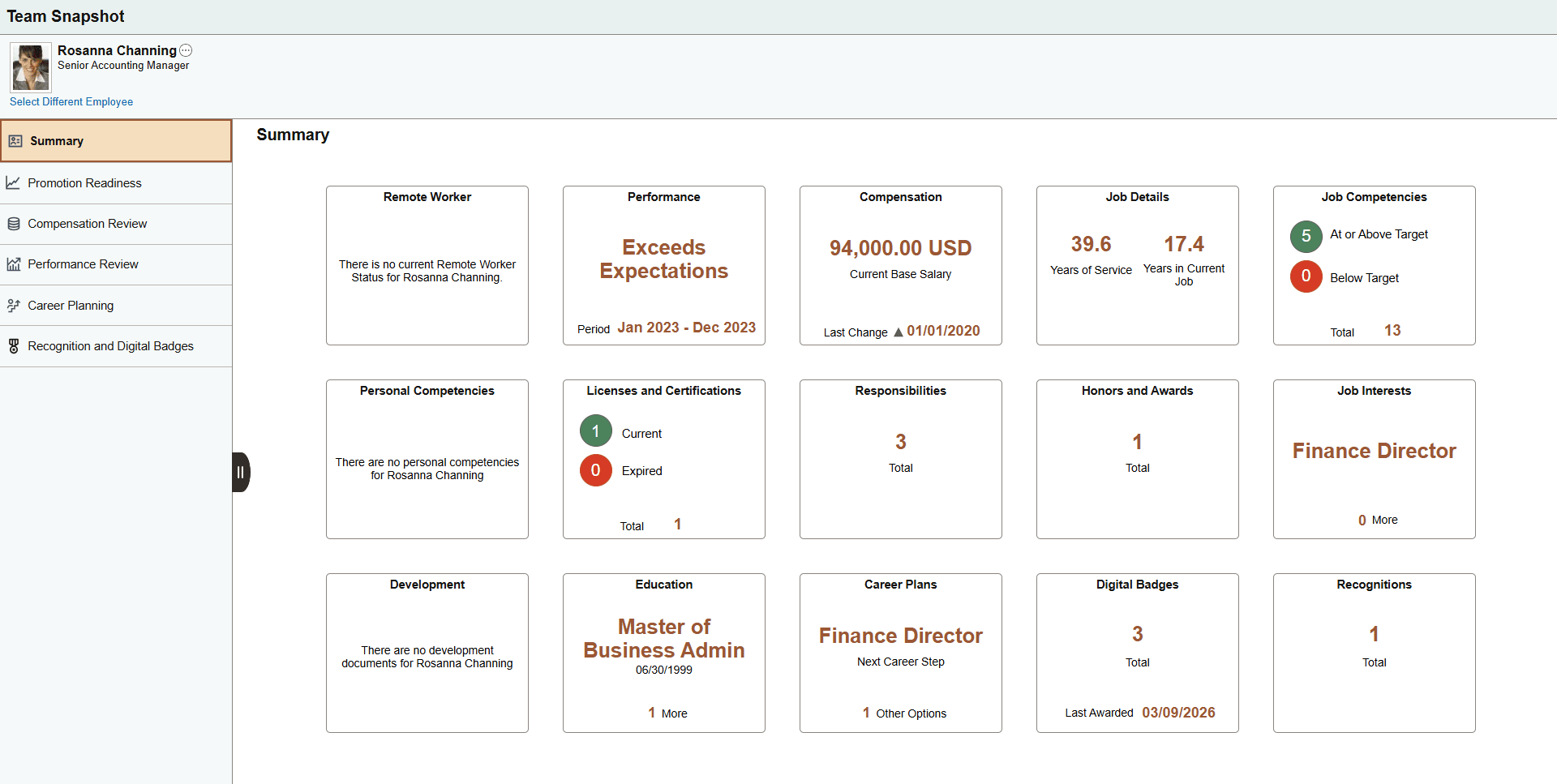
Snapshot Layout
The Snapshot pages appear in a three panel layout.
-
The top panel displays the header and includes the employee’s name, job title, and the Related Actions menu icon, where you can access other self service transactions for this employee, if applicable.
(Manager) The page also displays the Select Different Employee link for managers to quickly navigate between their employees.
-
The left panel lists the various dashboard categories delivered with Snapshot.
(Smartphone) When using a small form factor, such as a phone, this panel is collapsed when you access the Snapshot pages. Select the tab to open the category list and change dashboard views.
-
The right main panel displays the employee content dashboard. Fluid dashboards are PeopleSoft pages that aggregate and display tiles that share a common or similar purpose. These dashboard pages provide quick access to useful information by presenting concise but feature-rich tiles. These tiles can vary in function and complexity, enabling you to see not only an overview, but to drill into your data to access detailed information.
Delivered Snapshot Dashboards and Tiles
The PeopleSoft HCM application delivers these Snapshot dashboards and tiles, to manage and analyze information about your workforce:
| Dashboard | Description | Tiles |
|---|---|---|
|
See a high level overview of data about one of your employees using these tiles. |
|
|
|
(Manager and Administrator) Snapshot - Promotion Readiness Dashboard |
Analyze promotion readiness for an employee. |
|
|
(Manager and Administrator) Snapshot - Compensation Review Dashboard: |
Review employee compensation data. |
|
|
(Manager and Administrator) Snapshot - Performance Review Dashboard |
View talent-related information about an employee to see their overall performance. |
|
|
(Manager and Administrator) Snapshot - Career Planning Dashboard |
View employee career paths and assess their preparation for new roles. |
|
|
(Manager and Administrator) Snapshot - Recognition and Digital Badges Dashboard |
View employee recognitions and digital badges. |
|
Important:
* Indicates that viewable content may also be controlled by the person profile role security options. See the security access to tile and page content that follows for more information.
Creating Custom Profile Tiles
Note:
Talent administrators can also add custom profile-related tiles to any dashboard. See the Displaying Configurable Profile Content on Tiles and Pages and Viewing Configurable Profile Content Tiles and Pages topics for more information.