Viewing the Snapshot - Compensation Review Tiles and Pages
Managers and administrators use the Snapshot - Compensation Review dashboard and employees use the Career Snapshot - Compensation dashboard to view tiles and pages that show data related to an employee’s compensation and potentially aid in understanding and determining compensation changes for an employee.
This topic discusses the (Manager and Administrator) Snapshot - Compensation Review and (Employee) Career Snapshot - Compensation tiles and pages.
Pages Used to View the Snapshot - Compensation Review Tiles and Pages
Note:
This topic discusses in detail many of the tile and pages common to the Snapshot feature. If the tiles or page is specific to a user, it is identified next to the page name in this table.
For a list of tiles and pages specific to the employee, see PeopleSoft eProfile: Career Snapshot - Compensation Dashboard.
| Page Name | Definition Name | Usage |
|---|---|---|
|
(Manager and Administrator) Snapshot - Compensation Review Dashboard |
PT_LANDINGPAGE |
Access a variety of high level tiles about an employee’s compensation. |
|
HCTS_CMP_SALCUR_FL |
View the salary range for an employee’s job and where the employee falls within that range. |
|
|
HCTS_BONUS2_FL |
View a history of bonus amounts received by the employee over the past few years. |
|
|
HCTS_CMP_SALHST_FL |
View the compensation history for an employee in a graph or select the links on the tile to access additional salary information. |
|
|
HCTS_COMP_HIST_SCF |
Review or verify an employee's compensation history. |
|
|
HCTS_COMP_VC_SCF |
View details of a specific salary change. |
|
|
HCTS_CMP_SALHS_SCF |
View the compensation history for an employee in grid format. |
|
|
HCTS_PERFHIST2_FL |
View a summary of current and historical performance documents in a graph or select the links on the tile to access additional performance information. |
|
|
HCTS_PERFHIST_FL HCTS_PERFHIST_SCF |
Review the overall rating for an employee from past performance periods using a table grid. |
|
|
EP_APPR_MAIN1 |
Enter and maintain evaluation data for an employee using ePerformance. |
|
|
EP_APPR_BASE1 |
Track the checkpoint progress of a performance or development document using the ePerformance pages. |
|
|
HCTS_CMP_TRW_FL |
View the most recent total rewards statement to review earnings, benefits, and other compensation information of a direct report in a chart format. |
|
|
HCTS_CMP_TRGRD_SCF |
View the list of reward items that make up the employee’s total rewards. |
|
|
PeopleSoft Human Resources Administer Compensation: Total Rewards Page |
TRW_SS_STMT_FL |
Review employee’s earnings, benefits, and other compensation information for a specified review period. |
|
HCTS_RATINGBOX2_FL |
Assess the impact of loss, risk of leaving, performance and potential rating for an employee within the context of ratings boxes. |
|
|
HCTS_RB_DTLS_SCF |
Assess the employee’s performance rating and potential rating in text format. |
|
|
PeopleSoft Human Resources Plan Careers and Successions: Manage Career Plans Component |
HR_CP_MANAGER |
Perform career planning activities for your direct reports. |
(Manager and Administrator) Snapshot - Compensation Review Dashboard
Use the Compensation Review dashboard page to access a variety of high level tiles about an employee’s compensation.
Navigation:
-
(Manager) Select the (Manager) Team Snapshot Tile from the Manager Self Service homepage, My Home landing page - My Work - Team Section, or any fluid homepage or section to which the tile has been added, then select an employee from the search page. Then select Compensation Review from the left panel.
-
(Manager) Select the Related Actions icon next to a person’s name on a fluid manager transactional page and select View in Team Snapshot. Then select Compensation Review from the left panel.
-
(Administrator) Select the (Administrator) View Snapshot Tile from the Talent Administrator homepage, My Home landing page - Manage People and Jobs Dashboard, or any fluid homepage or section to which the tile has been added, then select an employee from the search page. Then select Compensation Review from the left panel.
-
From the Snapshot pages, select the Compensation Review dashboard category item from the left panel.
This example illustrates the Snapshot - Compensation Review dashboard page.
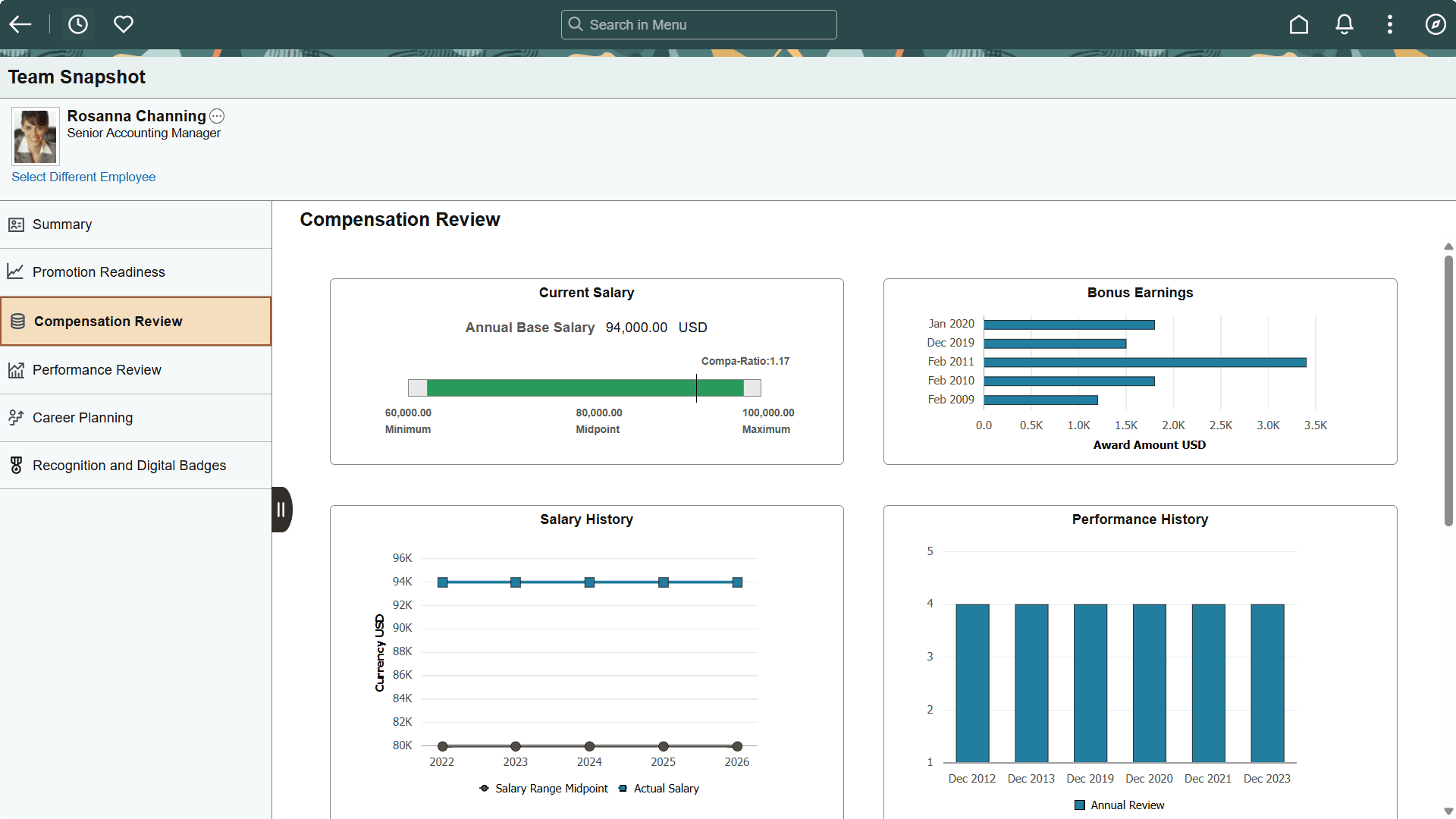
Use the Compensation Review dashboard to access tiles related to your employee’s compensation. These tiles show more details than those which appear on the Summary dashboard.
These tiles are delivered by default with the Compensation Review dashboard:
Note:
These tiles are delivered by default to appear on the Compensation Review dashboard Snapshot page; however, the administrator can move the tiles to appear on other Snapshot dashboard folders. The navigation in these topics references the delivered navigation.
| Field or Control | Description |
|---|---|
|
Select Different Employee link |
(Manager view only) Select this link to access the (Manager) Team Snapshot - Find Team Member Page and change the Snapshot view to another employee. |
|
|
Select this tab to view and select other Snapshot dashboards. |

Note:
When you select a tile to access a secondary page and then select the back button to return to the Snapshot pages, the system will return you to the Snapshot - Summary Dashboard by default. Access the left panel to select another dashboard.
Snapshot - Bonus Earnings Tile
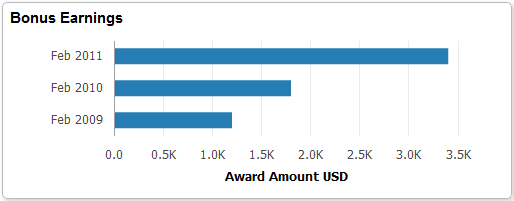
Use the Bonus Earnings tile (HCTS_BONUS2_FL) to view a history of bonus amounts received by the employee over the past few years.
Navigation:
Select the (Manager and Administrator) Snapshot - Compensation Review Dashboard or (Employee) PeopleSoft eProfile: Career Snapshot - Compensation Dashboard action item.
This example illustrates the fields and controls on the Bonus Earnings tile for a tablet.
This example illustrates the fields and controls on the Bonus Earnings tile for a smartphone.
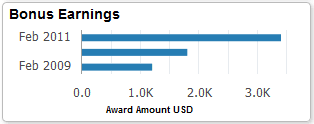
The tile displays the date and amount for up to the last three bonuses the employee received. Pause or hover over a bar item to view individual information. All currency amounts are shown according to the currency specified at the bottom of the tile.
Select this tile to access the PeopleSoft eCompensation Manager Desktop: View Compensation History Page (Fluid Manager View) or PeopleSoft eCompensation Manager Desktop: Compensation History Page (Fluid Employee View), which will display all rows of compensation history in addition to the bonus earnings. If the user does not have access to the fluid View Compensation History page, the Snapshot - Compensation History Page is displayed.
Snapshot - Total Rewards Tile
Use the Total Rewards tile (HCTS_CMP_TRW_FL) to view the most recent total rewards statement to review earnings, benefits, and other compensation information of a direct report or for yourself.
Navigation:
Select the (Manager and Administrator) Snapshot - Compensation Review Dashboard or (Employee) PeopleSoft eProfile: Career Snapshot - Compensation Dashboard action item.
This example illustrates the fields and controls on the Total Rewards tile.
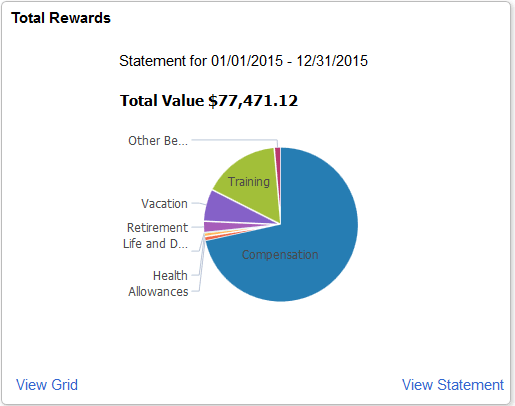
The tile displays the most recent statement period information, the period and total value shown at the top of the page. Pause or hover over a reward item to view the item amount and reward percentage for this period.
| Field or Control | Description |
|---|---|
|
View Grid link |
Select this link to access the Snapshot - Total Rewards Details Page to view the reward items that make up an employee’s total rewards. |
|
View Statement link |
Select this link to access the PeopleSoft Human Resources Administer Compensation: Total Rewards Page to review employee’s earnings, benefits, and other compensation information for a specified review period. |
Snapshot - Total Rewards Details Page
Use the Total Rewards Details page (HCTS_CMP_TRGRD_SCF) to view the list of reward items that make up the employee’s total rewards.
Navigation:
Select the View Grid link from the Snapshot - Total Rewards Tile.
This example illustrates the fields and controls on the Total Rewards Details page.
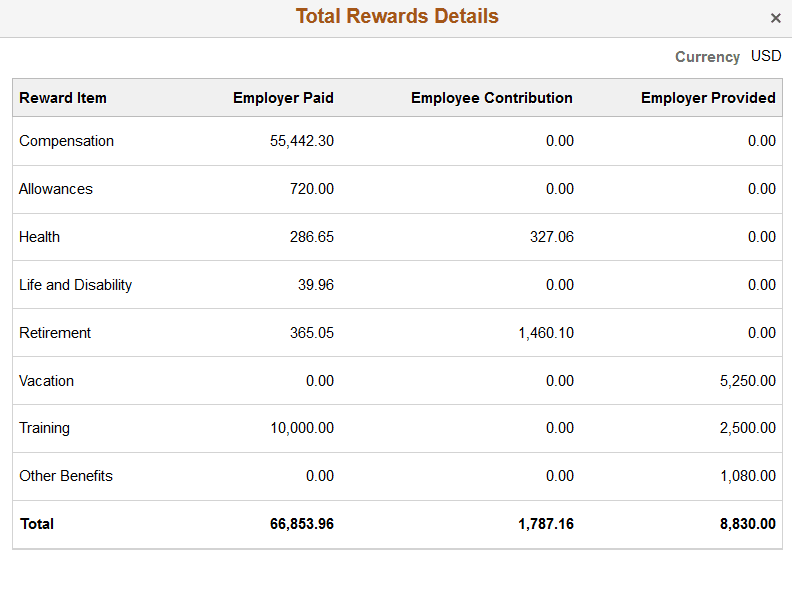
This grid include the earnings, benefits, credits, and any additional compensation received during the most recent statement period.
(Manager and Administrator) Snapshot - Employee Impact Tile
Managers and administrators use the Employee Impact tile (HCTS_RATINGBOX2_FL) to assess the impact of loss, risk of leaving, performance and potential rating for an employee within the context of ratings boxes.
Navigation:
Select the (Manager and Administrator) Snapshot - Compensation Review Dashboard or (Manager and Administrator) Snapshot - Career Planning Dashboard action item from the Snapshot pages.
This example illustrates the fields and controls on the Employee Impact tile.
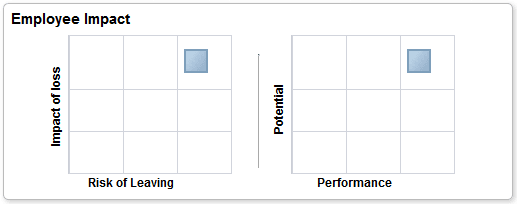
Use this tile to view to compare an employee’s risk lose versus leaving the organization as well as an employee’s performance rating in relationship to his or her potential.
The impact of loss, risk of leaving, and potential rating are defined on the career plan. The performance rating comes from the most recently completed performance document.
Select the tile to access the (Manager and Administrator) Employee Impact Page to see the individual ratings values.
Note:
When the administrator has not enabled either of the boxes, the tile will display a message that you need to contact the system administrator to configure this view.
Impact of Loss Versus Risk of Leaving Ratings Box
The administrator configures the Risk versus Loss ratings box on the Configure Snapshot - Risk versus Loss Page. Here the administrator selects to show or not show this rating box on the Snapshot tile and page. The administrator can also define the axis labels for this table.
Potential Versus Performance Ratings Box
The administrator configures the Performance versus Potential ratings box on the Configure Snapshot - Performance versus Potential Page. Here the administrator defines the size of the ratings boxes, axis labels, and maps the values to the rating models that are associated with the employees’ evaluations.
Related Topics
- PeopleSoft Human Resources Plan Careers and Successions: Career Plan Page
- PeopleSoft Human Resources Plan Careers and Successions: Career Ranking and Potential Page
- PeopleSoft ePerformance: (Classic) Accessing Documents
- PeopleSoft Human Resources Manage Employee Reviews: Completing Manager Evaluation Documents
(Manager and Administrator) Employee Impact Page
Managers and administrators use the Employee Impact tile (HCTS_RB_DTLS_SCF) to assess the employee’s performance rating and potential rating in text format.
Navigation:
Select the ratings boxes on the (Manager and Administrator) Snapshot - Employee Impact Tile.
This example illustrates the fields and controls on the Employee Impact page.
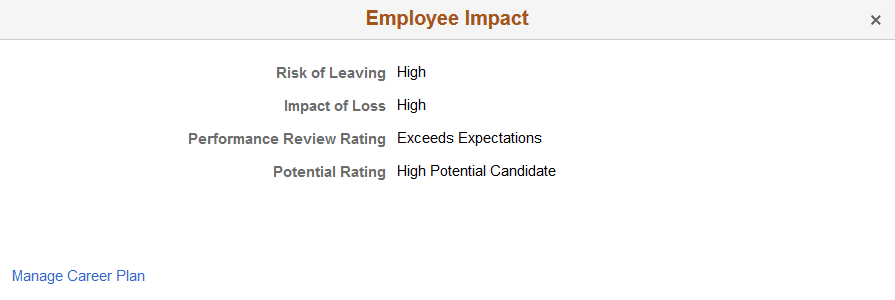
The impact of loss, risk of leaving, and potential rating are defined on the career plan. The performance review rating comes from the most recently completed performance document.
| Field or Control | Description |
|---|---|
|
Manage Career Plan link |
Select this link to access the PeopleSoft Human Resources Plan Careers and Successions: Manage Career Plans Component where you can view or modify an employee’s career path using the Career Planning module. |