Preparing and Loading Absence Analytics Data
Before you can analyze absence data using the delivered absence analytics pivot grids, you must first prepare and load your absence data.
Pages Used to Prepare and Load Absence Analytics Data
| Page Name | Definition Name | Usage |
|---|---|---|
|
HGA_EMPREF_RUNCNTL |
Update employee information with the most current data. |
|
|
HGA_PG_RUNCNTL |
Load absence analytics data for a specific date range. |
Refresh Employee Information Page
Use the Refresh Employee Information page (HGA_EMPREF_RUNCNTL) to update employee information with the most current data.
Navigation:
Click Run on this page to initiate the Refresh Employee Info (HGA_EMP_REF) Application Engine process, which updates employee data with the most current data.
Load Absence Analytics Data Page
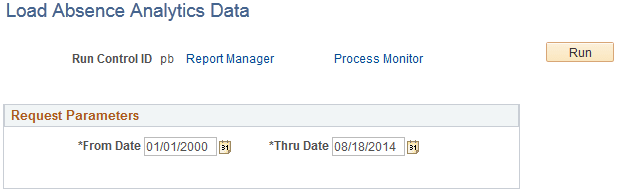
Use the Load Absence Analytics Data page (HGA_PG_RUNCNTL) to load absence analytics data for a specific date range.
Navigation:
This example illustrates the fields and controls on the Load Absence Analytics Data page.
| Field or Control | Description |
|---|---|
|
From Date and Thru Date |
Enter the date range for which you want to load absence analytics data. |
Click Run to initiate the Load Absence Analytics Data (HGA_INIPGDAT) Application Engine process. This process uses the ABSENCE PIVOTS report data definition to load absence analytics data for all open and finalized calendar groups that fall within the specified date range.
Note:
The system loads absence analytics data for individual calendar groups as part of the absence and payroll calculation process (GP_PAYE). The Load Absence Analytics Data process enables you to load absence analytics data for multiple existing calendar groups.
Related Topics