Viewing Positive Input Results
Pages Used to View Positive Input Results
| Page Name | Definition Name | Usage |
|---|---|---|
|
GP_RSLT_CAL_AE GP_RSLT_RUN_AE |
Displays balance adjustments made to frequency-based entitlement elements that are processed for the absence calendar. |
|
|
GP_RSLT_CAL_PI GP_RSLT_RUN_PI |
View all processed positive input that was targeted to a calendar in the calendar group. |
|
|
Positive Input - Details Page |
GP_RSLT_PI_COMP_SP |
View detailed user instructions on the Positive Input - Details page. |
|
Results by Calendar - Supporting Element Overrides Page |
GP_RSLT_PI_SOVR_SP |
View detailed user instructions on the Positive Input - Supporting Elements page. |
|
GP_RSLT_CAL_GPI GP_RSLT_RUN_GPI |
View resolved and unresolved positive input that was created for another calendar from: a generated positive input section of the process list; the absence take process; and payable time that was retrieved from Time and Labor. |
|
|
Results by Calendar - Positive Input - Details Page |
GP_RSLT_GPICOMP_SP |
Displays detailed information for a system-generated instance of positive input. |
|
GP_RSLT_GPISOVR_SP |
Displays information for supporting elements that are associated with a system-generated instance of positive input. |
Positive Input - Absence Page
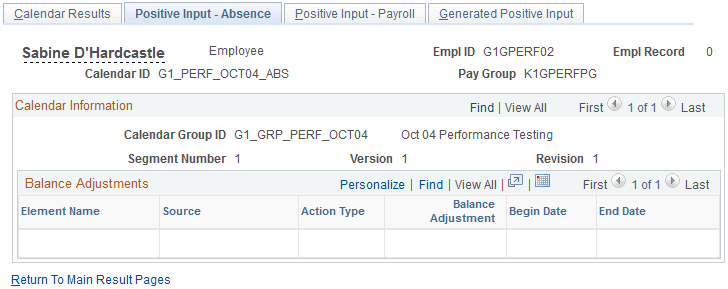
Use the Positive Input - Absence page (GP_RSLT_CAL_AE) to view balance adjustments made to frequency-based entitlement elements that are processed for the absence calendar.
Navigation:
-
Click the Positive Input - Absence link on the Calendar Results page.
-
Click the Positive Input - Absence link on the Calendar Group Results page.
This example illustrates the fields and controls on the Positive Input - Absence page.
| Field or Control | Description |
|---|---|
|
Source |
Absence means that the instance of positive input was created by the Absence Take process. |
|
Balance Adjustment |
The number of units by which the entitlement balance for this absence take element is being adjusted, if applicable. |
|
Begin Date and End Date |
The first day and last day of the absence event. |
Positive Input - Payroll Page
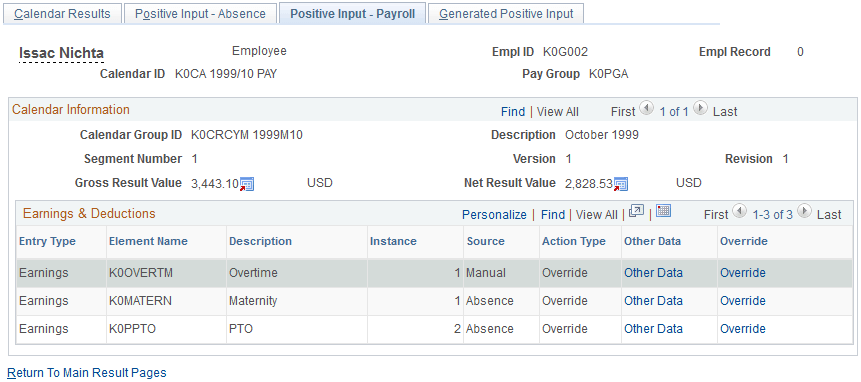
Use the Positive Input - Payroll page (GP_RSLT_CAL_PI) to view all processed positive input that was targeted to a calendar in the calendar group.
Navigation:
-
Click the Positive Input - Payroll link on the Calendar Results page.
-
Click the Positive Input - Payroll link on the Calendar Group Results page.
This example illustrates the fields and controls on the Positive Input - Payroll page.
Earnings & Deductions
| Field or Control | Description |
|---|---|
|
Entry Type |
Displays the entry type. |
|
Element Name |
Displays the element name. |
|
Description |
Displays the element description. |
|
Source |
Displays the origin of the positive input. Values are: Absence: The instance was generated by the Absence Take process. Gen PI (generated positive input): This instance was created through a generated positive input section of a process list. Manual: The instance was manually entered into the system. Time&Labor: The instance was received from Time and Labor. |
|
Other Data |
Click to access the Details page to view the detailed instructions that were entered on the Positive Input - Details page. |
|
Override |
Click to access the Positive Input - Supporting Element Overrides page to view any override information that was entered on the Positive Input - Override page. |
Related Topics
Generated Positive Input Page
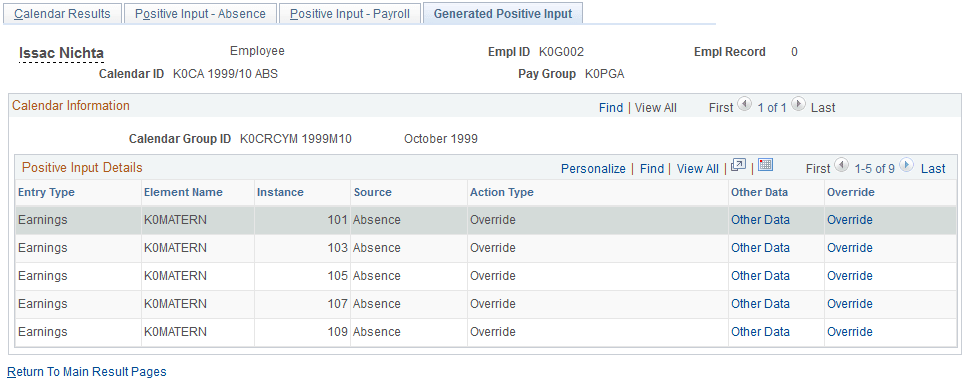
Use the Generated Positive Input page (GP_RSLT_CAL_GPI) to view resolved and unresolved positive input that was created for another calendar from: a generated positive input section of the process list; the absence take process; and payable time that was retrieved from Time and Labor.
Navigation:
-
Click the Generated Positive Input link on the Calendar Results page.
-
Click the Generated Positive Input link on the Calendar Group Results page.
This example illustrates the fields and controls on the Generated Positive Input page.
| Field or Control | Description |
|---|---|
|
Other Data |
Click to access the Details page where you can view detailed information about the instance of positive input. |
|
Override |
Click to access the Supporting Element Overrides page where you can view information for supporting elements that are associated with the generated instance. |
Results by Calendar- Supporting Element Overrides Page
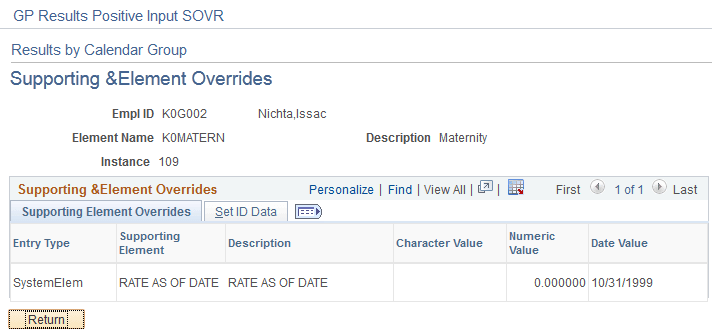
Use the Results by Calendar- Supporting Element Overrides page (GP_RSLT_GPISOVR_SP) to view information for supporting elements that is associated with a system-generated instance of positive input.
Navigation:
Click the Override link on the Generated Positive Input page.
This example illustrates the fields and controls on the Results by Calendar - Supporting Element Overrides.
Set ID Data
This tab displays the Set ID associated with the supporting element override.
Related Topics