Correcting a PAR
Consider a scenario where the HR user had selected Correct Personnel Action from the related actions.
On selecting the Correct Personnel Action related action, Request Details page is displayed.
This example illustrates the Request Details Page when Correct Personnel Actions is selected.
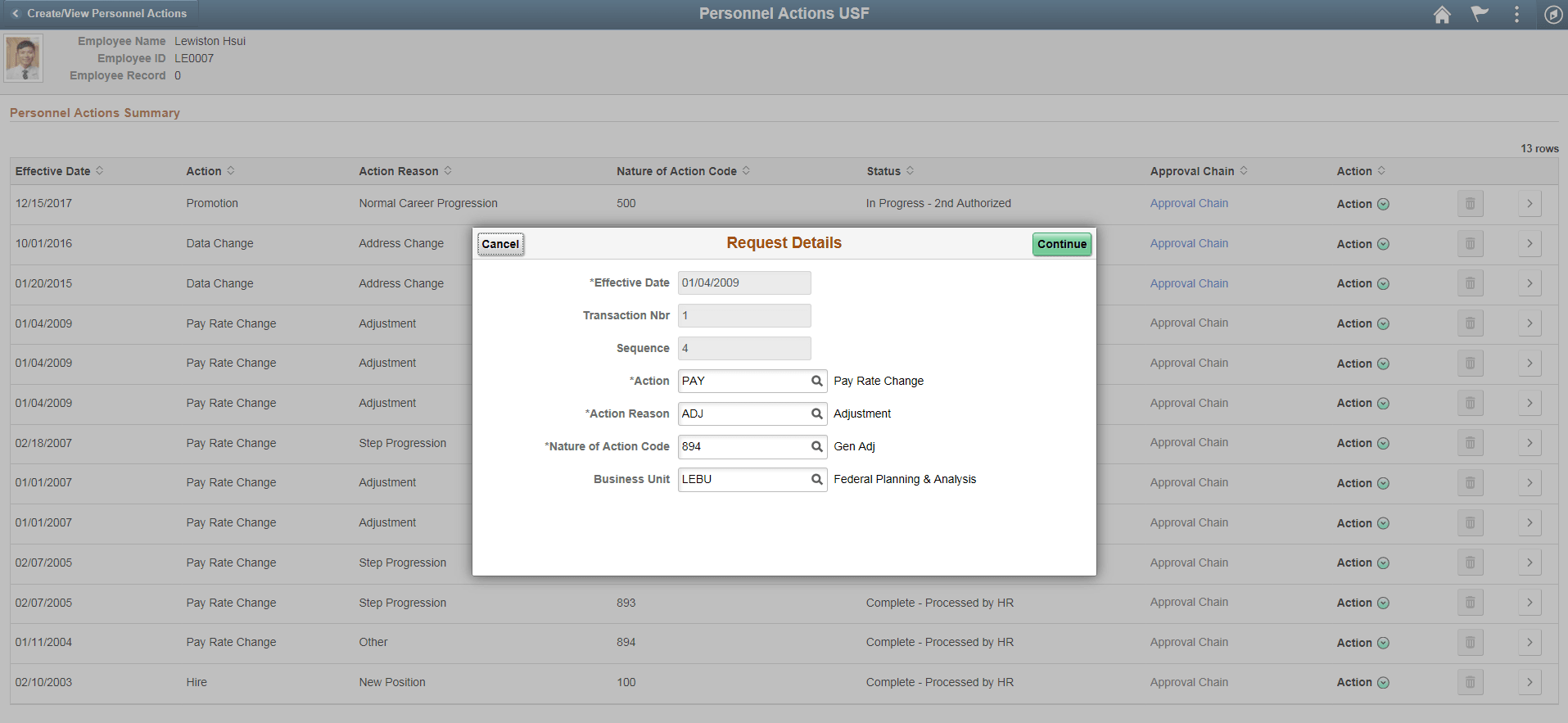
You can edit the fields such as Action Reason, Nature of Action Code and Business Unit.
Click Continue. This opens the Create/View Personnel Actions pages in the context of a PeopleTools Activity Guide. Once you have made the required changes submit the Correction request using the Transaction Summary page.
Note:
All the fields in this page are pre configured in the transaction summary set up page for the mentioned Nature of Action Code.
This example illustrates the Transaction Summary page when Correct Personnel Action is selected.
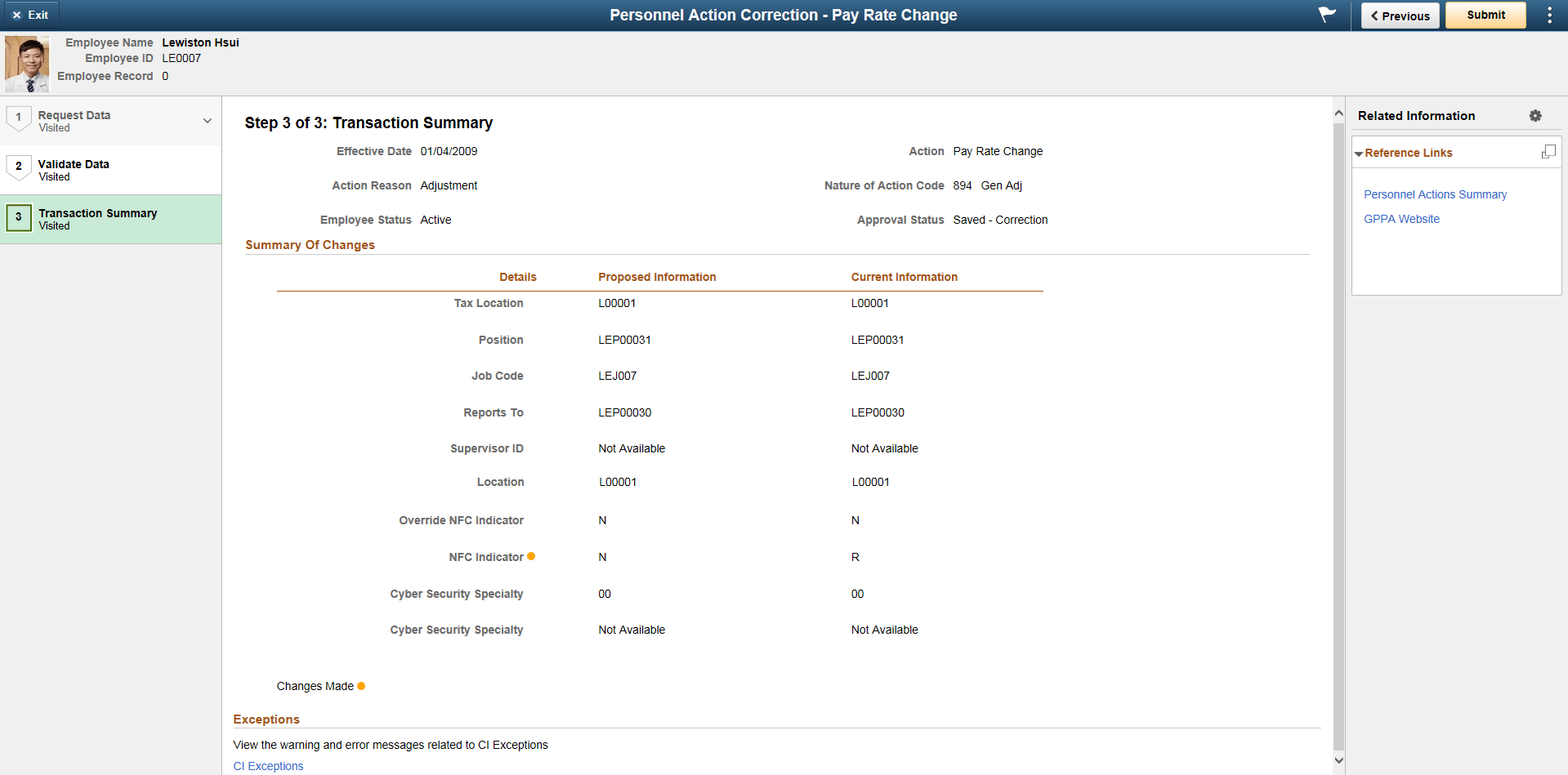
Click the CI Exceptions link to view the warning and error messages related to CI Exceptions.
Once done, click Submit.
Note:
If there are any CI Exception Errors, your request will NOT be submitted. If there are only CI Exception Warnings, then your request will get submitted.
This example illustrates the Confirmation page when Correct Personnel Action Request is submitted.

If there is any warning related to CI exceptions, it will be indicated along with the confirmation message.
This example illustrates the Confirmation page when Correct Personnel Action Request is submitted with warnings.

You can navigate to the Transaction Summary page and click the CI Exceptions link to view the warnings.
Correcting a PAR with Approvals
If Approvals is enabled for Correction action, on submitting the Correction request, the request will be routed for approval. For more information on how to enable Approvals, see Enabling Approvals for Canceling/Correcting a PAR
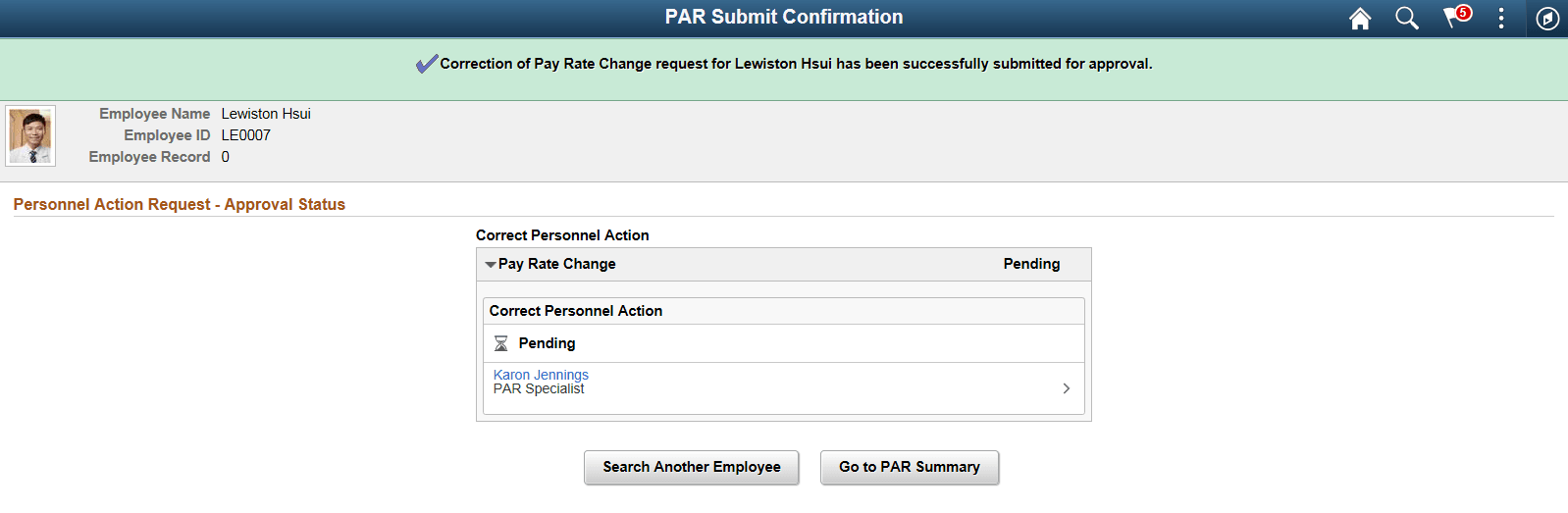
You can view the Approver details and the status of the transaction in the PAR Submit Confirmation page.
This example illustrates the PAR Submit Confirmation page when Approvals is enabled.