Canceling a PAR
Consider a scenario where the HR user had selected Cancel Personnel Action from the related actions.
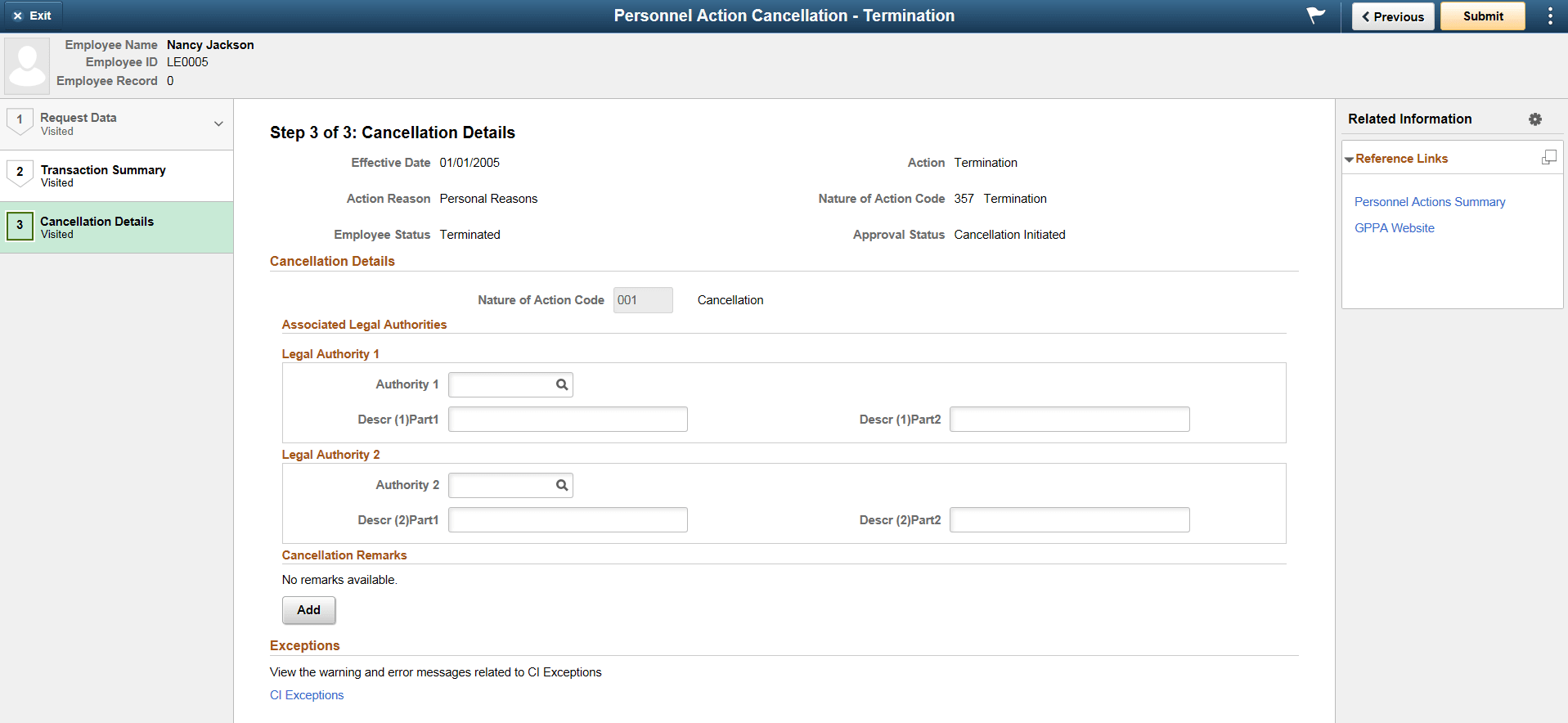
On selecting the Cancel Personnel Action related action, Personnel Actions USF pages appear within the context of a PeopleTools Activity Guide with Cancellation Details page.
This example illustrates the Cancellation Details page.
For more information on Activity Guide Framework for Creating and Viewing Personnel Actions, see Create/View Personnel Actions Activity Guide Framework
Note:
In the cancellation mode, the steps in the Request Data section will be read only and you won’t be able to make any changes to the PAR.
| Term | Definition |
|---|---|
|
Authority 1 and Authority 2 |
Select the applicable legal authority code. Note: At least one legal authority should be selected to submit the cancellation request. |
|
Remark CD |
Select the appropriate remark code. |
|
Insertion Required |
Select the check box if this remark needs to be inserted in standard forms. |
|
Remark Description |
Based on the selected remark code, description is populated. |
|
CI Exceptions |
Click the link to view the warning and error messages related to CI Exceptions. |
Click Submit to complete the cancellation process.
If there is any warning related to CI exceptions, it will be indicated along with the confirmation message.
This example illustrates the Confirmation page when Cancel Personnel Action Request is submitted with warnings.

You can navigate to the Cancellation Details page and click the CI Exceptions link to view the warnings.
When you perform a PAR Cancellation transaction, Cancellation Details is the only step in the Activity Guide that is mandatory to complete. Based on the requirement, you can hide or unhide the remaining steps using Page and Field Configurator. For more details, see Enterprise Components: Using Page and Field Configurator
Note:
Oracle recommends the users to enable Data Control step, Transaction Summary step and Cancellation Details step.
Canceling a PAR with Approvals
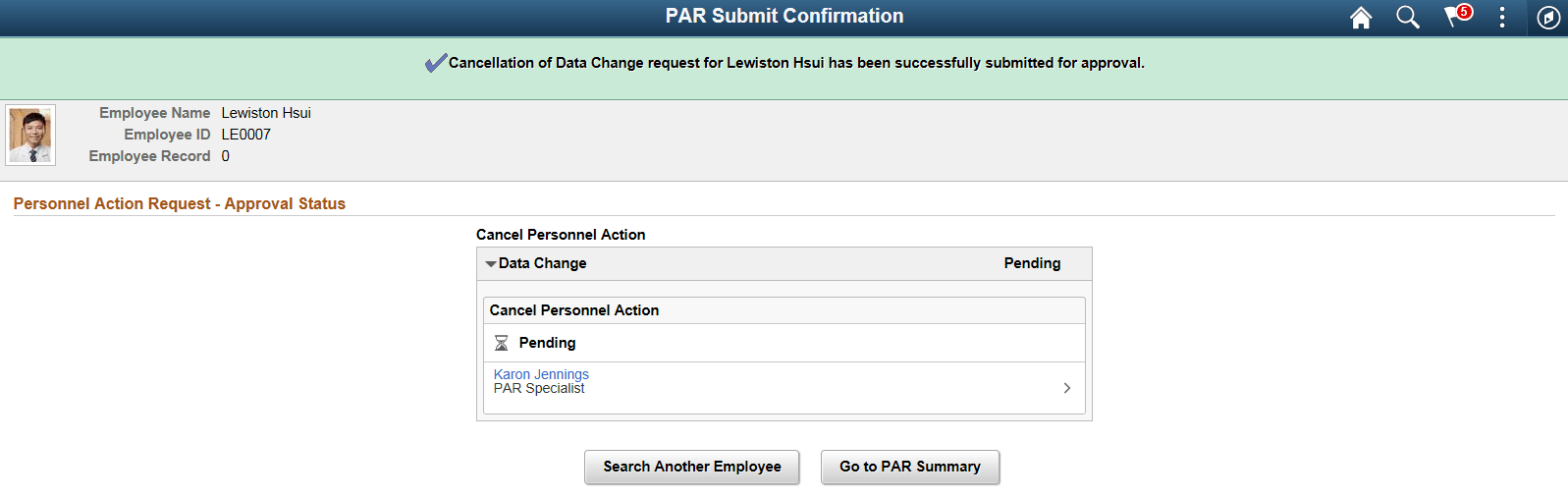
If the Approvals is enabled, on submitting the cancellation request, the request will be routed for approval. For more information on enabling Approvals, see Enabling Approvals for Canceling/Correcting a PAR
You can view the Approver details and the status of the transaction in the PAR Submit Confirmation page.
This example illustrates the PAR Submit Confirmation page when Approvals is enabled for Correction Request.