Understanding the PAR System
In an organization, the records of employees will have constant updates like hire, promotions, leaves of absence, layoffs, retirement, pay rate changes, awards, and so on. To maintain both current records and a complete history of employee job data, the administrators regularly submit PARs for these changes in PeopleSoft Human Resources.
This topic provides an overview on how to use PeopleSoft Fluid User Interface to manage the Administrator PAR transactions for U.S Federal Government Agencies.
The fluid PAR interface provides a simple to use, intuitive application for Federal HR Administrators to perform various Federal Personnel Action Request transactions. Using the fluid Interface an administrator can quickly create, process and authorize the personnel action requests without navigating to multiple components. It provides you a guided way to enter data requests in a component using Activity Guide Framework and displays only the relevant fields, using the benefits of Page and Field Configurator utility. You can also easily configure multiple approval flows and view the synopsis of changes as an approver and as a requester.
The diagram shows a high level workflow for Administrator PAR transactions.
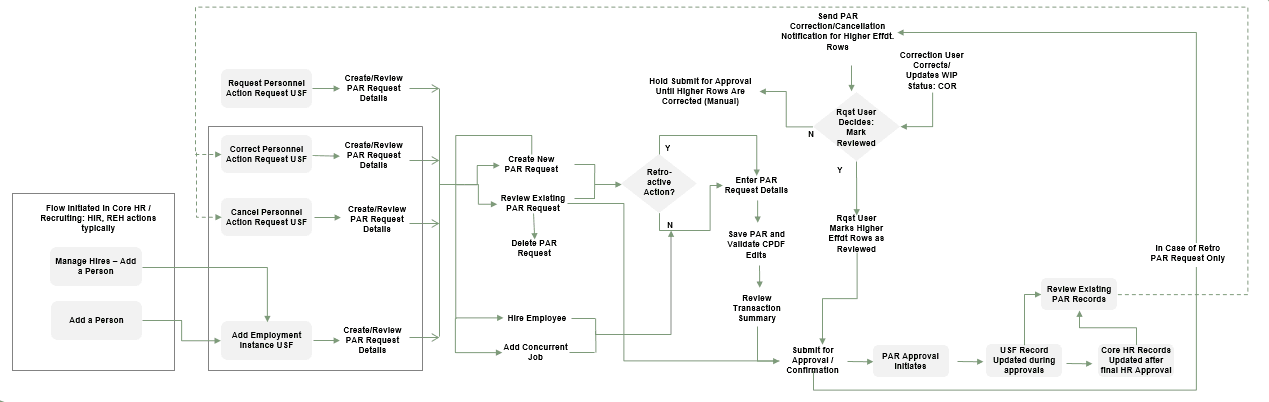
As a Federal HR Administrator, to create a PAR:
-
Access the Create Personnel Action USF Tile from your homepage.
-
Select the employee.
-
Click the Create Personnel Action button.
-
Enter the effective date. If you enter a past date (prior to the latest PAR row) as the effective date, system automatically identifies and process the request as retroactive personnel action request. For more information, see Creating a Retroactive PAR.
-
Enter the PAR request details.
-
Save PAR.
-
Validate the request details and review errors, if any.
-
Review the details using Transaction Summary before submitting for review. For information on configuring the fields to be displayed in Transaction Summary, see Defining Transaction Summary Configuration.
For more information on creating a Personnel Action Request, see Personnel Action Request Page.
To approve a PAR:
-
Access the Approvals tile from your homepage.
-
Select the Personnel Action Request.
-
Review the summary of changes to Approve, Deny, or Pushback the request.
For more information, see Authorizing and Approving Personnel Actions Using Fluid.