Creating Paysheets Automatically
Note:
You can run the Create Paysheet process for on-cycle pay runs only. You must enter paysheets for off-cycle pay runs individually.
Pages Used to Create Paysheets Automatically
| Page Name | Definition Name | Usage |
|---|---|---|
|
Presheet Audit Report Page |
RUNCTL_PRESHEET |
Run PAY034 to generate a report to verify the integrity of the payroll and benefits setup and the employee data. Before creating paysheets, run this optional report. This report scans all the tables required by the Create Paysheet process and identifies orphan records and codes. |
|
RUNCTL_PAYSHEET |
Specify a pay run ID and create a paysheet. Also, use to confirm a pay run that processed paysheets loaded with variable compensation data. |
|
|
PAY_MESSAGES |
View payroll error messages that arise when creating paysheets. |
Related Topics
Understanding the Create Paysheet COBOL SQL Process (PSPPYBLD)
During the Create Paysheet process, the system scans all employees and selects the employees that are scheduled to be paid for the specified pay period. It recognizes them because their pay groups are assigned to a pay calendar entry that is associated with the pay run ID.
When you create paysheets, the system performs the following tasks:
-
Initializes input for salary or hourly rates, hours, additional earnings, tax methods, and accounting information.
-
Provides a data entry point for hours, additional earnings, one-time deductions, one-time garnishments, one-time taxes, and overrides to previously established employee-level data (such as the department to which it charges earnings).
-
Provides for earnings and hours to be divided among two or more departments, accounts, or locations.
-
Uses the pay calendar and holiday schedule to automatically set up the holiday earnings code and hours for pay periods that contain holidays, using the holiday earnings code from the Pay Group Table - Calc Parameters (Pay Group table - calculation parameters) page.
-
Establishes prorations for employees who work for only part of a pay period or have a data change (such as a pay increase or department change).
-
Creates multiple lines for employees who work at multiple jobs during a pay period (if you use the Multiple Job feature and established multiple jobs, or employment record numbers, for the employees).
-
Provides for printing turn-around or data-entry documents, which you can distribute to department managers or supervisors.
-
Automatically approves paysheet data, as specified by the Confirmation Required check box on the Pay Group Table - Process Control page.
-
Automatically creates multiple lines for Fair Labor Standards Act (FLSA) employees when the FLSA period is smaller than the pay period.
Understanding Pay Run IDs
To indicate for whom you want to create paysheets, specify a pay run ID on the Create Paysheets page. This pay run ID groups together pay calendar entries from different pay groups for payroll processing.
When you set up the payroll process tables, you assigned a pay run ID to each pay calendar entry. At this point, you already know how to organize the payroll cycles, and whether to run paysheets for multiple pay groups and companies at the same time by combining them under the same pay run ID.
All pay calendar entries that share a pay run ID generally have the same pay period end date, but not necessarily the same pay frequency. In most cases, you set up a different pay run ID for each pay period end date on the Pay Calendar Table page.
Related Topics
Create Paysheets Page
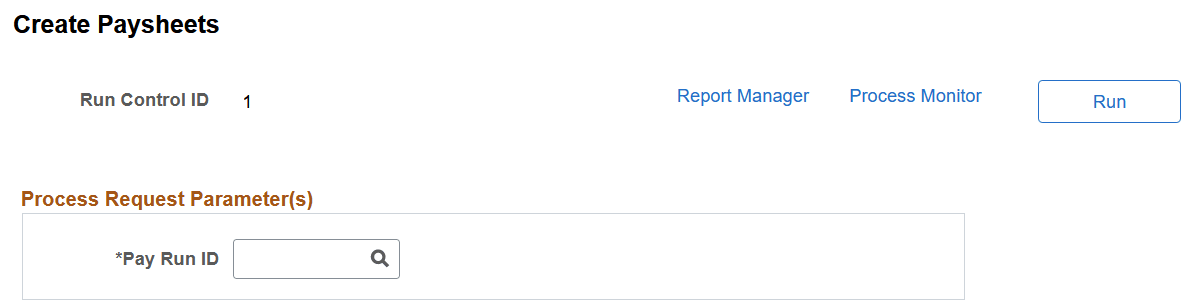
Use the Create Paysheets page (RUNCTL_PAYSHEET) to specify a pay run ID and create a paysheet. Also, use to confirm a pay run that processed paysheets loaded with variable compensation data.
Navigation:
This example illustrates the fields and controls on the Create Paysheets page.
| Field or Control | Description |
|---|---|
|
Pay Run ID |
You already set up pay run IDs and associated them with pay calendar entries. Note: Use the Pay Run table to verify the accuracy of the selected group to be processed. This table displays every company and pay group calendar entry that you linked to the pay run ID. |
Review Payroll Error Messages Page
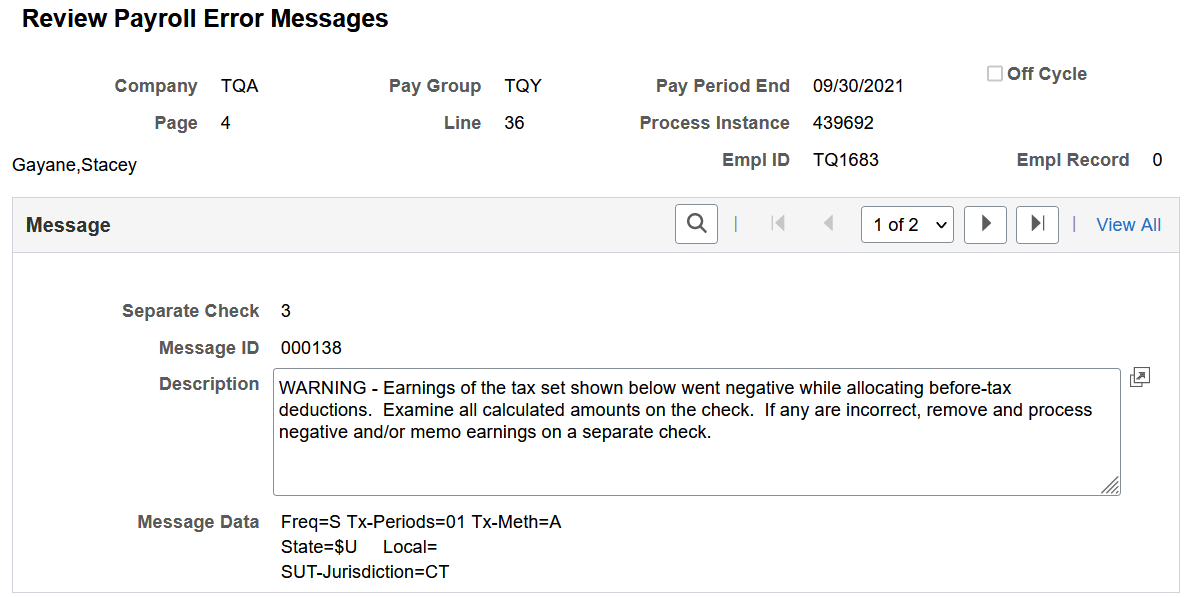
Use the Review Payroll Error Messages page (PAY_MESSAGES) to view payroll error messages that arise when creating paysheets.
Navigation:
This example illustrates the fields and controls on the Review Payroll Error Messages page.
| Field or Control | Description |
|---|---|
|
Page |
If the error is for a specific employee, this field displays the paysheet page number. |
|
Line |
If the error is for a specific employee, this field displays the paysheet payline number. |
Message
| Field or Control | Description |
|---|---|
|
Separate Check # (separate check number) |
This field appears if the error is for an employee and the error occurred on a separate check. |
|
Message ID |
The Management Information Systems department uses this to find and correct errors. |
|
Message Data |
If the error is associated with an object, such as an earnings code, this field displays the object ID. Note: The Payroll Error Messages report (PAY011) also lists errors related to employee data. |
Related Topics